
Each section groups the problems of one part of the module, with the cause and what to do. Supplement plans are in Supplements, in the side menu, in the Management group.
Access and permissions
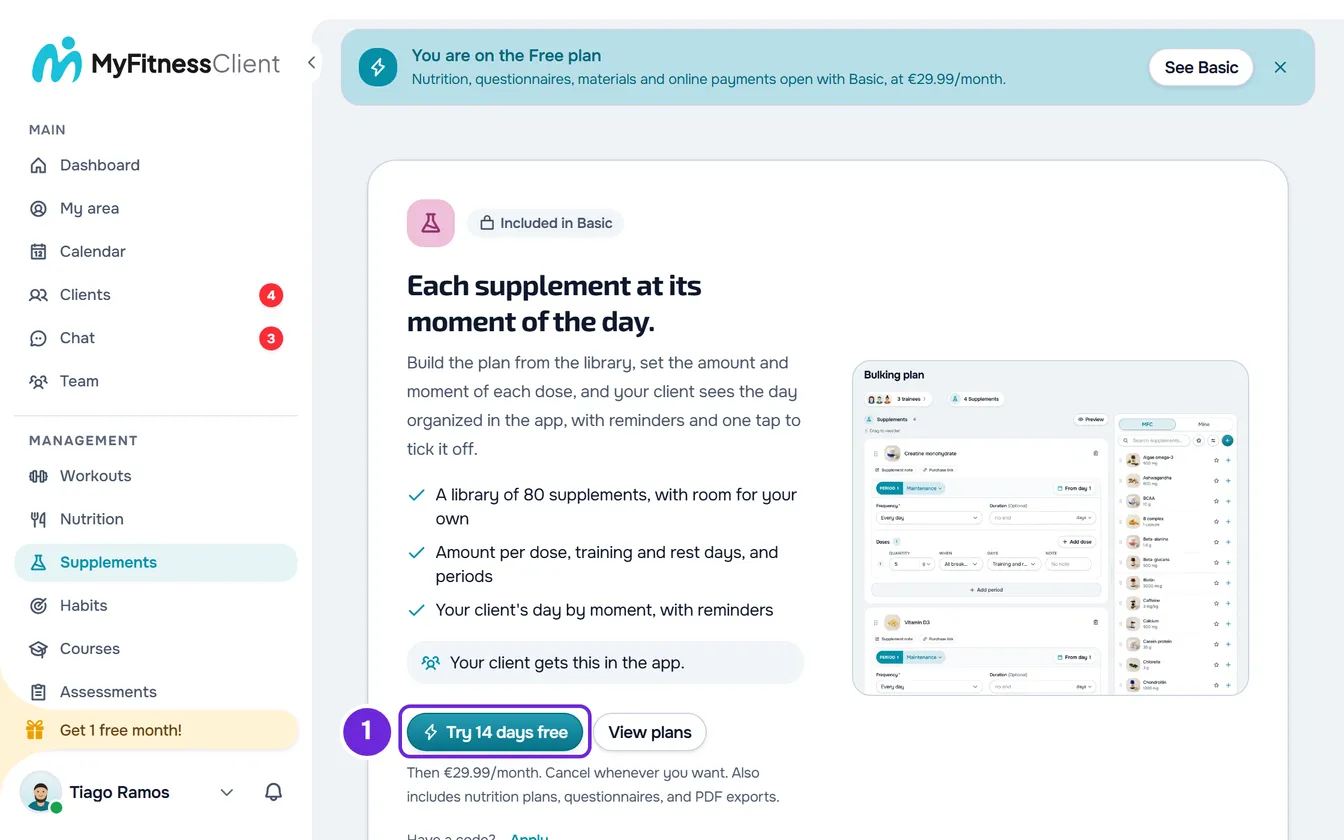
| What you see | Why it happens | What to do |
|---|---|---|
| Supplements is in the menu, but the page shows an introduction to the module and a button to change plans, instead of the plans. | Your MyFitnessClient account plan does not include Supplements. The item stays in the menu anyway. | To use the module, switch to a plan that includes it: the button on the page takes you to that plan's checkout. |
| In a team workspace, the page shows an error instead of the plans. | In a team workspace, the plan that counts is the workspace owner's, not yours. If their plan does not include Supplements, the requests are refused. | Talk to the workspace owner. |
| “Our services seem to be down” instead of the page. | Your account plan could not be read because of a connection failure. It does not mean that the plan does not include Supplements. | Wait: the page opens on its own when the connection comes back. To try right away, select Try now. |
| Supplements does not appear in the menu, or the page shows “No permission to access”. | You are a member of a team without the Supplements permission with View. | Ask whoever manages the team for that permission. |
| You see the plans, but not the Create plan button or the library's New supplement. | The Supplements permission with Create is missing. Duplicate also requires it. | Ask whoever manages the team for that permission. |
| The plan opens read-only, with “You can only view this. To make changes, ask whoever manages the team for edit permission.” | The Supplements permission with Edit is missing. Without it there is also no Edit or Delete in the list, and you cannot assign, remove or change a client's dates. | Ask whoever manages the team for that permission. |
| “You have more active clients than your plan allows. Choose which to keep or upgrade your plan.” when saving. | The account is frozen: you have more active clients than the account plan allows. Every change in Supplements is refused, including marking doses for a client. Viewing the plans still works. | Choose which clients stay active or change plans. |
More on each case: Feature locked by your plan: what it means, “Our services seem to be down” and section under maintenance, “No permission to access” and menu items missing for a member and You have more active clients than your plan allows.
The client cannot see the plan
A client only sees a supplement plan you assigned to them, between the start date and the end date, while their coaching with you is active and their plan with you includes Supplements. To find the cause:
- In Clients, open the client's profile and select the Supplements tab.
- If Client is not active appears, the coaching is closed, because the client was archived or their access ended. The client does not get the plan until the coaching is active again.
- If No active plan appears, the client has no supplement plan from you: select Assign Plan and choose one.
- If the plan appears, check the Start and End dates, under the week strip. Before the start and after the end, the client does not see the plan. To change them, select the pencil next to the end date.
- If the client has a recurring plan or a pack with you, check in Payments > Plans that this plan has Supplements under Includes. Without a recurring plan or pack, the client gets every section.
Other causes:
- The coaching is scheduled: the client only sees the plan from the day their access opens.
- You removed the plan from them, deleted the plan or assigned them another supplement plan. Each client has one supplement plan from you at a time: assigning another one replaces the previous one.
- In Payments, Settings tab, you chose They must pick to come in under Who picks the plan, and the client connected with you after that and has not picked a plan yet. Until they pick one, they only see the catalog and the chat.
- No supplement in the plan is taken on that day, for example in a plan with supplements only on certain days of the week.
- In the app, offline, the client only sees the days the phone saved. On the other days, “No internet connection” appears.
What the client sees in each case is in The Supplements page is empty or missing. To assign and change dates from the plan, see Assign a supplement plan to clients. What a client's recurring plan or pack includes is covered in Create recurring plans and packs for clients and Let clients choose and pay for their plan themselves.
Assigning the plan
| What you see | Why it happens | What to do |
|---|---|---|
| The client does not appear in the Assign to clients list. | Only clients whose coaching is active or scheduled appear: an archived client or one whose access ended is left out. Clients who already have this plan are in the “Already assigned to…” line, not in the list. A team member who only coaches the clients assigned to them only sees those. | Reactivate the client, or ask whoever manages the team to assign the client to you. |
| After confirming, the message says some clients were skipped. | The plan is only assigned to clients whose coaching with you is active or scheduled and, for a team member, only to the clients they can manage. The others are left out, for example a client archived in the meantime. | Check the status of those clients in Clients. |
The client does not get the plan notification or the reminders
| What you see | Why it happens | What to do |
|---|---|---|
| You assigned the plan and the client did not get the “New supplement plan” notification. | The notification only goes to clients who did not have this plan yet and whose coaching is active. It is not sent when you assign the plan again to someone who already has it or change the dates, when the client is scheduled, or when their plan with you does not include Supplements. If the client turned off Supplement reminders or push notifications, the notification stays in the app's bell but does not reach the phone. | Nothing to fix in the plan: the client sees it on the Supplements page from the start date. If needed, let them know in the chat. |
| The client says they do not get dose reminders. | Reminders are only sent when the coaching is active, push notifications are on, Supplement reminders is on and their plan with you includes Supplements. They are not sent for doses already marked, for As needed or N days per week supplements, for Training days only or Rest days only doses on a day when it is not known whether there is training, or for Before training when the training time is unknown. The During training reminder is only sent when the client starts a workout in MyFitnessClient, and the After training one when they finish it. | Ask the client to check push notifications and Supplement reminders in their settings. For Before training, set the usual training time (next section). |
Reminders only go to the client: you see the doses in the client's history. The client's side is in Turn supplement reminders on or off and Not receiving notifications on your phone or in the browser.
What the client sees on the day
| What you see | Why it happens | What to do |
|---|---|---|
| A Training days only dose shows up for the client every day. | This is on purpose: the day's list is always the same and the condition appears as a tag on the dose. The type of day only decides the reminders. | Nothing to fix. |
| The client cannot mark a per-kg dose: the amount shows per kg, for example “3 mg/kg”, and a notice says a weight is missing. | The amount is per kg of body weight and the client has no record with a weight, in an assessment or a check-in. | Record the client's weight in an assessment, or ask them for a check-in with their weight. Until then, select the dose amount and change it for that day only: it becomes a fixed number and the dose can be marked. |
| Before training, During training or After training appears without a time. | The training time for that day is unknown: there is no completed workout, no scheduled time and no usual training time. The usual time does not count on a day known to be a rest day. | In the client's profile, Supplements tab, select Schedule and choose the Usual training time. The client can also choose it in My schedule. |
| A moment says “until 22:00” instead of a time range. | The dose is at a Specific time: the moment is named after the time, and “until” marks the end of the window, 30 minutes later. | Nothing to fix. |
More in “An up-to-date weight is needed to calculate the amount” and Set your supplement times.
Marking doses for a client
| What you see | Why it happens | What to do |
|---|---|---|
| In the client's profile, doses cannot be marked, or the mark reverts with an error message. | One of these: you are a team member without the Clients permission with Create; the day has not come yet (“This day hasn't come yet.”); the client is scheduled: the day says “The client's access hasn't started yet.” and stays read-only until their access opens; the dose is per kg and the weight is missing; the account is frozen. | Fix the cause that applies. For a scheduled client, log from the day their access opens. |
| “Too many requests. Wait a moment.” | Marking, unmarking, changing amounts, changing times and deleting days count together, up to 30 actions per minute. | Wait a minute and continue. |
How to mark doses and view the history: Log a client's supplement doses and view the history.
Editing plans
| What you see | Why it happens | What to do |
|---|---|---|
| The plan name does not stick. | You deleted the whole name: a plan cannot be left without a name, so the previous name is kept, even though the field stays empty until you reload the page. Or you typed a name longer than 100 characters in Settings: “Invalid data. Check the fields.” appears and the name is not saved. The page title does not let you type more than 100. | Enter a name with 1 to 100 characters. |
| “This period needs a duration so the next one can start.” | You deleted the duration of a period that is not the last one. Only the last period can be left without an end. | Give that period a duration, or remove the periods after it. |
| You added a supplement to a plan that was already running and the client started it in the first period, not on the plan day they are on. | This is on purpose: for clients who already had the plan, an added supplement counts days from the day it was added. That way, a loading phase added on day 30 runs in full. The plan does not change: clients assigned later start it on day 1. | Nothing to fix. |
| After reloading the page, Undo is disabled. | Undo keeps up to 50 steps, only while the plan page is open. Reloading or leaving clears them. It also does not undo Settings or assignments. | Make the change again by hand. |
| The duplicated plan has no clients. | Duplicate copies the supplements, periods, doses, notes, links, photos and appearance, but not the clients or the dose logs. | Assign the copy to the clients. |
| You deleted a plan by mistake. | Deleting removes the plan from every client who had it. There is no option to restore a deleted plan. The dose history is kept. | Duplicate a similar plan or create a new one, and assign it again. |
If Paste here does not appear when you paste a supplement, see The “Paste” button doesn't appear or pasting is refused. Periods are covered in Split a supplement into periods: loading and maintenance; duplicating and deleting in Find, duplicate and delete supplement plans.
Supplement library
| What you see | Why it happens | What to do |
|---|---|---|
| You edited or deleted a supplement in My supplements and the plans did not change. | When a supplement goes into a plan, the plan keeps a copy of the name, brand, photo and link. Changing or deleting the supplement in the library does not change those copies: it only applies the next times you add it. The form, the maximum per dose, the usage note and the anti-doping note that the dose details show come from the library and follow it. | Change it in the plan itself: the link on the supplement card, and the name, brand and photo under Edit, in the supplement details. |
| “Paste a complete https:// link without spaces or sign-in details.” | The link does not start with https://, has spaces or backslashes, contains a username or password, or is longer than 2048 characters. | Copy the product page address from the browser's address bar and paste it again. |
| The photo does not upload: “You have reached your plan storage limit.” or “Could not upload the image.” | In the first case, the account storage has no free space. In the second, the browser could not read the file as an image. | Free up space, or choose another image, for example a JPEG or PNG. |
More in Create and edit your own supplements, with a photo and a purchase link and “Storage limit exceeded”: how to free up space.
History
| What you see | Why it happens | What to do |
|---|---|---|
| The history says Not taken for a dose the client says they took. | The history shows every daily dose the plan asked for that day, and one nobody marked counts as Not taken. Here, “not taken” means “not logged”. As needed doses and N days per week doses do not count among the doses asked for. | Mark the dose for them on that day, or ask them to mark it. |
| Days without a log shows a high number. | It counts the days since the client's last log, in any plan. It shows “--” if they have never logged. | Talk to the client: they have gone that many days without marking doses. |
| A client stopped working with you and their history ends on a certain day. | After the coaching ends, you only see logs up to the day it ended. | Nothing to fix: what they log afterwards is no longer part of your coaching. |
If this did not solve it
Write to MyFitnessClient support, as explained in Contact Support and create a request, and send:
- the name of the supplement plan and, if the problem is with one client, the client's name;
- the exact message, if one appeared, or a screenshot;
- the day and time it happened.
Removing a plan from a client or deleting it does not erase the dose history: the logs stay, with the name and dosage they had.