
Before you start
- In a team workspace, you need the Nutrition > Edit permission. Without it, the plan opens read-only, without these buttons. To save a meal to the library, you also need Nutrition > Create.
- A meal that comes from the library goes into the plan as a copy: changing it in the plan doesn't change the library one, and changing the library one doesn't change the plan. See Library foods and meals: what changes in plans.
- Where the meal goes depends on the plan's mode: in Flexible, at the end of the list; in Weekly (and in older Sequential plans), at the end of the selected day. In Calendar mode, you add from a day in the grid, as in Build a meal plan by weeks in Calendar mode.
Interactive tutorial
Opens in the app and needs you to be signed in.
Steps
To add a meal to a meal plan:
- In the side menu, select Nutrition and open the plan.
- If the plan is in Weekly mode, select the tab of the day the meal goes into, for example “MON”.
- At the end of the meal list, select Add Meal 1. In a plan or a day with no meals, the button is New meal.
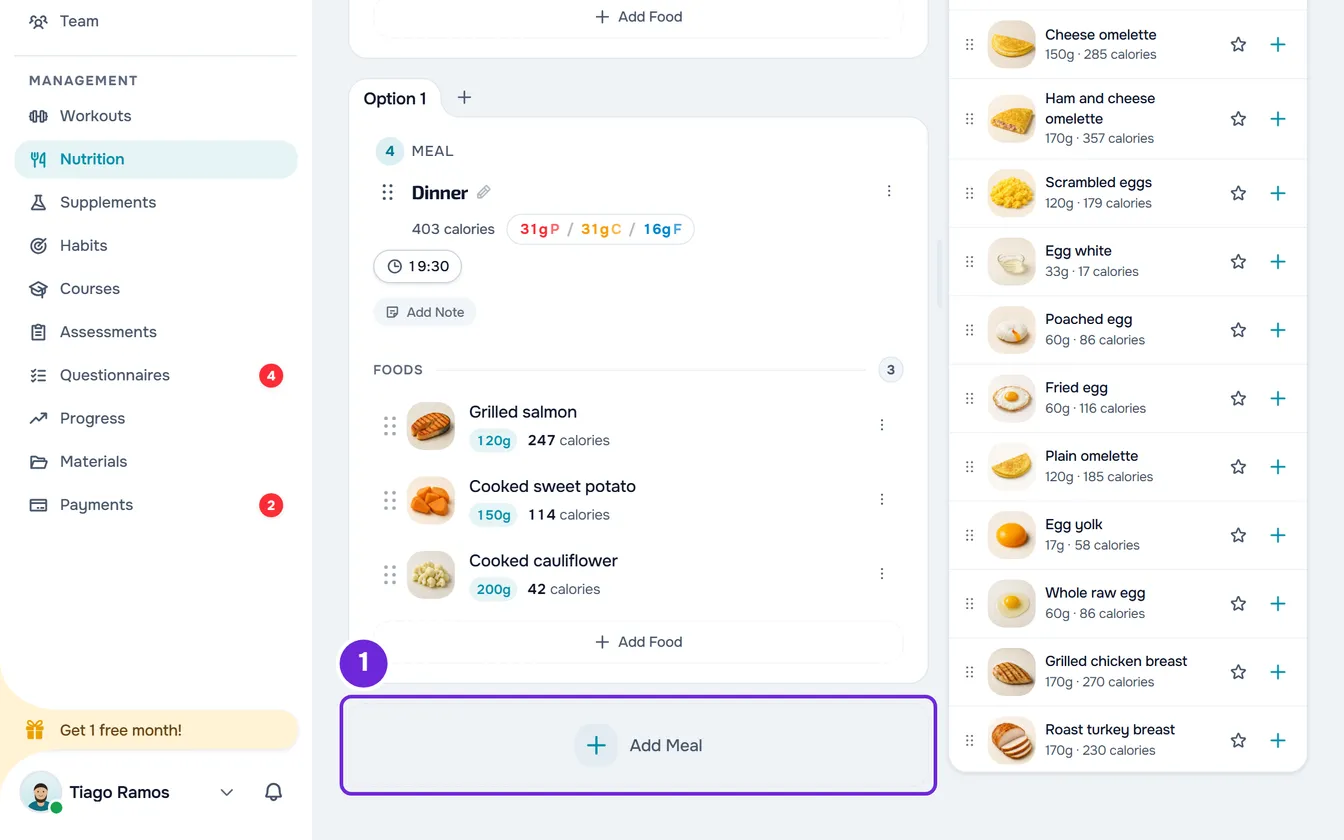
- In the Add Meal window, stay on the Library 1 tab to use meals you already have, or choose Custom to create a meal just for this plan.
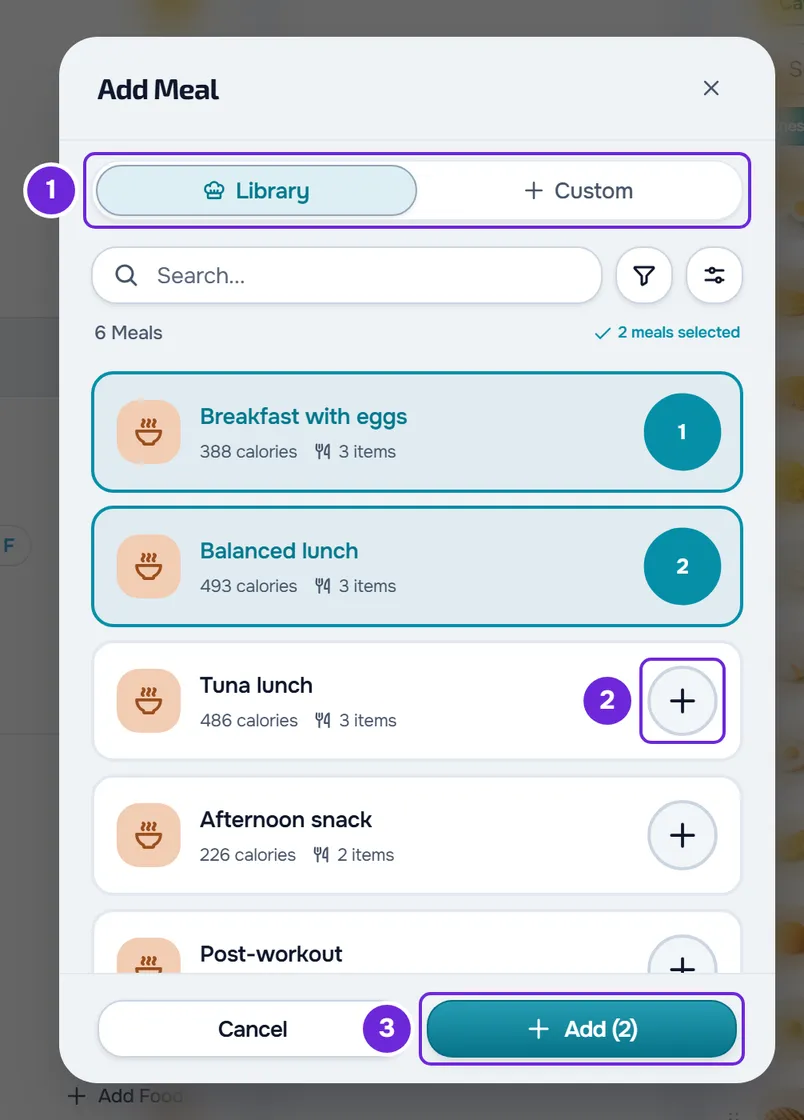
- In Library, tick one or more meals in the circle with the + sign 2 at the end of each row. To see the foods first, select the meal's name: the preview opens, with the Select button.
- In Custom, select No name on the meal card, type the name, up to 50 characters, and confirm with Enter.
- Optional: in Custom, add the time with Set Time, a note with Add Note and the foods with Add Food, as in Add, edit and remove foods in a meal.
- Optional: in Custom, turn on Also save to library to reuse the meal in other plans.
- Select Add 3. With several meals ticked, the button says, for example, “Add (3)” and shows the progress while it saves, such as “Adding 1/3...”.
The window closes, “Meal added” (or “Meals added”) appears and the meal shows up in the plan. Clients who have the plan now see it on the days it belongs to.
On a computer, you can also add library meals through the side panel, without opening this window: see Build a plan with the food and meal side panel.
Library meals
- The meal comes in with the foods, each food's substitutions, the time and the note it has in the library. A name longer than 50 characters is cut at 50, the name limit in the plan.
- In Flexible and Sequential modes, the circle of each ticked meal shows the order it goes in (1, 2, 3); in Weekly it only shows a tick. The counter of ticked meals, at the top of the list, also clears the selection when you select it.
- The search only looks in the meal's name. The funnel filters by calories, in the ranges Snack (under 300 kcal), Meal (300 to 700 kcal) and Heavy meal (over 700 kcal). The sort button has 10 sort orders, from “Most recent” (the default order) and “A → Z” to most or fewest calories, protein, carbs and fat.
- The list loads 30 meals at a time as you scroll down. The filter and the sort only arrange the ones already loaded: to find a specific meal in a large library, search by name.
- With an empty library, the list says “No meals found” and “Create a meal in the library to reuse it.”. To create meals in the library, see The meal library: ready-made meals for your plans.
Create a new meal in Custom
- The name is required: without it, Add stays disabled. The name only counts after you confirm it with Enter or leave the field. The foods can wait.
- You can also give the foods substitutions before you create the meal, as in Add substitutions for a food in the plan.
- With Also save to library on, the library gets the meal's name, time, note and foods. “Meal saved to library” also appears.
- If you close the window after typing the name or adding foods, “Save before leaving?” appears, with Discard and Save and leave.
Change the name, time and note
Each meal card is edited in place. In Calendar mode, select the meal in the grid to open the same card in a window.
- Name: select the name (it has a pencil next to it), type and confirm with Enter or by leaving the field; Esc cancels. Up to 50 characters. An empty name isn't saved and the previous one stays.
- Time: Set Time sets 08:00 right away and opens the picker so you can choose another. To change the time, select it; to remove it, use Remove time, inside the picker. The client sees the time, and it is used for the meal reminder, which they get at that time if they have those reminders turned on.
- Note: Add Note opens a text box under the name, which saves on its own half a second after you stop typing, up to 5000 characters. The box's X deletes the note. The client sees the note on the meal card.
These changes save right away and aren't an Undo step. Undo restores the whole plan as it was before the last recorded action, such as changing the order or adding or deleting a meal: a name, time or note you changed after that action also goes back to what it was.
The meal menu
The card's ⋮ and a right-click anywhere on the card, outside the food rows, open the same menu:
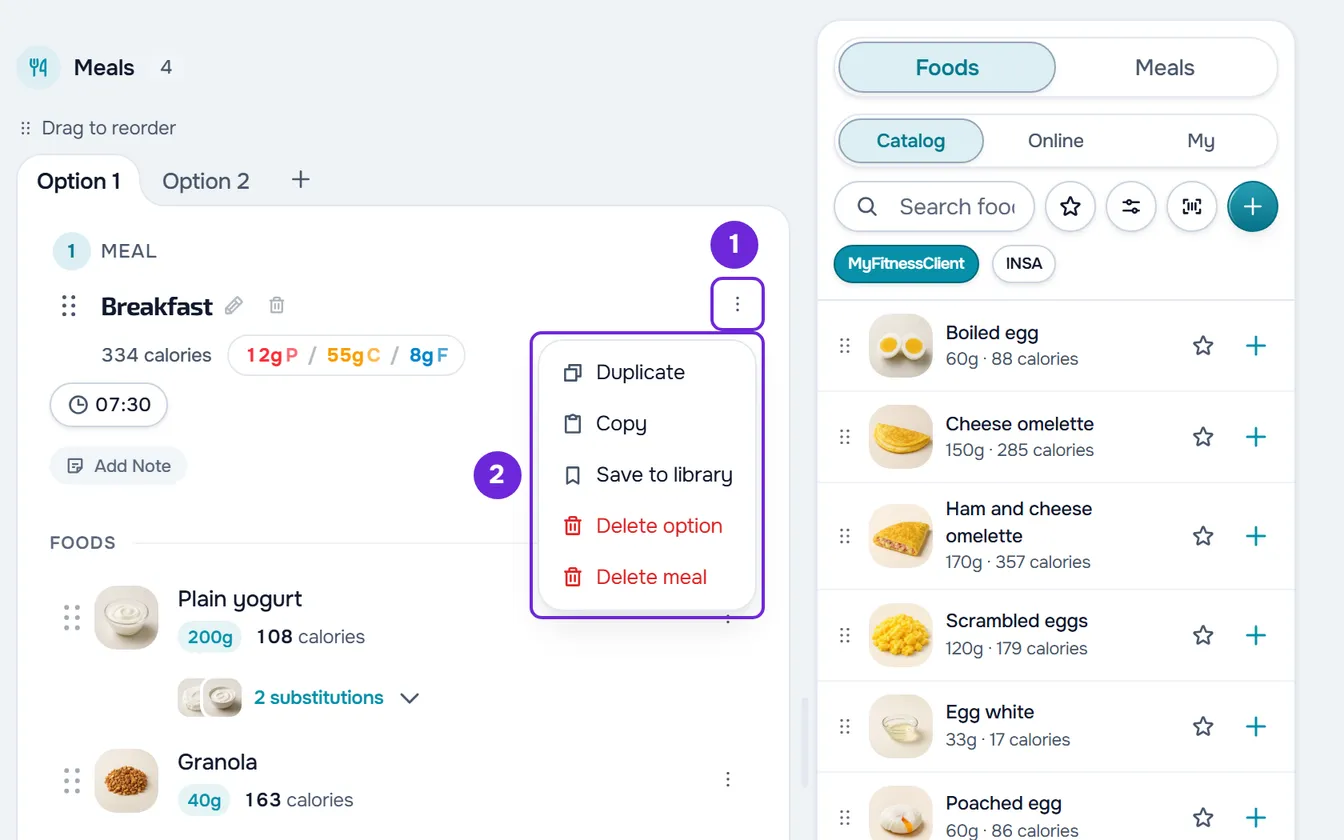
- Duplicate: creates a copy at the end of the same list (or the same day), with the name followed by “(Copy)”, no time, and with the foods, substitutions, options and note. “Meal duplicated” appears.
- Copy: puts the meal on the clipboard, so you can paste it into another day or another plan, as in Copy and paste meals, supplements, questions and lessons.
- Save to library: saves the meal to the meal library, as in “Save a meal to the library”, later in this article.
- Delete option: only on a meal with options, and deletes the open option. See Create meal options for the client to choose from.
- Delete meal: asks for confirmation. The window says “The meal leaves the plan. You can bring it back with Undo while you stay on this plan.”: the Undo button is at the top of the plan. See The meal plan editor: autosave and Undo.
A right-click on an option's tab opens that option and its menu.
Reorder meals and change their day
- Drag the card by the dotted handle next to the name and drop it in another position: a line shows where it will go. It works with a mouse and with a finger, and Esc cancels the drag.
- With the keyboard, reach the handle with the Tab key and use the up and down arrows to move the meal one position at a time.
- In Weekly, the list only shows the meals of the selected day. To move a meal to another day, drag it onto another day's tab and wait a moment over it: the list switches to that day, you see, for example, “Moved to THU”, and you drop the meal where you want.
- The new order saves right away and Undo restores the previous order. To return a meal to the day it came from, drag it back.
Save a meal to the library
To reuse in other plans a meal you built in the plan, select Save to library in the meal's menu. The Save to library window opens with the meal's name, time, note and foods. What you change in that window stays only in the library and doesn't change the plan. Save is only active with a name and at least one food. At the end, “Meal saved to library” appears.
- The menu item only appears with Option 1 open and on a meal that isn't linked to a library meal yet. Once you save, the meal is linked and the item disappears; if you delete that meal from the library, the item comes back.
- A meal that came from the library, or was created with Also save to library on, is already linked. The copy made with Duplicate is linked to the same library meal.
See all meals at a glance
Under the plan's name, the chip with the number of meals, for example “4 Meals”, opens a list of all the plan's meals. In the modes with days, the list is arranged by day, and each meal shows the number of items and, when it has them, the calories, the time and the day. Selecting a meal closes the list and opens its card in a window, where you can edit it. The chip is disabled while you are pasting.
Common problems
Some library meals weren't added
When you add several, each meal saves separately. If one fails, a notice appears with how many were added and how many failed, for example “2 added · 1 failed”, and the ones that were added stay in the plan. Open Add Meal again and tick only the missing ones. If none is added, “Error adding meal” appears.
The Add button is disabled
In Library, you haven't ticked any meal yet. In Custom, the meal's name is missing or you haven't confirmed it with Enter yet.
I don't see Save to library in the menu
The meal is already linked to a library meal (it came from there, you already saved it, or it's a copy made with Duplicate of a linked meal), or you have an option open that isn't Option 1. Select the Option 1 tab and open the menu again.
I can't drag meals or open their ⋮
You are pasting: while you paste, the cards stay locked until you select Done in the paste bar. See The “Paste” button doesn't appear or pasting is refused. If the plan opens read-only, you're missing the Nutrition > Edit permission.
If that didn't fix it, contact support with the plan's name, the meal's name and the exact message that appeared.
Questions
If I change the meal in the library, does the plan update?
No. The plan's meal is a copy made when you added it. To bring the new version into the plan, add it again and delete the old one. More in Library foods and meals: what changes in plans.
Can I use the same meal in another plan?
Yes. Save it to the library and add it to the other plan through Library, or use Copy in the meal's menu and paste it into the other plan.