
Before you start
- In a team workspace, searching for products requires the Nutrition > View permission, and saving them to your foods requires Nutrition > Create. Without the second one, Add does not appear on the product's detail view.
- Products come from Open Food Facts, an open database that anyone can add to. Values may be missing or wrong: keep the pack at hand to check them.
- To scan the barcode with the camera, use a device with a camera, such as your phone. Without a camera, type the code in the search box.
Steps
To save an Open Food Facts product to your foods:
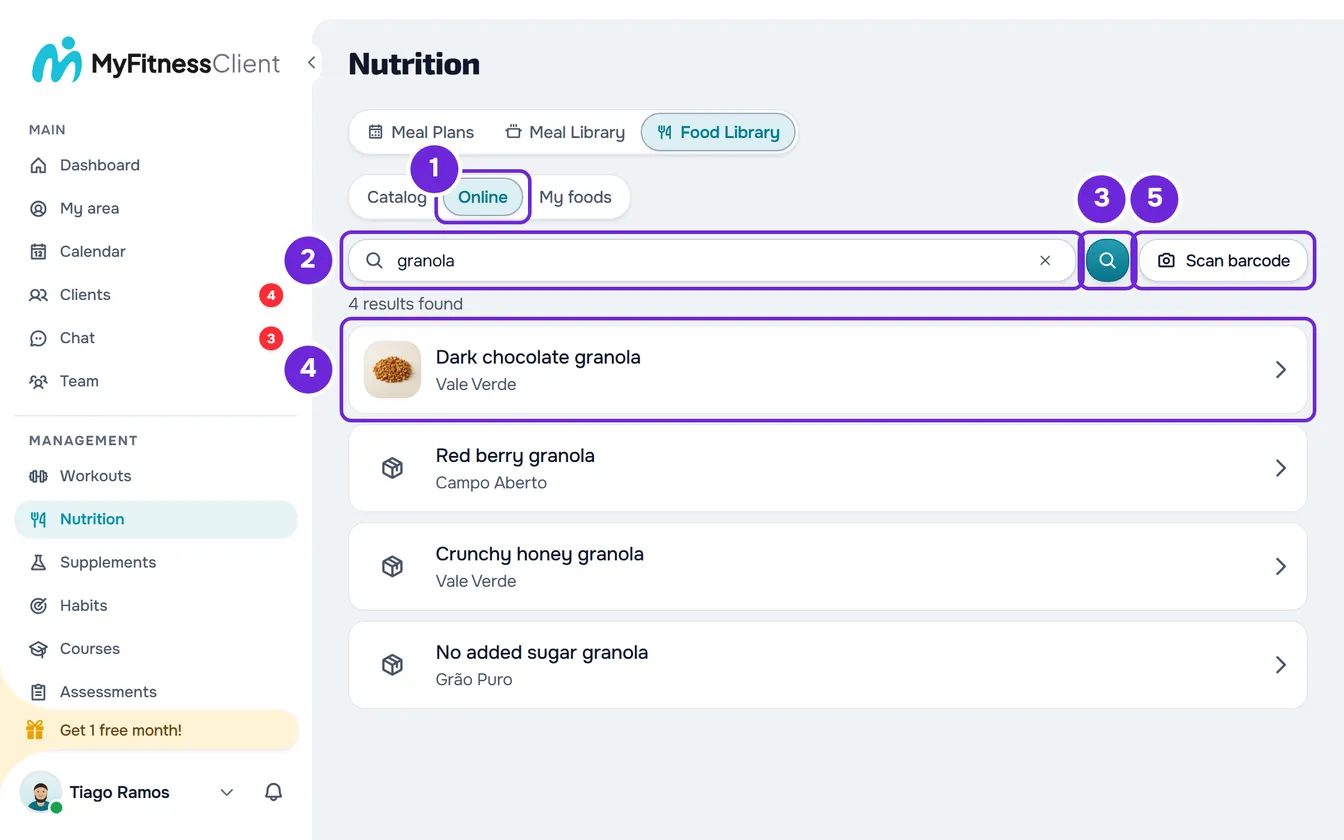
- In the side menu, select Nutrition.
- Select the Food Library tab (on a narrow screen, Foods).
- Select the Online 1 tab.
- In the search box 2, type the product name, with 2 or more characters, or the barcode, with 8 to 14 digits. The search runs 0.4 seconds after you stop typing; the magnifying glass button 3 runs it straight away.
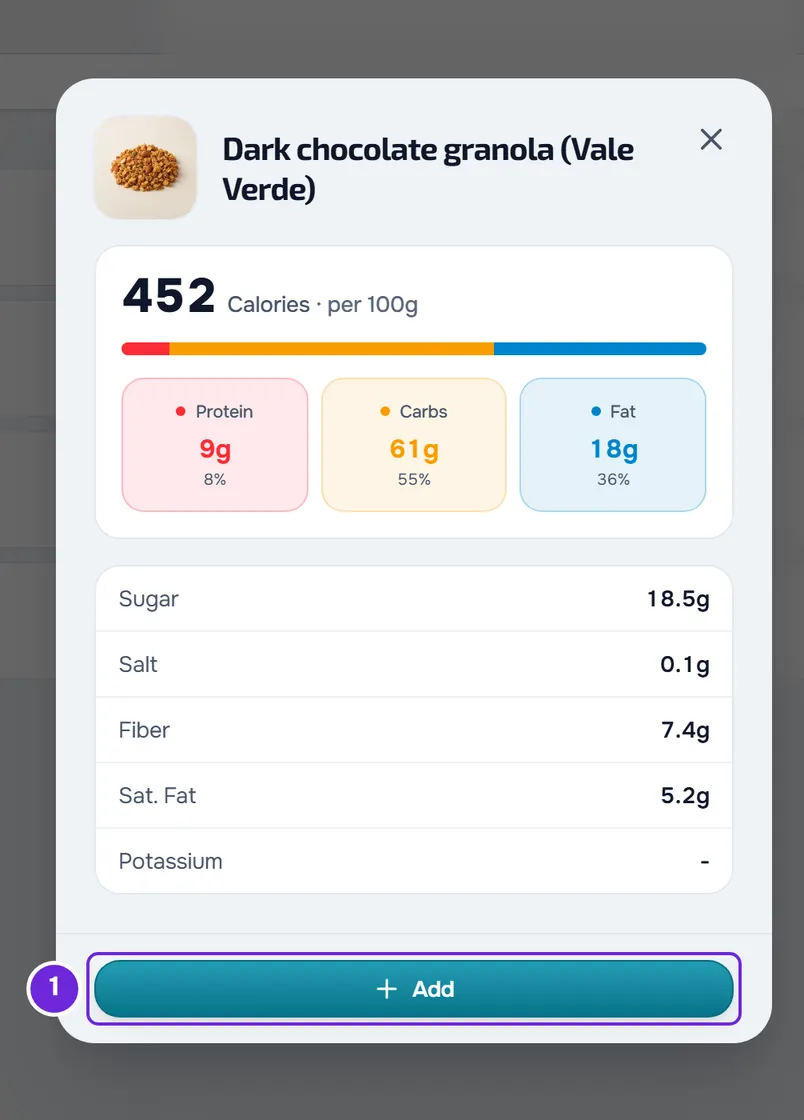
- Select the product 4 in the results list. The product's detail view opens, with the values per 100 g or 100 ml.
- Check the values against the label on the pack and select Add 1. The New Food window opens, filled in with the product's name, brand, unit, photo and values.
- Optional: choose the Category. Open Food Facts does not provide it and, without it, the food goes in the “Other” section.
- If Calories, Protein, Carbs or Fat is empty, type the value from the label per 100 g or 100 ml, or 0 when the label does not have it.
- Select Create.
The window closes, the screen shows My foods and “Food created” appears. The product is now one of your foods, ready to use in meal plans and library meals.
You can also reach the Online tab from the Catalog or from My foods: select Add and, in the Add Food window, Search Online.
In the form, the unit is g, or ml when Open Food Facts gives the values per 100 ml or the pack in ml or liters, and the Quantity starts at 100. You can change any field before creating, following the rules in Create or edit a custom food. If you close the New Food window without saving, the product is not added to your foods.
Scan the barcode with the camera
In the Online tab, select Scan barcode. On a narrow screen, the button shows only the camera icon.
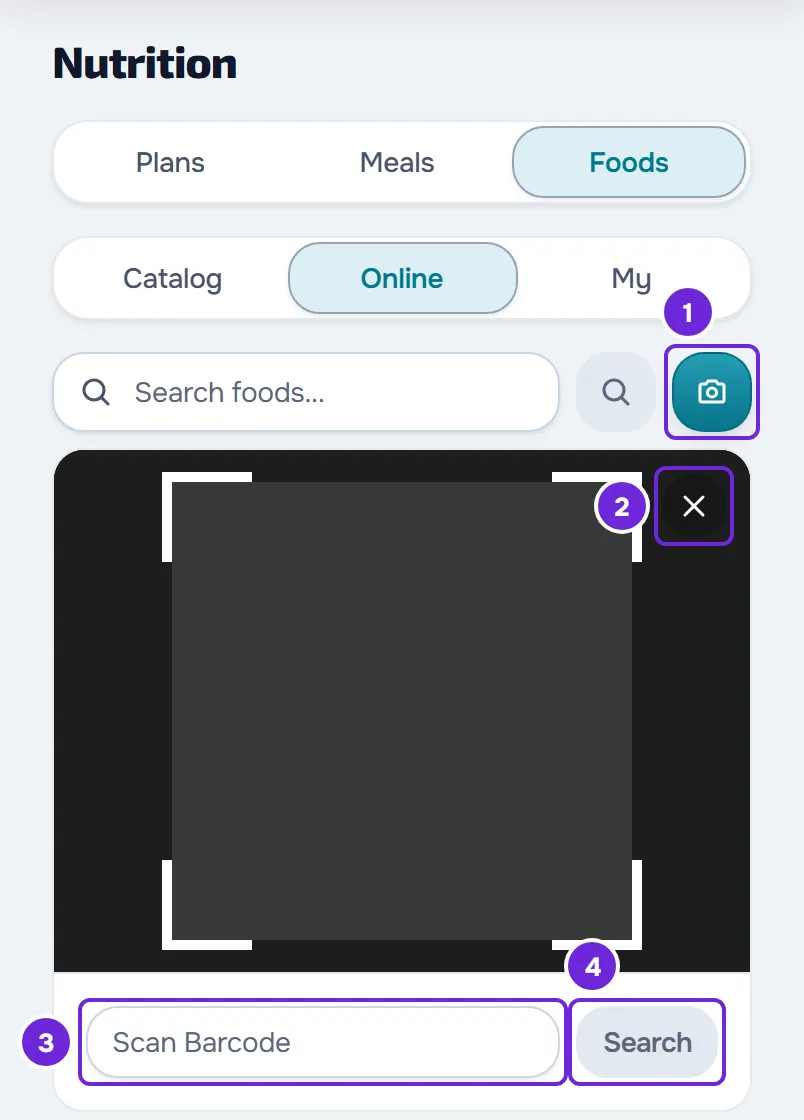
- The first time, the browser asks for permission to use the camera: allow it. The rear camera view opens.
- Point the camera at the bars on the pack. When it finds the product, the camera closes and the product's detail view opens: carry on with Add, as in the steps.
- When the device and the browser allow the flashlight to be controlled, a button that turns it on and off appears in the corner of the image. If the camera opens somewhere dark, the flashlight turns on by itself.
- If the camera does not read the code, type it in the “Scan Barcode” field, under the image, and select Search. The button becomes active from 8 characters.
- The camera only looks for valid product codes, with 8, 12, 13 or 14 digits and the correct last digit. It also reads the QR code on packs that carry the barcode inside it. A QR code with another address shows “That's a QR code, not the product barcode. Point at the barcode on the pack.”, and any other code shows “That code isn't a food product code.”
- A code that did not return a product is not looked up again by the camera for 30 seconds, so the lookup does not repeat while the pack is in front of it. Closing the camera, with the X in the corner of the image or with the Scan barcode button, and opening it again ends that wait.
- Rotating the phone restarts the camera view.
What comes from Open Food Facts
- The name search shows products from the country of the site language: in Portuguese (Portugal), only products from Portugal; in Portuguese (Brazil), from Brazil; in Spanish, from Spain; in French, from France; in German, from Germany; in English, from all countries. The barcode lookup does not have this country filter.
- The product name comes in the site language when Open Food Facts has it in that language; otherwise, it comes in another language.
- The search reads up to 100 characters. Results arrive 100 at a time and, when you reach the end of the list, more load. The “results found” line says how many you see, with “+” when there are more.
- If the search finds nothing and you typed a single word with 3 or more letters, it also looks for brands that start with that word: “nest” finds Nestlé products.
- Each result shows the photo, the name and the brand. The values only arrive when you open the product's detail view.
- Values are per 100 g, or per 100 ml. A “-” means Open Food Facts does not have that value, not that the value is zero.
- When Open Food Facts only has sodium, salt is calculated from it (sodium × 2.5). When it only has energy in kJ, calories are calculated from it (kJ ÷ 4.184).
- Each account has a limit of 30 requests per minute, shared by the searches, the products you open and the codes you look up, on this page, in the add food windows and in the plan's side panel. Each pause while you type counts as a search, and opening a product from the name search counts once, or twice if the first attempt fails. Past the limit, the search shows “Too many requests. Wait a moment.”: wait a minute and try again.
Scan the code while building a meal
In a meal's Add Food window, in the Library tab, the icon next to the search (“Scan barcode” on hover) opens the camera, with the flashlight and the X, but without the field to type the code. A code of 8 to 14 digits typed in the search box of the Online tab is also looked up. In this window, the product can be saved with its code:
- The code is looked up in the library first. If a food is already saved with that code, that food opens, without going to Open Food Facts.
- The detail view of each Open Food Facts product has the Save to library switch, turned on every time you open a product. When you select Add, the product goes into the meal and is also added to My foods, with the barcode and no category. The next time you scan the same code, your food opens.
- If saving to the library fails, the food still goes into the meal and “Could not save it to the library. The food was added to the meal.” appears. When you choose several foods at once, the message is “Could not save it to the library. The food is still selected.”
- A product missing one of the four values (calories, protein, carbs or fat) cannot go into a meal: “This food is missing calories, protein, carbohydrates, or fat. Choose another food.” appears. Save it first with the steps in this article, complete the values in the form and choose it in My foods.
The side panel of the plan editor also scans codes, with the barcode icon next to the search, and has the same switch in the product's detail view; the list's “+” and dragging a product put it in the meal without saving it. For the rest, see Add, edit and remove foods in a meal and Build a plan with the food and meal side panel.
Common problems
“No results” appears
Open Food Facts does not have the product in the country of the site language. Try another word or the barcode. If the product does not exist, create the food by hand with the values from the label: see Create or edit a custom food. When the search fails, another message appears, explained in the next section.
“Search error” or another message appears
The search failed. With “Too many requests. Wait a moment.”, you went over the limit of 30 requests per minute: wait a minute and try again. With “The online food database (Open Food Facts) is temporarily unavailable. Try again later.”, Open Food Facts did not respond: try again later. With “Search error”, check your internet connection and try again.
“Product not found:” appears followed by the code
The code the camera read, or the one you typed in the field under it, is not in Open Food Facts, or you have no internet connection. The message disappears after 3 seconds. Check the code on the pack; if the product does not exist, create the food by hand. When you go over the request limit or Open Food Facts does not respond, the scan shows the same messages as the search, explained in the previous section.
The form won't let me create the food
With “Fill in the 4 required fields: calories, protein, carbs and fat (0 is allowed).”, the product was missing one of these values: type it from the label. Other messages in red say that a value from Open Food Facts is impossible, for example more sugar than carbs: correct it using the label. For each message, see Can't save a food.
The camera won't open or shows a message
The device may not have a camera, or the browser may not have permission to use it. Meanwhile, type the barcode in the search box of the Online tab. For each camera message and what to do, see Can't find or use a food from the library.
If that did not solve it, contact support with the product's name or barcode, the site language and the exact message.
Questions
Is the barcode saved in the food?
Yes: the food keeps the product's code, searching for the code in My foods finds it and, when you build a meal, scanning the same code opens that food without creating another one.
Can I change the product after saving it?
Yes. It is one of your foods, in My foods, and you edit it like any other: see Create or edit a custom food. The change stays in your library only; Open Food Facts does not change. In a team workspace, editing a workspace food requires the Nutrition > Edit permission.
Why do the results change when I change the site language?
The name search looks in the products of that language's country, and the name comes in that language when it exists. In English, it searches all countries.
Are Open Food Facts values always right?
No. It is an open database that anyone can add to. Check the values against the label before you select Create; once saved, correct it like any of your foods.