
Before you start
- The food log can only be fixed while the client is Active. For a Scheduled, Archived or Ended client, the Nutrition log sub-tab shows “Client is not active” and the Nutrition history card stays available to read.
- If you are a member of a team, you need the Nutrition > View permission to open the tab and Clients > Create to change the day or delete records. See “No permission to access” and menu items missing for a member.
- What you change here stays only in the client's food log: the meal plan does not change. To change the plan, see Add, edit and remove foods in a meal.
Interactive tutorial
Opens in the app and needs you to be signed in.
Steps
To fix what the client logged on a day:
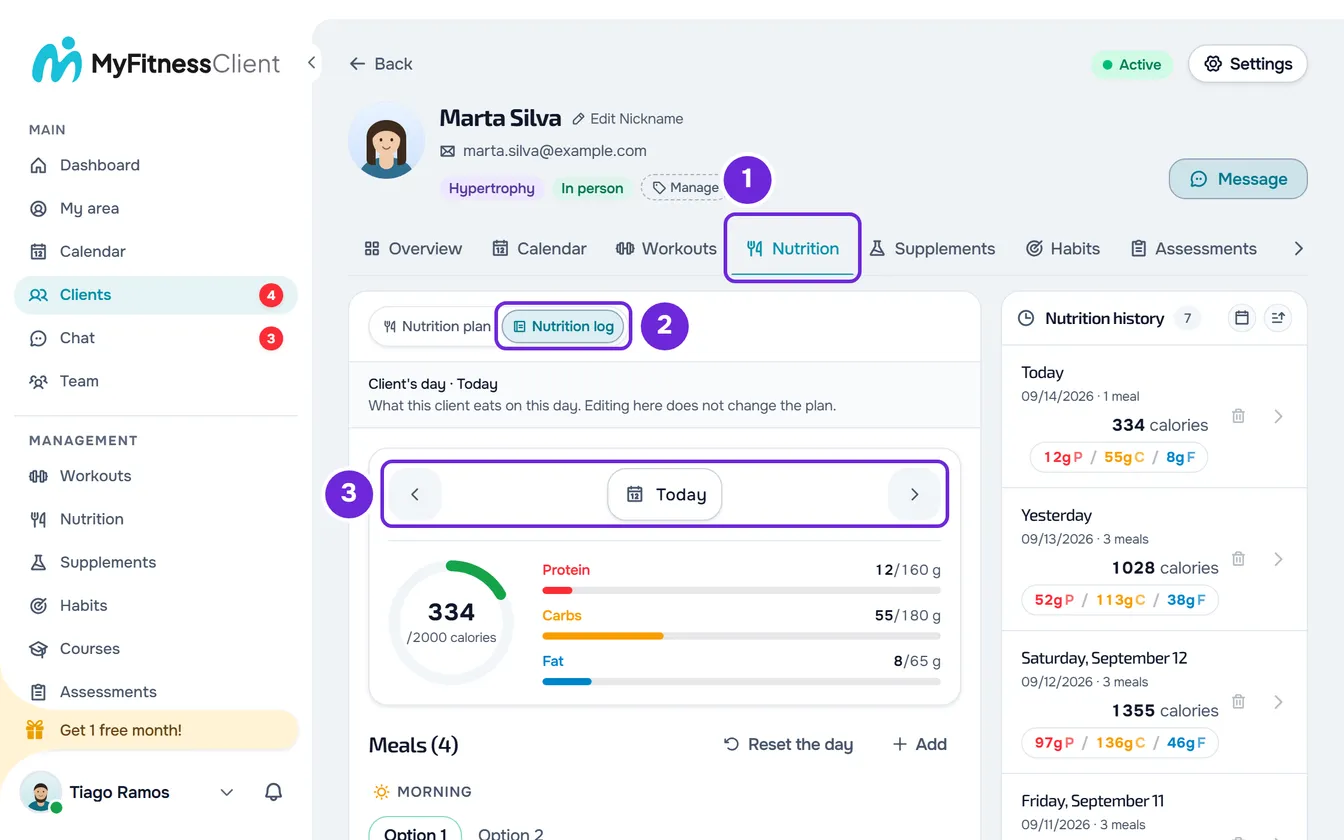
- In the client's profile, select the Nutrition 1 tab. The tab opens on the Nutrition plan sub-tab. If the client doesn't have a plan yet, the day says “No meal plan” and “This client doesn't have a plan assigned yet. What they log shows up here.”
- Select the Nutrition log 2 sub-tab. The client's day appears just as they see it, with the calorie and macro summary and the meals.
- On the day card, choose the day with the arrows 3, or select the date between them to open the calendar.
- If the day has already passed, select Edit this day 2 and confirm with Edit day. A past day opens read-only; if the client didn't log anything that day, the list says “Nothing logged on this day”.
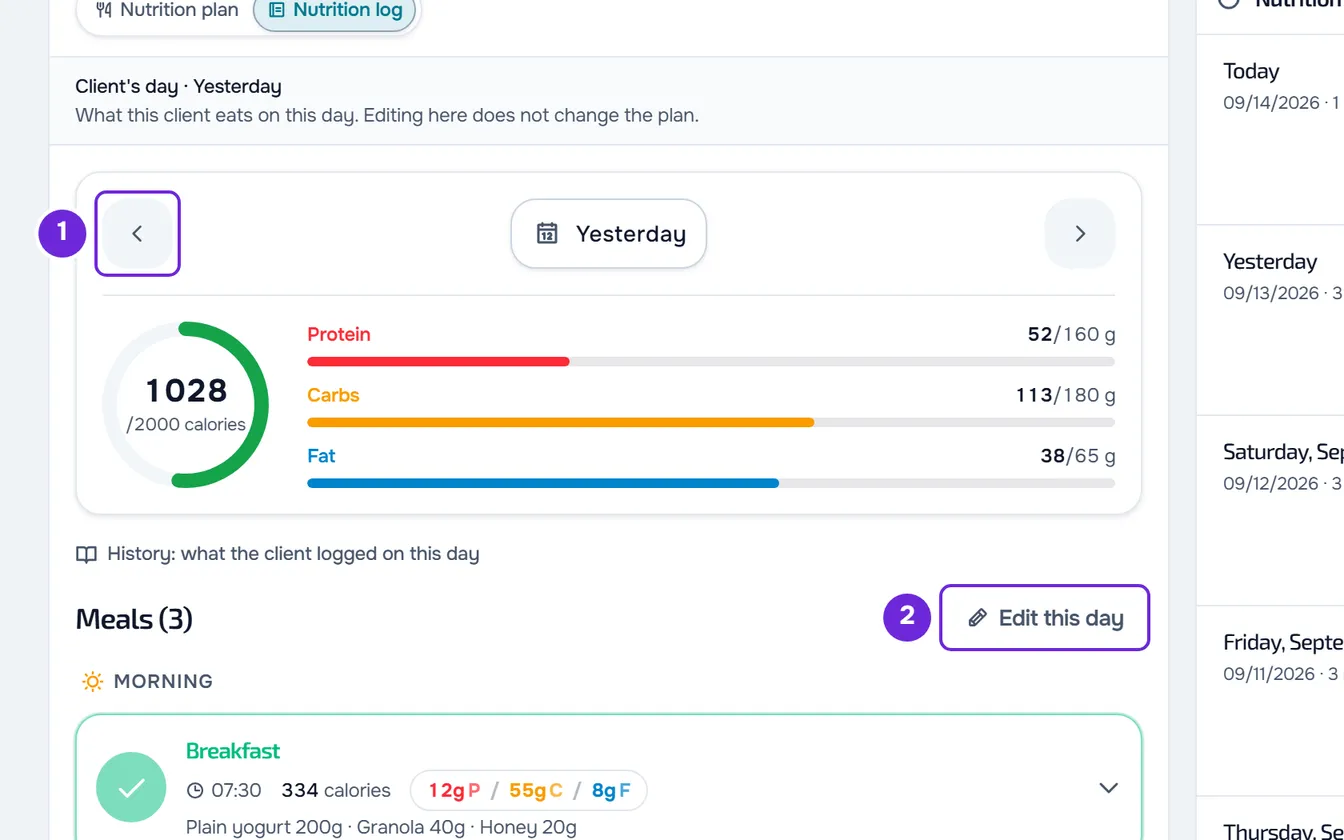
- To mark a meal as eaten, select the circle next to its name 1. If you select it again, the meal goes back to not eaten.
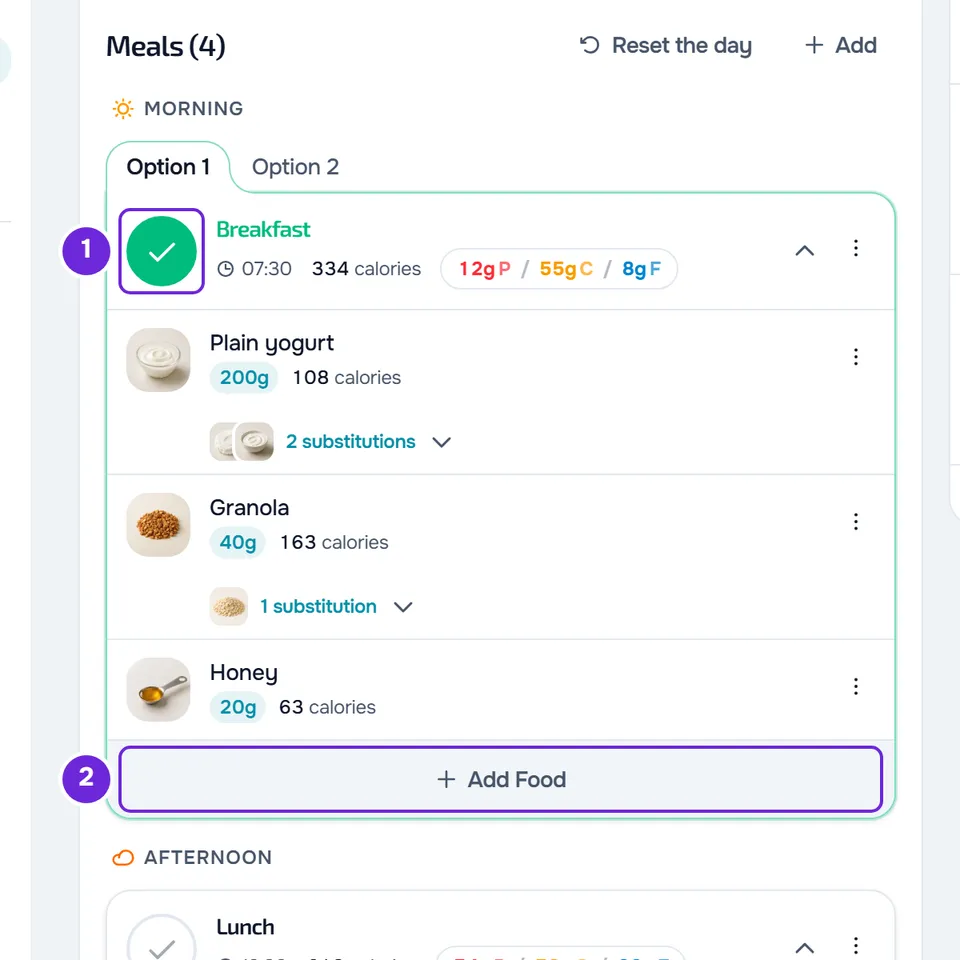
- Optional: to add a food the client ate and did not log, open the meal, select Add Food 2 and choose it from your food library.
- On a past day, select Done to go back to read-only.
Each change is saved right away. The client sees it in their food log and the change does not send them a notification. If you have a questionnaire sent “After completing the day's meals”, marking today's last meal for them can send it to them.
What you can change in the day
The day has the same actions the client has on their screen. A meal's ⋮ also opens with a right-click on the meal's header, and a food's ⋮ with a right-click on the food.
| To | Use |
|---|---|
| Mark or unmark a meal as eaten | The circle next to the meal's name. |
| Add a food | Add Food, in the open meal or in the meal's ⋮. |
| Swap a food, change its quantity or remove it | The food's ⋮: Swap, Edit Food or Delete. A food with substitutions in the plan also has a strip showing how many there are; when open, it shows the Swap for list. |
| Choose another option for the meal | The tabs “Option 1”, “Option 2” and so on, when the plan has options for that meal. |
| Change the name or time of a plan meal on that day only | The meal's ⋮ > Edit meal. |
| Go back to what the plan says in a changed meal | The meal's ⋮ > Restore meal. |
| Remove the meal from that day | The meal's ⋮ > Delete meal. |
| Add a meal outside the plan | Add, next to the meal count, opens New meal. With Quick meal on, you log only the calories and macros. |
| Delete everything logged on the day | Reset the day or, on a past day or a day without a plan, Clear records, and confirm. |
For each action, the screen is the same one the client uses: see Log what you ate by marking the meal as eaten, Edit or delete a food in your meal and Swap a food for an equivalent one. The differences for you:
- The foods you add come from your food library, not the client's. See The food library: catalog, INSA and your foods.
- Copying yesterday's meals, the shopping list, the plan export and “Save to my meals” are not available to you.
- The plan's restricted mode does not apply to you: Add and Add Food stay on the day even when the client does not have them.
- You do not write the client's note on a meal, but you can reply to it.
Reply to the client's note on a meal
When the client writes a note on a meal, the open meal shows it with their name, read-only. Select Reply, write the reply and select Send in chat: the message goes to the conversation with the client, quoting the note. Afterwards, the note shows View reply, which opens that message in the chat. The same button exists on the page of a day in the history.
The Nutrition history card
The Nutrition history card, next to the plan card, lists 5 days with records, most recent first. Each day shows the date, the number of meals, the calories and the macros. Only meals marked as eaten and not deleted from that day count. Select a day to see each meal with its foods.
- The calendar icon, Filter by date, shows the start and end fields, and Clear removes the filter.
- The order button switches between Newest first and Oldest first.
- View all appears when there are more than 5 days and opens the full page.
- A day's trash can, or right-click on the day > Delete, permanently deletes all records of that day. In the Delete this day's logs window, type DELETE and select Delete. It cannot be undone and requires the client to be Active.
The full history page
The Nutrition History page brings together a chart and the list of all days:
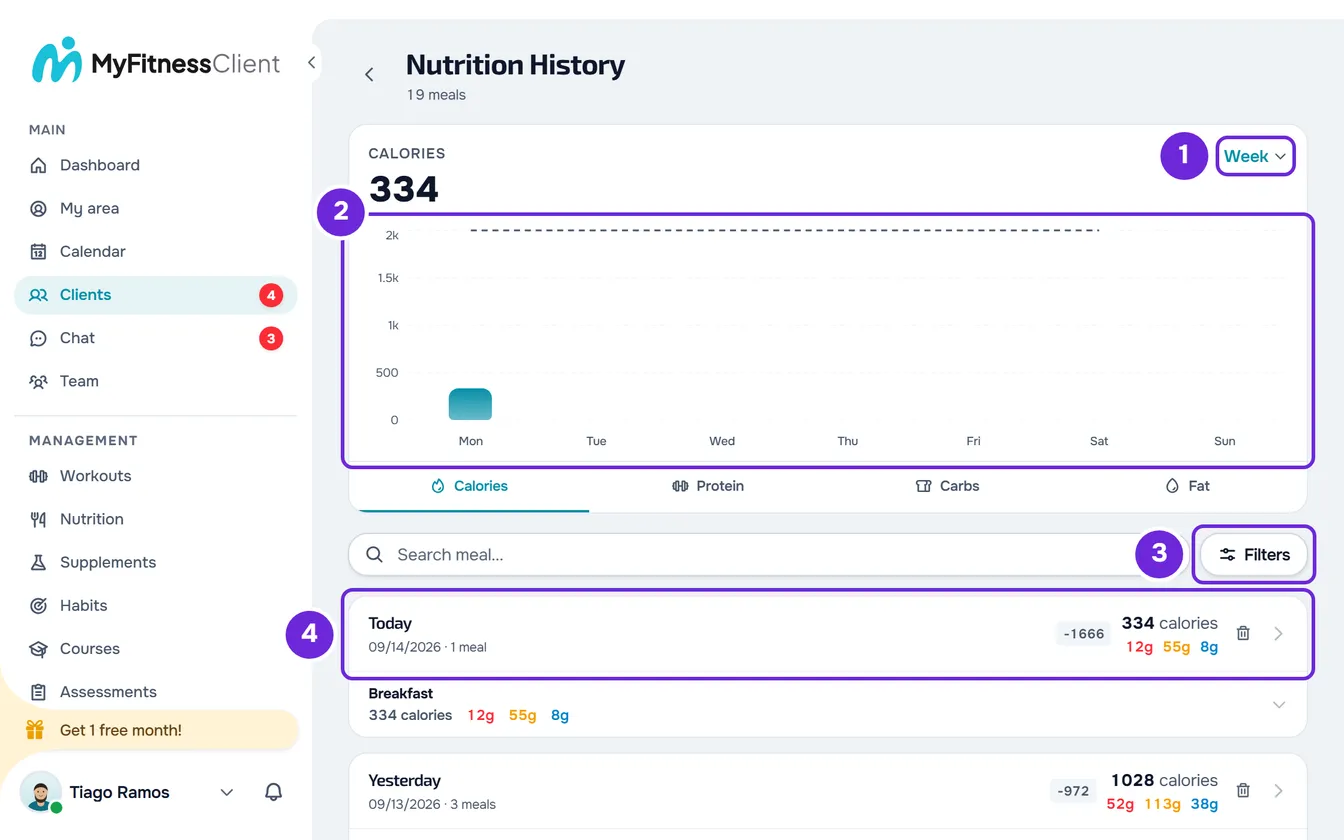
- The chart appears when the client has any record. It shows the total for the period chosen in the selector (Week, Month, 6 Months, Year or All) for the chosen metric (Calories, Protein, Carbs or Fat), and counts only meals marked as eaten. In Week, with an active plan, a dashed Target line marks the goal of each plan day.
- The search looks for the meal's name. In Filters, you choose the status of the meals (all, complete or incomplete), the order and the dates.
- Each day shows how many meals were logged and, when not all were eaten, how many were. With an active plan, a gray badge shows the calorie difference from that day's target, for example +150.
- Select a day's header to open that day's page, with the total and each meal. Meals the client did not mark as eaten have the “Not logged” badge. At the top of the page, Edit opens that day in the profile, on the Nutrition log sub-tab, and the trash can deletes the day, after the “Delete this day?” confirmation.
- A day's trash can, or right-click on the header > Delete, deletes the day after the “Delete this day?” confirmation. It cannot be undone and requires the client to be Active.
Common problems
“Client is not active”
The client is Scheduled, Archived or Ended. The food log can only be fixed while the coaching is active. Wait for the scheduled client's start day, or reactivate the client: see Fix problems in a client's profile.
“You don't have permission to do this in this team.”
You are a member of a team and you do not have the Clients > Create permission. The day's buttons appear, but every change is refused. Ask the team owner for that permission.
A logged meal does not count in the history
The Nutrition history card and the chart only count meals marked as eaten. Open that day in Nutrition log and mark the meal as eaten.
If this did not solve it, contact support with the client's name, the day and the message that appeared.