
If you marked a charge as paid by mistake, the Status field in the edit window sets it back to To pay. The payment day and method are erased and the client sees the charge as unpaid again.
Before you start
- Only the workspace owner has Edit on charges. A team member does not see it and has to ask the owner: see “No permission to access” and menu items missing for a member.
- This only undoes a payment recorded by hand: with Mark as paid, by confirming the client's “I've paid”, or in the edit window itself. A charge paid online has no Edit, because the payment comes from Stripe. Invoices for automatic subscriptions and course sales do not have this action either.
- If you only got the day or the method wrong, you do not need to set it back to unpaid: correct Paid on or How it was paid in the same window. See Edit a charge: amount, due date, status and notes.
- If the account is frozen, saving is refused with “You have more active clients than your plan allows. Choose which to keep or upgrade your plan.” See You have more active clients than your plan allows.
Steps
To set a charge back to To pay:
- In the side menu, under Management, select Payments. The page opens on the Charges tab.
- Optional: to see only paid charges, select Filters and, in Status, choose Paid.
- On the paid charge's row, select ⋮, or right-click the row, and choose Edit. Alternatively, select the row and, in the details that open, select Edit. The Edit Payment window opens or, for a monthly fee or a pack, the Edit charge window.
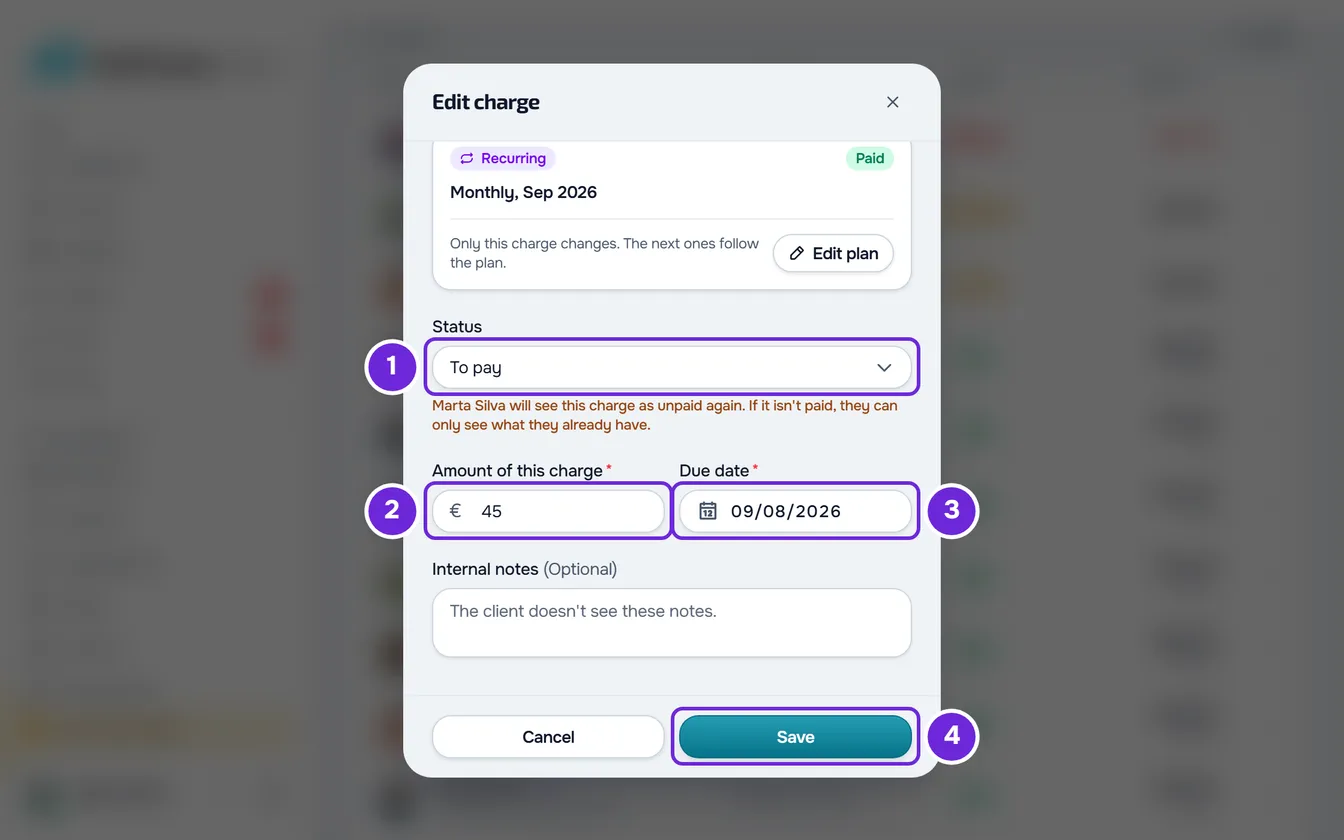
- In Status 1, choose To pay. A notice with the client's name appears under the field, for example “Ana Rocha will see this charge as unpaid again.” If the charge belongs to a plan that restricts clients who do not pay, the notice also says what happens to the client if they do not pay.
- Optional: correct the Amount and the Due date 3, which you can only change after choosing To pay. For a monthly fee or a pack, the amount is called Amount of this charge 2.
- Select Save 4.
“Payment updated” appears and the window closes. The charge goes back to To pay, or to Overdue if the due date has already passed, without the payment day or method. The row's ⋮ again has the actions of an open charge, such as Mark as paid, Send reminder and Delete. An Overdue charge now counts in the red number on Payments.
If you close the window before saving, “Save before leaving?” appears: Discard leaves the charge paid. In the client profile, on the Payments tab, the History list works the same way.
What changes for the client and the plan
Besides the charge status, going back to To pay changes the following:
| Case | What happens |
|---|---|
| Notices to the client | When you save, the client gets no notice: they see the charge as unpaid again in their payments. The automatic overdue notices go out 1, 3 and 7 days after the due date: if the charge is already past its due date, the client only gets the ones for the days that have not passed yet. |
| One-off charge | Only the charge changes. |
| Monthly fee | The plan does not move back: the next charge keeps the date it had and the reopened cycle stays unpaid alongside it. If the plan counts paid access days, those days now end at the end of the last cycle that is still paid; if this was the only paid charge, the plan goes back to waiting for payment. |
| Pack | The plan goes back to waiting for payment and loses the access days this payment had given. When the client pays, the days count from the day of that payment, or later if they still have paid days from another plan. |
| Plan with If they don't pay set to No access | The client has the plan's grace period to pay, counted from this charge's due date (7 days, if you have not changed it). If they still have paid days from another cycle or another plan, they keep access at least until the end of those days. If they do not and that period has already passed, they may lose access to the app as soon as you save. |
| Plan with If they don't pay set to Read-only | If this charge's due date plus the plan's grace period has already passed, the client may be limited right away to viewing what they have: they can no longer send check-ins or questionnaires. |
| Plan with If they don't pay set to Stays the same | Nothing changes in the client's app. |
| Coaching already ended | Setting the charge back to unpaid does not give the client access again. |
The If they don't pay rule and the grace period are explained in Choose what happens when a client does not pay.
Common problems
The To pay option does not appear in Status
The charge belongs to a plan that has already ended: a plan that was cancelled or replaced by another one, or the only paid charge of a monthly fee that is no longer active. In that case, Status only has Paid and Cancelled. If the list was out of date and the option still appeared, saving shows “This charge belongs to a plan that has ended, so it can't go back to unpaid.” and nothing changes. If the client still owes you that amount, create a new charge: see Create a one-off charge for a client.
“This client already has a plan awaiting payment.”
Setting this charge back to unpaid would leave its plan waiting for payment, and the client already has another plan waiting for payment: there can only be one at a time. Nothing is changed. First resolve the other plan, by marking its charge as paid or cancelling it. See Cancel a client's plan.
“This payment changed in the meantime. Reload and try again.”
Another change to the same charge arrived at the same moment as yours, and yours was refused. If the charge was cancelled while you had the window open, for example in another browser tab, the message is “This is no longer possible in the current state. Reload the page and check.” Close the window, reload the page and check the charge's status before trying again.
The window shows an error, but the charge is already To pay
When you also change other fields, such as the Amount or the Due date, the charge first goes back to unpaid and only then saves those fields. If that second step fails, the charge stays unpaid, the list refreshes and the window stays open with the error. Correct the field and select Save again: it only sends the fields still missing. On a monthly fee, “This plan already has a charge due on that date. Choose another date.” means that another cycle of the same plan already uses that day.
For other problems, see Common charge problems and how to fix them. If that did not solve it, contact support with the client's name, the charge's amount and due date, and the exact message: see Contact Support and create a request.
Questions
How do I tell the client that the charge is unpaid again?
In the charge's ⋮, select Send reminder. You can send one reminder per charge every 24 hours. See Send a payment reminder to a client.
Instead of setting it back to unpaid, can I void the paid charge?
Yes. In the same window, in Status, choose Cancelled: the charge leaves the received totals and stays in the history as cancelled. See Cancel or delete charges, one at a time or in bulk.
Can I undo the cancellation of a charge?
No. A cancelled charge no longer changes status: the edit window shows Cancelled and only lets you change the notes. If the client still owes you that amount, create a new charge.
Can I undo a payment made online?
Not in this window: the values of an online payment come from Stripe and the charge has no Edit. To give the client their money back, see Refunds and disputes for online payments.