
When you assign a meal plan, the client sees it in Nutrition, on the website and in the app. What shows on each day depends on the assignment dates and the plan's mode. This page brings together what reaches them, so you know what they will see before you assign it.
When the client sees the plan
- Only between the start and the end of the assignment, with the last day included. With no end date, the plan has no time limit. Within those dates, the plan repeats on its own, according to the mode.
- Before the start, the days show no meals from the plan, with “No meals planned for this day”.
- A scheduled client only sees the plan when their access opens. Until then, the plan stays ready and never starts before that day, even if you choose an earlier start.
- If the client's recurring plan or pack does not include Nutrition, the section does not appear for them and they do not see the plan.
- The client has only one meal plan from you at a time: assigning them another one removes them from the previous one. See Assign a meal plan to one or more clients.
The plan ends at the end of the last day, in the time zone of the client's account. After that, their Nutrition shows a card once saying the plan has ended, with the plan's name, the day it ended and “Talk to your professional to get a new plan.”, and then works without a plan: they can still log what they eat. If you open their nutrition in their profile before they open theirs, from 09:00 their time, the card may no longer appear to them, but the notice still arrives. To extend the plan, before or after the end, change their dates in the plan; after the end, you can also assign it to them again. See Change dates, split off or remove a client from a meal plan.
Which meals they see each day
The client's screen does not name the mode: they see the meals the mode puts on each date.
| Plan mode | What the client sees |
|---|---|
| Flexible | All the plan's meals, every day. |
| Weekly | The meals for the day of the week, by the date in the time zone of the client's account. Each week repeats the previous one. |
| Calendar | The meals for the day of the cycle. The cycle counts from the first day of the assignment, lasts as long as the plan's duration (with no duration, it runs to the last day with meals) and, at the end, goes back to day 1. The list title shows the cycle week, for example “Meals · Week 2 (4)”. |
| Sequential, only in older plans | One plan day at a time. It moves to the next day when the client marks all of that day's meals as eaten and, after the last day, goes back to the first. |
- In a weekly or calendar plan, a day with no meals, within the dates, shows to the client as “Free day”.
- In a calendar plan, changing the duration changes the length of the cycle and can change which plan day the client gets on a date. See Change a meal plan's name, cover and duration.
The modes, on your side, are in Meal plan modes: Flexible, Weekly and Calendar.
What the client sees on screen
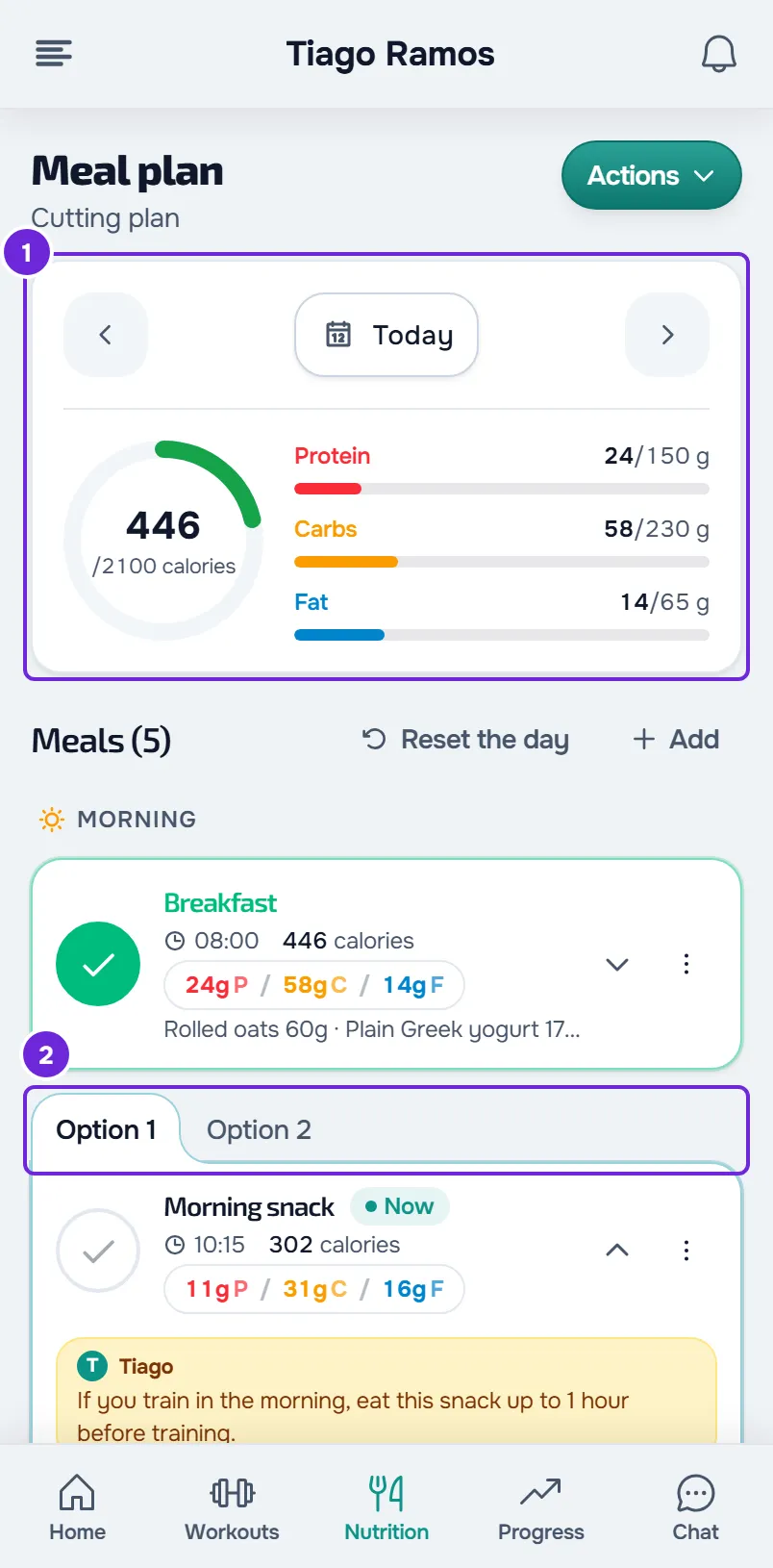
- The day's meals, with the time, calories and macros of each one.
- The day's target, which comes from the plan's daily goals. In a weekly or calendar plan, the per-period goal you set for that day or that week replaces the base goal. With no goals in the plan, the target is the total of the plan's meals that day.
- Each meal's options, in tabs named “Option 1”, “Option 2” and so on, so they can choose the one they eat.
- Each food's substitutions, with the number on the food's row, for example “2 substitutions”, so they can swap the food for one of them.
- The note you wrote on each meal, which they can only read.
The changes you make to the plan (meals, foods, goals) reach the client the next time their Nutrition loads the plan, with no notice. What they mark as eaten stays linked to the plan's meals, and you see everything in Nutrition log, in their profile. See View and fix a client's food log.
Notices and reminders
Nutrition sends the client three notices. They choose what reaches them by push in their notification settings.
| Notice | When it arrives | How it arrives |
|---|---|---|
| “New meal plan” | When you assign the plan to an active client, even if the start date is in the future. It shows the name of the team owner and the plan's name. | In the notification list, always. By push, if the client has push and New meal plans turned on. |
| “Meal plan ended” | Once, after the last day, the first time the plan is read: by the client, or by you in their profile from 09:00 their time. | In the notification list, always. By push, if the client has push and New meal plans turned on. |
| “Meal at 13:00”, with the meal's name | At the time of each plan meal that has a time that day, with a 2-minute margin, in the client's time zone. It does not arrive if they have already marked or deleted the meal. | Push only, if the client has push and Meal reminders turned on. |
The client does not get “New meal plan”:
- when they already had this plan active and you assign it again;
- when they are scheduled: the notice arrives when their access opens;
- when their recurring plan or pack does not include Nutrition.
Changing the dates, editing the plan, creating a separate plan for them or removing the plan from them does not send a notice either. The reminder only exists for meals with a time: the one you set in the plan or the one the client gives the meal that day. What the client sees of these notices is in Nutrition reminders, notices and what your professional sees.
Restricted mode
Restricted mode locks the client's plan: they follow only the meals and foods you set. With it on, the client:
- cannot add meals or foods, or change or delete the plan's meals and foods;
- does not see the system's substitution suggestions;
- can still mark meals as eaten, choose each meal's option and swap a food for the substitutions you gave them.
Their screen shows a note that starts with “This plan is locked”. Restricted mode only limits the client: you can still change their day in Nutrition log. What changes for the client, point by point, is in Meal plan modes, locked plan and days without a plan.
Turn restricted mode on and off
Restricted mode belongs to each client, not to the plan: another client with the same plan can have it off. Turn it on in the client's profile, in Settings > Restricted mode (nutrition). Without an active meal plan from you, the row says “Assign a nutrition plan to this client to control restricted mode.” and shows “No plan” instead of the switch. In a team workspace, changing the switch requires the Nutrition > Edit permission. The assignment dates step does not have this option.
Restricted mode follows the client: it stays as it was when you assign them another meal plan, when you assign them again a plan that had already ended and when you create a separate plan or a personal copy just for them. Changing the assignment's dates doesn't change it either. A client who had none of your meal plans yet starts with it off.
See the plan as the client sees it
- In the client's profile, on the Nutrition tab, Nutrition plan shows the plan they have and the dates, and Nutrition log shows their day on the same screen they use, with what they have already logged. See Assign a meal plan to a client from their profile.
- If you are the account owner, to see the client app from the inside, assign the plan to the Test Student and open the preview, as in Preview the client app with the Test Student. The Test Student does not get meal reminders.