
With an invitation that has packages, the client is only linked to you after they choose one of the packages and the payment is confirmed. It works with email, link and QR code invitations.
Before you start
- The invitation packages are the plans you have for sale in Payments > Plans (Create recurring plans and packs for clients). Only those in the catalog appear: an archived plan or one set to Not in catalog cannot be offered in an invitation (Archive a plan or remove it from the client catalog). If no plan is in the catalog, the Package to join field does not appear.
- In a team, the field only appears to members who have, under Payments, the View and Mark paid and assign plans permissions. Creating invitations requires, under Clients, the Create permission. If you are missing one, see “No permission to access” and menu items missing for a member.
- The field does not exist in the invitation you create on the profile of a client without an account, with Invite to the app.
- With online payments, the client pays when choosing the package. Without them, the client sends you a request without paying and you record the payment when you receive it (Connect Stripe to receive online payments from clients).
Steps
To create an invitation with packages:
- In Clients, select New Client.
- Open the Invite client tab.
- Choose the channel: Email, Link or QR code.
- If you chose Email, enter the client's address.
- In Invitation expires in, choose how long it is valid.
- Optional: in a Link or QR code invitation, choose in How many clients can use it whether the invitation is for one person or several.
- In Package to join 1, select The client picks a package 2. The Access period field disappears, because the package sets the access.

- Tick the packages 3 the client can choose from, up to 10. Each row shows the name, how often it is paid (or the days of access of a pack) and the price.
- Select Create invitation 4. If you did not tick any package, “Pick at least one package.” appears.
- In a Link invitation, select Copy link or Share and send it to the client.
The screen changes to Invitation created, Link ready or QR code ready. In an email invitation, the screen says whether the email was sent; if it was not, share the link. You show a QR code to the client on the screen, with Full screen if you like. In a single-use invitation, if you leave the window open, the title changes to Package chosen when the client picks the package and moves on.
After you create the invitation
The client opens the invitation, picks one of the packages and pays. An invitation with packages cannot be accepted without picking a package. What the client sees is in Pay and join with an invitation that includes a package.
- When the client confirms the package, their request appears in Clients > Requests. Until they pay, the Source column shows the “Package name unpaid” badge; once paid, it shows Invitation with package.
- At that moment, 1 slot on your plan is reserved for 1 hour, the time they have to pay. If the client pays with a Multibanco reference, the reservation lasts while the reference is unpaid. Without payment, the slot becomes free again. With no free slot, or with 50 unanswered requests, the client cannot go ahead; with no slot, you get a notification. An email invitation to a new person needs a free slot as soon as it is created.
- With online payments, once the payment is confirmed, the client joins on their own, without you having to accept the request. You get the “New client” notification and their access follows the package they paid for.
- Without online payments, you get a notification about a new request. When the client pays you, record the payment and accept the request, as in the next section.
- If the payment arrives when you no longer have a free slot, or when the client already has another professional, they do not join: you get the “Payment received, access not opened” notification and the request stays in Requests, with Accept. If there is no free slot, free one up (Client limit and occupied slots on your plan) and select Accept; the package counts from that day.
- If you do not answer a request paid online, you get a reminder 3 days after the payment. At least 14 days after the payment, the amount is refunded to the client in full, from your Stripe account, and the request ends.
- An unpaid request closes on its own 14 days after the last payment attempt.
Record a payment received outside the platform
When the client pays you another way, you record the payment and accept the request in one go:
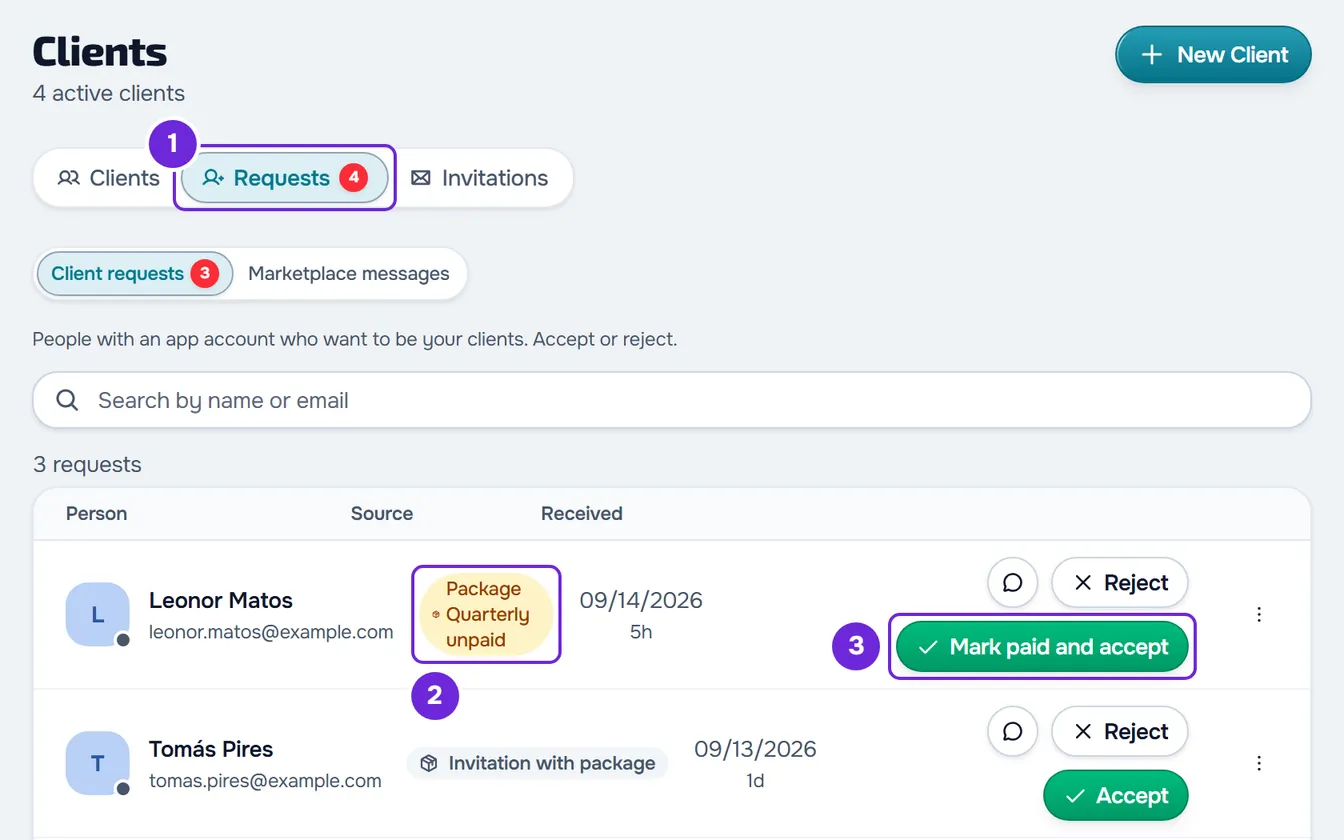
- In Clients, open the Requests tab.
- On the row with the “Package name unpaid” badge, select Mark paid and accept.
- Confirm the amount in the sentence “Confirm you received amount for the name package.” and choose the Payment method. Without a method, the confirm button stays disabled.
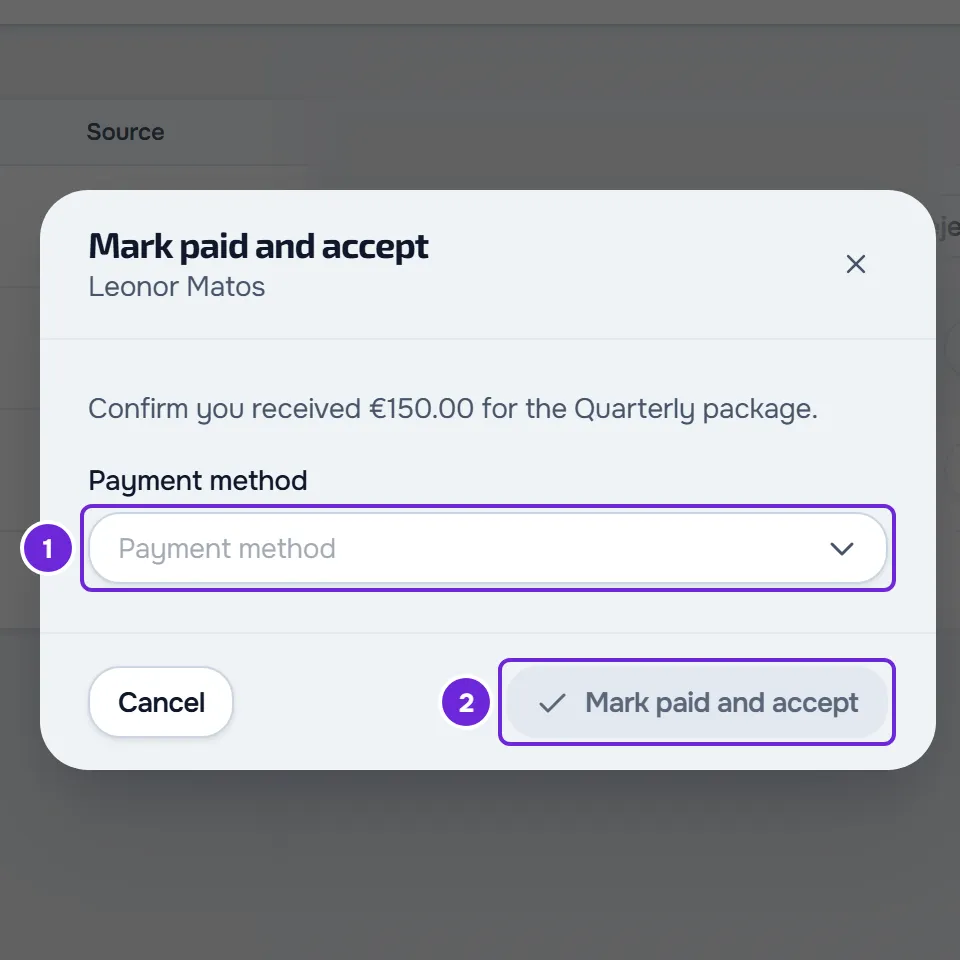
- Select Mark paid and accept.
The payment is recorded, the package becomes active and the client joins. For a recurring package, a monthly plan paid by hand is created, with the first charge already paid (Charge day of a manual monthly fee and end of access). The button only appears to members with the Mark paid and assign plans permission for Payments and Create for Clients; the others see only the badge.
Reject or block a request with a package
In Requests, Reject declines the request and cancels the unpaid package. Block, in the row's ⋮ menu or with a right-click, does the same and stops the person from sending you requests again. On a request that is already paid, the confirmation says what happens to the money:
- Paid online: “name's payment is refunded in full from your Stripe account.”
- Recorded by hand: “This payment was recorded by hand: you'll need to refund it yourself.”
Common problems
Mark paid and accept does not appear
Without the Mark paid and assign plans permission for Payments and Create for Clients, the row shows the badge without the button: ask the account owner for them. If the row shows Invitation with package and Accept, the package is already paid and you accept the request like any other.
“This package no longer exists.”
When creating the invitation, one of the ticked packages was archived in the meantime: close the window, open New Client again and tick the packages once more. When accepting a request, the request's package was cancelled: reject the request and send a new invitation.
“An online payment is in progress. Wait a few minutes and try again.”
The client is paying online at that moment. Wait a few minutes: if the payment is confirmed, they join on their own and the request leaves the list.
“Client limit for the current plan reached.”
There is no free slot on your plan. When creating an email invitation, the message appears in the invitation window and, for the account owner, the window to get more slots also opens. When accepting a request, it appears to a team member; the account owner sees only the window to get more slots. Free a slot or raise the limit (Client limit and occupied slots on your plan) and try again.
For other messages, see Error messages when creating, inviting and accepting clients. If that did not solve it, contact support with the exact message, the client's email and the approximate time (Contact Support and create a request).
Questions
Can I set access dates for someone who joins with a package?
No. With The client picks a package, the Access period field disappears, and the window for accepting an already paid request does not have it either: access follows the package. To choose the dates, use No package.
Can I ask for payment from a client I already created in Clients?
Not with this invitation: Invite to the app, on the client's profile, has no packages. Give them a plan and ask for the payment, as in Give a client a recurring plan or a pack.
How many packages can I put in an invitation?
Up to 10. With 10 ticked, the other boxes are disabled.
Can the client join without paying?
Not through this invitation: they only join with a package paid online or with the payment you record with Mark paid and accept. To let them join without paying, create another invitation with No package.