
Before you start
- Only the workspace owner cancels and deletes charges. In a team workspace, members do not see Cancel charge, Delete or Select, whatever permission they have.
- These actions only exist on the charges the list shows as “by hand”, under the client's name, including the ones a monthly fee creates. A charge paid online, invoices from automatic subscriptions and course sales cannot be cancelled or deleted here. The exception is an online charge whose dispute you lost: it goes back to unpaid and has Cancel charge, which closes it (see Refunds and disputes for online payments).
- Cancel charge appears on To pay, Overdue and To confirm charges. Delete appears on every charge that is not paid, cancelled ones included.
- Cancel when you want to keep the record, for example of a session the client called off. Delete when the charge should never have existed, for example one created twice. Deleting cannot be undone.
- A charge already paid by hand cannot be deleted. To void it, use Edit and change the Status to Cancelled: see Edit a charge: amount, due date, status and notes. If you marked it as paid by mistake, see Undo a payment marked by mistake (back to To pay).
- To find the charge in a long list, see Search, filter and open client charges.
Steps
To cancel or delete a charge:
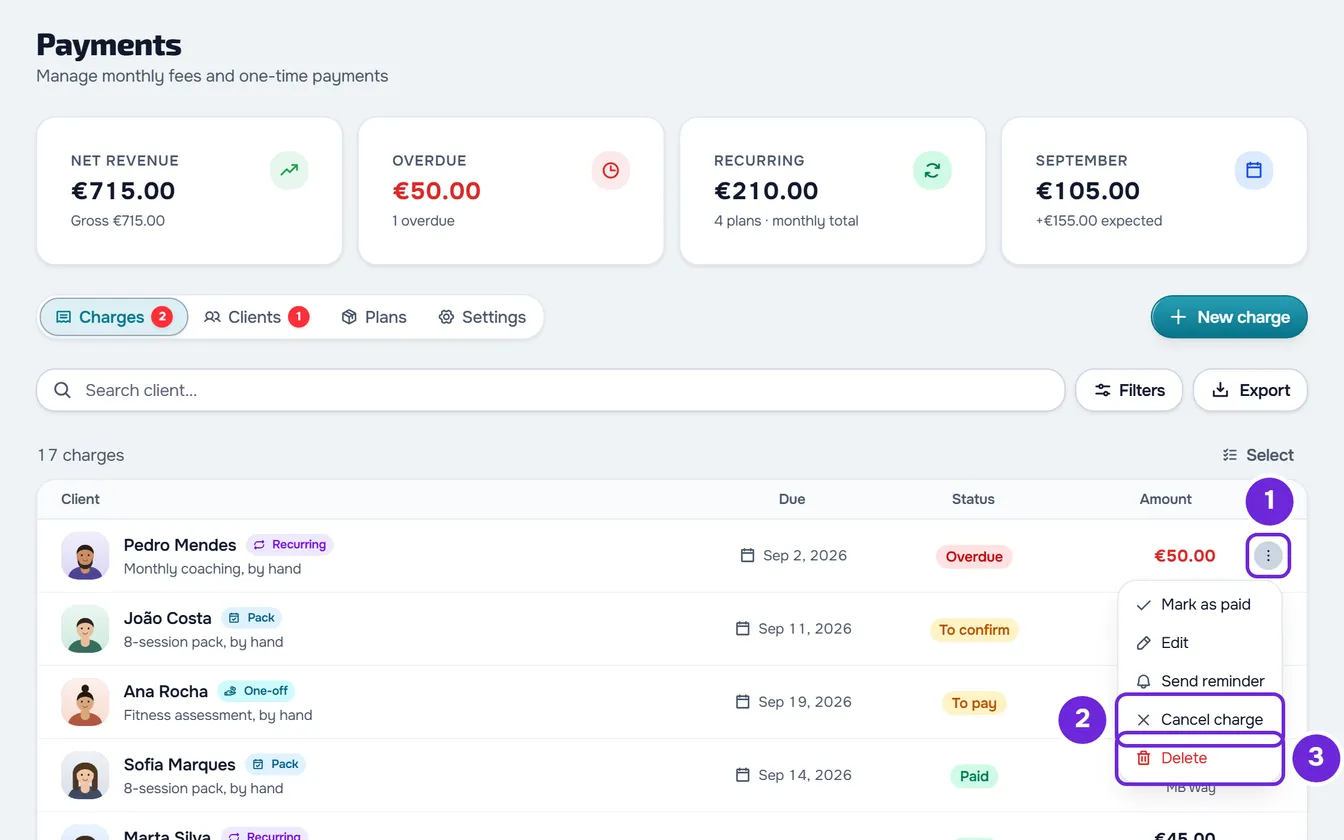
- In the side menu, under Management, select Payments. The page opens on the Charges tab.
- On the charge's row, select ⋮ 1 at the end of the row, or right-click it.
- Choose Cancel charge 2 to keep it in the history with the Cancelled status, or Delete 3 to remove it for good. A confirmation window opens.
- Confirm with the button for the same action: Cancel charge in the “Cancel this charge?” window, or Delete in the “Delete this charge?” window.
When you cancel, “Charge cancelled” appears and the charge stays in the list with the Cancelled status and the amount struck through. When you delete, “Charge deleted” appears and the charge leaves the list. In both cases, the totals at the top and the red number on Payments update. In both confirmation windows, Cancel closes the window without changing anything.
You can also delete from the edit window: on a charge that is not paid, the trash icon, in the footer of the window that Edit opens, leads to the same confirmation. On a To pay or Overdue charge, you can also cancel in that window by changing the Status to Cancelled.
On a phone
Each charge is a card with its own ⋮ and there is no right-click. On a charge that can be deleted, swiping the card sideways shows a red button with the trash icon, which leads to the same Delete confirmation.
In the client's profile
In the client's profile, on the Payments tab, the History list has the same ⋮, the same right-click and the same Select, with only that client's charges.
What changes when you cancel or delete
Both actions take the charge out of what the client owes you, but they do not leave the same trace:
| Case | Cancel charge | Delete |
|---|---|---|
| In your list | It stays in the history with the Cancelled status and no longer changes status. | It disappears and cannot be recovered. |
| In the client's list | The client still sees the charge in their payments list, as cancelled. | The client no longer sees the charge. |
| Notices to the client | They get no new notice. The notice they had for this charge in the bell is marked as read. | |
| What the client owes | The charge no longer counts as debt, including for the late-payment restrictions. | |
| Charge from a monthly fee | The monthly fee continues and moves on to the next cycle. This cycle's charge is not created again. | |
| Charge from a pack | The pack is cancelled and the client's access is now calculated without it. | |
| The client had opened the online payment for this charge and did not finish it | That online payment is closed first, so the client does not pay a charge they no longer owe. | |
To end the client's plan, and not just one charge, see Cancel a client's plan.
Delete several charges at once
Only the workspace owner has this mode, in the Charges list and in the History of the client's profile.
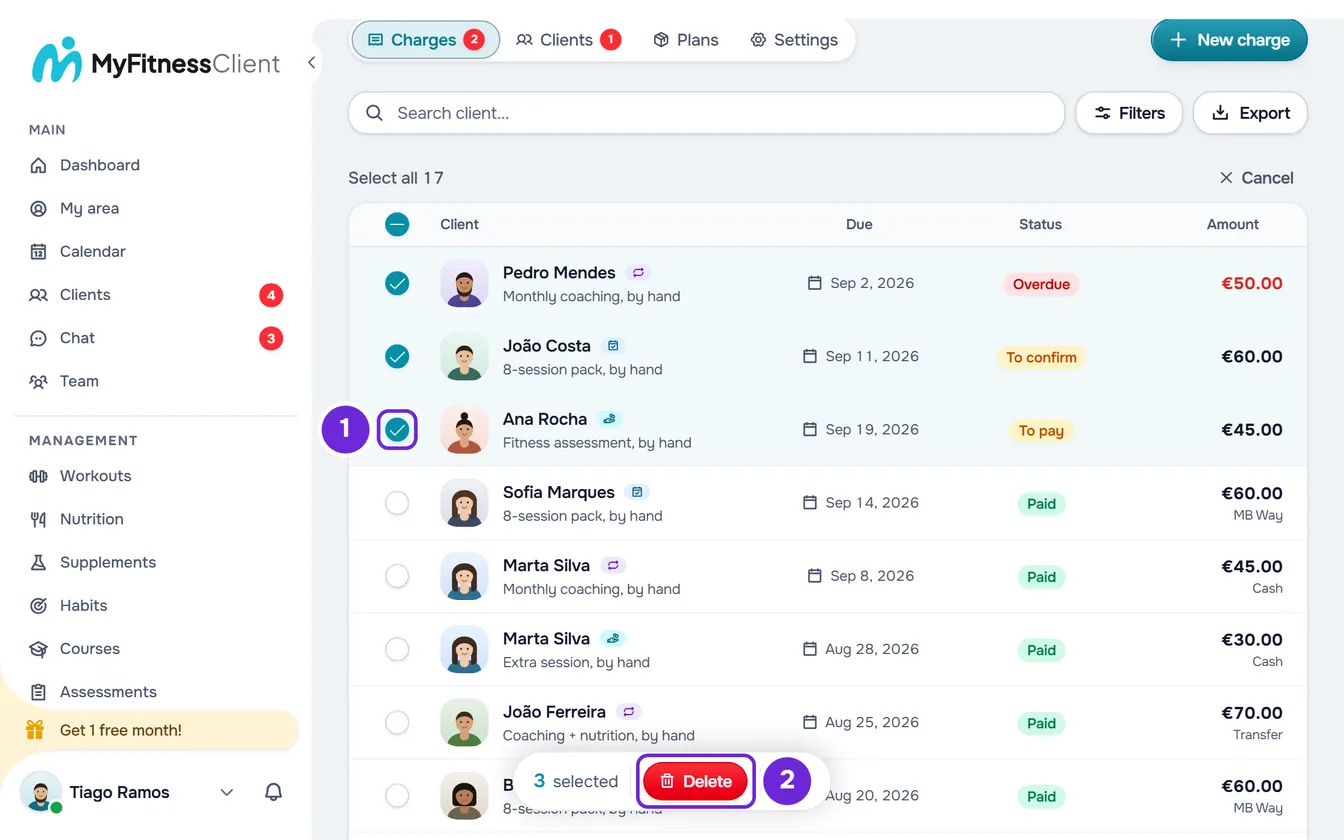
Select Select, at the top of the list, on the line with the number of charges. A box appears on each row: tick the charges you want to delete. On a phone, holding your finger on a charge also opens this mode. In place of the number of charges, Select all N appears (N is the number of charges in the list), which ticks every charge the list shows, including those on other pages, up to 5000.
In the bar that appears at the bottom of the screen, with the number of selected charges, select Delete. The “Delete charges?” window (“Delete this charge?” with just one) says how many you are about to delete and, if some of the chosen charges cannot be deleted (paid, from subscriptions or from courses), how many stay as they are. Confirm with Delete.
At the end, you see how many were deleted, for example “5 charges deleted” (“Charge deleted” with just one), or “3 of 5 charges deleted” if any failed. The selection closes and the list goes back to the first page. If none of the chosen charges can be deleted, “None of the selected charges can be deleted.” appears and the window does not open. To leave selection mode without deleting, select Cancel, where Select was.
Common problems
I don't see Cancel charge or Delete in the menu
Each charge's menu only shows what the charge and your role allow:
- You are a team member and not the workspace owner: only the owner cancels and deletes.
- The charge was paid online, or it is a subscription invoice or a course sale: it does not have these actions.
- The charge was paid by hand: it does not have Cancel charge or Delete. Void it in Edit, in the Status field.
- The charge is already cancelled: it only has Edit and Delete.
“An online payment is in progress. Wait a few minutes and try again.”
The client is paying this charge online and the payment has not finished yet. Wait a few minutes and reload the page: if the payment goes through, the charge changes to Paid on its own.
“This payment changed in the meantime. Reload and try again.”
The charge changed at the same moment you were cancelling or deleting it, for example because the client was paying it. Reload the page, check the charge's status and repeat the action if it still makes sense.
Another message appears
Nothing is cancelled or deleted. The most common ones:
- “A payment made online cannot be deleted.”: the client paid the charge online after the list loaded. Reload the page: the charge is Paid and it cannot be cancelled either. To give the money back, see Refunds and disputes for online payments.
- “The amounts of an online payment come from Stripe and cannot be edited by hand.” when cancelling: the client paid the charge online after the list loaded. Reload the page: the charge is Paid and can no longer be cancelled.
- “A paid charge can't be deleted. In Edit, change the status to Cancelled.”: the charge was marked as paid by hand after the list loaded. Reload the page: to void it, use Edit and change the Status to Cancelled.
- “You have more active clients than your plan allows. Choose which to keep or upgrade your plan.”: the workspace is frozen and does not accept changes. See You have more active clients than your plan allows.
If this did not solve it, contact support with the client's name, the amount and due date of the charge and the exact message that appeared.
Questions
I cancelled a charge by mistake. Can I undo it?
No: a cancelled charge no longer changes status. If the client still owes you that amount, create a new charge with New charge: see Create a one-off charge for a client.
Does deleting the charge of a monthly fee end the plan?
No. The monthly fee continues and moves on to the next cycle. To end it, cancel the plan: see Cancel a client's plan.
Can I recover a deleted charge?
No. If you want to keep the record, cancel instead of deleting.
How do I void a charge that is already paid?
If it was paid by hand, in Edit, change the Status to Cancelled: the charge leaves the received totals. If it was paid online, it cannot be voided here: see Refunds and disputes for online payments.