
Before you start
- Payment happens on a Stripe page. When you move from the free plan to a paid plan, Stripe asks for a payment method and a billing address, even with a free trial. The tax ID is optional.
- The free trial only exists on the account's first paid subscription. If you have had a paid plan before, you pay the first period as soon as you subscribe.
- What each plan includes, the prices and the trial days are in Plans and prices.
- To move to a lower plan, follow Downgrade your plan and confirm the scheduled change.
Interactive tutorial
Opens in the app and needs you to be signed in.
Steps
To upgrade your plan:
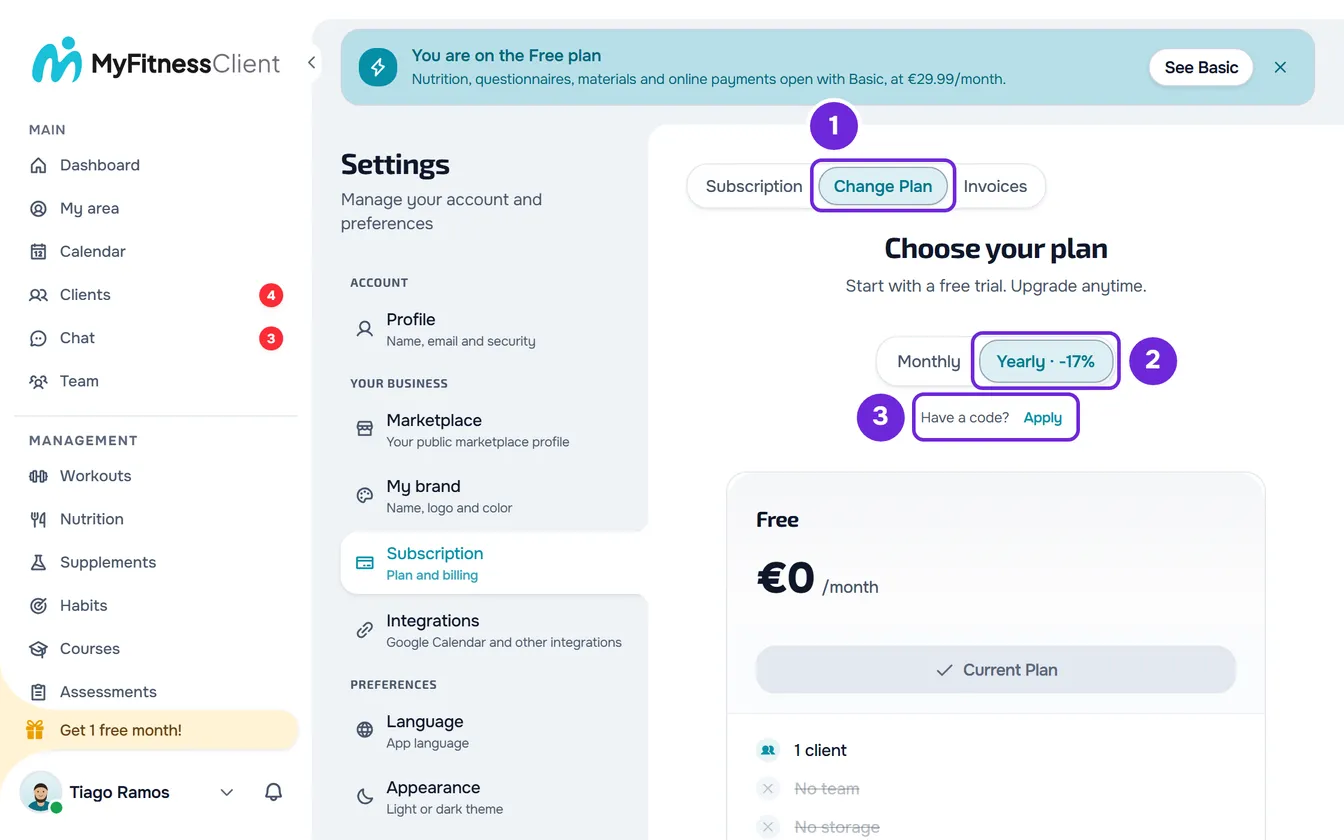
- Open Settings: on a computer, from the menu under your name in the sidebar; on a phone, from the side menu.
- Under YOUR BUSINESS (on a phone, BUSINESS), select Subscription.
- Select Change Plan 1, on the tab or on your plan's card. “Choose your plan” opens, with one card per plan.
- Choose the billing period: Monthly or Yearly 2. With Yearly selected, paid plans show the equivalent monthly price, the total per year and how much you save.
- Optional: to use a referral code, a partner code or a coupon, select Apply 3 next to “Have a code?”, enter the code and select Apply code. The field only appears while you do not have a paid plan.
- On the card of the plan you want, select Upgrade 1. A Stripe page opens.
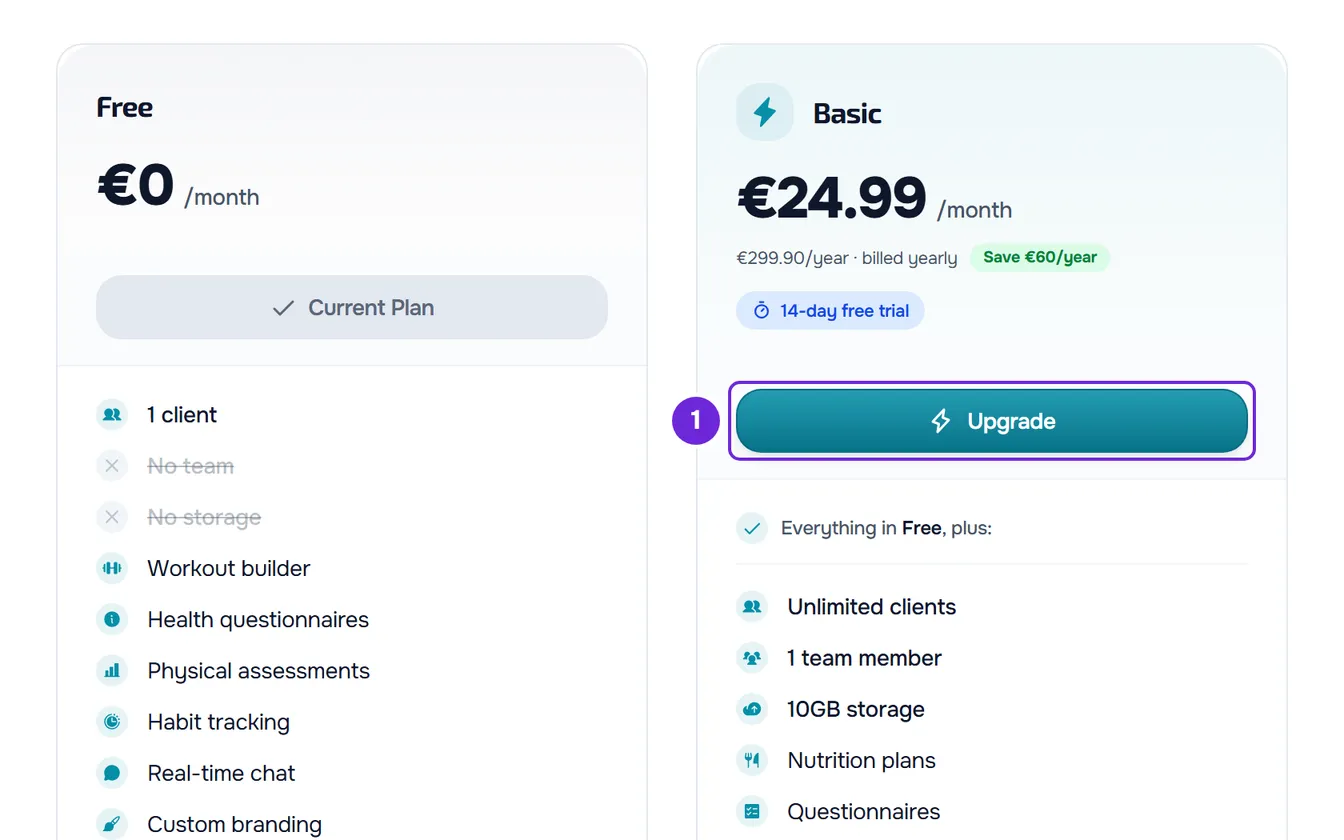
- On the Stripe page, confirm the payment. What the page asks for depends on the plan you are on: see the next section.
Once Stripe confirms, the new plan and its features are active. If you were on the free plan, a welcome page opens with the plan's name; if you already had a paid plan, Stripe shows the confirmation of the change, with a link back to MyFitnessClient that opens Subscription.
What Stripe asks you for
- If you are on the free plan, the Stripe payment page opens. You enter the payment method and the billing address and, if you want, the tax ID; Stripe calculates the tax from the address. With a free trial, nothing is charged until the trial ends. The Stripe page has no code field: apply the code first, in MyFitnessClient, and an applied coupon already shows on it.
- If you already have a paid plan, the Stripe confirmation page opens with the new price. When you upgrade, the change is immediate and the prorated difference for the time left in the period is charged when you confirm. If your plan is yearly and the new one is monthly, the change is scheduled for the end of the period you already paid for.
The Stripe page appears in your account's language. The payment page is valid for about 1 hour: if you select Upgrade again on the same plan and billing period within that time, the same page opens. A request with another plan, another period or another code replaces the previous one.
Monthly, yearly and free trial
- The Yearly option of the selector shows the percentage you save compared with 12 months on monthly billing.
- If the account has never paid for a plan or tried a paid plan on a free trial, the paid plan cards show a badge with the free trial days, even while a granted plan is in force.
- During the trial, nothing is charged. Three days before it ends, you get the “Trial ending soon” notification and an email. When the trial ends, Stripe charges the first period to the payment method you left and the plan continues. If you cancel during the trial, you pay nothing: see Cancel your subscription.
- The free months of a partner code are added to the trial days, up to 180 days in total.
- On a page locked by your plan, the button on that page goes straight to the payment for the cheapest plan that includes the feature, always monthly. While you have no paid plan, under the price, next to “Have a code?”, Apply opens the code field; the code is saved to your account and goes with the payment. See Feature locked by your plan: what it means.
Switch only between monthly and yearly
With a paid plan, choose the other period in the selector. Your plan's card no longer shows Current Plan and shows Change Plan instead; when you select it, the Stripe confirmation opens. Switching from yearly to monthly is scheduled for the end of the period you already paid for. When you switch from monthly to yearly, the Stripe page shows the amount and when the change applies.
After you pay
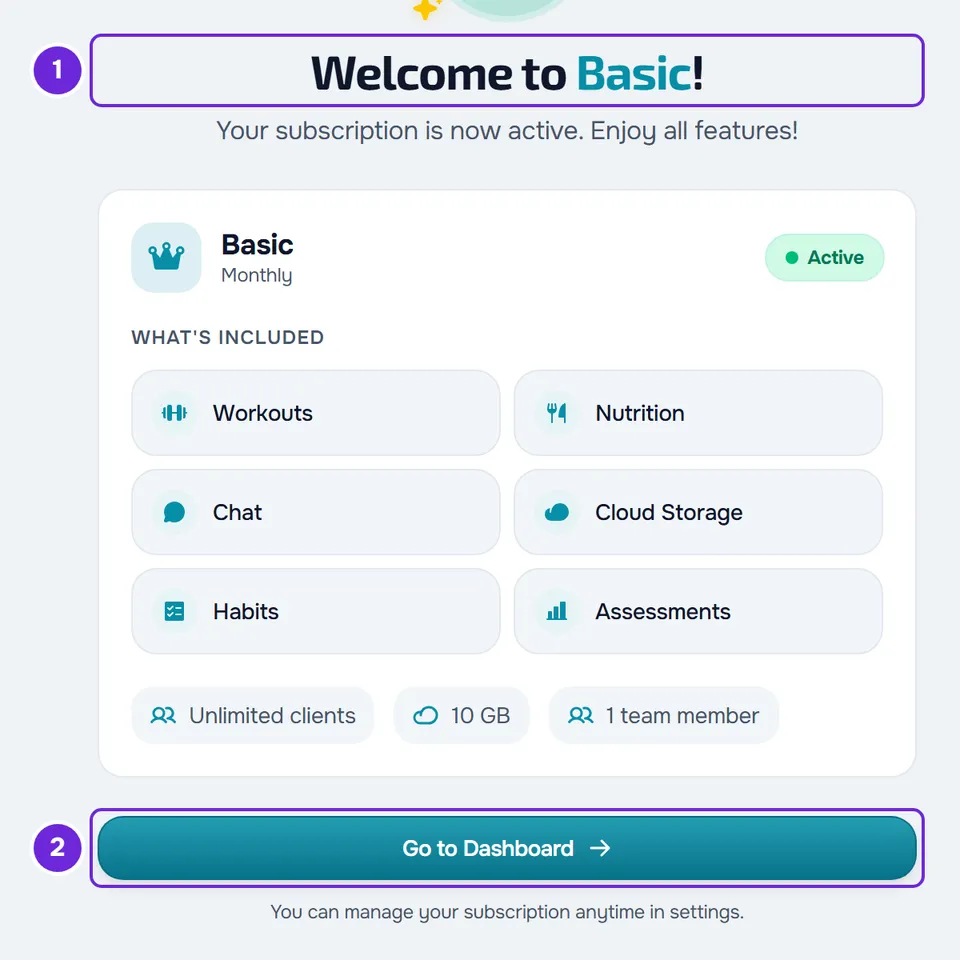
When you come from the free plan, Stripe sends you back to a page that confirms the subscription:
- “Activating your subscription...” appears while MyFitnessClient waits for Stripe's confirmation. After 6 seconds, the link “Taking too long? Check subscription status” appears.
- Once the payment is confirmed, the page welcomes you to the plan and shows the billing period, the Active status, the trial days left, what is included and the plan's limits. If you signed up with another professional's referral code, it also shows the free month you earned. Select Go to Dashboard to continue.
- If the confirmation does not arrive within 30 seconds, the page says “This is taking longer than usual”, with Review subscription status and Go to Dashboard.
- If the payment page was no longer valid, the page says “The checkout expired”. Try again takes you to Subscription to start over.
If you leave without paying
If you come back from the Stripe payment page without paying, you see “Payment not completed” and nothing is charged. Try Again opens Subscription and Continue with Free takes you to the dashboard.
If you do not have an account yet
On the public pricing page, the button of each paid plan opens the professional sign-up. After you create the account, Change Plan opens with the billing period you chose on that page already set, monthly or yearly. You choose the plan on the cards yourself, as in the steps.
Common problems
“You already have this plan or your previous checkout is still being activated.”
It appears when you choose the plan and period you already have, or in the 15 minutes after a completed payment, while that purchase is being activated. Open Subscription and check the plan and the status before you try again.
“Your plan was granted by MyFitnessClient. To change it, contact support.”
It appears when you have a plan with the Granted status. A Granted plan lasts until the date its plan card shows and cannot be changed here.
“A plan change is already scheduled.”
You already asked for a downgrade or for the switch from yearly to monthly, which is scheduled for the end of the paid period. There can only be one scheduled change at a time: the “Plan change scheduled” banner, in Subscription, shows the plan and the date. To undo the change, select Keep current plan on that banner. See Downgrade your plan and confirm the scheduled change.
“Yearly unavailable” or “This plan has no price available for the selected billing period.”
The plan has no price for that period: on the card, the button is disabled with “Yearly unavailable” or “Monthly unavailable”; if the request does go out, the message appears. Choose the other period.
The code is not accepted at payment
“This code doesn't exist or is no longer active.”, “This coupon can't be used on this purchase.” and “This discount would end before your first payment.” mean that the code does not work for this purchase. In the first case, the coupon is removed on its own; in the others, remove it with the X on the green line and pay without it, or choose another plan. The rules of each code are in Apply a referral code, a partner code or a coupon.
Other problems, such as billing being unavailable or the plan not changing after you pay, are in Subscription problems. If this did not solve it, contact support with the account email, the time of the payment and the message you saw.