
On the website, the Export Plan item on the Nutrition screen creates a PDF with the whole meal plan, for you to read on your phone or print. The app has no PDF: Export Plan sends the same plan as text, through your phone’s share sheet.
Before you start
- You need an assigned meal plan with at least one meal, and Nutrition must be part of your coaching.
- The PDF and the text carry the plan as the professional wrote it: they don’t carry what you logged, the swaps you made or the meals you added.
- The PDF is created in your device’s browser and downloads to it. It is not saved in your account.
- If you are a professional following your own plan in My area, the Nutrition tab has the same Actions menu and the same steps.
Steps
To save the plan as a PDF, on the website:
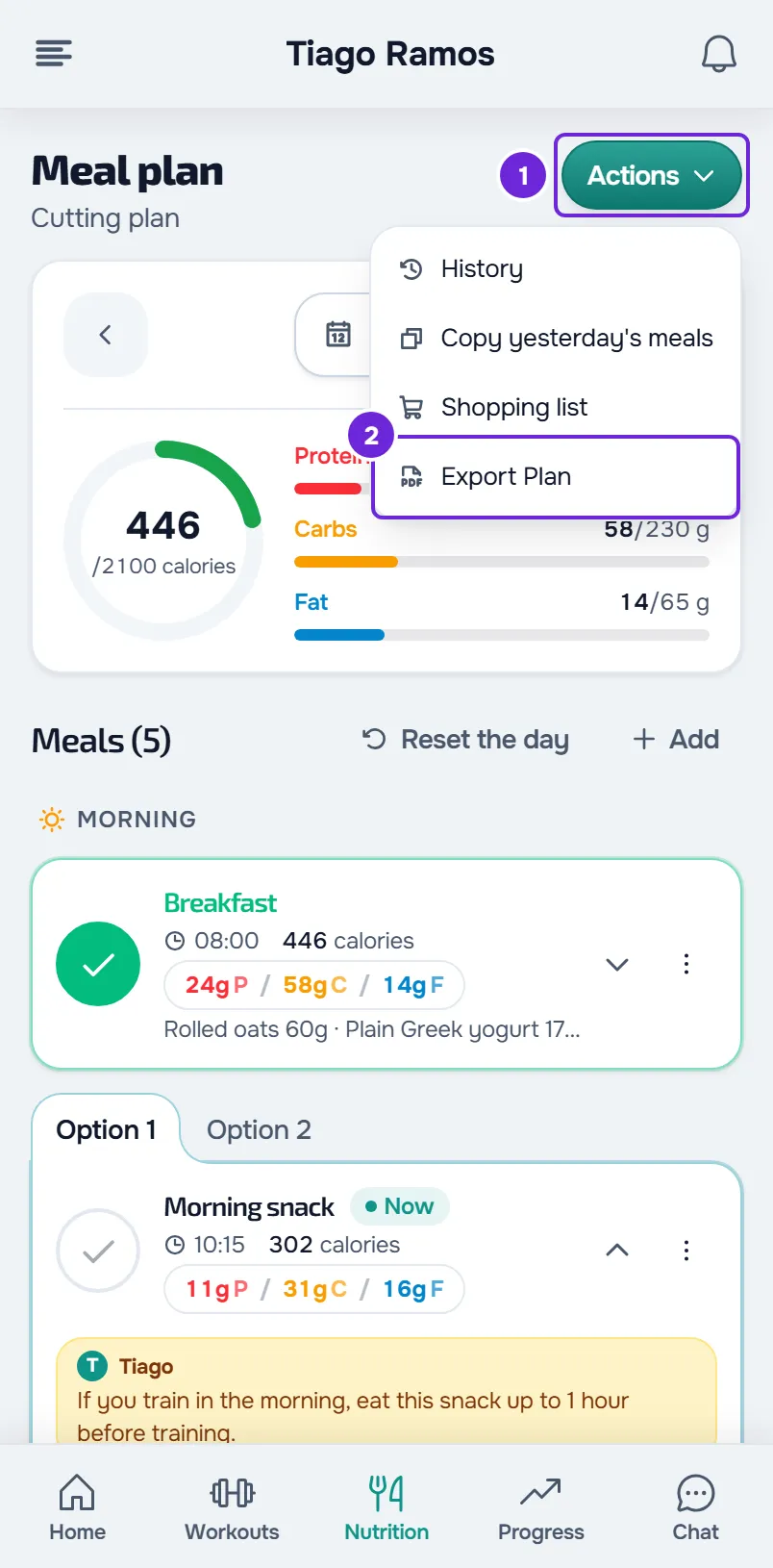
- In Nutrition, select Actions 1.
- Select Export Plan 2. The Export PDF window opens.
- Choose the format: Phone 1, in one column, to read on screen, or A4 2, to print. The window always opens on Phone.
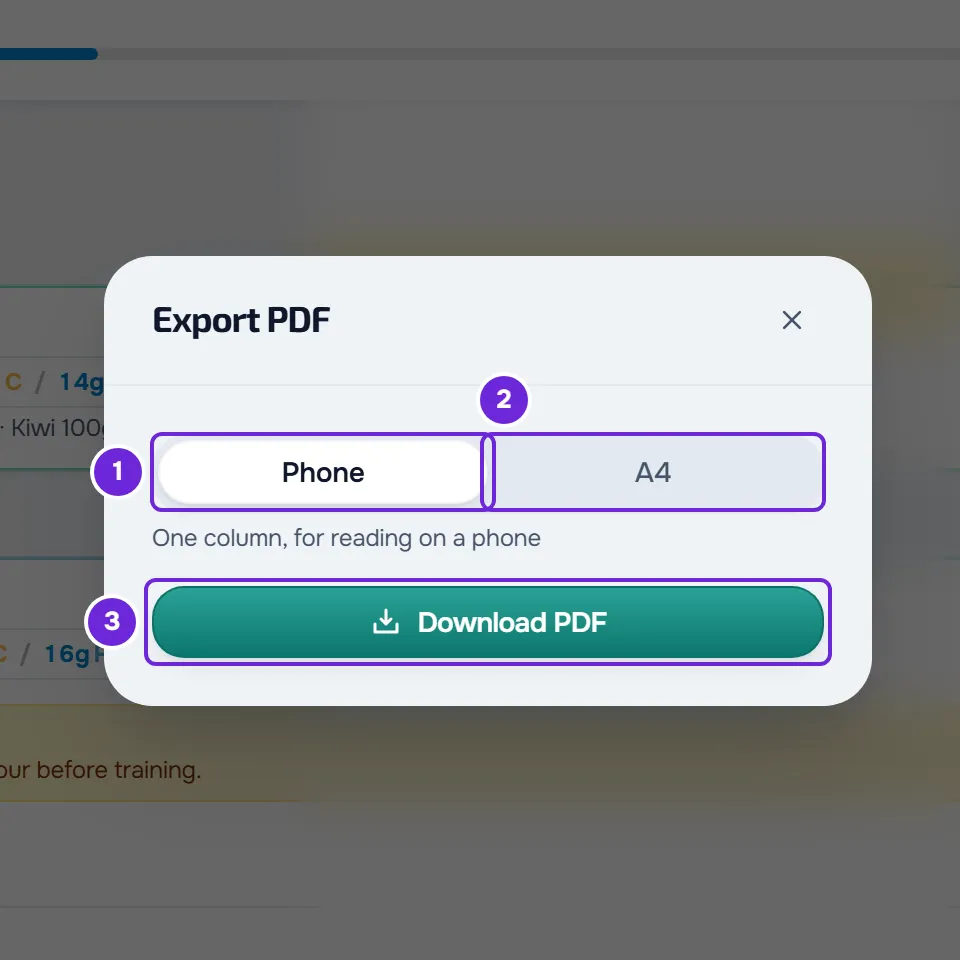
- Select Download PDF 3.
The window closes and the browser downloads the file, with a name like meal_plan_base_plan_2026-10-14.pdf: the document type, the plan name and the day’s date, without accents.
In the app
In the app, the plan comes out as text:
- In Nutrition, select the three-dots button and, in Actions, select Export Plan. On a wide screen, such as a tablet in landscape, Export Plan is already visible on the Nutrition screen.
- Your phone’s share sheet opens with the plan as text. Choose the app you want to send it to, such as messages, email or notes.
- If you close the share sheet without choosing an app, nothing is sent.
What the PDF contains
The PDF carries the whole plan, with every day, not only the day you have on screen:
- At the top of the first page, “Meal plan”, the plan name, the plan dates when it has them, how many days or how many meals per day it has, and “Updated” with today’s date. On a plan that starts over at the end, the same line says “starts over when it ends”.
- “Daily targets”, with energy, protein, carbs and fat, when the plan has targets.
- “Notes from your professional”, with the plan description, in full.
- The meals grouped as in the plan: by weekday in Weekly mode (“Monday”), by plan day in Sequential mode (“Day 2”) and by week and day in Calendar mode (“Week 2, day 9”). In Flexible mode, when the meals have a period, they go under Morning, Afternoon and Evening. When a day has its own targets, “Target for this day” appears under the day name.
- Each meal with its number, time and name, its calories and macros. Under it, each food with the quantity, calories, protein, carbs and fat, and the real weight in brackets when the weight of one unit is known. The other nutrients the food declares, such as sugar, salt and fiber, go on a separate line.
- “You can swap it for”, under a food, with the substitutions the professional gave it, each with its quantity and, when known, its calories.
- In meals with options, “Pick one of 3 options”, for example, and one block per option: “Option 1” with the name of the plan’s meal, and the next ones with the name, foods and note of each.
- The professional’s note for a meal, when there is one, in a block under the foods.
- “Day total”, at the end of each day, with the planned calories and macros and, when the plan has one, the calorie target. In meals with options, only option 1 counts towards the total.
- “Page 1 of 3”, for example, in the footer of every page.
In A4, each meal is a table with the columns Food, Quantity, kcal, Protein, Carbs and Fat. In Phone, each food takes one line, with the quantity in bold, and the calories and macros go on a line underneath.
A value the plan doesn’t have shows as a dash, never as 0. A meal’s calories only appear when all its foods have them, and the day total says which foods were left out of the sum, in a sentence that starts with “Adds up the values that exist”.
The PDF comes out in the language you use the website in. When the professional’s brand is active, the PDF shows the logo, or the brand name, at the top of the first page, the brand color in the bar at the top of the pages and the brand name in the footer. Without a brand, it has no logo or name.
What the app text contains
In the latest version of the app, the text contains:
- The plan name and, on the next line, the description, when there is one.
- “Daily targets”, with the calories, protein, carbs and fat the plan sets, one per line.
- The days, according to the plan mode: in Weekly mode, the weekday written in full, only on days with meals; in Sequential mode, “Day 1”, “Day 2” and so on; in Calendar mode, the week (“Week 2”) over the first day of each week and, under it, the day within that week, from “Day 1” to “Day 7”. In Flexible mode there is no day heading.
- Each meal with its name, the time in brackets and the calories, for example “Lunch (13:00), 650 kcal”, and under it the professional’s note, starting with “Note:”.
- One line per food, with the name, quantity and calories. Under it, one line starting with “or” for each substitution the professional gave the food.
- In meals with options, the meal line only carries the name and time. Under it come “Option 1”, with the plan’s meal, and the next ones as “Option 2:” followed by the name, each with its own calories and foods.
A value the plan doesn’t have is left out of the line. The text doesn’t carry the macros of each food.
Common problems
The Actions menu doesn’t have Export Plan
You don’t have a meal plan assigned right now. On the website, the item is also missing when your plan has no meals yet. In both cases, talk to your professional. If Nutrition doesn’t appear in the app or on the website, see “Not in your plan”: a section of the app has disappeared.
“Couldn't create the PDF. Try again.”
The browser couldn’t create the file. The Export PDF window stays open: select Download PDF again. If the warning comes back, reload the page and export again.
The app shares text, not a PDF
The app doesn’t create PDFs. To get the PDF, sign in to your account on the website, in a browser, and follow the steps in this article.
Questions
Does the PDF include what I logged or the swaps I made?
No. The PDF and the text carry the plan as the professional wrote it, with the substitutions they gave. What you logged is in History.
Is the A4 format remembered?
No. The Export PDF window always opens on Phone. To print, choose A4 each time.
Does my professional have the same PDF?
Yes, the template is the same. The professional exports it from the meal plan itself, on the dashboard, and can add it to your Materials. In that case, the PDF shows “For” with your name and comes out in your account’s language.