
Each section starts with the message you see or the symptom. Almost everything can be checked in Subscription, in Settings > Subscription, where your account's plan is.
I paid and my plan didn't change
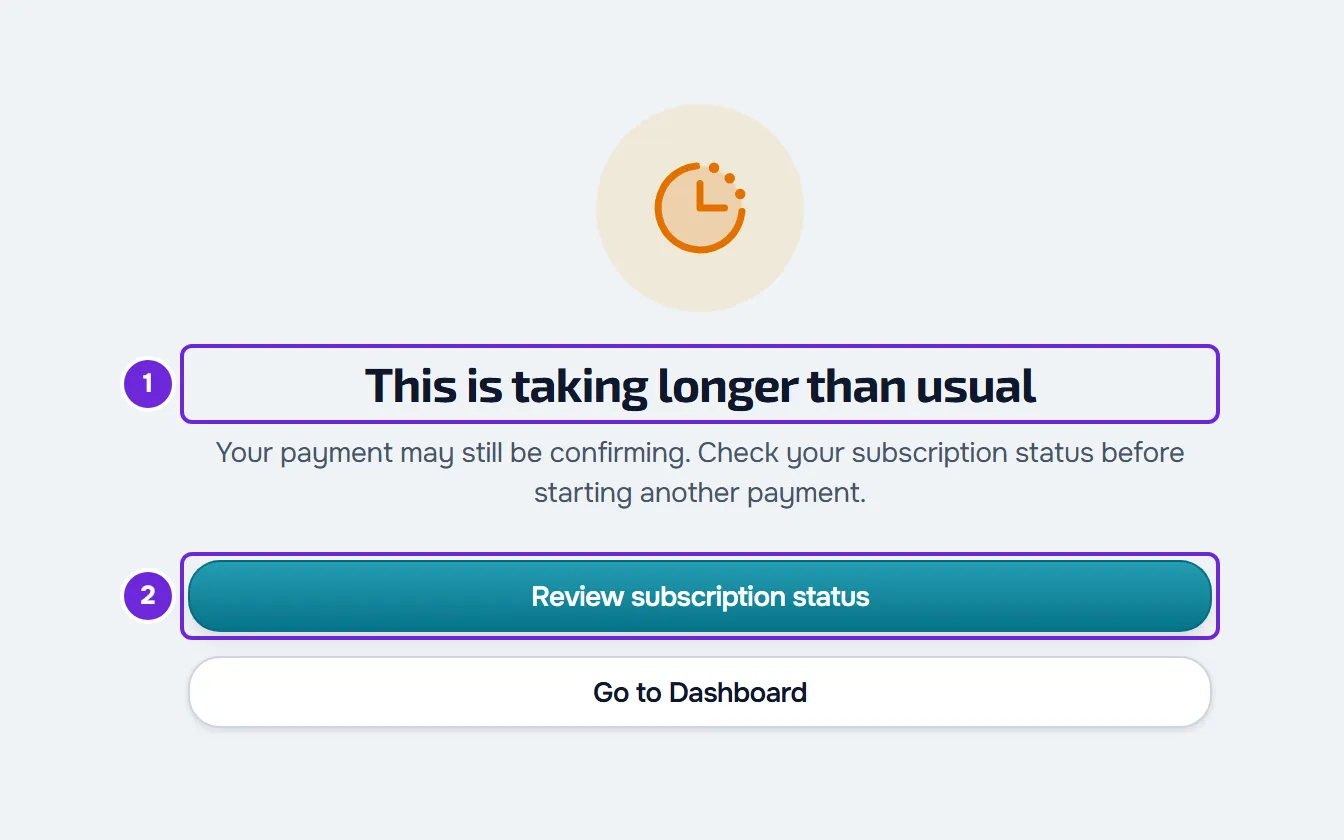
When you pay for a plan from the Free plan, Stripe sends you back to the “Activating your subscription...” page. The page tries to confirm the payment every 2 seconds, for up to 30 seconds. If the confirmation doesn't arrive in that time, the page changes to “This is taking longer than usual”. That doesn't mean the payment failed: it may still be confirming.
To check whether the payment went through:
- Open Subscription: on the “This is taking longer than usual” page, select Review subscription status 2; on any other page, open Settings and select Subscription.
- On the plan card, check the plan's name and, if there is one, the status label. An active plan has no label.
- If the card still shows your previous plan, wait a few minutes and reload the page.
When the card shows the new plan, the payment went through and the plan's features are active. If another dashboard page still shows you the previous plan, for example a page that is still locked, reload that page: the dashboard reads the plan when the page loads.
If you upgraded from a paid plan, there's no such page: Stripe confirms the change on a page of its own, with a link back to Subscription. Your plan changes when MyFitnessClient receives Stripe's confirmation; if the card still shows the previous plan, reload Subscription in a little while.
If the page says “The checkout expired”, Stripe's payment page is no longer valid, because about 1 hour has passed or because you started another payment after that one. Try again opens Subscription: check your plan there before you pay again.
Reloading many times in a row doesn't speed up the confirmation and can use up the request limit: see the “Too many requests” section.
“You already have this plan or your previous checkout is still being activated.”
It appears when you ask to change plans and MyFitnessClient doesn't open Stripe. The cause is one of these:
| Cause | What to do |
|---|---|
| You recently completed a payment that is still being activated. | Wait a few minutes and open Subscription. For 15 minutes after the payment, another payment is refused. |
| Stripe already had a subscription of yours that Subscription wasn't showing yet. | MyFitnessClient brings it up to date at that moment. Reload Subscription to see the plan and its status. |
| You chose the plan and the period you already have. This happens, for example, when the page couldn't read your plan and no card shows “Current Plan”. | There's nothing to change. To switch only between monthly and annual, choose the other period with the period selector in Change Plan. |
The steps to upgrade are in Upgrade your plan and pay for your subscription.
“Your plan was granted by MyFitnessClient. To change it, contact support.”
Your plan has the “Granted” label. A granted plan can't be changed or cancelled in Subscription. If it has an end date, it ends on its own on the day shown in “Ends on”. To change it sooner, contact support.
“A plan change is already scheduled.”
You already asked for a downgrade, or a switch from annual to monthly, which only happens at the end of the paid period. There can only be one scheduled change at a time, so another change to a paid plan is refused until that day. The “Plan change scheduled” banner, at the top of Subscription, says which plan you're moving to and on what day. To ask for another change before that day, undo this one with Keep current plan on that banner. Moving to the Free plan is still possible and cancels the subscription at the end of the period. See Downgrade your plan and confirm the scheduled change.
“Couldn't load your subscription details.”
Subscription reads four things at the same time: your plan, the list of plans, the last 10 invoices and the applied codes. Each read that fails shows an error card in its own place, with the Try again button:
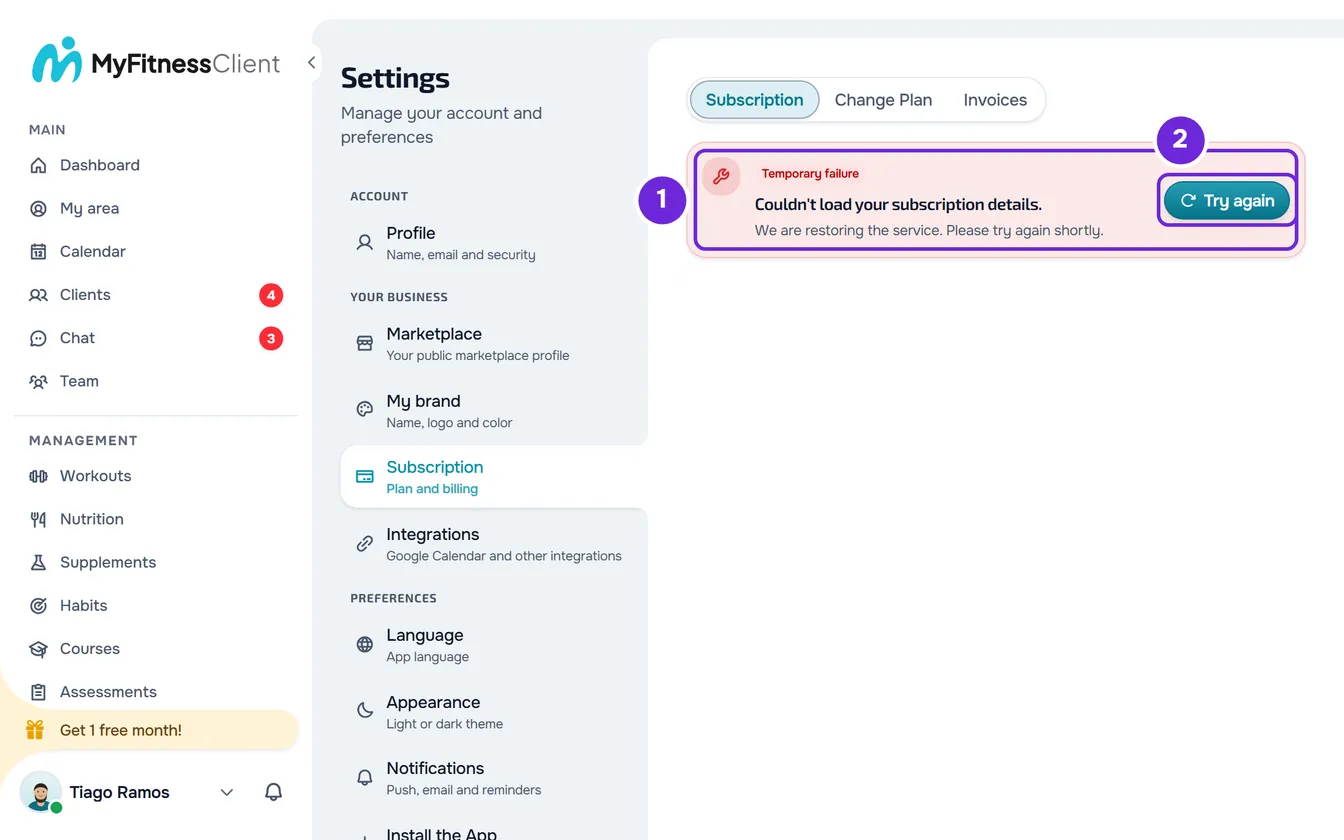
- Your plan: the card with this message, right after the tabs, visible in any of them. If the page had no data yet, the Subscription tab stays empty, so that it doesn't show you a wrong plan. While this card is showing, the others don't appear.
- The list of plans: a card in the Change Plan tab, in place of the plan cards.
- The invoices: a card in the Invoices tab. The page doesn't say that you have no invoices.
- The codes: a card in the Change Plan tab. If you open the code field, you see the note “We could not confirm whether a code is already applied.”
The invoice, plan and code cards show a title for the type of failure, for example “You are offline” or “Too many requests”.
To load again:
- Check that your device is connected to the internet.
- On the error card, select Try again 2. The page does the four reads again.
- If the card is still there, wait a minute and reload the page.
Subscription doesn't retry on its own. The rest of the dashboard does: when it can't read your plan, it waits 3 s, then 6 s, 12 s and 20 s, and from then on 30 s between attempts, and it tries as soon as the connection comes back or you return to the browser tab. Until it succeeds, the pages that depend on the plan show “Our services seem to be down”: see “Our services seem to be down” and section under maintenance.
The Manage Billing button doesn't appear
Manage Billing, on the plan card, opens Stripe's billing portal. It only appears when your account already has a billing account in Stripe, created for example when you open the payment for a plan for the first time. It also doesn't appear while the page loads, or when reading your plan fails before there is any data, because then the Subscription tab stays empty.
The same portal opens with Update card, in the Invoices tab, which appears even when reading your plan failed, and with Resubscribe, in the “Your subscription will be cancelled” banner. When you open the portal, you may see one of these messages:
- “You don't have a billing account yet. Subscribe to a plan first.” The account has no billing account in Stripe, or the one it had no longer exists. Choose a plan in Change Plan.
- “The billing portal could not be opened.” The portal didn't open. Try again in a little while and, if it keeps happening, contact support.
I'm a team member and I don't see the upgrade buttons
In a team's workspace, the owner's plan applies. There, the dashboard doesn't show pages locked by the plan, subscription banners or upgrade windows, and the server applies the features and limits of the owner's plan. If the owner's plan doesn't include a feature, the request is refused with the message “This feature is not included in the current plan.” Only the owner can unlock it, on their own plan.
In Settings > Subscription you always see your own account's plan, not the team's: changing your plan doesn't change the team's. If a menu item is missing or you see “No permission to access”, the problem is with the team's permissions: see “No permission to access” and menu items missing for a member.
I can't change or cancel my plan in the phone app
The MyFitnessClient app in the stores is for clients only: with a professional account, it shows “This app is exclusively for clients” and doesn't sign you in. The subscription is managed on the MyFitnessClient website, in the browser on your computer or phone, in Settings > Subscription. See “This app is exclusively for clients”: what to do as a professional.
I earned a free month and I'm still being charged
The free month from the affiliate program doesn't pause the subscription. It arrives as credit in your billing account, worth the monthly price of your plan on the day you earned it, and is deducted automatically from the next invoices until it runs out. If the invoice is larger than the credit, for example on an annual plan, you pay the difference. The credit appears on the plan card, in a line that starts with “You have”, and in the Invoices tab, in the “Next charge” box, whose amount already has the credit deducted. When and how much you earn is in Earn free months with the affiliate program.
I can't apply a code
The “Have a code?” field is in the Change Plan tab, under the period selector, and only appears while the account has no paid plan and no coupon applied. What each error message means, and what to do, is in Apply a referral code, a partner code or a coupon.
Too many requests
Each action in Subscription has a request limit per account. When you go over it, the action is refused with “Too many requests. Wait a moment.”, or the page shows an error card, for example “Too many requests”. The time counts from the first request: wait up to a minute, or up to an hour for email invitations, and try again.
| What you do | Limit |
|---|---|
| Reading the plan, the invoices and the payment status: when the dashboard loads, when you open Subscription and on the page that confirms the payment | 30 requests per minute, combined |
| Upgrade and Change Plan on the plan cards, Manage Billing, Update card, Resubscribe and the add-on actions | 10 requests per minute, combined |
| Opening an invoice-receipt | 30 requests per minute |
| Applying a code in Change Plan | 5 requests per minute |
| Saving your code in the affiliate program | 5 requests per minute |
| Inviting by email in the affiliate program | 5 invitations per hour |
Other subscription problems
- The banner at the top of the dashboard says the payment failed or mentions a dispute: see Failed payment, 3D Secure or dispute on your subscription.
- You cancelled and you still have your plan: that's expected until the end of the paid period. See Cancel your subscription and understand what happens next.
- An invoice is missing its invoice-receipt, or you want to change your card: see View your invoices and update the card for your subscription.
- A page shows what the feature does and the plan that includes it, instead of the content: see Feature locked by your plan: what it means.
- After you changed plans, actions on clients became locked: see You have more active clients than your plan allows.
If this did not solve it
Contact support and include:
- your account email;
- the date and time of the payment or the message, and the plan you chose;
- the exact message and, if the error card shows it, the reference;
- a screenshot.