
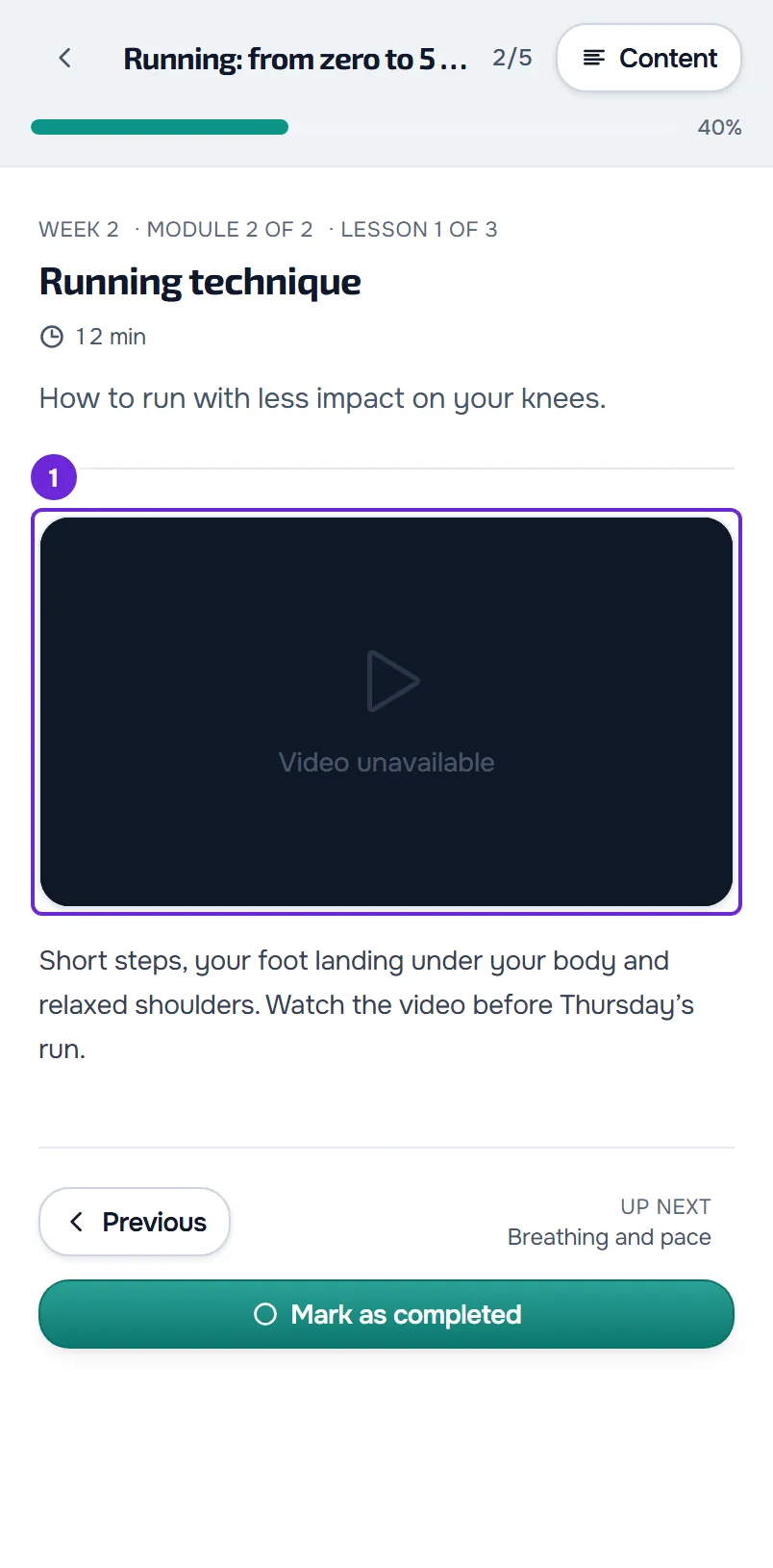
This happens when the video player of a lesson cannot play the video. On the website, a black box with “Video unavailable” appears in place of the picture, sometimes with a small line underneath that gives the reason. The professional sees the same box in View as student. In the app, the notice is different: see the section In the app. Only the professional can change the video of a lesson. If you are a client, let them know and tell them the name of the course and of the lesson.
On the website: what you see, the cause and what to do
| What you see | Cause | What to do |
|---|---|---|
| “Video unavailable” on a YouTube video. It may only appear when someone tries to play the video. | The video was deleted or is private, the owner does not allow it to be shown outside YouTube, it has an age restriction or it is blocked in the viewer’s country. | The professional opens the video’s address on YouTube to confirm and replaces the lesson video with another video or with a file. |
| “Video unavailable” with “Network error” underneath. | The internet connection failed while the video was loading. | Check the connection and reload the page. The player has no button to try again: reloading the page tries again. |
| “Video unavailable” with “Unsupported format” or “Decode error” underneath. | The browser could not read the file: it is in a format that this browser does not read, it is damaged or it is not accessible. | Try another browser. The professional exports the video again in a common format, such as MP4, and replaces the file in the block. |
| “Video unavailable” with “Playback aborted” or “Unknown error” underneath. | Loading of the video was interrupted, or the browser did not give the cause. | Reload the page. If the message comes back, the professional replaces the file in the block. |
| “Video unavailable” with no line underneath, on a video that is not from YouTube. | The address saved in the block is neither a file stored in MyFitnessClient nor a YouTube or Vimeo video, for example an external video that was never imported in an old course. The lesson player only plays files stored on the platform. | The professional changes the video in the block. Until then, publishing the course again is refused, and the message names the lesson. |
| On a Vimeo video, a message from Vimeo itself inside the player. | The website never shows “Video unavailable” on a Vimeo video: the video plays in the Vimeo player, which shows its own notices. It is usually a video that is deleted, private or that Vimeo does not allow to be shown on other sites. | The professional checks on Vimeo that the video exists and can be shown on other sites, or replaces it. |
| “No video URL”, in View as student. | The Video block of the lesson is empty. Clients never see this, because publishing refuses a lesson with an empty Video block. | Put a video in the block or delete the block. |
In the builder, an uploaded video plays inside the Video block itself, with the same player as the lesson: if it fails there, it also fails for clients.
Change the video of a lesson
The video is changed on the website, in the course builder. To change the video of a lesson:
- In the menu, select Courses and open the course.
- In the Lessons tab, select the lesson with the video.
- In the Video block, select the source of the new video: YouTube / Vimeo or Upload.
- If you chose YouTube / Vimeo, paste the normal address of the video into the field.
- If you chose Upload, select Upload file (or Replace, if the block already has a file) and choose the video.
- Select Publish changes.
The builder saves on its own, and clients see the new video after you publish. To see it first the way the client sees it, select View as student. A video from another server comes in through External video and Import video, which copies it to the platform.
The builder notice on YouTube videos
When you paste a YouTube address in YouTube / Vimeo, the builder tests the video. Under the field, “Checking whether the video plays inside the app…” appears, followed by one of these answers:
- “Plays inside the app”, in green, with the title of the video: the video plays in the lesson.
- “Video not found: it may be deleted, private, or the link may be wrong.”
- “YouTube will not show this video inside the app: either the owner disabled embedding, or the video does not exist. The client would see an error. Check the link, use another video, or upload the file.”
- “YouTube refused to show this video inside the app. Check the link or use another video.”
The three answers in red mean that the video will not play in the lesson: on the website, clients see “Video unavailable”. They are warnings: they do not prevent saving or publishing. The check has limits:
- It only exists for YouTube, in the Video block. A Vimeo video, or a YouTube video placed in a Link block, is not checked.
- It applies to the country of the person using the builder. A video blocked in the client’s country passes the check and only fails for the client.
- If “Checking whether the video plays inside the app…” disappears with no answer, the check could not reach YouTube, for example because of a browser extension, and it says nothing about the video.
- A live or playlist link is not saved: the status bar says that it could not save, with “This video link is not supported. Use a normal YouTube or Vimeo address (live and playlist links do not work), or upload the file with "Import video".”
In the app
- The app does not show “Video unavailable”. When it does not recognize the address saved in the block, the lesson shows a card with “Resource removed or unavailable” in place of the video. This happens with a file that is not stored in MyFitnessClient, with a YouTube Shorts video (an address with
/shorts/) and with some less common YouTube and Vimeo addresses, which the website plays but the app does not recognize. Let your professional know: they have to change the video in the block. For a Shorts video, the normal address of the same video is enough:https://www.youtube.com/watch?v=followed by the code that comes after/shorts/. - YouTube and Vimeo videos play in the player of YouTube or Vimeo itself, with its own controls. If the video does not play, the message that appears is the one from YouTube or Vimeo, and the causes are the same as on the website.
- If the YouTube player shows an error with the number 153, install the latest version of the app.
Other problems with the lesson video
- The video disappeared from the lesson without anyone changing the lesson: the video file was deleted, for example in Materials. The block leaves the published lesson and stays empty in the builder, and publishing is refused until the block has another video or is deleted. The professional uploads the video again in the block and publishes.
- On the website, the control bar disappeared: selecting the video picture, away from the center, shows or hides the bar, and it does not hide on its own. Select the picture again to bring the bar back. Pausing in the center of the picture also brings it back.
- On the website, the YouTube video appears with the YouTube controls and title: the lesson player could not load YouTube, or got no answer from it within 8 seconds, for example because a browser extension or a company network blocks YouTube. So that the video does not stay stuck, the lesson shows the YouTube player itself. It is not an error in the course. If you use an extension that blocks content, turn it off on this site and reload the page.
- On the website, on iPhone, the full screen button makes the player fill the whole screen over the page, instead of using the system full screen. This is the intended behavior. To exit, select the same button.
For other problems in a lesson, such as a course that does not open or a lesson with a lock, see Course does not open, shows as paused or a lesson cannot be completed.
If this did not solve it
If you are a client, talk to your professional: only they can change the lesson video. If you are the professional and the video still fails after you change it, write to the MyFitnessClient team through the contact shown in the Help Center and send:
- the name of the course and of the lesson;
- the address of the video, if it is from YouTube or Vimeo;
- the exact message, with the line under “Video unavailable”, if there is one;
- whether it happened on the website or in the app, and in which browser or on which phone;
- the approximate time.