
Interactive tutorial
Opens in the app and needs you to be signed in.
The Dashboard has four cards: Waiting for you, Today, Business and Recent activity. It lets you see at a glance what needs your attention and get to each item, because almost every row opens the page where you deal with it. To come back to it from another page, select Dashboard in the sidebar menu or the logo.
Also called the home page.
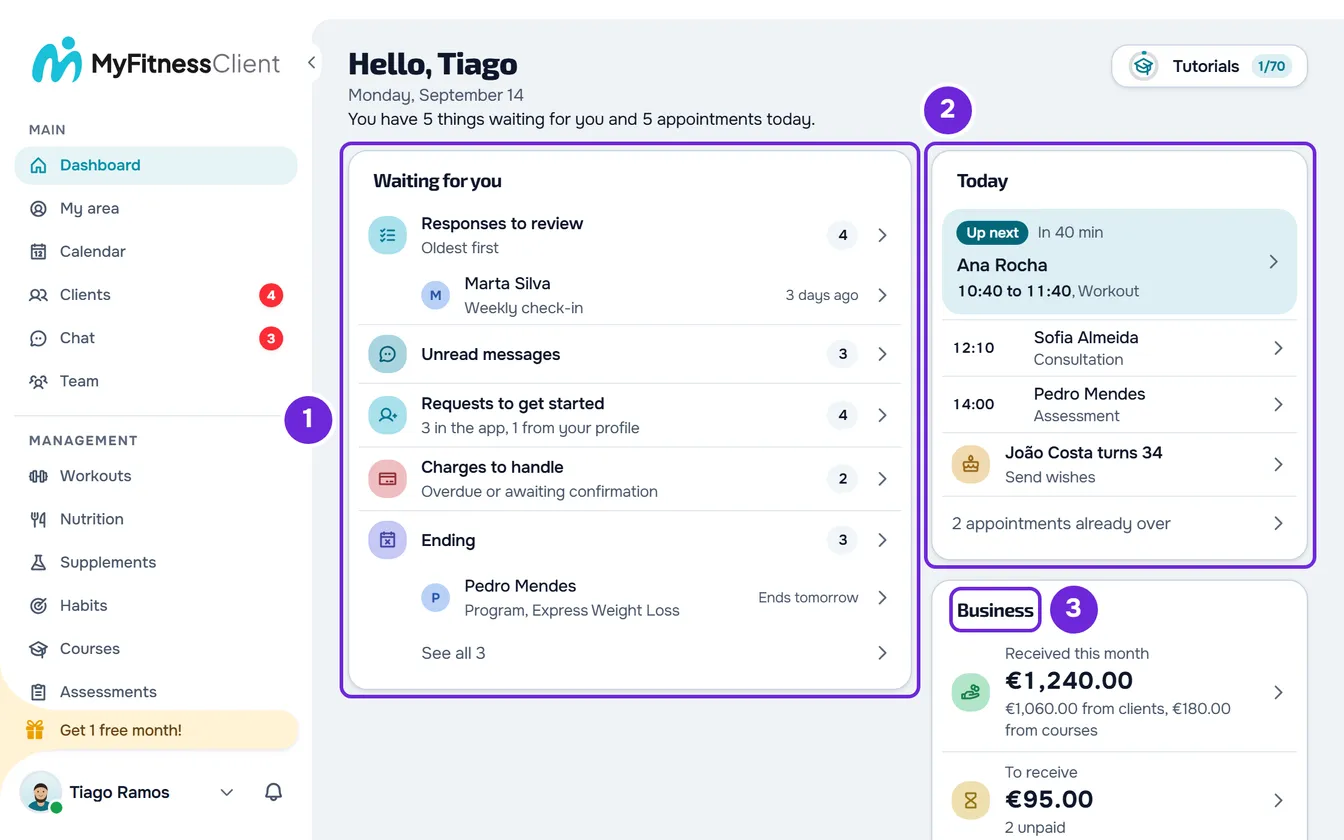
The top of the Dashboard
- The greeting “Hello” with your first name.
- Today's date, with the day of the week, the day and the month. It is the date of the device where you have the Dashboard open.
- A sentence that sums up the day, for example “You have 2 things waiting for you and 1 appointment today.” or “You're all caught up.”. The things are the rows of the Waiting for you card, not the sum of the numbers in those rows. The appointments are today's calendar events, without the cancelled ones and without birthdays.
- The Tutorials button, with your progress in the tutorials. See Follow an interactive tutorial or replay the guided tour.
Between the title and the cards, two MyFitnessClient notices can appear: Would you like MyFitnessClient tips, offers and news? and The Terms and the DPA have changed. See Automatic pop-ups and notices: what they are and how to close them.
Waiting for you
It is a single list of what needs action from you. Each row only appears when there is something, shows how many there are (up to 999; after that, “999+”) and opens the page where you deal with it.
| Row | What it counts | What it opens |
|---|---|---|
| Responses to review | Client responses to questionnaires that you haven't marked as reviewed yet. Underneath, the two oldest appear, with the client, the questionnaire and how long they have been waiting. | The row opens the list of responses. Each response opens that response. |
| Unread messages | Chat messages you haven't read yet. | Chat. |
| Requests to get started | The coaching requests you received in the app and the contacts left on your public profile, not yet handled. Underneath, it says how many there are of each, for example “2 in the app, 1 from your profile”. | Clients, on the Requests tab. |
| Charges to handle | The charges you collect manually that are overdue, and the ones the client marked as paid that are waiting for your confirmation. | Payments, showing only those charges. |
| Plans ending soon | Assigned programs and meal plans that end today or in the next 7 days, when the client has no other one of the same type that continues afterwards. Underneath, the first two to end appear. With more, the “See all 5” row opens the full list, grouped by day. | Each plan opens the client's profile, on the Workouts or Nutrition tab. The row title opens nothing. |
| Team tasks | Team tasks assigned to you that are to do or in progress. When tasks are overdue, it says underneath how many. | Team, on the Tasks tab. |
The Responses to review row only appears if you have access to questionnaires. The numbers for responses, messages, requests, charges and tasks are the same as the badges in the sidebar menu. See Dashboard side menu: what each item opens.
When nothing is waiting for you
- The card says “You're all caught up.” and reminds you that responses, messages and charges to handle show up there.
- In a new account, the card shows the Get started list, with four steps and the Hide option. See Get started: from a new account to your first client.
- If you don't have clients of your own yet and the Get started list isn't showing, the card shows Add your first client with the New Client button, which opens the new client window on the Clients page.
- If one of the counts didn't arrive from the server, the card can't say that everything is up to date: it says “Couldn't check everything.” and shows the Try again button.
Today
The Today card shows the calendar events that start today. View agenda opens the Calendar and each event opens the Calendar on that day. Cancelled events don't appear.
From top to bottom, the card shows:
- The clients who have a birthday today, one per row, for example “Ana Rocha turns 30”. Each row carries the text Send wishes and opens the chat with that client. With two or more, the Send wishes to all row opens a message to all of them, with the recipients already chosen. With more than three, the card shows two and a row such as “2 more have a birthday today”, which opens the full list.
- All-day events, with “All day” in place of the time.
- Events that are already over, collapsed into a row such as “2 already over”. Select it to see them. Completed ones have a check mark.
- The next event, highlighted, with “Up next” or, if it has already started, “Now”. When less than an hour is left, it says how long, for example “In 25 min”. While it is happening, it says until when, for example “Until 11:00”, if the event has an end time.
- The following events, up to five. With more, a row such as “3 more today” opens today in the Calendar.
Each event shows the time, the title and the type: Workout, Assessment, Consultation or Personal. The types you created in the Calendar appear with the name you gave them; other types appear as Other. When the event has a client, their name appears next to the type or, if the title is just the type, in place of the title. An event counts as past when it is completed or when its end time has passed. Without an end time, it counts as past one hour after it starts.
On a day with nothing else scheduled
When there are no more events still to come today, no all-day events and no birthdays, the card says “No appointments today.” or shows the row of those already over. Underneath, in Coming up, it lists up to three scheduled events from tomorrow to 14 days from now, each with the day and the time. Birthdays are not part of this list. With no events on those days, “Nothing scheduled in the next 2 weeks.” appears with the Schedule button, which opens the Calendar.
Business
The Business card has three numbers, with money in the currency you charge in. Each row opens the page the number comes from.
- Received this month adds up the charges that were paid this month and the course sales of the month. When there are course sales, a line splits the two parts, for example “€120.00 from clients, €49.00 from courses”. Automatic payments for clients' plans are included in this total too, net of refunds and lost disputes. The row opens Payments.
- To receive adds up unpaid charges, overdue ones included, and says how many there are, for example “3 unpaid”. Charges the client marked as paid that are waiting for your confirmation are not included. It opens Payments showing only open charges.
- Active clients counts your active clients, without the Test Student. The “2 new this month” line counts the ones who started this month and only appears once you no longer have the Test Student. It opens Clients.
Until you have any charge or sale recorded, the two money rows are replaced by No payments recorded yet, which opens Payments.
With Hide money values turned on in Settings, the money amounts on the Dashboard appear blurred. Select an amount to see it and select it again to hide it once more.
Recent activity
The Recent activity card shows your clients' three most recent actions in the last 30 days. Each row has the client's photo or an icon for the type, the client's name, what happened and how long ago, and opens the place where it happened.
| Type | What the row says | What it opens |
|---|---|---|
| Workout | “Completed Chest and Triceps, 48 min” or “Completed a workout”. For a workout logged by the professional, “In-person workout logged”. | That session in the client's workout history. |
| Payment | “Payment received”, with the amount and, when there is one, the name of the plan, pack or course. | Payments, with that client's paid charges. |
| Check-in | “Sent their check-in”, with the weight when the client entered it. | That check-in. |
| Assessment | “Submitted an assessment”, when the client was the one who recorded it. | That assessment. |
| Response | “Answered”, followed by the name of the questionnaire. | That response. |
| New client | “Started with you”. | The client's profile. |
A response that created a check-in only appears as a check-in. Other responses only appear if you have access to questionnaires. View all opens the Activity page, with the full activity by day, tabs by type, search and filters. With no activity in the last 30 days, the card says “No activity from your clients yet.”.
When the Dashboard updates
- In Waiting for you, the numbers for responses, messages, requests, charges and tasks change on their own when something new arrives or when you deal with one.
- The other data, including plans ending soon, is loaded when you open the Dashboard. It is loaded again on its own when you come back to the browser tab after 3 minutes or more away from it, or on a new day.
- The Today card follows the device clock minute by minute: the next event changes to “Now” and then joins the ones already over.
- To see the latest data right away, reload the page.
The Dashboard in a team
In a team's workspace, the Dashboard only shows what your permissions let you see. The areas and the View action have the names used in the permissions editor.
| Without View in this area | What you no longer see on the Dashboard |
|---|---|
| Payments | Received this month and To receive, the Charges to handle row and payments in Recent activity. |
| Questionnaires | The Responses to review row and responses in Recent activity. |
| Chat | The Unread messages row. |
| Clients | The Requests to get started row, the rows of clients who have a birthday, workouts and new clients in Recent activity, and the View all link. A birthday that is in the Calendar still appears in Today, as an all-day event. |
| Programs | Programs in Plans ending soon. |
| Nutrition | Meal plans in Plans ending soon. |
| Assessments | Check-ins and assessments in Recent activity. |
If your access is limited to specific clients, active clients, events, birthdays, activity, money amounts, responses and plans ending soon count only those clients, and events without a client don't appear in Today. The Get started list only appears to the workspace owner, and Add your first client only to those who can create clients. See “No permission to access” and menu items missing for a member.
The Dashboard on narrow screens
On a phone, the cards sit in a single column, in this order: Waiting for you, Today, Business and Recent activity. On wider screens, they sit side by side, in two, three or four columns, depending on the space. When the screen is narrower than 420 px, the Tutorials button shows only its icon.
Common problems
“Couldn't load the dashboard.”
The Dashboard data didn't arrive from the server and the cards don't appear. Select Try again. If the error happens again, see “We could not load this information” and other error cards.
I don't see Received this month or To receive
You are in a team's workspace without the View permission in Payments. Ask the team owner for it. It also happens when your permissions didn't finish loading: in that case, reload the page.
I see another name in place of the client's name
That client has a nickname, given in their profile by you or by someone else on the team. The Dashboard shows the nickname in place of the name on every card. The client never sees it.
Questions
Why don't To receive and Charges to handle show the same thing?
To receive adds up all unpaid charges, even the ones not yet due. Charges to handle counts only the ones waiting for you: those that are overdue and those the client marked as paid. See Totals, statuses and charge types in Payments.
Which day and month count for the numbers?
Today, the next 7 days and the month follow the time zone saved in the workspace owner's account. The date at the top and the event times follow your device's clock.
Does the Test Student count in the numbers?
Not in Active clients or in Plans ending soon. The Test Student's events appear in Today, and their workouts and the “Started with you” row in Recent activity. See Example data and the Test Student: what a new account includes.