
Before you start
- Support is in every professional account and does not depend on team permissions. Each request stays in your account, whichever workspace you are working in.
- A request only takes text: there are no attachments or screenshots. Describe what you saw and copy the text of the error messages.
- The subject holds up to 255 characters and the message up to 5000. Anything past that limit is cut off without warning.
Steps
To create a support request:
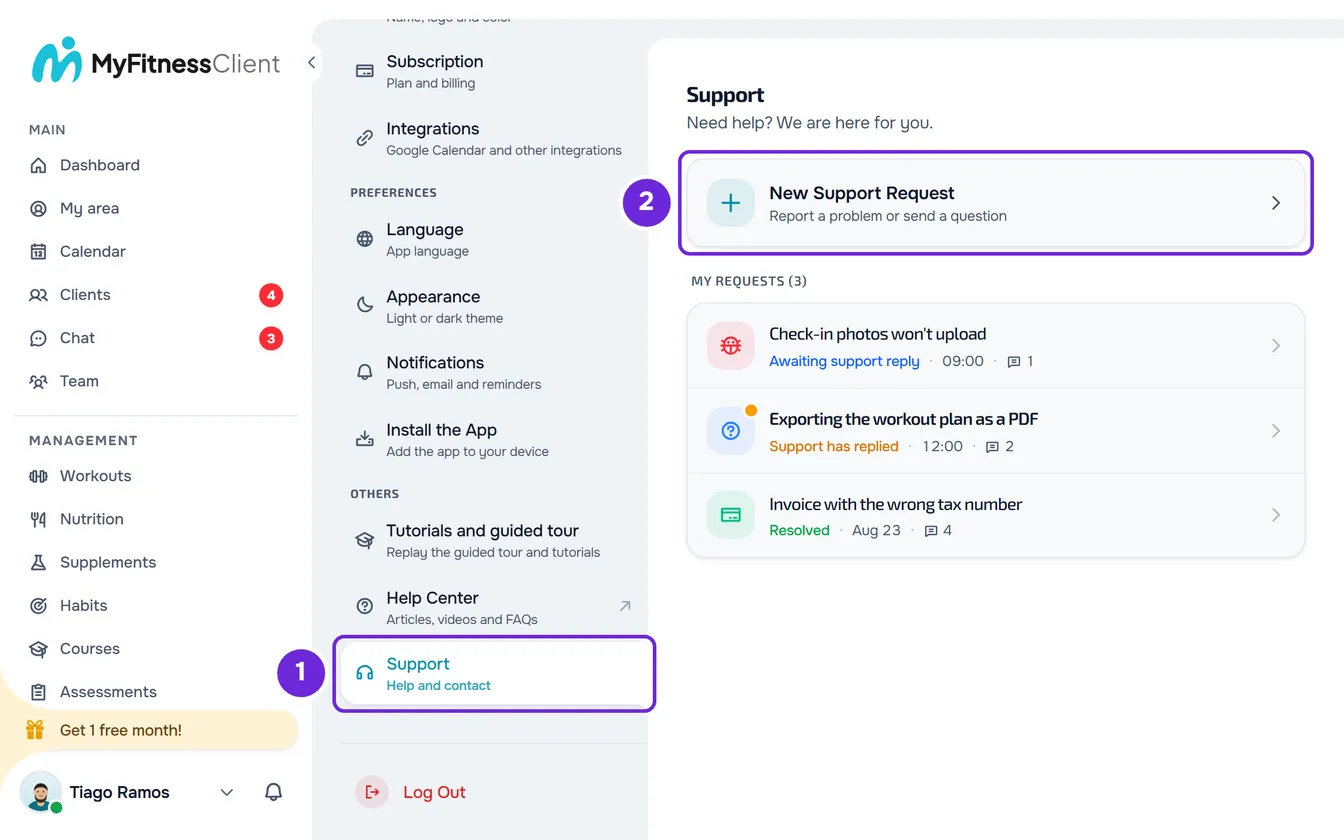
- At the bottom of the sidebar, select your photo and name, then Settings. On a phone, or in a window less than 1024 px wide, first open the menu with the button in the top-left corner; Settings is at the bottom of the menu.
- In the OTHERS group (on a phone, SUPPORT), select Support 1.
- Select New Support Request 2.
- Optional: in Category, select General Support, Billing, Report Bug, Suggestion, Account or Other. The form opens with General Support already selected.
- In Subject 1, write a short summary of the problem.
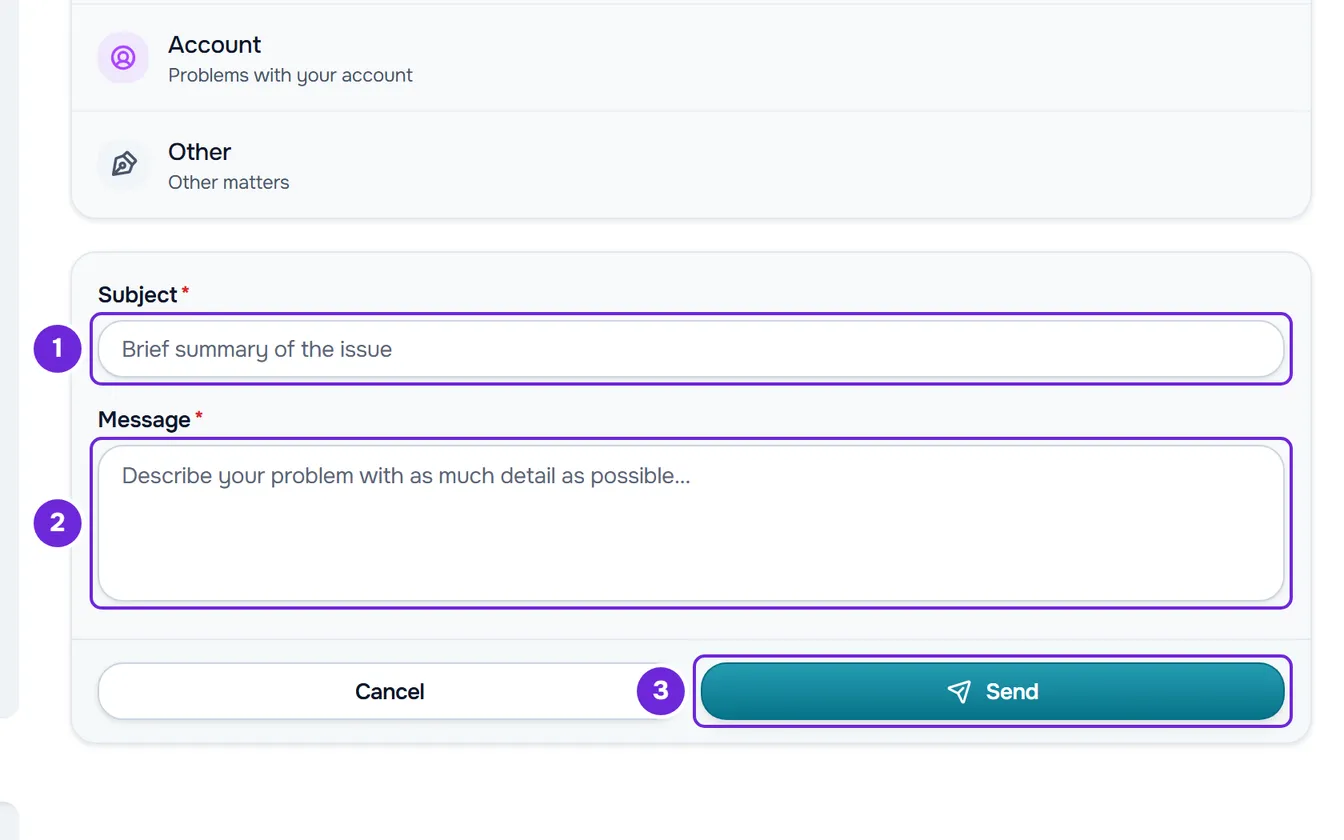
- In Message 2, describe what you were doing, what happened and what you expected to happen.
- Select Send 3.
The notice “Request created successfully” appears and the request sits at the top of My Requests, with the status Awaiting support reply. You also get the email “We received your support request”, with the button “View request”, which opens Support. When the MyFitnessClient team replies, the request changes to Support has replied and the reply appears in the request's conversation, which you open from the list.
No access to your account
Support only opens when you are signed in. If you can't sign in, or don't have an account yet, open the Help Center home page, as explained in Find an answer in the Help Center. At the end of the page, the “Didn't find what you're looking for?” block has the Send Email button, which opens your email program with the MyFitnessClient address already filled in. The same button appears on the results page when a search finds nothing.
An email stays outside Support and does not appear in My Requests. To sort out access to your account, see I can't sign up, sign in or reset my password.
Common problems
A notice asks for the subject and message
This happens when the subject or the message is empty or only has spaces. Write both and select Send again.
“Invalid input data.”
This happens when the subject or the message contains something that looks like an HTML tag: a < sign followed straight away by a letter, or by / and a letter, and further on a > sign, as in <b>. For security, the request is refused. Remove one of those signs, or leave a space after the <, and select Send again.
“Too many requests. Wait a moment.”
This happens when you create a request less than a minute after the previous one: you can only create one request per minute. The text stays in the form. Wait until a minute has passed since the last request and select Send again.
“Connection error.”
This happens when the request doesn't reach MyFitnessClient because the internet connection failed. The text stays in the form. Check the connection and select Send again. If “Server error.” appears, wait a little and try again.
If that didn't fix it, use the Send Email button on the Help Center home page and write the request's subject, the exact error message and the time it happened.
Questions
Can I attach a screenshot or a file?
No. Requests and replies only take text. Describe the steps you took and copy the text of the messages you saw.
Can I delete a request?
No. Requests stay in My Requests. When the matter is resolved, you can close the request in the conversation: in the ⋮ menu, select Mark as resolved and close and confirm. Once it is closed, you can no longer reply in that request; if you need to, create a new request.
Can my clients create support requests?
No, neither in the app nor on the website. In the app, the client's help tells them to talk to you in the chat and shows the MyFitnessClient email for problems with the app. In the app's Support, the client only sees the reports they made in the chat, with the team's reply.
Can I ask Support to migrate my account from another platform?
Yes. The MyFitnessClient team does the migration for you, from any platform, at no cost. Create a request and say which platform you are coming from; there is no request category of its own for migration. What happens next is in the Client migration and import category.