
Before you start
- The professional's tutorials are in the web dashboard. The client's tutorials are in the app and on the web.
- Some of the professional's tutorials use the Test Student or an example meal plan. If they don't exist in your account, MyFitnessClient asks “Create example data?” before the tutorial starts.
- Your progress is saved to your account, so it's the same on any device.
Steps
To follow a tutorial in the professional dashboard:
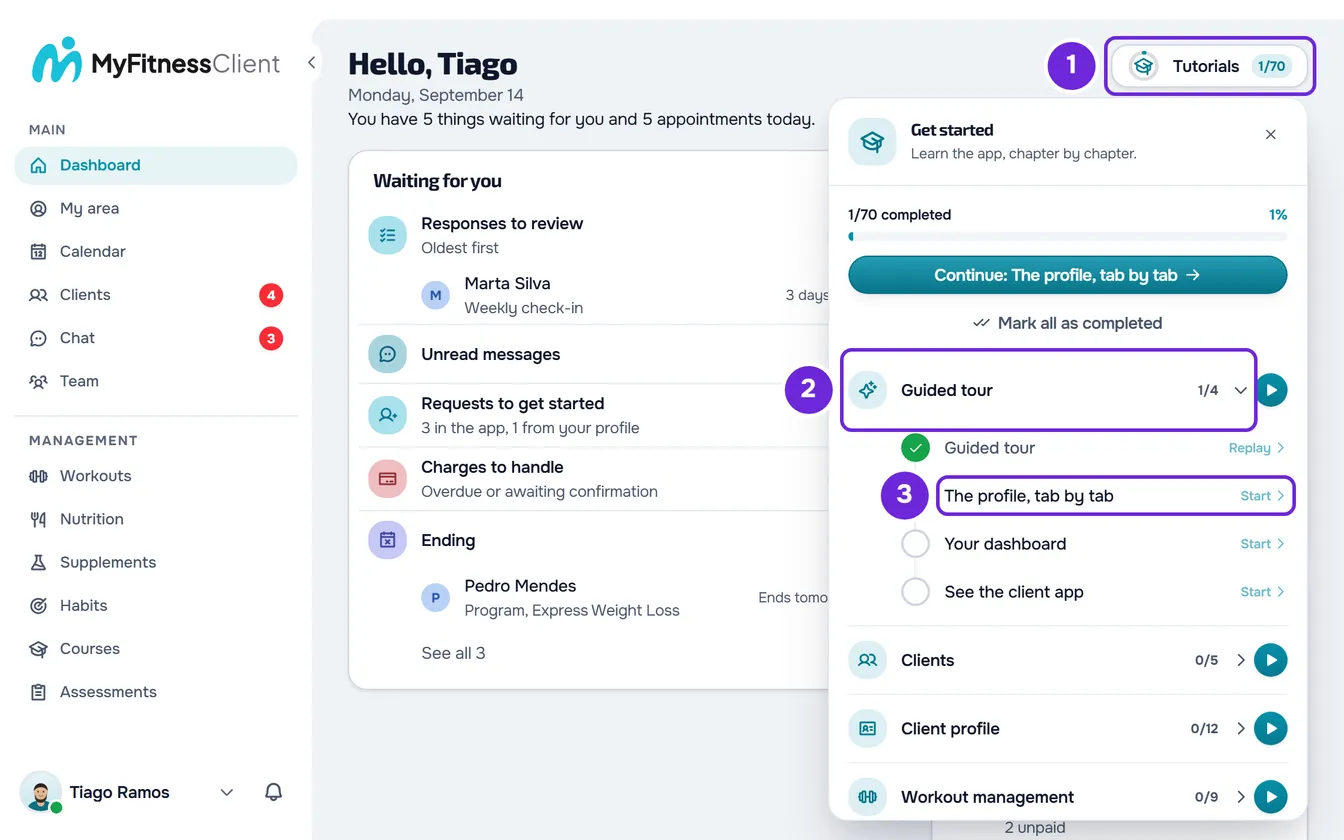
- On the Dashboard, select Tutorials 1, next to the title. On a narrow screen, the button shows only the icon, without the name. The Get started list opens, with the chapters and how many tutorials you've completed.
- If the chapter you want is closed, select its name 2 to see the tutorials.
- Select the tutorial's name 3. Next to the name, Start appears, or Replay if you've already completed it. The tutorial opens the page it's about and shows a box with the first step.
- Read the box and select Next 1. In some steps, the tutorial opens a window or fills in a field for you before moving on.
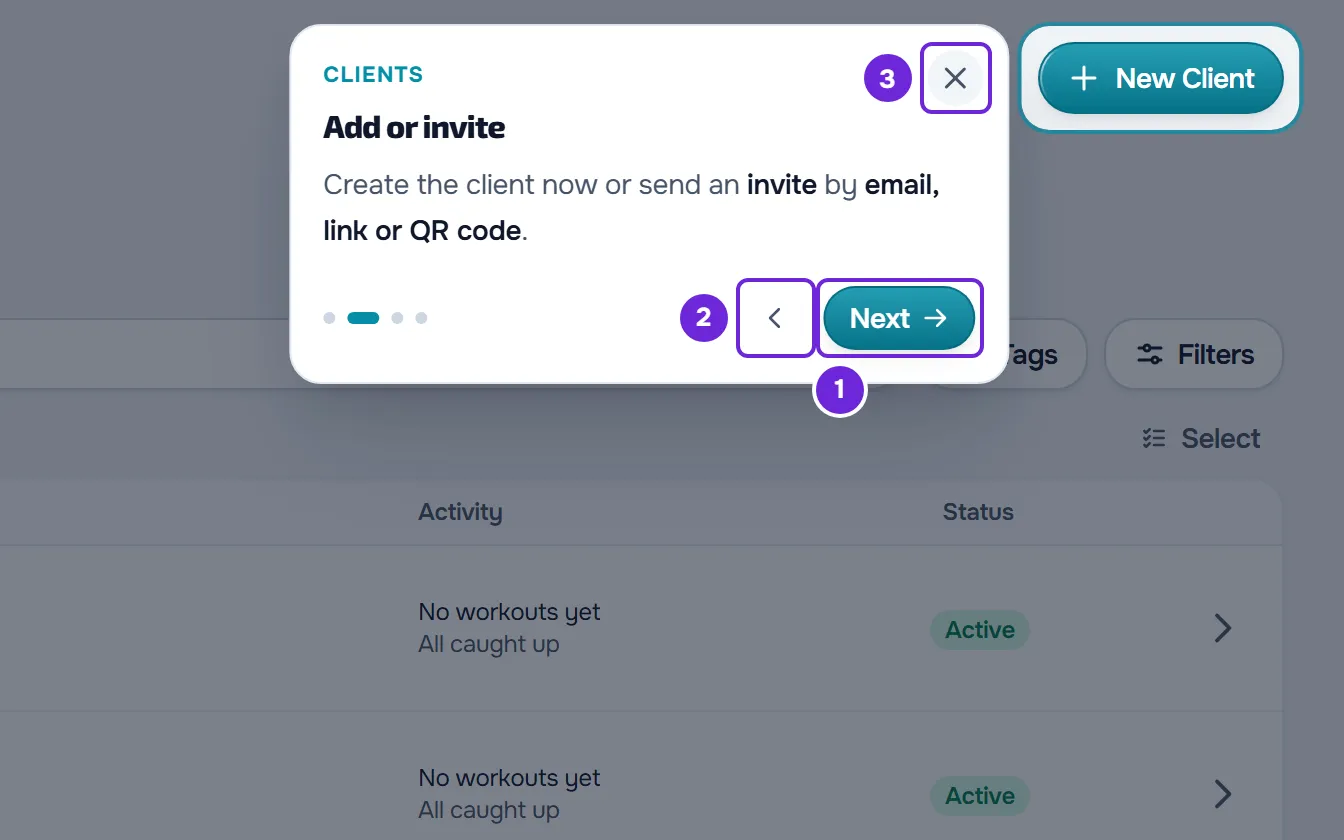
- Optional: to go back to the previous step, select the Previous 2 arrow.
- On the last step, select Finish.
The tutorial's circle is filled in on the list and the counter on the Tutorials button goes up. The same list is in Settings > Tutorials and guided tour.
In the client app
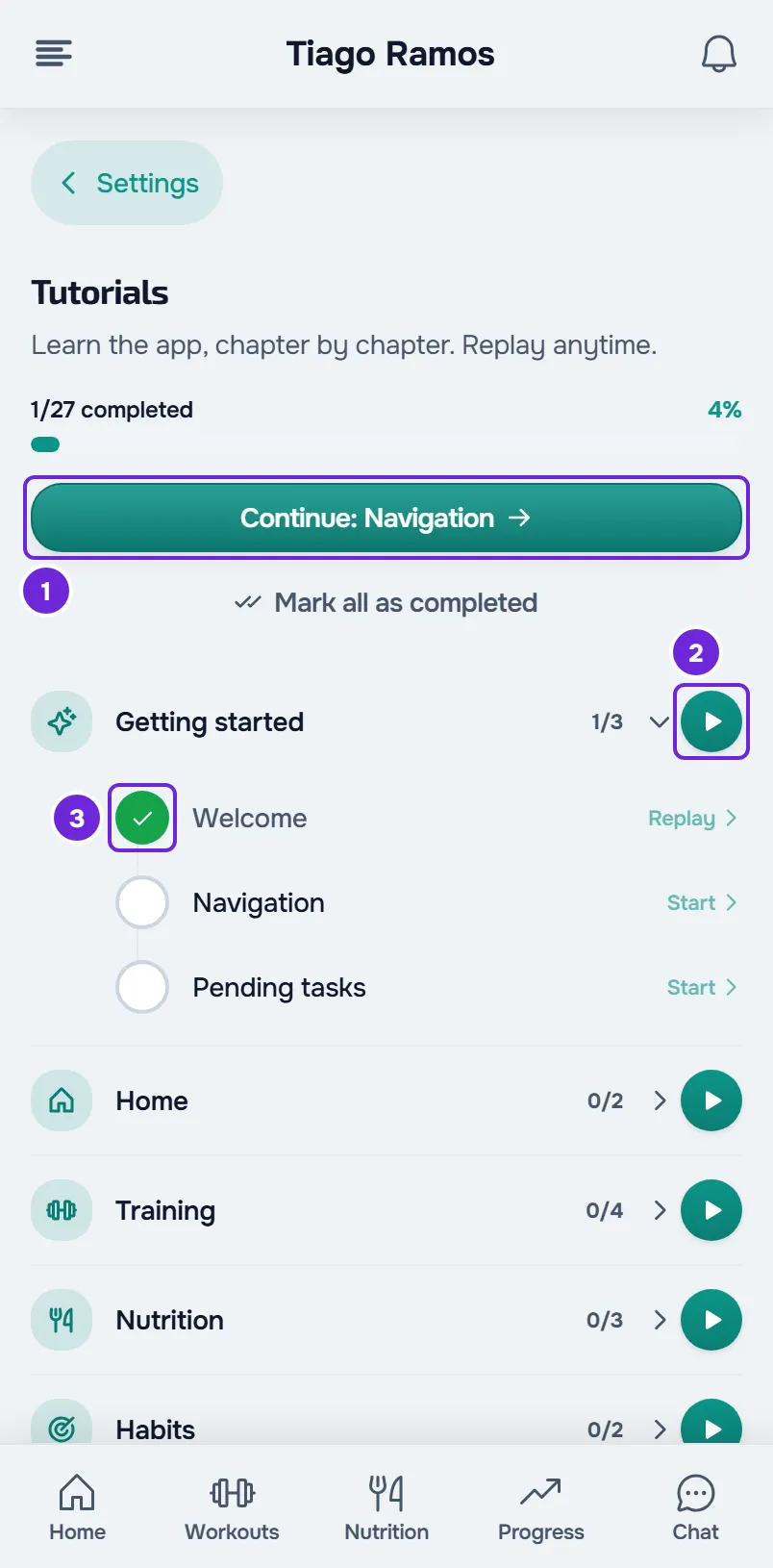
- The list is in Settings > Tutorials. On the web, this option only appears when you have a linked professional. In the app, it always appears.
- The list works the same way, with Continue, Start chapter, Start or Replay, the completed circle and Mark all as completed. It has no Restart.
- In the app, the box shows which step you're on, for example “Step 2 of 6”, and has no Skip tutorial. To exit, select the X or, on Android, the back button.
- In the app, Mark all as completed shows the message “Tutorials marked as completed” with Undo, which returns those tutorials to the state they were in.
- The Welcome tour starts on its own on Home, once. On the web, it only starts when you already have a linked professional. Closing it or completing it counts as done.
- The client tutorials, chapter by chapter, are in Interactive tutorials for clients: list by chapter.
Inside a tutorial
- A box explains the step, and the part of the screen it's about is highlighted. On the web, the rest of the screen darkens and doesn't respond while the tutorial is open.
- When a step is about another page, the tutorial opens that page on its own.
- To exit partway through, select the X. On the web, you can also press Esc and, on the first step, select Skip tutorial.
- On the web, if the part of the screen takes a while to appear, the box gives way to “Getting ready…”, in the center of the screen, for a few seconds. If it doesn't appear, for example because you don't have any clients yet, the step is skipped. The last step is never skipped.
- In the app, while the part of the screen hasn't appeared, the box stays in the center, without a highlight.
- Exiting partway through doesn't mark the tutorial as completed. The exceptions are the professional's guided tour and the client's Welcome tour: closing them counts as done, and they no longer start on their own.
Continue, run a chapter and mark your progress
- Continue, at the top of the list, opens the first tutorial you haven't done yet, in chapter order.
- The play button next to each chapter (Start chapter) runs that chapter's tutorials one after another. Each tutorial you complete opens the next one. Exiting one stops the sequence.
- The circle before each tutorial's name marks it as completed, or sets it back to not done, without you opening it.
- Mark all as completed marks all tutorials as done at once, including the guided tour or the welcome tour.
- When everything is completed, the list shows All done. In the professional dashboard, Restart also appears: it sets all tutorials back to not done and shows “Tutorials reset.”. If the Test Student still exists, the guided tour starts on its own again.
- When the professional completes all tutorials and still has example data, MyFitnessClient asks once, in “All tutorials completed”, whether to remove it. A team member, in the owner's workspace, does not get this question.
- On the web, when you open a page that has a tutorial, the Page tutorial card may appear. Show me opens that tutorial.
Open a tutorial from the Help Center
- On the web, an article with a tutorial shows the Interactive tutorial card with View in the app. The link opens the tutorial in the professional dashboard or, in an article only for clients, in the web version of the client app, and requires you to be signed in. In an article for everyone with a tutorial for each audience, the card has two buttons: For professionals opens the tutorial in the professional dashboard and For clients, in the web version of the client app.
- In the app, an article with an app tutorial shows Prefer to see it in the app? with Open interactive tutorial, which starts the tutorial on the correct screen.
- On the web, the link ends in
?tour=followed by the key of a tutorial or a chapter, for example/en/dashboard?tour=clients-add-invite. When the tutorial launches, the key is removed from the address, so reloading the page doesn't repeat it. A key that doesn't exist does nothing.
Common problems
The guided tour didn't start on its own
The professional's guided tour starts on its own once, shortly after you enter the dashboard, and only when the example data and the Test Student already exist. In a new account, this data takes a few seconds to be ready. If you closed the tour, it counts as done and doesn't come back on its own. To take it, open Tutorials and, in the Guided tour chapter, select Guided tour.
The tutorial skips a step or stays on “Getting ready…”
This happens when the part of the screen the step is about doesn't exist in your account yet, for example the client list with no clients, or when the page takes a while to load. On the web, the tutorial waits a few seconds and then skips that step. To see the full step, first create what's missing, or use the Test Student, and repeat the tutorial.
“Create example data?” appears
The tutorial uses the Test Student and an example plan, and your account doesn't have them. Select Confirm: MyFitnessClient shows “Recreating example data…” and the tutorial starts right after. Cancel closes the question without opening the tutorial. The four nutrition tutorials that open a plan only ask when you don't have any meal plan they can open (plans in Calendar mode don't count). If “Something went wrong.” appears, try again later.
I don't see Tutorials in the client's Settings
On the web, the Tutorials option only appears when you have a linked professional. In the app, it always appears, in Settings > Tutorials.
If this didn't solve it: if you're a professional, contact support in Settings > Support and include the tutorial's name, the step where it stopped and the browser you use. If you're a client, talk to your professional.