
Both screens take the place of a page that can't open. “Our services seem to be down” appears when MyFitnessClient can't read your plan from the server. “Under maintenance” appears when the MyFitnessClient team has put that section under maintenance. Neither is a problem with your account, and neither deletes or changes your data.
“Our services seem to be down”
This screen is only shown to professionals, in place of a page that depends on the plan, for example Workouts, Nutrition, Chat or Assessments. MyFitnessClient reads your plan when you open the Dashboard or reload the page. If the server fails or doesn't respond, or if the device is offline, the page doesn't know whether your plan includes it and shows this screen. While the plan is unknown, the screen never asks you to change plans. If the plan has already loaded, a later connection failure doesn't bring up this screen.
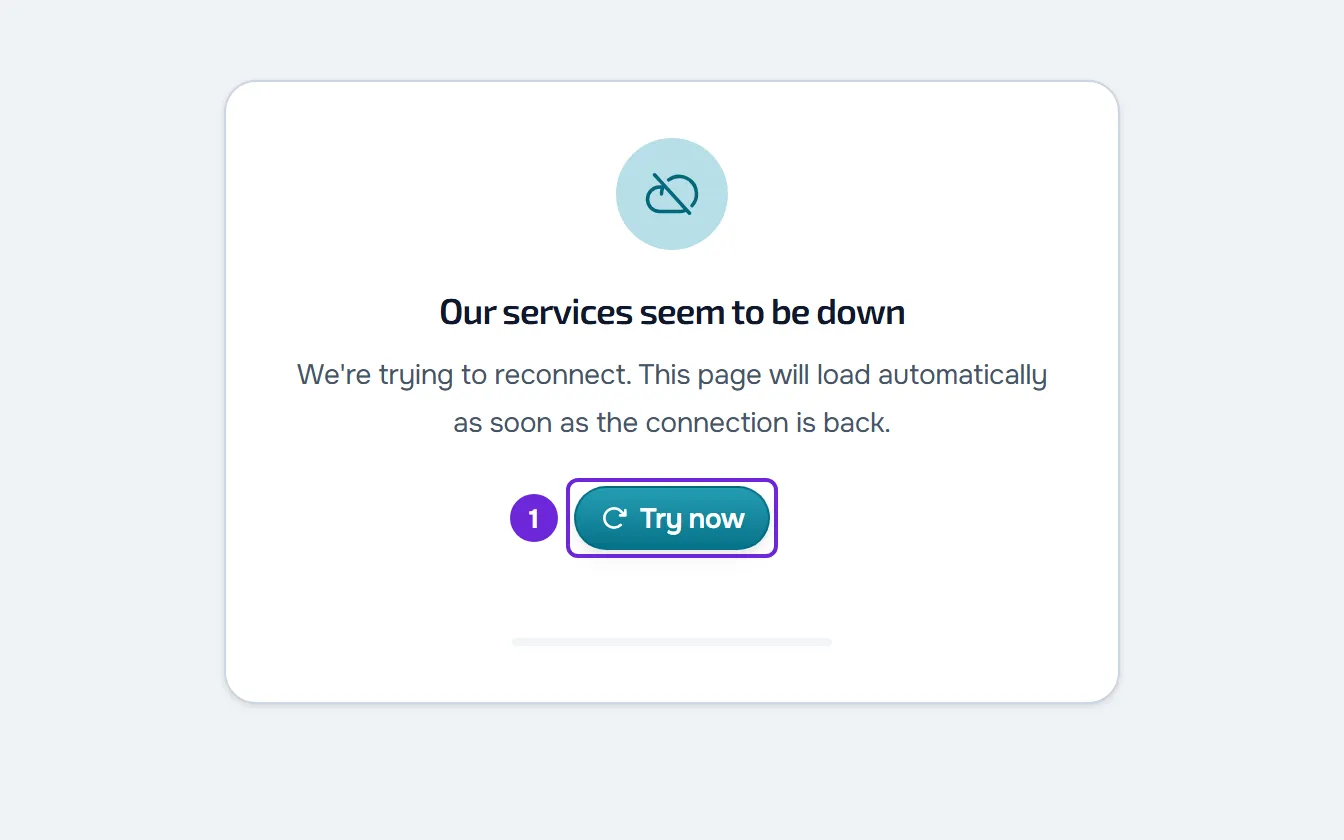
On the screen you see:
- the sentence “We're trying to reconnect. This page will load automatically as soon as the connection is back.”;
- the Try now button;
- the countdown to the next attempt, for example “Retrying in 3s”, and a bar that fills up until then (with reduced motion turned on in the system, the bar doesn't move);
- “Connecting...” while an attempt is running, with the button disabled.
MyFitnessClient tries again on its own. Between failed attempts it waits 3 s, then 6 s, 12 s and 20 s, and from then on 30 s each time. It also tries right away when the device is back online and when you return to this browser tab or to the installed app.
To get back to the page:
- Check that the device is connected to the internet, over Wi-Fi or mobile data. If it doesn't, see “You are offline”: what to do on the web.
- Select Try now to try right away, without waiting for the countdown.
- If the screen stays, leave the page open. The attempts continue on their own.
When the plan loads, the screen goes away and the page opens without reloading. If your plan doesn't include that area, the page opens locked: see Feature locked by your plan: what it means.
The screen is still there after several minutes
Reload the page with F5 or Ctrl+R (Cmd+R on a Mac). If the device is online and other pages also show error cards, the failure is on the server side. See Server temporarily unavailable or too many requests in a row and “We could not load this information” and other error cards.
“Under maintenance”
The MyFitnessClient team can put sections under maintenance while working on them. When you open a page in one of those sections, in the professional's Dashboard or in the client's web app, the page gives way to a screen with the title “Under maintenance”, a message from the team and the Available pages card. The menu stays visible. The page may show for a moment before the screen replaces it.
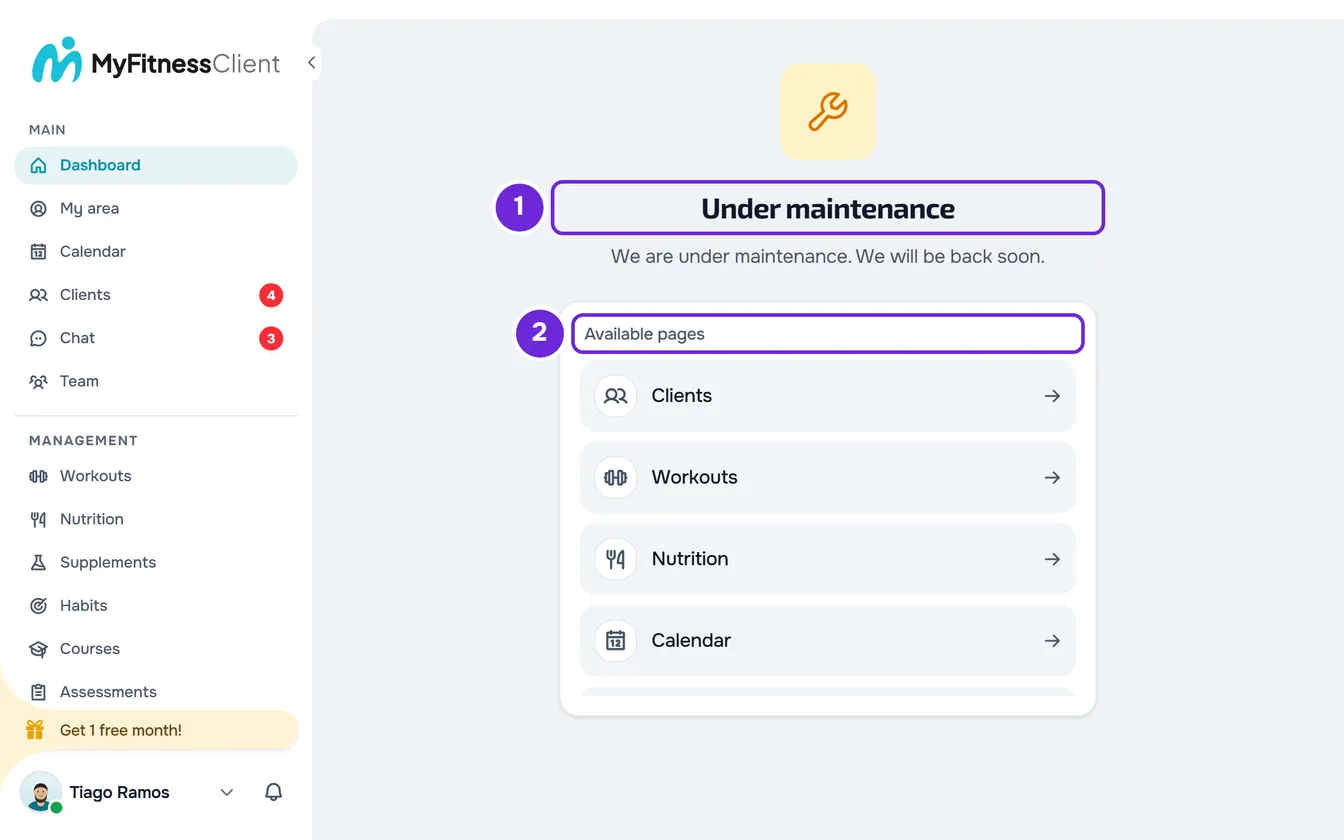
The Available pages card shows shortcuts to the pages in this list that aren't under maintenance: Dashboard, Clients, Workouts, Nutrition, Calendar, Chat and Payments, for the professional; Home, Workouts, Nutrition, Progress and Chat, for the client. If none is available, you see “All pages unavailable” instead of the card.
Each page belongs to a section, and maintenance is turned on section by section. Pages without a section of their own follow the Dashboard or Home:
| Area | Sections | Pages without their own section |
|---|---|---|
| Professional's Dashboard | Dashboard, Clients (with each client's profile), Workouts (with Programs and Exercises), Nutrition (with Foods and Meals), Supplements, Courses, Habits, Questionnaires, Calendar, Chat and Payments | Follow the Dashboard, for example Settings, Assessments, Progress, Materials and Team |
| Client's web app | Home, Workouts, Nutrition, Supplements, Courses, Habits, Progress, Chat and Questionnaires | Follow Home, for example Settings and Payments |
The Support page and the Dashboard's Help Center always open, even with a section under maintenance: that is where you can ask for help while it lasts.
A questionnaire opened through a shared link shows the same screen, without shortcuts, when the professional's Questionnaires section is under maintenance.
The screen doesn't go away on its own. MyFitnessClient only checks again when you open another page, and it keeps each section's answer for 30 s: a page in the same section opened less than 30 s later shows the same result. Reloading the page checks right away.
To keep working:
- In the Available pages 2 card, select the page you want to go to, or use the menu.
- Later, reload the page, or open another page and go back to the section from the menu.
When the maintenance ends, the page opens normally.
Questions
Do I lose what I was doing?
No. Both screens only appear while a page is opening, and they don't delete or change data. Maintenance that starts in the meantime doesn't close the page you're already on: the screen can only appear when you open another page in that section or reload the page.
Can I work in other sections?
Yes. Maintenance only affects the sections chosen by the team. “Our services seem to be down” only affects the pages that depend on the plan; the others open, but while the server doesn't respond they may show error cards.
Do clients see these screens too?
“Under maintenance”, yes, in the sections of the client's web app that are under maintenance. “Our services seem to be down” is only shown to professionals.
If this did not solve it
If you're a professional, contact support. If you're a client, write to the email address shown in the footer of the MyFitnessClient website. Include:
- which of the two screens you see and the page address;
- the time it appeared and how long it has lasted;
- the device and the browser, and whether you use the installed app;
- a screenshot.