
Before you start
- On the web, the Help Center opens without signing in: anyone can read it, with or without an account.
- On the web, the categories are split by audience: professionals and clients. Categories that apply to both appear in both.
Steps
To find an answer on the web:
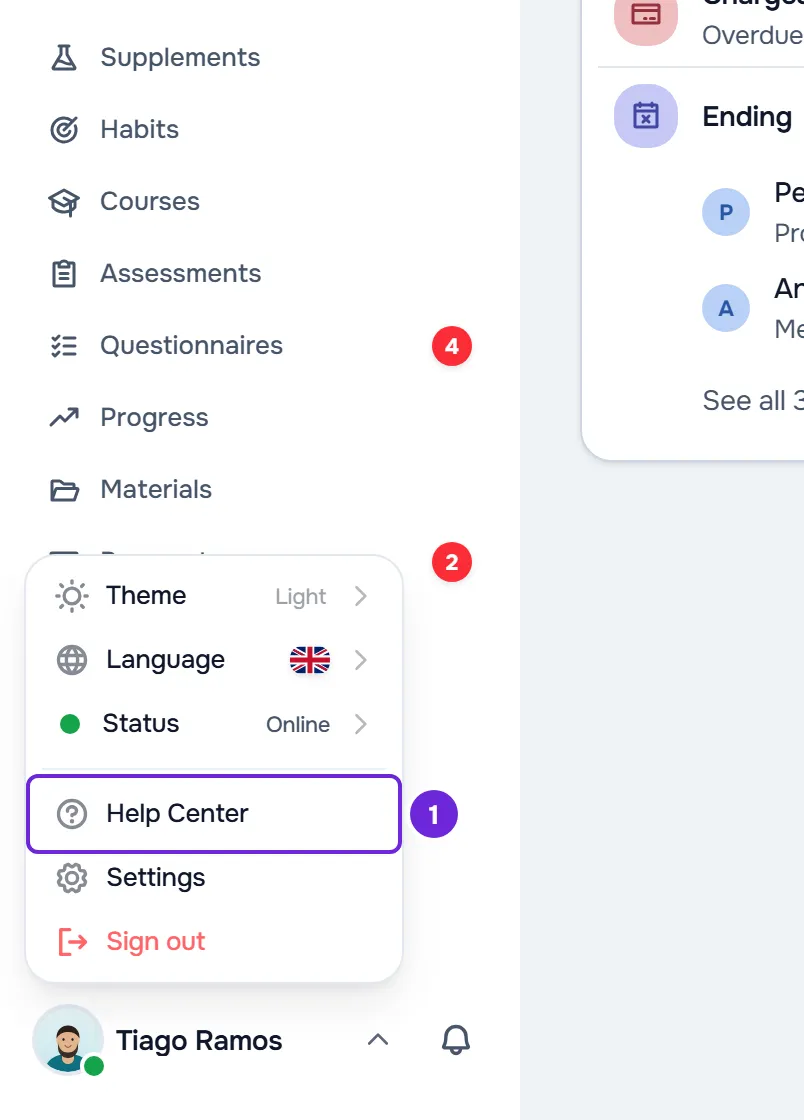
- On a computer, at the bottom of the side menu, select your photo and your name.
- In the menu that opens, select Help Center 1. If you're a client, the help opens on the articles for clients.
- On the help home page, under the search field, select your audience: Professionals or Clients. The categories, featured articles and frequently asked questions switch to that audience, and your choice is saved for your next visit.
- On the home page, under Browse by topic, select the category your question is about.
- On the category page, select the article. If the category also has videos or frequently asked questions, the articles are on the Articles tab.
- Optional: at the end of the article, select Next Article or Previous Article to read another article from the same category.
The article opens with the path to the category, the title, tags such as the platform and the date, and the summary. On screens 1280 px wide or more, when the article has two or more headings, the On this page table of contents sits next to the text and takes you to each section.
Other ways to open and browse
- In Settings, select Help Center. In the professional's Settings, the option is in the OTHERS group, which is called SUPPORT on a screen less than 1024 px wide.
- Without an account, at the bottom of the MyFitnessClient website pages, in the Company column, select Help Center.
- On any help page, the sidebar has the same audience selector and, under Categories, the list of categories: select one to see its articles.
- On a screen less than 1024 px wide, the sidebar is hidden. Open it with the Help Center button at the top of the page.
- In a category or an article for one audience only, the sidebar switches to that audience.
- To search by keywords, use the search field on the home page or the one in the sidebar.
In the app
- Open the menu and select your name, at the bottom of the menu, with Profile and settings under it. Then, in the Other group, select Help Centre.
- The help in the app shows only the articles that are useful to clients in the app, so it has no audience selector.
- The home page has the search field, the Categories, Start here, Featured and Video tutorials sections when they have content, the frequently asked questions and, at the end, the contacts.
- Select a category and then the article. At the end of the article, Previous and Next take you to the other articles in the same category.
View an article's tutorial
Some articles have an interactive tutorial, which shows the same steps on the real screen.
- On the web, the Interactive tutorial card appears at the start of the article, after Before you start when the article has that section. View in the app opens the tutorial in the professional dashboard or, in an article for clients, in the client area on the web. You need to be signed in: if you aren't, you sign in first and then the tutorial starts. In an article for everyone that has a tutorial for each audience, the card has two buttons: For professionals opens the tutorial in the professional dashboard and For clients, in the client area on the web.
- In the app, the Prefer to see it in the app? card has the Open interactive tutorial button, which starts the tutorial on the correct screen. It only appears when the app has a tutorial for that article.
- How tutorials work: Follow an interactive tutorial or replay the guided tour.
Say whether the article helped
In the app, at the end of each article, answer Yes or No to “Was this content helpful?”. The app shows “Thank you for your feedback!”. On the web, articles don't have this question: to say what's missing from an article, use the contacts at the end of the Help Center home page.
Questions
Do the old help addresses still work?
Yes. Addresses with /dashboard/help after the language (for example /en/dashboard/help) open the same page in the Help Center, and those with /app/help open it directly on the articles for clients.
Why does the app show fewer articles than the web?
The app shows only the articles that are useful to clients in the app. Articles for professionals and those that only apply to the web stay in the Help Center on the web.
Common problems
I only see articles for professionals, or only for clients
The audience selector is set to the other audience. Select Clients or Professionals, under the search field on the home page or in the sidebar.
The home page shows “Failed to load”
On the web, the home page couldn't read the categories, featured articles or frequently asked questions, for example because of a connection failure. Select Retry. In the app, when loading fails, the message is “Couldn't load.” and the button is Retry.
Every help page shows “Page not found”
This happens on the web when the MyFitnessClient team turns off the Help Center. While it's off, the Help Center option also disappears from your photo's menu and from Settings.
More problems and solutions in “No results found” and other Help Center problems.
If this didn't solve it, use the contacts under “Didn't find what you're looking for?”, at the end of the Help Center home page, and say which page you were on and what you were looking for. If you're a professional, you can also create a request in Settings > Support.