
Before you start
- You copy and report a food from the Catalog tab, which brings together the MyFitnessClient foods and the INSA table foods. These foods cannot be edited: to change one, copy it and edit the copy. Your own foods are edited directly, as explained in Create or edit a custom food. A product from the Online tab is saved another way: see Add a product by name or barcode.
- In a team workspace, copying requires the Nutrition > Create permission; without it, Copy to My Library does not appear. To open the library and report a food, Nutrition > View is enough.
Steps
To copy a food from the Catalog to your foods:
- In the side menu, select Nutrition.
- Select the Food Library tab. On a narrow screen, such as a phone's, the tab is called Foods.
- Select Catalog, the first of the library's three tabs.
- Optional: to search the INSA table, select INSA, under the search.
- Optional: type the food's name in the search.
- Select the food in the list to open its detail view. With the keyboard, focus the row and press Enter or the space bar.
- At the bottom of the detail view, under “This creates a copy you can edit”, select Copy to My Library 1.
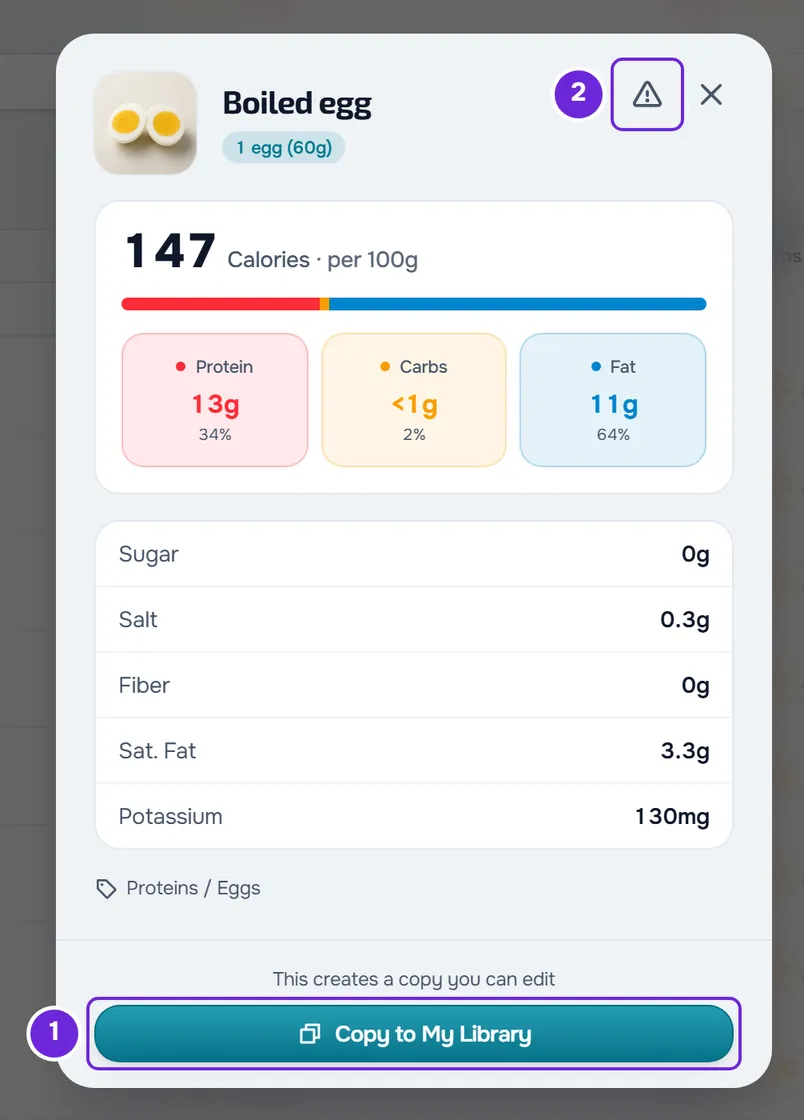
The detail view closes, the library switches to the My foods tab (on a narrow screen, My) and the message “Food duplicated” appears. The copy is in your foods with the original's name and “(Copy)” at the end, for example “Ovo de galinha inteiro, cru (Copy)”.
What the detail view shows
The detail view is read-only and shows, in this order:
- the photo, the name, the reference portion, such as “1 egg (60g)”, and the brand, when it has one. Selecting the photo opens it at a larger size; without a photo, a drawing of a fork and knife appears;
- the calories per 100 g or per 100 ml, with the caption “Calories · per 100g” or “Calories · per 100ml”;
- the split of energy between protein, carbs and fat: a colored bar and three boxes, Protein, Carbs and Fat, with the grams and each one's share of the energy. The calculation uses 4 kcal per gram of protein and of carbs and 9 kcal per gram of fat, and the bar and the percentages only appear when all three values are declared;
- Sugar, Salt, Fiber, Sat. Fat and Potassium, always all five, the first four in grams and potassium in milligrams;
- the category and the subcategory, when the food has them;
- for INSA foods, the source: “Source: INSA, Portuguese food composition table, version 7.1 (2026).”.
A “-” means the value is not declared; a 0 means it is declared as zero. A value greater than zero but smaller than the rounding appears with “<”, for example “<0.01g” for sugar or “<1g” in the protein, carbs and fat boxes.
For Catalog foods, in the corner of the detail view, next to the X that closes it, is the warning icon, a triangle named Report. At the bottom, the button depends on the food: Copy to My Library for Catalog foods, and Edit Food and Delete for yours. In a team, each button only appears with the permission it needs: Nutrition > Create to copy, Nutrition > Edit to edit and delete.
What the copy includes
- The name you see on screen, with “(Copy)” at the end. MyFitnessClient foods appear in the language you use the site in, and the copy keeps the name in that language; INSA foods always have their name in Portuguese.
- The brand, the unit, the reference portion, the calories, protein, carbs, fat, the five optional values, the category, the subcategory, the barcode, the photo and the portions.
- The copy is private and goes into My foods, in your workspace, even when the original comes from INSA.
- A copy of an INSA food shows the same source in its detail view, “Source: INSA, Portuguese food composition table, version 7.1 (2026).”, even after you edit it.
- The copy has no link to the original. If MyFitnessClient corrects the Catalog food, the copy stays as it was, and what you change in the copy does not reach the Catalog.
- Meal plans and meals that already use the original do not switch to the copy. See Library foods and meals: what changes in plans.
Report a food with wrong data
If a Catalog food has a wrong value, name, category or photo, let the MyFitnessClient team know:
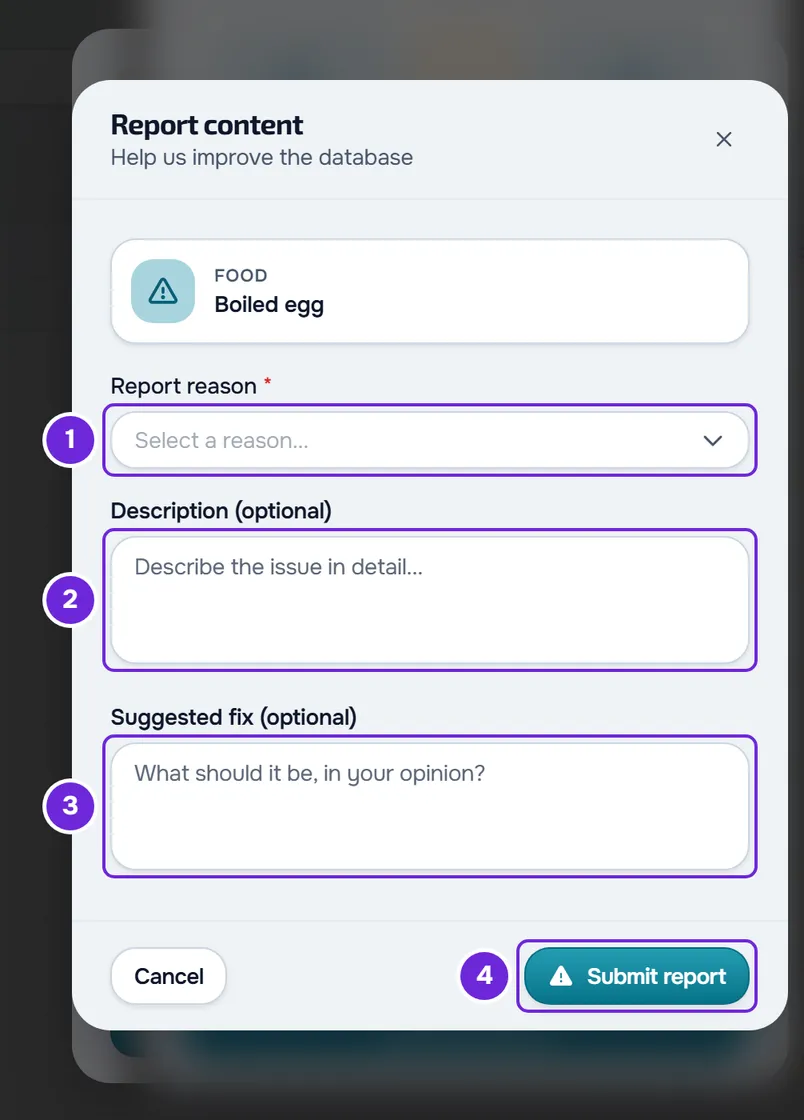
- In the food's detail view, select the warning icon, next to the X. The Report content window opens, with the food's name.
- In Report reason, which is required, choose one of nine: Incorrect information, Wrong nutritional values, Wrong category, Wrong brand, Bad image quality, Wrong name/translation, Duplicate food, Inappropriate content or Other.
- Optional: in Description (optional), explain the problem and, in Suggested fix (optional), type the correct value. Each field accepts up to 2000 characters.
- Select Submit report. The message “Report submitted! Thanks for your contribution.” appears.
With no reason chosen, Submit report shows a message asking for one and sends nothing. If you close the window after choosing or typing something, “Save before leaving?” appears: Discard closes without sending and Save and leave, which is only active with a reason chosen, sends the report.
Each account can send up to 20 reports a day, counting food and exercise reports together, and only one at a time per food: until the team closes the previous one, a new report on the same food is refused. When the team closes it, you get a notification: “Issue resolved” or, if the food stays as it is, “Issue reviewed”. The notification opens the food library.
Common problems
I don't see Copy to My Library
In a team, without the Nutrition > Create permission the button does not appear: ask the workspace owner for it. In the detail view of one of your own foods, the buttons are Edit Food and Delete: edit it directly. For a product from the Online tab, the button is Add, which opens the form of a new food already filled in.
An error message appears when copying
The copy was not created. With “You have more active clients than your plan allows. Choose which to keep or upgrade your plan.”, see You have more active clients than your plan allows. With “Connection error.”, check your internet connection and try again.
“You already have a pending report for this item”
You have already reported this food and the team has not yet closed that report. There is no need to send another: wait for the notification.
“You have reached the daily report limit”
Your account has already sent 20 reports today, across foods and exercises. Send the next one the following day.
If this did not solve it, contact support with the food's name, the exact message and the approximate time.
Questions
Can I edit a Catalog food?
No. Copy it with Copy to My Library and edit the copy in My foods. If the error is in the food itself, report it as well, so the team can correct it in the Catalog.
Can I copy the same food more than once?
Yes. Each copy is a new food, with “(Copy)” in the name. To avoid ending up with two identical ones, look in My foods first.
Can I duplicate one of my own foods?
No. The detail view of your foods has Edit Food and Delete, with no copy option. For a similar food, create a new one.
Does the client see the foods I copy?
Only the ones you put in a meal plan assigned to them. The other foods in your library do not appear to them.