
In a Chat conversation, the message box can be replaced by a bar with a padlock and a message. The message tells you why you can't write. In other cases, the box is still there, but a line on top of it, or a notice when you attach a file, tells you what doesn't go through.
What you see and why
Find the message you see in the conversation in the table:
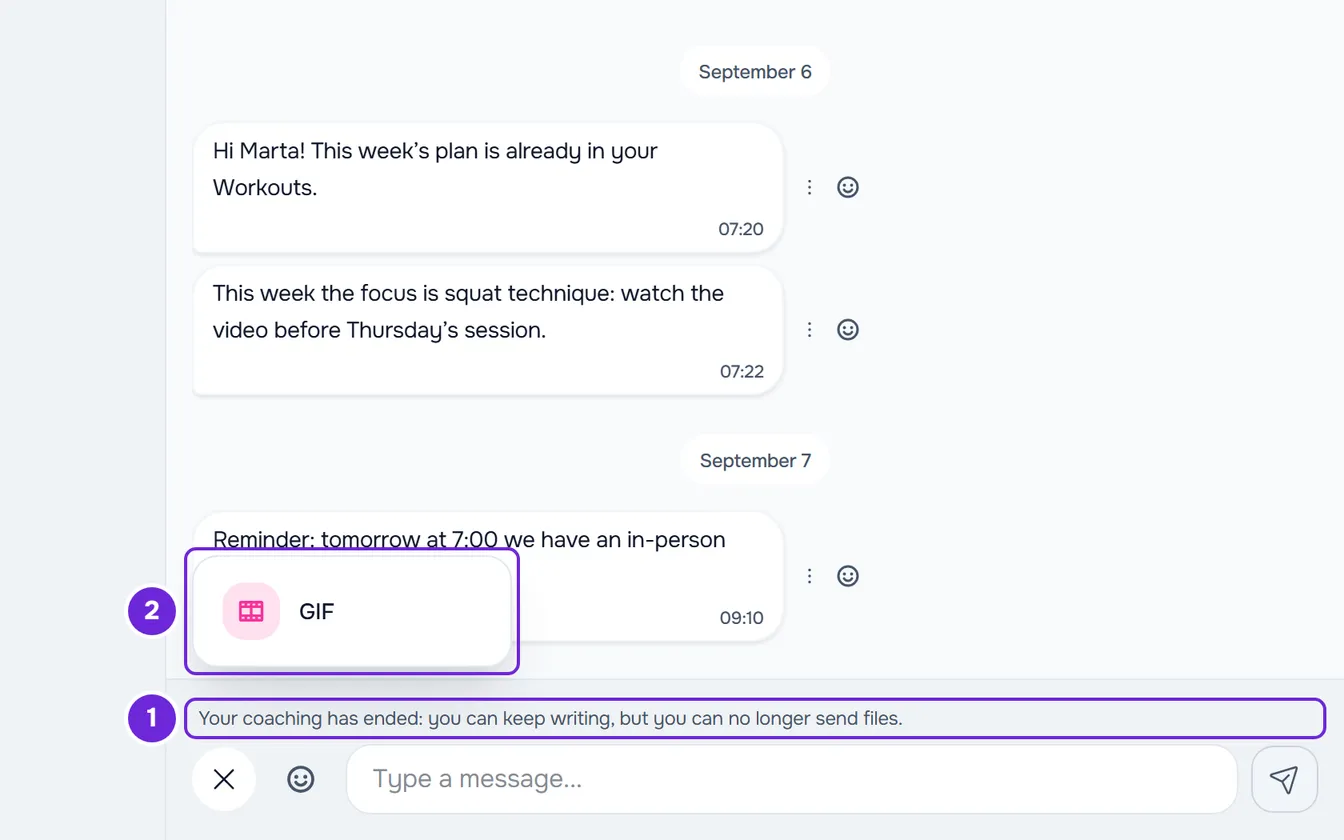
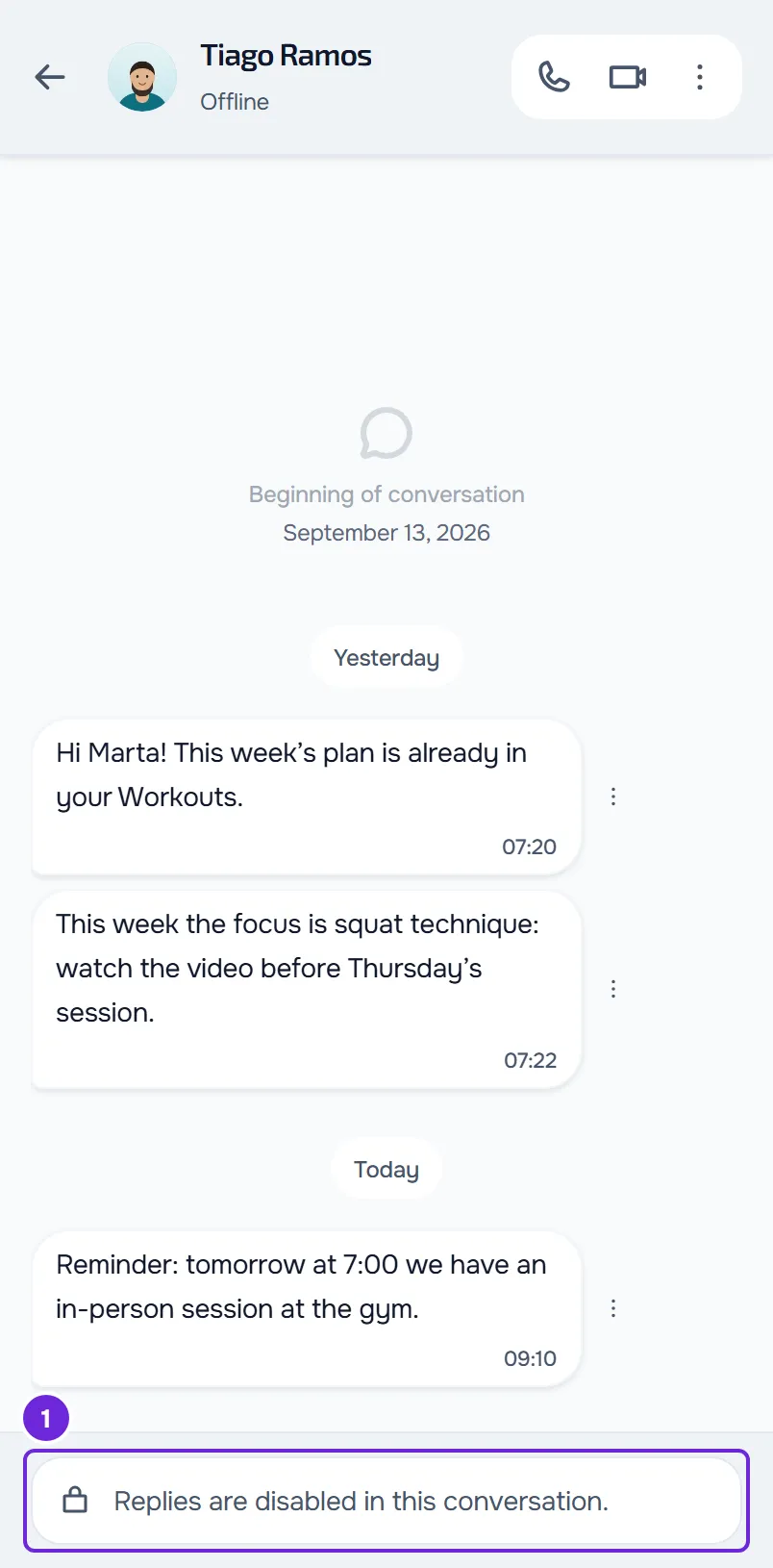
| What you see | Why | What to do |
|---|---|---|
| Padlock and “Replies are disabled in this conversation.” | Your professional chose to be the only one who writes in your conversation, or the plan you have with them does not include Chat. | You can still read what they write to you. Only they can turn your replies back on: talk to them some other way. |
| Padlock and “You have reached today's message limit.” | Your professional limited the messages you can send them per day and you have already sent all of today's. Every message you send them in that conversation counts, whatever its type. | Wait until midnight in your professional's time zone and open the conversation again. Before you reach the limit, the line on top of the box tells you how many you have left, for example “3 messages available today”. |
| “Only group admins can send messages in this group.”, on the website with a padlock and in the app with a megaphone | It is an announcements-only group: only the group's admins write in it. | You can still read what arrives in the group. To talk to your professional, use your one-to-one conversation with them. |
| On top of the box, “Your coaching has ended: you can keep writing, but you can no longer send files.” or “Your coaching hasn't started yet: you can write, but you can't send files yet.” | Your coaching has ended, is inactive or only starts on a future date. | Write and send GIFs: the + button only shows GIFs and there is no voice recording. Photos, videos, files and voice messages come back when your coaching is active. |
| When you attach a file or send a voice message, “Your professional's file storage is full. We've let them know.” or “Your professional's file storage is used up. We've let them know.” | Your professional's file storage has no room for what you sent. | Text and GIFs still go through. Your professional has already received a notice: send the file again later. |
| In the app, “You blocked this conversation. Nobody can send messages until you unblock it.” On the website no message appears: the box is still there, but messages don't go through and show the red Retry button. | You blocked the conversation with your professional in the app. While it is blocked, neither you nor they can send messages. | Unblock the conversation in the app, as in the steps under How to fix it. The website does not have this button. |
In the app, the messages about your coaching and about file storage appear in the latest version of the app. An older version of the app shows no lock: when your professional has turned off your replies or you have sent all of today’s messages, the message is not sent and the app shows only an error. Update the app to see the sentence.
How to fix it
To write again:
- In the menu, select Chat and open the conversation where you can't write.
- Read the message that appears in place of the message box, or on top of it, and find it in the table.
- If the message is “You have reached today's message limit.”, wait until midnight in your professional's time zone and open the conversation again.
- If, in the app, the message is “You blocked this conversation. Nobody can send messages until you unblock it.”, select Unblock conversation next to the message.
- In any other case, tell your professional the message you see, in your one-to-one conversation if you can still write to them, or some other way, such as by phone or in a session: the fix is on their side.
Once the cause is gone, open the conversation again: the message box comes back.
In the app, Unblock conversation is also in the conversation's ⋮ menu. If a message says the block could not be changed, check your internet connection and try again.
When your coaching ends
- The one-to-one conversation with your professional continues as long as you don't disconnect from them: you write and send GIFs, and they can still write to you.
- Calls stop working, both ways.
- If you disconnect from your professional, the conversation with them no longer appears in your Chat. See End coaching or disconnect from your professional.
To find out what status your coaching is in, see Access statuses: scheduled, ended and inactive.
What does not close Chat
An overdue payment that pauses actions does not close Chat or calls: you can keep writing to your professional. If they set access to end when a payment is overdue, Chat behaves as in When your coaching ends. See Payment overdue: what is paused and how to settle it. A plan that does not include Chat, on the other hand, closes your replies in your one-to-one conversation with them, with the message “Replies are disabled in this conversation.” See “Not in your plan”: a section of the app has disappeared.
If this did not solve it
If your professional confirms that none of these causes applies and you still can't write, write to the MyFitnessClient team through the contact shown in the Help Center (in the app, on the “Problems with the app” line). Send:
- the exact message you see in the conversation;
- the name of your professional or of the group;
- the day and time it happened;
- whether you use the website or the app.
If you wrote the message but it did not go through, see The message was not sent and Retry appears.