
This happens when you have an overdue payment to your professional and they chose to pause some actions in that case until the payment is recorded. You see the “Payment overdue” notice when you go to send a check-in or answer a questionnaire and, on the web, the “View only” card on Home. You can still see what your professional gave you and log what you do.
When it happens
Your professional chooses what happens when a payment becomes overdue. On their side, the options are called “Stays the same”, “Read-only” and “No access”:
- “Stays the same”: nothing changes in the app and the payment is just overdue. If your professional never changed this option, this is the one that applies, except for a plan paid in a single payment, which comes with “No access” already set.
- “Read-only”: some actions are paused. This is the case this article covers.
- “No access”: your access to coaching ends. See the “When access ends” section in this article. If you have no plan with your professional, actions are paused, as with “Read-only”.
The option set for your plan with your professional applies or, if you have no plan, their general option.
The option only takes effect after a grace period, which your professional chooses between 0 and 90 days (7 if they did not change it). With “Read-only”, actions are paused on the day after the last day of the grace period: with 7 days, a charge due on the 1st of a month pauses actions on the 9th. Days are counted in your professional's time zone.
Only the charges of your plan with your professional count and, if you have no plan, those of a monthly fee. A one-off charge, such as an assessment paid separately, never pauses actions. Also:
- A charge you marked as paid still counts until your professional confirms they received the payment.
- A plan with automatic payment does not pause actions while automatic payment is active, even when a charge fails and is retried.
- A plan paid in a single payment that ended longer ago than the grace period also pauses actions, even with nothing owed.
What is paused
With “Read-only”, only what asks your professional for new work is paused, and only in the sections your plan includes:
- sending a new check-in, and editing or deleting a check-in you already sent;
- answering a questionnaire, including the check-in one;
- suggestions of equivalent foods, when you replace a food in Nutrition;
- exercise suggestions, when you choose an exercise to replace another one;
- the page of a course from your professional that you do not have yet and, on the web, the list to discover their courses.
While this lasts, the check-in reminder stops arriving and, on the web, automatic questionnaires stop opening on their own. They stay in the questionnaire list.
What stays open
- Seeing everything your professional gave you: workouts, meal plan, supplements, habits, materials, the courses you already have and the calendar. Your progress too.
- Logging your workouts, meals, habits and supplement doses.
- Chat and calls with your professional, if your plan includes them.
- The health questionnaire and your payments.
Paying does not open a section your plan does not include. See “Not in your plan”: a section of the app has disappeared.
What you see on screen
On the web
- On Home, under the greeting, the “View only” card. It says how much is left to pay and, after “Paused:”, what is paused in your case. The Pay button, when the charge can be paid online, or View payments opens your payments.
- When the pause comes from a plan that ended, the card says “Your plan ended on” and the date, instead of what is left to pay. To get everything back, talk to your professional.
- Where an action is paused, the “Payment overdue” notice, with “Some features are temporarily unavailable until the payment is settled.” If your professional does not accept online payments, the sentence ends with “until your professional confirms the payment.” Under it come “Overdue since” and the date of the oldest overdue charge (with a plan that ended, the day after the end), and the Pay now button, if the charge can be paid online, or View payments. Both open your payments.
- The notice appears in the check-in window, on a questionnaire page, in place of the suggestions when you replace a food or an exercise, and in the courses to discover. On a questionnaire page and on the page of a course to discover, it also has Back to home.
In the app
The app does not have the card on Home. Where an action is paused, the “Payment overdue” notice appears, with “Some features are temporarily unavailable until the payment is settled.” and the View payments button, which opens your payments. The notice appears in the window of a new check-in, in a questionnaire when you open it, in place of the suggestions when you replace a food or an exercise, and on the page of a course you do not have yet.
How to settle it
Actions come back when the overdue payment is recorded as paid. To pay it:
- Open Settings and select Payments 1. The buttons on the card and on the overdue payment notice open the same screen.
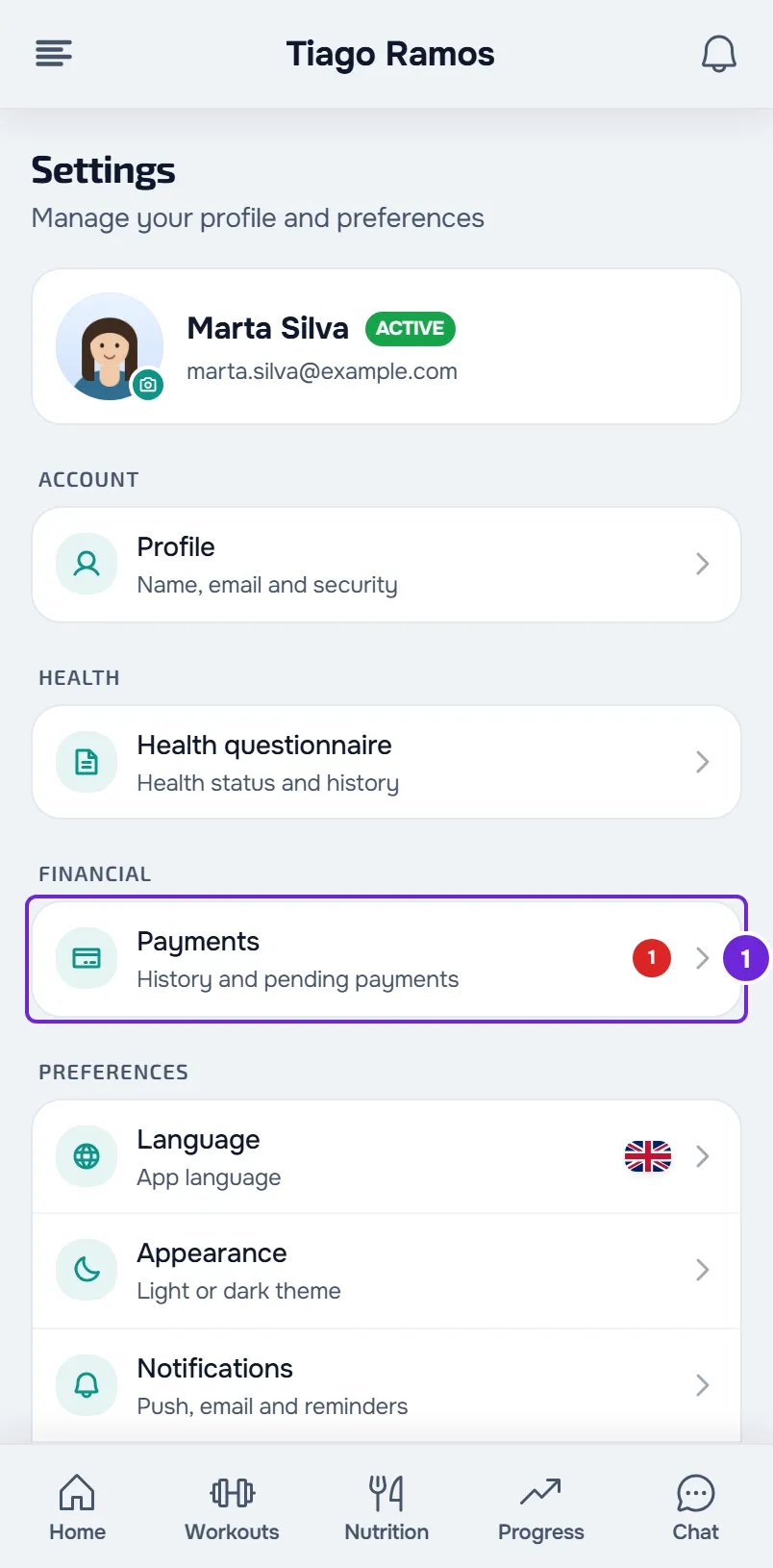
- Find the charge with the Overdue tag.
- To pay online, select Pay now on that charge and complete the payment. The button only appears when your professional accepts online payments. On the web and in the latest version of the app, the button for your plan's charge may be on the plan card, named Pay overdue.
- If you already paid your professional outside MyFitnessClient, for example in cash or by bank transfer, select Mark as paid on that charge.
- In the window that opens, say how and when you paid and select Mark as paid.
- If you marked the charge as paid, wait for your professional to confirm they received the payment. Until then, the charge shows Awaiting confirmation and actions stay paused.
When the payment is recorded, actions come back without you having to do anything. While actions are paused, MyFitnessClient checks the payment again every 15 seconds, and as soon as you receive a payment notice, such as “Payment confirmed”. If you have more than one overdue charge past the grace period, actions only come back when all of them are paid.
The steps for paying online are in Pay what you owe your professional online with Pay now and those for a payment made outside in Mark a payment made outside the platform as paid. If you do not know where Settings is, see Client settings: where to find each option.
When access ends
If your professional chose “No access” for your plan, the overdue payment does not pause actions: when the grace period passes without the payment recorded, your access to coaching ends. Before that, Home warns you when access is going to end, for example with “You have 3 days to pay for the … plan”, with the plan's name in place of the dots. Afterwards, Home shows “Coaching ended” and the chat with your professional stays open.
To get access back, talk to your professional. What you see once access has ended is in Access statuses: scheduled, ended and inactive.
The notices you receive
- When the charge is created, if it can pause actions and the grace period is 1 day or more, the “Payment due” notice says by which day you can pay it before check-ins and questionnaires are locked.
- On the 1st and 3rd day after the due date, from 9:00 your time, the “Payment overdue” notice, in the bell and as a push notification. On the 7th day, only an email. After that, there are no more automatic notices. A charge you marked as paid does not get these notices.
- On the day an overdue charge pauses actions, only once, the “Access limited” notice, with “Check-ins and questionnaires come back once the payment is recorded.”
- In Settings, the Payments row shows a red number with the overdue charges. The ones you marked as paid do not count.
The push notification and the email for these notices are only sent with payment reminders turned on in notifications. Your professional can also send you a reminder for an unpaid charge. For the full list, see Client notification types: what they tell you and where they lead.
Common problems
I paid and actions are still paused
- You marked the charge as paid: actions only come back when your professional confirms. If they do not confirm, you receive the “Payment not confirmed” notice, with the reason, and the charge goes back to unpaid.
- You paid online by Multibanco reference: actions come back when the payment is confirmed, which can take longer than a card payment.
- You have more than one overdue charge past the grace period: pay all of them.
- On the web, the card says “Your plan ended on”: nothing is owed, the plan ended. Talk to your professional.
I see the notice, but I can see everything
That is expected. An overdue payment only pauses what asks your professional for new work. Everything they already gave you stays open, and you keep logging what you do.
I can't pay online
Your professional does not accept online payments, or not in the charge's currency, so there is no Pay now. Pay them the way you agreed and mark the charge as paid, as in the steps of this article. There is also no Pay now on a charge you paid online that was disputed with the bank: talk to your professional.
“Access is locked because of an overdue payment. Settle it to continue.”
It appears when the server refuses a paused action, for example when you try to edit or delete a check-in you already sent. Settle the payment as in the steps of this article.
If this did not solve it
Talk to your professional first: they confirm payments made outside MyFitnessClient and choose what happens with an overdue payment. If they confirm the payment is recorded and actions are still paused, write to the MyFitnessClient team through the contact shown at the end of the Help Center home page (in the app, in the “Problems with the app” row). Include:
- your professional's name;
- the charge's due date;
- whether you paid it online or marked it as paid, and when;
- whether you use the web or the app;
- a screenshot of the notice you see.