
On the website, every change in Nutrition needs an internet connection and is saved on the server straight away. In the app, what you log for the day is first stored on your phone and goes to the server when there is a connection. That is why some problems have a different cause on the website and in the app.
Nutrition is missing from the menu or says “Not in your plan”
| Cause | What you see | What to do |
|---|---|---|
| The plan you have with your professional does not include Nutrition. | Nutrition disappears from the menu, on the website and in the app. Anyone who opens its address sees “Not in your plan”, with the sentence “This isn't part of your plan. Talk to your professional.” under it. | Talk to your professional: they choose what your plan includes. |
| Your professional asks you to pick a plan before you get access, and you have not picked one yet. | Nutrition disappears from the menu. In the app, anyone who opens it sees “Pick your plan to start” and the Choose a plan button. On the website, Home and the Nutrition address show the “Pick your plan to start” card, with your professional's plans. | Pick a plan from your professional. Until then, you can talk to them. |
| On the website, you have no professional linked to your account, because you never had one or because you disconnected. | The menu shows only the essentials and Nutrition does not open. | Connect to a professional through their invitation. |
| Your coaching is scheduled, has ended or is inactive. | Nutrition opens without the plan: the notice about your access appears where the meals would be. | Talk to your professional. |
See “Not in your plan”: a section of the app has disappeared, Choose and pay for a plan from your professional, “You don't have a professional yet”: what to do and Access statuses: scheduled, ended and inactive.
“Couldn't load”
On the website, when Nutrition cannot open, you see “Couldn't load” with the sentence “Check your connection and try again.” and the Try again button. If the plan is already on screen and only loading the day fails, a banner with “Check your connection and try again.” appears at the top of the page, without a button: switch to another day and back, or reload the page.
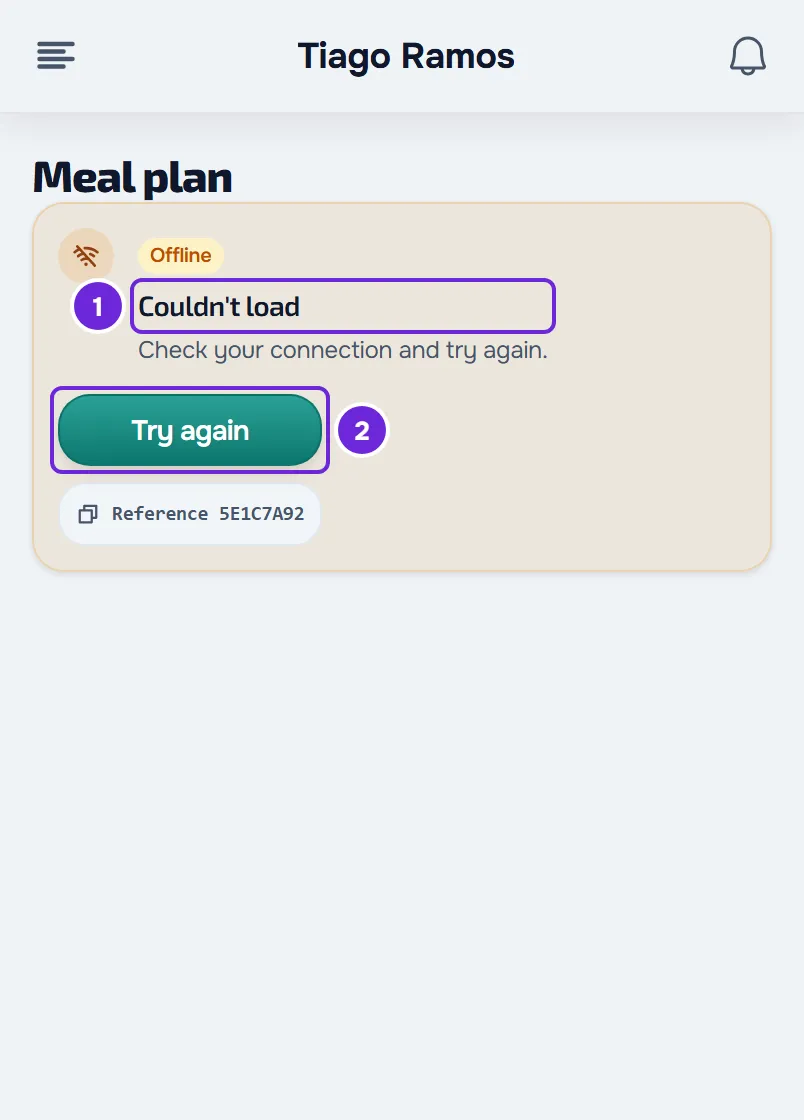
In the app, you see “Could not load.” with the Try again button. Without a connection, the app opens the days it already has stored on your phone; a day it has not stored yet shows the no-connection notice. See The app says “Offline” or takes a long time to load.
A meal I marked was undone or “Try again” appears
On the website, when saving fails, the red “Try again” notice appears and Nutrition goes back to what is saved: the meal you marked is unmarked again. It can happen when:
- the internet connection failed at that moment;
- you went over the limit of 30 saves per minute. Marking, changing or deleting a meal that has no entry yet on that day, creating or copying meals, changing a meal's name or time and saving your note on a meal all count. The “Too many requests. Wait a moment.” notice appears when you go over the limit while creating a meal, copying yesterday's meals or changing the name or time.
Check your connection, wait a minute and do it again.
In the app, what you mark is stored on your phone and goes to the server when there is a connection, so you can mark meals without internet on a day the app has already stored. If the server does not accept a record, the app leaves it to review: see Record “to review” or “The server did not accept this record”.
I can't add, change or delete
| Cause | What you see | What to do |
|---|---|---|
| The plan is locked: your professional assigned it without letting you add anything. You also can't create your own foods or save meals. | A note under the meals heading says the plan is locked. There are no buttons to add meals or foods, and no ⋮ menu on the meals. | Mark the meals you ate, choose the option of the meal you ate and swap foods only for your professional's alternatives. To change more, talk to them. |
| The day has already passed. | The note “History: what you logged on this day” and the Edit this day button. Only the meals with an entry on that day appear. | Select Edit this day and confirm. |
For the locked plan, see Meal plan modes, locked plan and days without a plan. To log a day that has passed, see Correct a day that has passed.
I can no longer see the plan's meals
| What you see | Cause |
|---|---|
| “The plan ‘…’ has ended”, with the plan's name | The plan's end date has passed. It appears once; after that, Nutrition shows “No meal plan”. |
| “No meal plan” | You have no plan assigned, or your plan has ended. You can still log what you eat. |
| “Free day” | The plan has no meals for that day of the week or of the cycle. |
| “No meals planned for this day” | The day falls outside the plan's dates, or the plan has no meals. |
| “Nothing logged on this day” | The day has passed and you logged nothing on it. |
On a day that has passed with nothing logged, select Edit this day to see the plan's meals again. In the app, that day shows “Free day” or “No meals planned for this day” instead of “Nothing logged on this day”.
To log what you ate without plan meals, see Add extra meals: new, quick, saved or from yesterday.
“Copy yesterday's meals” adds nothing
Copy yesterday's meals is in the Actions menu and only appears on today's date. It copies to today the meals that had an entry yesterday, marked as eaten or only changed, except the ones you deleted. With a locked plan, it copies only the plan's meals. In a plan with different meals on each day, only yesterday's plan meals that are also part of today are copied; the meals you created are always copied. The copied meals arrive unmarked: mark the ones you ate.
- “Nothing to copy from yesterday”: yesterday has no meal with an entry to copy, or none of yesterday's plan meals is part of today.
- “You already logged these meals today” (in the app, “You had already logged these meals today”): yesterday's plan meals already have an entry today. Copying does not add a plan meal again when it already has an entry today.
- In the app, the notice says how many meals were copied, but you don't see them: the app still copies yesterday's plan meals that are not part of today. The copy is saved, but today's screen only shows today's plan meals and the ones you created. Mark today's meals, or add a new meal with what you ate.
The day's ring is empty
The ring compares what you ate with the day's calorie goal: the plan's goal or, when the plan has no goal, the calories of the plan's meals on that day. On today's date, it adds up only the meals marked as eaten. It stays empty when the day has no goal: you have no plan, or the plan has no goal and no meals with calories for that day. In that case Set goal appears: set your daily goal and the ring starts counting. When the plan gives calories for the day, the plan always wins. See View your meal plan for the day and your goals.
“Now” does not appear on a meal
The Now highlight only appears on today's date, on a meal with a time that you have not marked yet. It starts 15 minutes before the meal's time and moves to the next meal 15 minutes before that meal's time. Before the first meal of the day, it stays on the first one; on the last one, it disappears 3 hours after its time. Times follow your account's time zone. If you mark the current meal, the highlight only comes back with the next meal.
No swap suggestions appear
When you swap a food, MyFitnessClient's suggestions do not appear if:
- the plan is locked: you can only choose from the alternatives your professional set;
- the food is missing values: on the website, the calories, protein, carbs or fat; in the app, the calories;
- you have no active coaching with a professional;
- in the app, you are offline;
- a payment is overdue: “Payment overdue” appears instead of the suggestions. The rest of Nutrition stays open. See Payment overdue: what is paused and how to settle it.
To swap a food, see Swap a food for an equivalent one.
History is empty or a day is missing
History only shows meals marked as eaten. A day on which you only changed foods, or marked and unmarked a meal, does not appear. To add it, open that day in Nutrition, select Edit this day and mark what you ate. See Browse your nutrition history.
Recent foods have disappeared
Recent foods are stored only on the device where you used them, up to 20. On another phone, computer or browser, or after you clear the site's data in the browser, the list starts empty and fills up again as you add foods. See Add foods to a meal.
Error messages
The messages you may see in Nutrition, what they mean and what to do:
| Message | What it means | What to do |
|---|---|---|
| “This plan only allows logging the meals your professional set.” | The plan is locked and you tried to add a meal that is not in the plan, or to change a meal's name or time. It can happen when your professional locks the plan while you have Nutrition open. In the app, it appears on a record to review. | Log only the plan's meals. To add others, talk to your professional. |
| “This plan only allows the foods your professional set, or the alternatives they chose.” | The plan is locked and you added to a meal a food that is neither part of it nor one of your professional's alternatives. It appears in the app, on a record to review; on the website, the same refusal shows “Try again”. | Use the meal's foods or your professional's alternatives. |
| “This isn't part of your plan. Talk to your professional.” | The plan you have with your professional does not include Nutrition. | Talk to your professional. |
| “You've reached the limit of 500 foods.” | You have already created 500 of your own foods. | Delete one of your own foods that you no longer use. |
| “You've reached the limit of 200 meals.” | You have already saved 200 meals. | Delete a saved meal that you no longer use. |
| “You have reached the limit of 200 favorites” | You already have 200 foods in your favorites. | Remove a food from your favorites. |
| “Too many requests. Wait a moment.” on the website, or a message that starts with “Too many attempts.” in the app | You went over one of the per-minute limits in the “Limits” section. | Wait a minute and do it again. |
| “Invalid data. Check the fields.” | On the website, when you save your daily goal, one of the values is over the goal's limits. In the app, the same case shows “Something went wrong. Try again.”. | Correct the value. The limits are in the “Limits” section. |
| “Try again”, in a red notice | On the website, saving failed: the connection dropped or the server refused the request. | Check your connection and do it again. |
| “An error occurred” on the website, or “Something went wrong. Try again.” in the app | Saving failed for a reason that Nutrition does not describe. | Do it again. If it appears again, follow the “If this did not solve it” section. |
Limits
The limits you may run into in Nutrition:
| What | Limit |
|---|---|
| On the website, marking, changing or deleting a meal that has no entry yet on that day, creating or copying meals, changing a meal's name or time and saving your note on a meal, combined | 30 per minute |
| Online search and barcode scanning, combined | 30 per minute |
| Creating, editing and deleting your own foods, combined | 60 per minute |
| Foods in a meal | 500 |
| Meal name | 100 characters |
| Your own foods | 500 |
| Saved meals | 200 |
| Favorite foods | 200 |
| Recent foods, on each device | 20 |
| Your daily goal | Up to 20,000 kcal of calories and up to 2,000 g each of protein, carbs and fat |
For online search and barcodes, see Scan barcodes and search for products online.
If this did not solve it
When the cause is the plan (the meals, the foods, the dates or the locked plan), talk to your professional: they are the one who changes it. For a problem with the website or the app, write to the MyFitnessClient team through the contact shown at the end of the Help Center home page (in the app, on the “Problems with the app” line). Include:
- the exact message you see;
- the day and the meal;
- whether you use the website or the app;
- the approximate time.