
Before you start
- The Supplements page only appears when your plan with your professional includes Supplements. If you can't find it, see The Supplements page is empty or missing.
- The times are yours: one set of times for every day and for all your supplement plans. You don't need a supplement plan assigned to choose them.
- Until you change them, the times are 07:00 to wake up, 08:00 for breakfast, 13:00 for lunch, 20:00 for dinner and 23:00 for bedtime, with no usual training time.
Steps
To set your times:
- Open the Supplements page. If you don't know where it is, see Mark your supplement doses for the day.
- At the top of the page, select Schedule. On narrow screens, such as a phone's, the button only shows a clock. The My schedule window opens.
- Under Your day, select the time you want to change: Wake up 1, Breakfast, Lunch, Dinner or Bedtime.
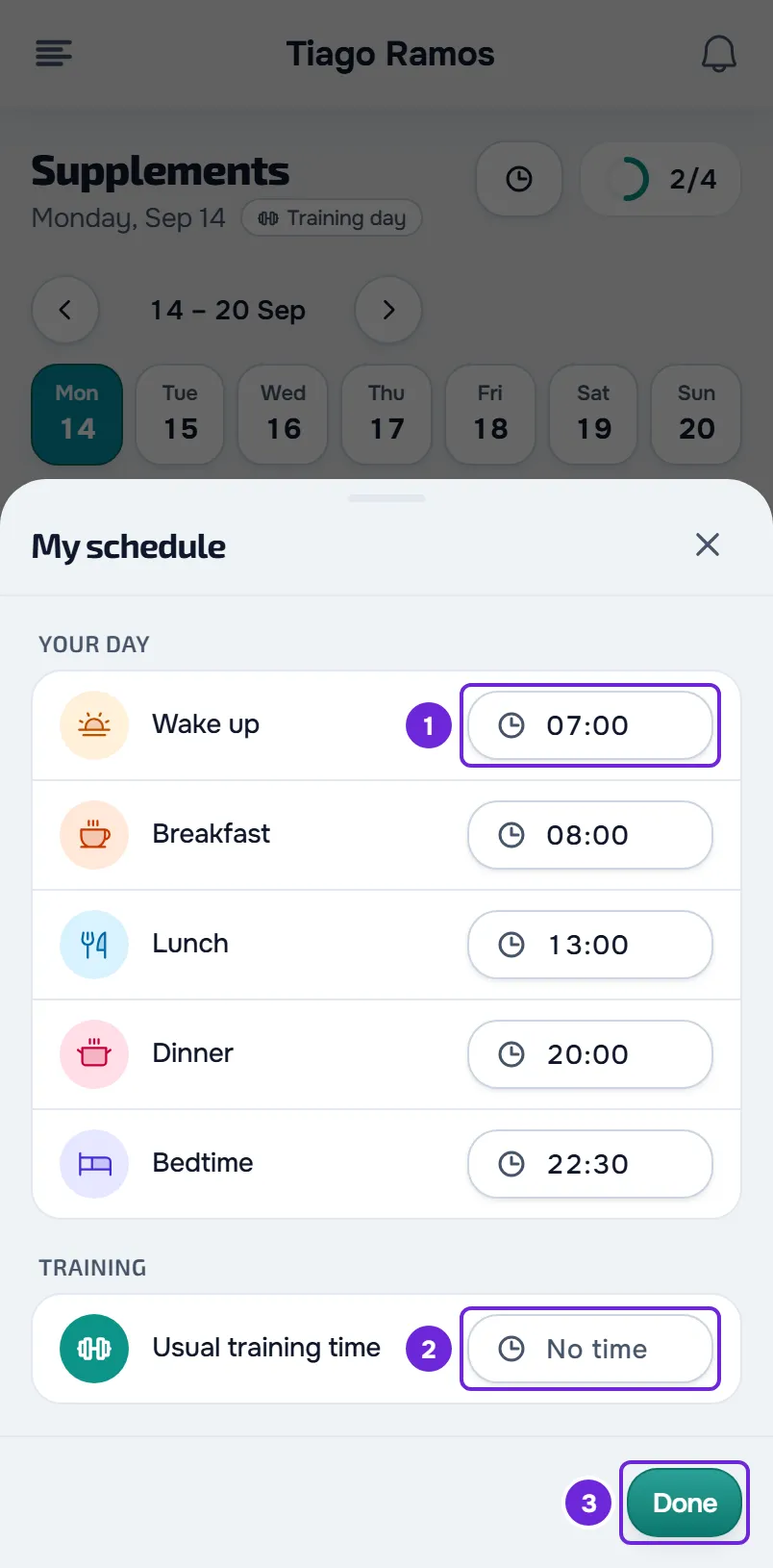
- Choose the hour and minutes in the picker. In the app it uses the 24-hour format; on the web, 12 or 24 hours, following the browser's first language. How you confirm differs between the web and the app: see the details after the steps.
- Optional: under Training, choose the Usual training time 2, the time you usually start training. With no time chosen, the row says No time.
- Select Done 3 to close the window.
The time-of-day cards on the page now show the new times, and supplement reminders follow them from then on. Doses you already marked stay as they were.
On the web
- Selecting a time opens a picker with one wheel for the hours and another for the minutes, plus one for AM and PM in 12-hour format; OK closes the picker.
- There is no save button: each time saves on its own less than a second after your last change. If you close the window before that, the change saves when it closes.
- To remove the usual training time, open the picker on that row and select Remove.
In the app
- Selecting a time opens Choose time, with one wheel for the hours and another for the minutes. Save saves the time right away; Cancel closes without changing anything.
- To remove the usual training time, open that row and select No usual time. This button only appears when a time is already chosen.
- Without internet, the app shows the times it had already loaded, but does not let you change them and warns “This action requires internet.”
What your times change
Only these six times are yours to choose. Each time of day is based on one of them:
- On waking and Fasted are based on your wake-up time.
- At breakfast, At lunch, At dinner and Before bed are based on the time you chose for each one.
- Mid-morning, Mid-afternoon and In the evening sit halfway between the two neighboring times, rounded to the nearest 5 minutes. With lunch at 13:00 and dinner at 20:00, Mid-afternoon is at 16:30.
- Before training, During training and After training are based on today's training time: first the start time of a workout already logged today, then the time scheduled in the program or the calendar and, only as a last resort, your usual training time. On a day the app knows is a rest day, the usual time does not count. If none of these is available, these times of day show no time.
- With a meal, With the largest meal, Any time and Split throughout the day show no time, but their reminder goes out at your lunch time and, if something is still left to mark, at your dinner time.
- A dose with a specific time shows the time your professional chose, which does not change with yours.
Supplement reminders follow these times of day: see Turn supplement reminders on or off. What each time of day and each tag means is in Times of day, tags and sections in your supplement day.
Other notices that follow these times
- The morning notice with today's habits goes out 30 minutes after your wake-up time. While no times are saved, it goes out at 08:00.
- In a weekly or calendar training program, the reminder for a workout scheduled for the morning, afternoon or evening, with no exact time, follows your times: the morning one goes out at the same time as the habits notice, the afternoon one 1 hour after your lunch time and the evening one 1 hour and 30 minutes before your dinner time.
Nutrition meal reminders do not use these times.
Common problems
“Unable to save.”
The time did not reach the server, for example because there was no connection, and the window goes back to the times that were saved. Check your connection and choose the time again. In the app, the notice may show a different message, with the reason for the error.
An error appears instead of the times
The window could not read your times and, so as not to save over the ones you had, does not let you change anything until it reads them. Select Try again. In the app, the error says “Unable to load supplements.” If it keeps happening, see “We could not load this information” and other error cards.
I changed lunch and Mid-afternoon changed too
This is on purpose: Mid-morning and Mid-afternoon always sit halfway between the neighboring meals, and In the evening between dinner and bedtime.
Before training shows no time
The app does not know when you train today: there is no workout logged today, no time scheduled in the program or the calendar, and no usual training time. Choose the Usual training time. On a day the app knows is a rest day, the usual time does not count and the time of day still shows no time.
Questions
Can I choose the time for Mid-morning or In the evening?
No. You only choose the five times under Your day and the usual training time; the others are calculated from them.
Does my professional see my times?
Yes. Your professional sees your times on your profile and can also change them. A change they make counts as if you had made it. For the rest of what they see, see Supplement limits and what is not available.
Does changing the times delete the doses I already marked?
No. Marked doses stay as they were; only the time each time of day appears and the time of the next reminders change.