
Before you start
- You need your professional's invitation: a link, a QR code or an email. If you don't have a professional yet, see “You don't have a professional yet”: what to do.
- You can follow these steps on the website or in the app. The account is the same on both.
Interactive tutorial
Opens in the app and needs you to be signed in.
Steps
To get to your first workout, follow these steps in order. Where an article has more detail, the step links to it.
- Open the invitation link your professional sent you and select Create account. In the app, select Get started on the welcome screen (Open your professional's invitation and create your account).
- Fill in the sign-up form and enter the 6-digit code that arrives in your email. Your email is confirmed and you land on Home (Verify your email with the 6-digit code or the link).
- On Home, open the invitation. On the web, it opens by itself when you arrive through the link. In the app, which does not open invitation links, select Scan QR code and point the camera at the code, or select Paste link, paste the link and select Open invitation. An invitation sent to your email appears by itself on the website and in the app.
- Tick the box that authorizes the professional to view and process your health data 1 and select Accept invitation 2. “Invitation accepted” appears or, when the professional has to approve, “Request sent” (Accept or decline your professional's invitation).
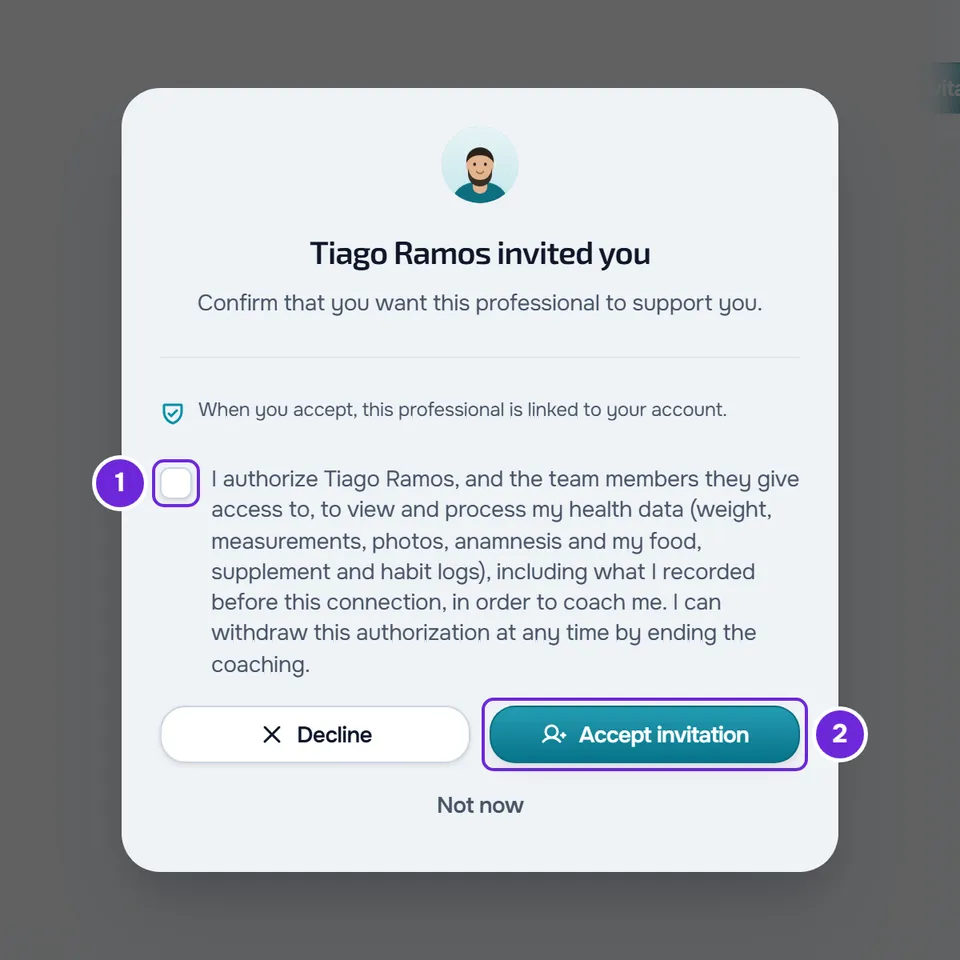
- Select Continue in the app to go back to Home. With the invitation accepted, Home shows the summary of your day. With the request sent, the invitation shows “Waiting for approval” until the professional accepts, and then you get the “Request accepted” notification.
- App only: on the “Hi” page, with your name, select Get started and answer what is missing from your profile, such as your height and weight. On each question, you can select Skip. At the end, “You're all set” appears. The page opens by itself once, when you already have a professional and some detail is missing; if you accepted the invitation in the app itself, it opens after you close and reopen the app (Complete your profile when you open the app).
- Follow the Welcome tour: read each of the 4 steps, select Next 1 and, on the last one, Finish. On the web, the tour starts by itself on Home about 1.2 seconds after you get there, once you have a professional. In the app, it starts the first time you reach Home, so it can appear before you accept the invitation. Closing it with the X 2 also counts as done, and the tour does not start by itself again (Follow an interactive tutorial or replay the guided tour).
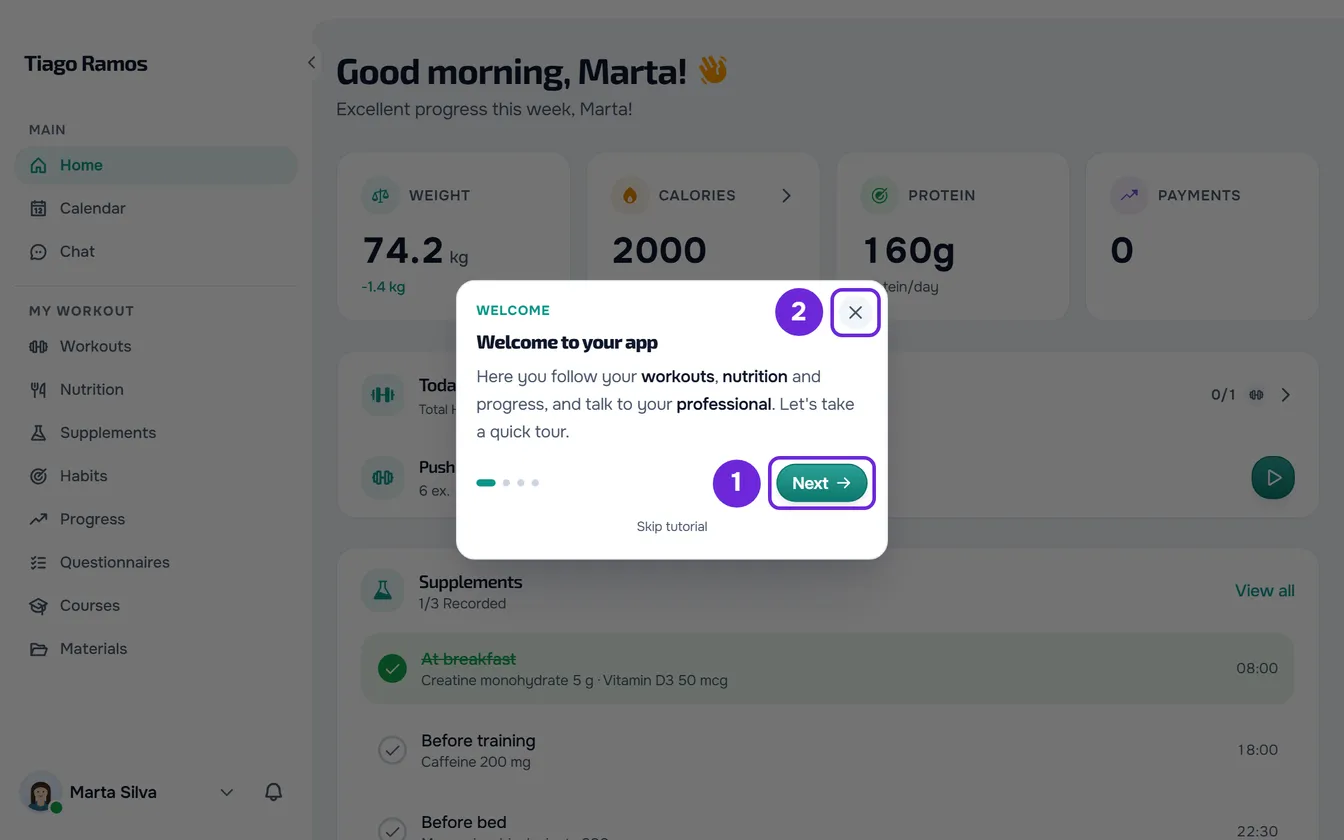
- On Home, see the summary of your day, such as today's workouts and habits (The Home screen: what appears and when it changes).
- Optional: in Settings > Notifications, turn on Push to get your professional's notifications on this device, such as a new workout or a message. If they do not arrive, see Not receiving notifications on your phone or in the browser.
- In Workouts, select Start on the workout you are going to do. The workout opens so you can log what you do in each exercise (Common problems during a workout and how to fix them).
At the end, you have a professional, you have done the welcome tour and your first workout is under way.
Replay the welcome tour
Open Settings > Tutorials, open the Getting started chapter and select Welcome. The tour starts again from the first step, on Home. On the web, Tutorials only appears when you have a professional; in the app, it always appears. The other tutorials, chapter by chapter, are in Interactive tutorials for clients: list by chapter.
Common problems
The welcome tour did not start
On the web, the tour only starts while you are on Home and once you have a professional. If you opened another page through a link, such as a conversation, it starts the next time you get to Home. If the professional approved your request while the page was open, the tour starts on Home by itself, without a refresh. In the app, the tour may already have appeared before you accepted the invitation. In any case, if you already finished or closed it, it does not come back by itself: replay it in Settings > Tutorials.
I don't see Tutorials in Settings
On the web, Tutorials only appears when you have a professional: accept the invitation first and, if the professional has to approve the request, wait for the approval. In the app, it is always in Settings > Tutorials.
There is no workout to start
Workouts to start appear in Workouts after your professional assigns them to you. If you expected to see one, see My workouts are missing or I see “Workout not found”.
If this did not solve it, talk to your professional in the chat.