
This happens when you open Materials and see nothing, when a folder says it does not exist or appears empty, or when a file does not open. Almost everything depends on what your professional has shared with you: only they share, hide and delete folders and files. On your side, Materials are read-only.
I do not see Materials in the menu
On the website, Materials is in the My Workout group of the menu. In the app, it is in the Content group of the menu, not in the bottom bar.
The item disappears from the menu when the plan you have with your professional does not include Materials. If you open Materials from a link or a notification, you see “Not in your plan”, with the sentence “This isn't part of your plan. Talk to your professional.” On the website, Home takes you to the home page. Contact your professional and see “Not in your plan”: a section of the app has disappeared.
Without a linked professional, the website removes Materials from the menu and, in the app, the Materials page shows “No materials yet”. See “You don't have a professional yet”: what to do.
The Materials page is empty or shows a message
| What you see | Cause | What to do |
|---|---|---|
| “No materials yet”, with “When folders are shared with you, they show up here.” | Your professional has not shared any folder or file with you yet, or has stopped sharing or has hidden what you had. | Ask your professional to share the materials. In the app, if your plan includes chat, Message your professional opens the conversation with them. |
| “Available from”, followed by a date. | Your coaching has not started yet. Materials only appear while your coaching is active. | Wait until that date or contact your professional. |
| On the website, “Coaching ended on”, followed by a date, or “No access at the moment.” In the app, “No access at the moment.” | Your coaching has ended or is inactive. Materials only appear while your coaching is active. | Contact your professional. On the website, View takes you to Home, where the coaching card shows what you can do. |
| On the website, “Couldn't load”. In the app, “Could not load materials.” In both, with Try again. | On the website, a problem with the internet connection or the server. In the app, a server failure. | Select Try again. If the message comes back, check your internet connection and try again in a little while. |
| In the app, “No internet connection”, with “This page needs a connection. It'll refresh on its own as soon as you're back online.” | You are offline and the app has not yet saved this page or this folder on this device. | Turn on Wi-Fi or mobile data. The page refreshes on its own when the connection comes back; you can also select Try again. |
To understand what state your coaching is in, see Access statuses: scheduled, ended and inactive. For other error cards, see “We could not load this information” and other error cards.
A folder does not open or appears empty
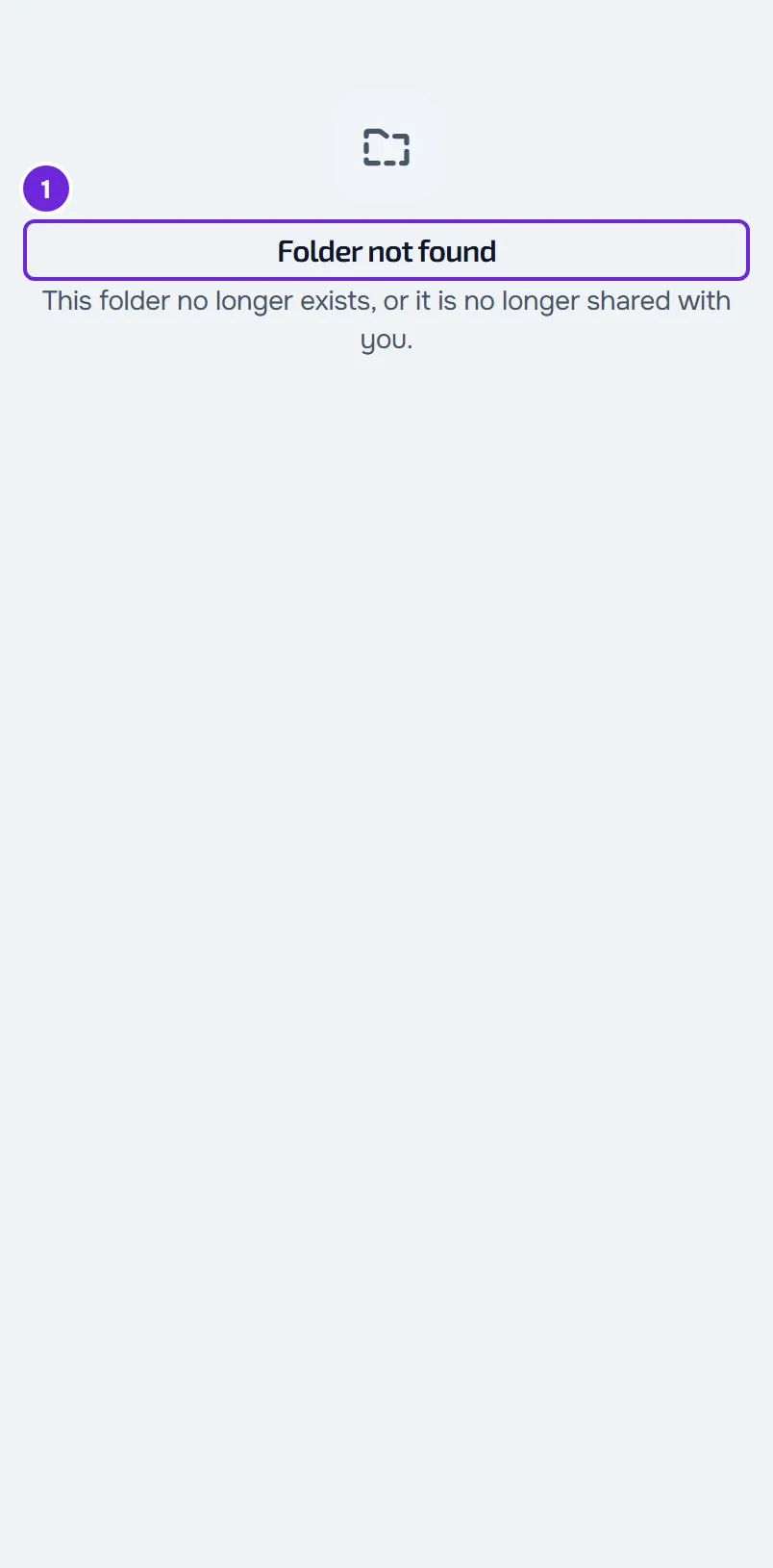
| What you see | Cause | What to do |
|---|---|---|
| On the website, “Folder not found”, with “This folder no longer exists, or it is no longer shared with you.” In the app, “Folder not found.”, with Try again. | Your professional deleted the folder, stopped sharing it with you, or hid it or a folder that contains it. This can happen when you open a notification or an old link. On the website, the same message appears when the folder does not load, for example without an internet connection, and when your coaching is not active. In the app, it also appears when the server fails. | In the app, first select Try again. Then select Materials in the menu and look for the folder in the list. If it is no longer there, contact your professional. |
| “Empty folder” | The folder has no files or subfolders that you can see: your professional has not put them there yet or has hidden them. On the website, it also appears when the search or the type filter leaves no file in a folder without subfolders. | On the website, clear the search text and, in Filters, choose All under Type. In the app, pull down on the screen to refresh. If the folder is still empty, contact your professional. |
| In the app, “No results”. With a search, “No files match” also appears, followed by what you typed. | No file matches the search or the type chosen in Filters. | Clear the search or remove the filter: select the filter with an X at the top of the list or, when it appears, Clear filters. |
A file does not open
- Images, videos, audio, PDFs and Pages open inside MyFitnessClient. Other files, such as Word, Excel or ZIP, have no preview: on the website, they download; in the app, they open outside the app. This is not an error.
- On the website, a PDF that does not load shows “Could not load PDF preview”, with Open in new tab and Download.
- In the app, a PDF that fails or does not load within 25 seconds shows “Could not open the PDF here”, with Open outside the app.
I cannot find a file or the New badge disappeared
- Search looks at the names of the files in the open folder, not in subfolders or other folders. First open the folder where the file should be. In the app, search only exists inside a folder. On the website, on the main Materials page, search only looks at the files that are outside folders.
- The type filter and sorting only act on files that have already loaded. In a folder with many files, scroll to the end of the list. On the website, select Load more if it appears. In the app, inside a folder, the rest loads on its own; on the main Materials page, select Load more if it appears.
- The New badge marks what was added since the last time you opened the folder your professional shared with you or one of its subfolders. When you open any of them, everything in that shared folder counts as seen, including the subfolders you have not opened yet, and the next time it no longer has the badge. Searching or loading more files inside the folder also counts as opening it, so those files already appear without the badge. This is normal.
An overdue payment does not hide Materials
With an overdue payment, you can still see and open everything in Materials. If an overdue payment notice appears, it comes from another part of the app: see Payment overdue: what is paused and how to settle it.
If this did not solve it
Contact your professional: they share, hide and delete folders and files. Tell them the name of the folder or file you are looking for. If they confirm that the folder is shared with you and the problem continues, write to the MyFitnessClient team through the contact shown in the Help Center and send:
- the name of the folder or file;
- the exact message you see;
- whether it happened on the website or in the app;
- the approximate time.