
Before you start
- Check that you're online. On the web and in the app, answers are only saved with a connection: they aren't queued to be sent later.
- Check that your coaching is active. While your coaching is scheduled, ended or inactive, you can't answer questionnaires.
Open the questionnaire again
Many messages go away when you open the questionnaire from the list. To open it:
- In the menu, select Questionnaires.
- On the To answer tab, look for the questionnaire. If it isn't there, see the section “The questionnaire is no longer in To answer”.
- On the questionnaire's card, select Answer.
The questionnaire opens in a window. What you had already written comes back if you open it on the same device (on the web, in the same browser) within 30 days of the last change.
Messages when opening the questionnaire
When the web and the app say different things, the table shows both.
| Message | Cause | What to do |
|---|---|---|
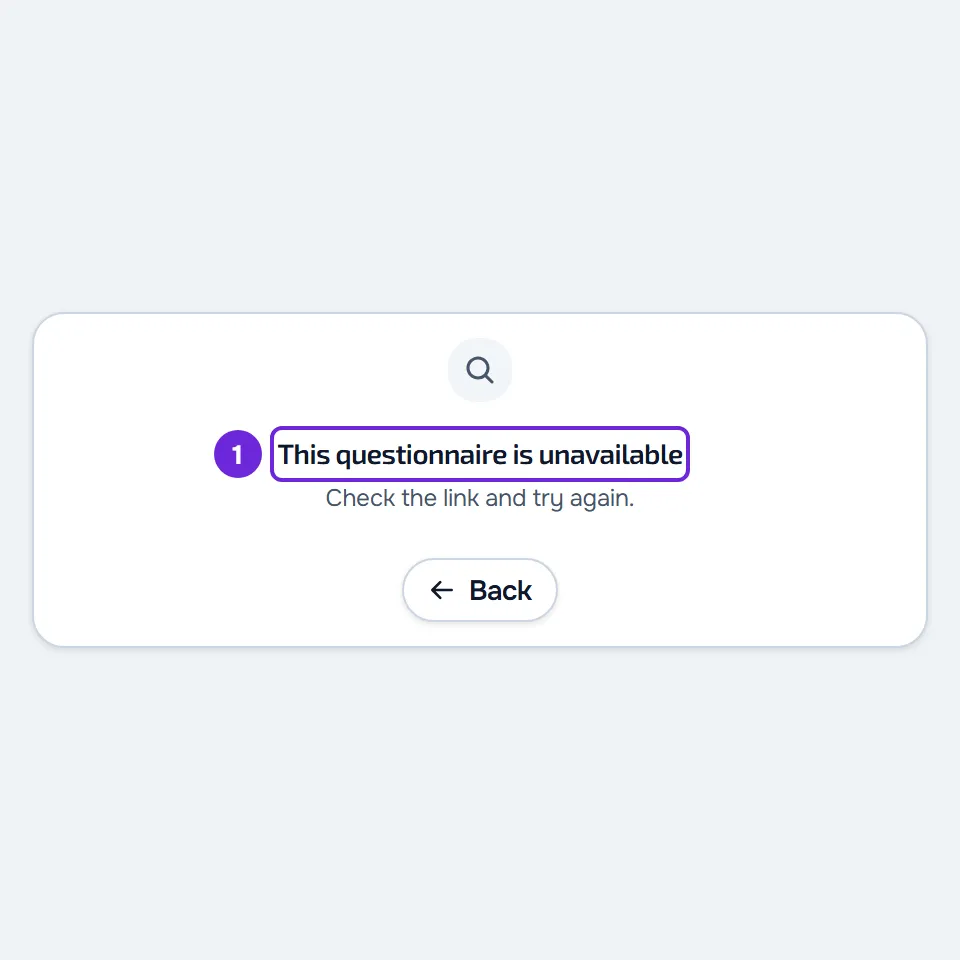
| “This questionnaire is unavailable”, with “Check the link and try again.” In the app: “Questionnaire not found.” | The questionnaire wasn't sent to you, the professional closed it, moved it back to draft or deleted it, or you no longer have active coaching with the professional who sent it. | Open it again from Questionnaires. If it isn't in To answer, talk to your professional. |
| “This questionnaire no longer accepts answers: it expired or reached its limit.”, with “If you still need to answer, contact the person who sent you the link.” Web only. | You opened the questionnaire's public link, the one the professional shares separately, and the questionnaire expired or already received the maximum number of answers. Even when you're signed in, the public link shows this card. | Contact the person who sent you the link. |
| “The questionnaire could not be opened. Please try again.” In the app: “No internet connection”. | The connection failed while opening the questionnaire. | Check your internet connection and open it again. In the app, the screen reloads by itself when the connection comes back. |
| “You've already answered this questionnaire”, with “Your answers are in Questionnaires, under Answered.” In the app, the window shows your answers straight away. | You've already answered this questionnaire. Each time it's sent to you, it accepts only one response. | On the web, select See my answers: it opens the Answered tab, where you can reread what you answered. To correct something, talk to your professional. |
| “Not in your plan”, with “This isn't part of your plan. Talk to your professional.” In the app's window, only the second sentence. | The plan you have with your professional doesn't include Questionnaires. For a check-in, it doesn't include Progress. | Talk to your professional: only they can change what your plan includes. |
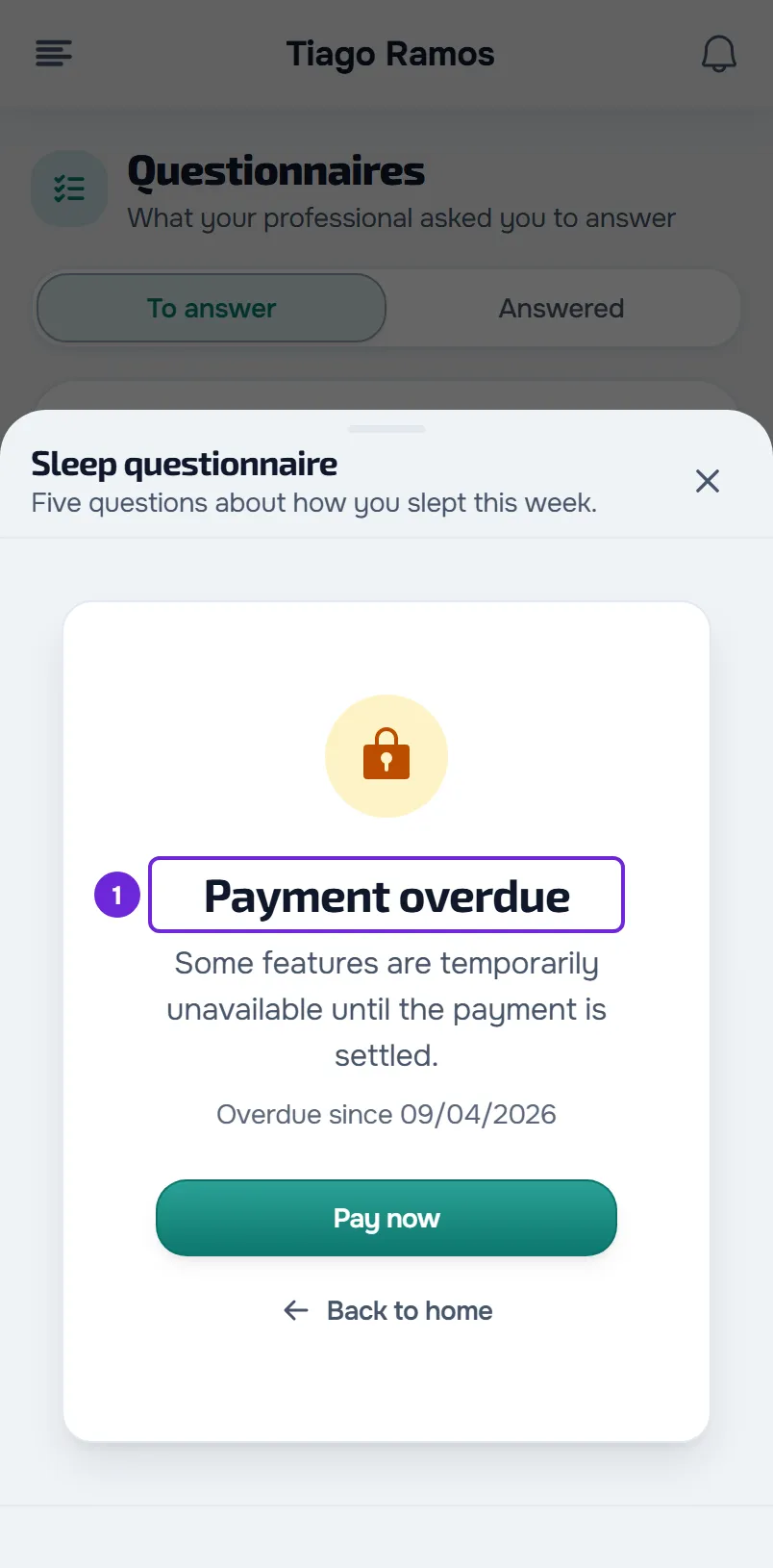
| “Payment overdue”, in place of the questions, when opening or saving. | There is an overdue payment, or the plan you had with the professional has ended. Answering questionnaires is paused; you can still reread your answers. | See the article on overdue payments linked after the table. When the pause ends, the window goes back to the questions, with what you had already written. |
| “This questionnaire is unavailable”, with “Your professional needs to fix a question's settings before you can answer.” Web only. | A question in the questionnaire is set up incorrectly, for example a choice with fewer than 2 options. | Let your professional know. Once they fix it, open the questionnaire again. |
| “Available from”, followed by the date; “Coaching ended on”, followed by the date; or “No access at the moment.” In the app, ended coaching also shows “No access at the moment.” | Your coaching hasn't started yet, has ended or is inactive. In that state you can't answer, and To answer is empty. | Talk to your professional. On the web, when it appears, View takes you to Home, where the full notice is. |
| “Pick your plan to start”. In the latest version of the app, it appears instead of the questionnaire, with the Choose a plan button. On the web, the Questionnaires page shows this card, with your professional's plans; a questionnaire opened from a link or a notification shows “Not in your plan”. | Your professional asks you to pick a plan before you join. Until then, you only have the chat. | Pick a plan from your professional: on the web, in the card or on Home. In the app, Choose a plan takes you to Home. See the article on choosing a plan linked after the table. |
About the plan, see “Not in your plan”: a section of the app has disappeared. About the payment, see Payment overdue: what is paused and how to settle it. About coaching, see Access statuses: scheduled, ended and inactive. With no internet in the app, see The app says “Offline” or takes a long time to load. About the plan you need to join, see Choose and pay for a plan from your professional.
Messages when saving
When you select Save, your answers are checked before they leave the device. A required question left unanswered or an answer that breaks the rules is flagged, with what you need to fix.
On the web
A message appears under the question, such as “This question still needs an answer.”, “Pick at least one option.” or “Enter a valid email.”, and the window moves to that question, even if it's on another page of the questionnaire. Fix it and select Save again.
If sending fails after that, a message appears at the top of the questions. What you wrote stays in the window.
| Message | Cause | What to do |
|---|---|---|
| “This questionnaire is no longer accepting responses.” | The server rejected the answers: the questionnaire expired or reached its response limit after you opened it, or you already answered it in another window or on another device. | Open Questionnaires. If the questionnaire is in Answered, your response was saved. If it has left To answer, talk to your professional. |
| “Not found.” | After you opened the questionnaire, the professional closed it, moved it back to draft or deleted it, or your coaching stopped being active. | Talk to your professional. |
| “Connection error.”, “The request took too long. Please try again.”, “Server error. Please try again.” or “Your answers could not be sent. Please try again.” | The connection or the server failed while saving, or took too long to respond. | Check your internet connection and select Save again. |
In the app
- “Fill in the required fields.”: a required question hasn't been answered. The question is marked “Required” and the app shows the page it's on.
- “Fix the highlighted answers.”: an answer is out of range or has the wrong format, such as a number, an email or a phone number. The rule appears on the question itself.
- “Could not send. Try again.”: sending failed. You may be offline, the questionnaire may have expired, reached its response limit or stopped being available after you opened it, or you already answered it on another device. Your answers stay on the screen. Check your internet connection and select Save again. If it fails again, open Questionnaires: if the questionnaire is no longer in To answer, talk to your professional.
The due date has passed
The due date doesn't close the questionnaire: after the due date, you can still answer. Once the due day has passed, the web shows Past due on the card and in the window, and the app shows “Was due on”, followed by the date. A questionnaire due today only becomes past due after the end of the day, in your device's time.
What closes a questionnaire is the expiry date or the response limit, which the professional can set. The limit counts everyone's responses, not just yours. When the date passes or the limit is reached, the questionnaire leaves To answer and stops accepting responses.
The questionnaire is no longer in To answer
A questionnaire leaves To answer when:
- you answered it: it moves to Answered;
- the professional closed it, moved it back to draft or deleted it;
- the expiry date passed or it reached its response limit;
- you no longer have active coaching with the professional who sent it; the ones you answered stay in Answered;
- your plan no longer includes Questionnaires: in that case the Questionnaires entry itself leaves the menu.
A questionnaire that opened by itself and that you closed with Later stays in To answer. The check-in is also a questionnaire, but it doesn't appear in this list: it has its own button, in Progress and on Home.
The list doesn't load
If the Questionnaires list shows an error card, select Try again. If the error persists, see “We could not load this information” and other error cards.
If this did not solve it
When the cause is in the questionnaire (closed, in draft, expired, at its response limit or set up incorrectly), only your professional can fix it: talk to them. For a problem with the web or the app, write to the MyFitnessClient team using the contact shown at the end of the Help Center home page (in the app, on the “Problems with the app” line). Include:
- the name of the questionnaire and of your professional;
- the day and time you tried;
- the exact message you saw;
- whether you use the web or the app.