
This happens when you open a course or a lesson and see a message about your access instead of the content, when a lesson has a padlock or when the button to complete the lesson does not work. Almost every cause depends on your professional, who manages each client’s access to each course: on your side, there is no button that resumes paused or expired access.
Messages when you open a course
On the website, the message fills the course page. In the app, it fills the course or lesson screen.
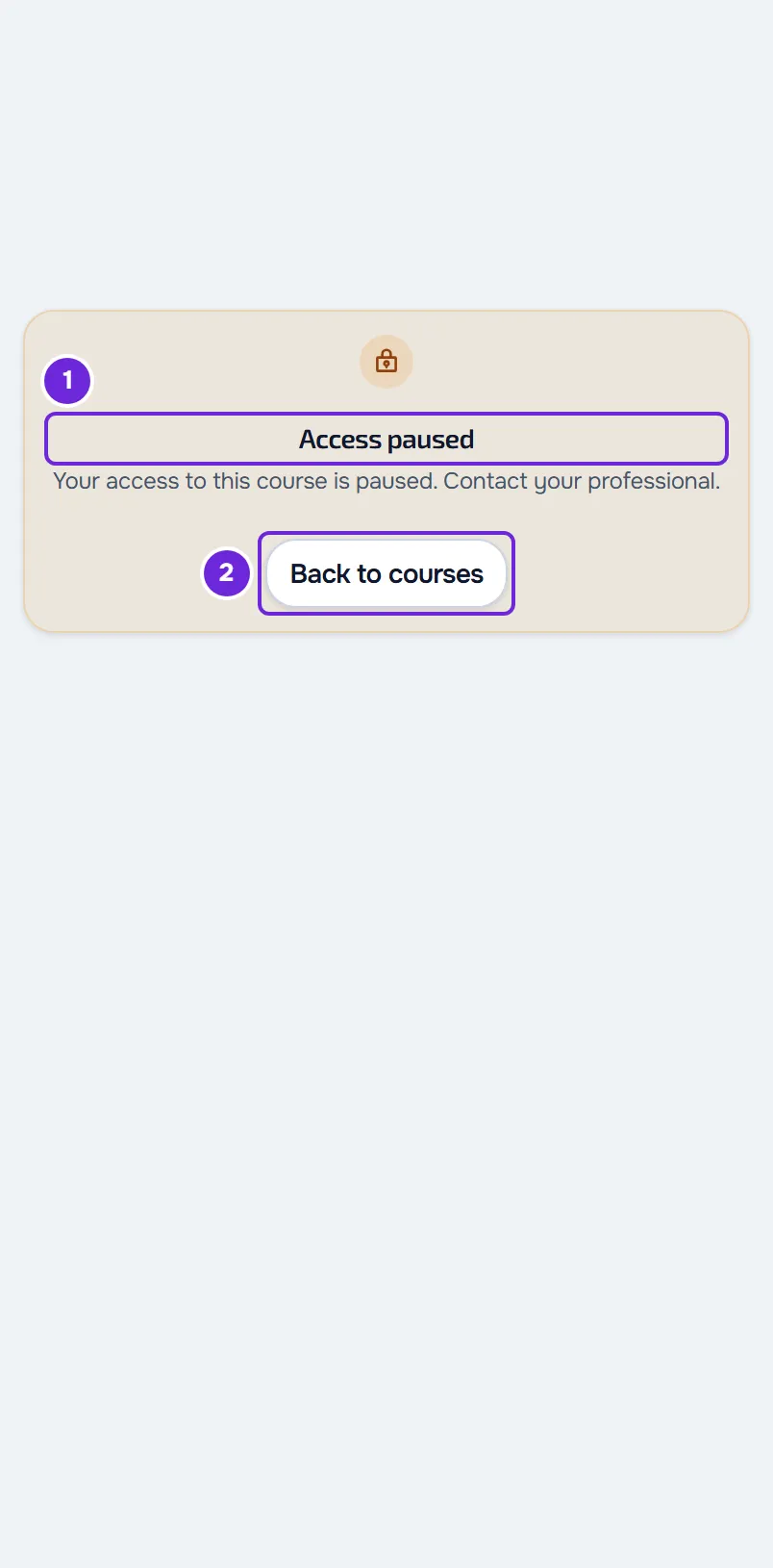
| What you see | Cause | What to do |
|---|---|---|
| On the website: “Access paused”, with “Your access to this course is paused. Contact your professional.” | Your access to this course has been paused. The professional can pause and resume each client’s access. | Contact your professional. Back to courses takes you to the list of your courses. |
| “Access expired”, with “Your access to this course has expired. Contact your professional.” | Access to this course had an end date, and that date has passed. | Contact your professional. |
| In the app: “No access to this course”, with “You no longer have access to this course. Contact your professional.” | Your access to this course has been paused, or you are no longer enrolled in it. | Contact your professional. |
| On the website: “Course not found”, with “This course no longer exists, or it is no longer available to you.” | The professional deleted the course, stopped publishing it or removed you from it. It also appears for a course the professional gave you while your coaching with them has not started yet. | Contact your professional. A course given before your coaching starts opens on the day your access starts. |
| In the app: “Course not found.” or, in a lesson, “Lesson not found.” | The course or the lesson is no longer available, or there was a server failure. | Select Try again. If the message comes back, contact your professional. |
| On the website: “Course unavailable”, with “Could not load the course.” | A problem with the internet connection or the server. | Select Try again. |
To find out whether your coaching has started or ended, see Access statuses: scheduled, ended and inactive.
The course disappeared from your course list
Your course list shows only courses whose access is active and has not passed its end date. When access is paused or expires, the course disappears from the list without warning, and the message only appears if you open the course from a saved link or a notification. A course that the professional deleted or stopped publishing also disappears from the list. In all these cases, contact your professional.
A course that the professional gave you before your coaching started only appears in the list on the day your access starts.
Your progress in the course
While access is paused or expired, your progress stays saved: when access comes back, you pick up where you left off. If the professional removes you from the course, your progress in that course is deleted and, if they enroll you again, you start from scratch.
A lesson has a padlock or cannot be completed
When the professional turns on required completion for a course, lessons open in order: you can open the ones you have completed and the first one not yet completed, and the following ones have a padlock. On the website, when you hover over a lesson with a padlock, “Complete the previous lesson to unlock” appears. In the app, the lesson says “Locked”. If you try to open or complete a lesson out of order, “Complete the previous lessons first.” or “Complete the previous lesson to unlock.” appears.
The button to complete the lesson stays inactive while a checklist in the lesson still has required items to tick, and next to it you see “Tick the required checklist items to complete the lesson.” (in the app, “Tick the required checklist items to complete this lesson.”). On the website, required items have an asterisk. In the app, they are not marked.
To unlock the next lesson:
- In the course, open the first lesson not yet completed, the first one without a tick and without a padlock.
- If the lesson has a checklist, tick the required items. In the app, tick all the items. The checklist saves automatically.
- Select Mark as completed (in the app, Mark as complete).
- If the next lesson does not open on its own, select Next lesson.
The completed lesson gets a tick and the next one opens without a padlock.
If “The checklist could not be saved.” appears (in the app, “Could not save the checklist.”), the item goes back to its last saved state: check your internet connection and tick it again. If “The lesson could not be marked as completed.” appears (in the app, “Could not mark the lesson as complete.”), try again in a little while.
Part of the lesson does not open
- “Resource removed or unavailable”: the content of that lesson block, such as an image, a file, an audio clip, a link, a workout, a meal plan, a habit or a questionnaire, is no longer available. Let your professional know.
- “Not assigned to you yet”: the block points to a meal plan, a habit or a questionnaire that the professional has not assigned to you yet. Ask them to assign it.
- The video does not start or shows “Video unavailable”: see “Video unavailable” in a lesson: causes and solutions.
I do not see Courses in the menu
On the website, Courses is in the My Workout group of the menu. In the app, it is in the Content group. The item disappears from the menu when the package your professional gave you does not include Courses and your course list is empty. If you open the courses page from a link or by its address, you see “Not in your plan”. Contact your professional and see “Not in your plan”: a section of the app has disappeared.
On the website, if you do not have a professional yet or you disconnected from them, Courses only appears in the menu while you have at least one course in your list.
In the app: blocked screenshots and a blurred app
Course content is licensed by your professional, so the app protects the course screen and the screen of each lesson. This is not an error:
- While a course or a lesson is open, screenshots and screen recording do not work. On iPhone, the image comes out blank. On Android, the screenshot fails.
- In the list of open apps, the app’s card appears blurred on iPhone and blank on Android.
- On iPhone, the blur also appears whenever the app stops being active with a course open, for example when you open Notification Center.
- The protection ends when you leave the course, for the course list or another tab. The rest of the app does not have this protection.
If the screen stays blurred after you return to the app, close the app completely, open it again and install the latest version of the app.
If this did not solve it
Contact your professional: they manage your access to each course and the content of the lessons. If they confirm that your access is active and the problem continues, write to the MyFitnessClient team through the contact shown in the Help Center and send:
- the name of the course and, if relevant, of the lesson;
- the exact message you see;
- whether it happened on the website or in the app;
- the approximate time.