
Before you start
- Nutrition must be part of your coaching with your professional. If you can’t find it, see “Not in your plan”: a section of the app has disappeared.
- On a locked plan there is no online search and no barcode scanner: the Add Food button doesn’t appear. See Meal plan modes, locked plan and days without a plan. On a day that has passed, first select Edit this day (Correct a day that has passed).
- You need an internet connection. The products come from Open Food Facts, an open database of supermarket products; some don’t state all their values, and a “-” in the details means the value is missing, not that it is zero.
- The online search and the barcode scanner share a limit of 30 requests per minute on your account.
Steps
To search for a product online and add it to a meal:
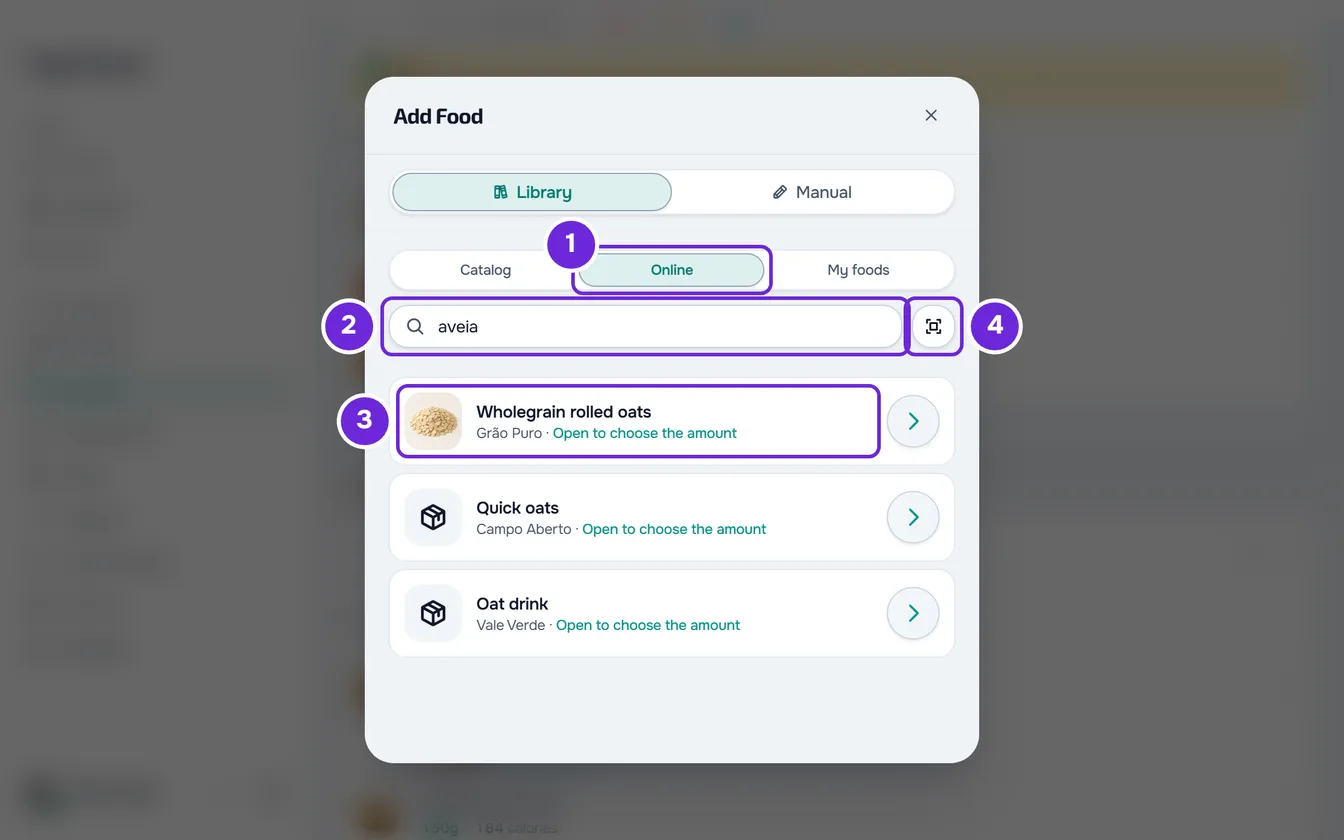
- In Nutrition, at the end of the meal, select Add Food. If the meal is already marked as eaten, it appears collapsed: open it first or use the meal’s ⋮ menu.
- In Library, select the Online 1 tab. If you searched in Catalog or My foods and there were no results, Search Online takes you to the same place with what you already typed.
- Type the product’s name 2, with at least 2 characters. The search starts 0.4 seconds after you stop typing, or straight away with Enter. The list loads more products as you scroll down.
- Select the product 3. Its details open with 100 g or 100 ml and fetch the calories, macros and other nutrients from Open Food Facts.
- In Quantity 1, type how much you ate or select one of the quick buttons. To measure in another unit, see Add foods to a meal.
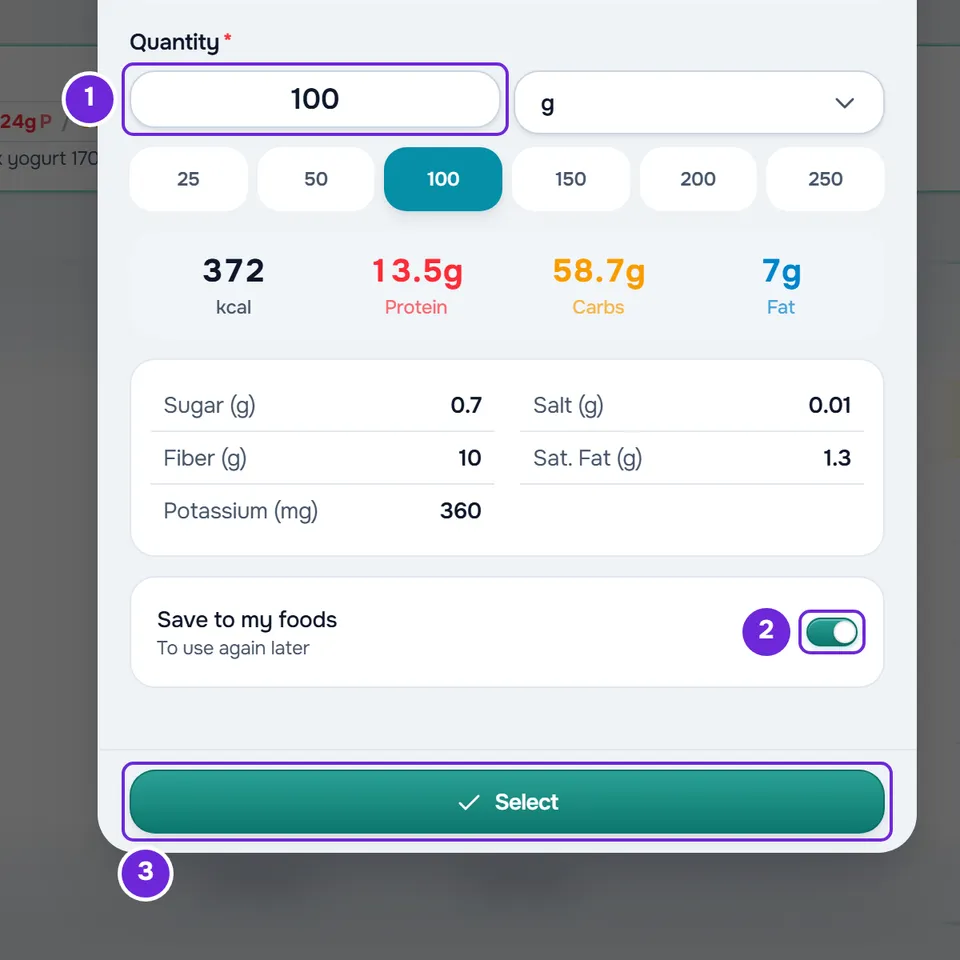
- Leave Save to my foods 2 on to find the product again in My foods without searching for it again. The switch is on for every product you open; turn it off if you don’t want to save the product.
- Select Select 3. The details close and the product is selected in the list, with a tick. With the switch on, the product is saved to your foods at this moment.
- Optional: to add more products, search for and choose each one the same way.
- Select Add. The button shows in brackets how many foods you chose.
The window closes and the products appear at the end of the meal, with the message “Meal updated”. Your professional sees them in that day’s log.
Scan the barcode with the camera
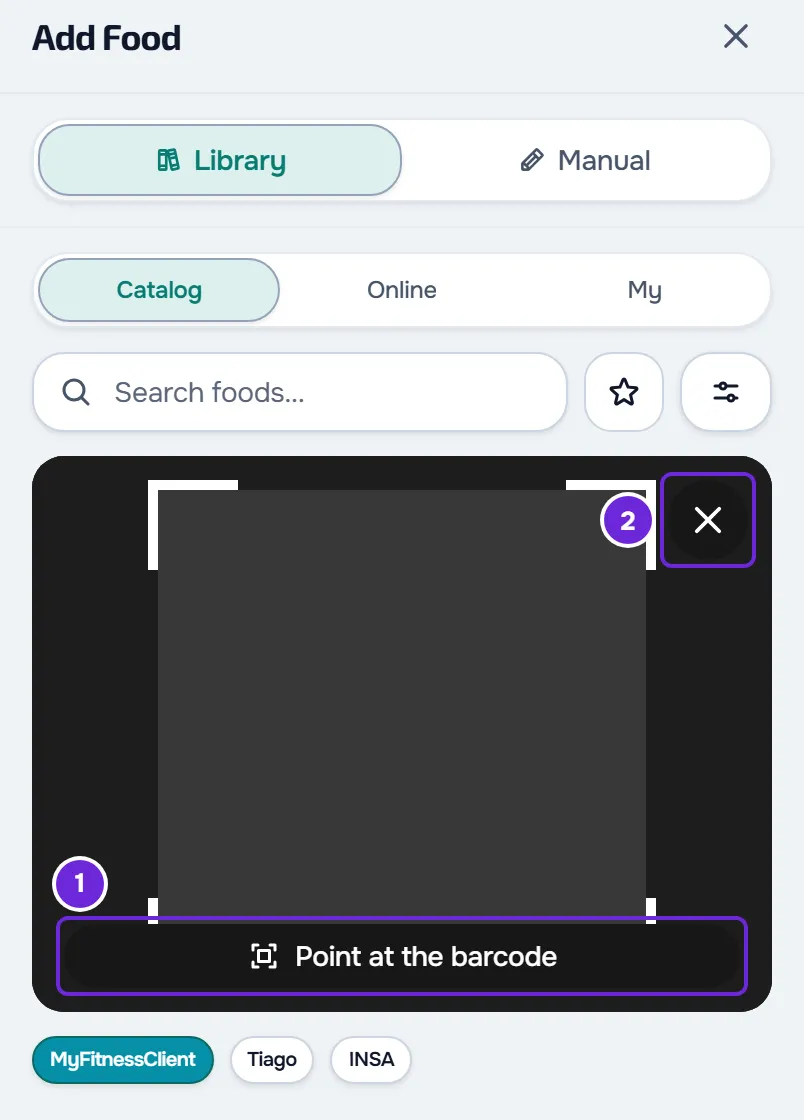
- In the Add Food window, select the barcode icon next to the search box, in any tab of Library. The first time, the browser asks for permission to use the camera.
- Point the camera at the bars on the package. The viewfinder says “Point at the barcode”; it has a torch button, when the device has one, and an X to close the camera.
- Once the code is read, the window first looks in your foods. If you already saved the product, it opens your food, with the values you have there, without going to Open Food Facts. If not, it opens the product’s details from Open Food Facts. Carry on with the quantity, as in the steps.
- The website’s scanner accepts EAN-13, EAN-8, UPC-A, UPC-E, Code 128, Code 39 and QR, but only looks up valid product codes, with 8, 12, 13 or 14 digits. A package QR code that carries the barcode inside it also works. A QR code with another address shows “That's a QR code, not the product barcode. Point at the barcode on the pack.”, and any other code shows “That code isn't a food product code.”
- A code that failed is ignored for 30 seconds, so the camera doesn’t repeat it while the package is in front of it. Closing and reopening the camera ends that wait.
- Without a camera, type the code: in the Online tab, type the 8 to 14 digits and press Enter. Here too the window first looks in your foods.
Save the product to your foods
- Turning off Save to my foods only applies to the product that is open. The next one opens with the switch on again.
- A saved product stays in My foods and counts towards your limit of 500 foods. When you reach it, “You've reached the limit of 500 foods.” appears and the product goes into the meal without being saved.
- If saving fails for another reason, the product stays selected and goes into the meal when you select Add. On the website you see “Could not save it to the library. The food is still selected.”
- To correct the values of a saved product or to delete it, see Create and manage your own foods.
- When you swap a food, the online product is only used for that swap and the switch doesn’t appear. See Swap a food for an equivalent one.
In the app
- In the Add food sheet, under Library, the tabs are Catalogue, Online and My foods. In Online, type the product’s name or brand, with at least 2 characters, and select the keyboard’s search key: the search doesn’t run while you type. The results appear with the title “Online database” and your search; Back to catalogue leaves them.
- When you select a product, the app fetches its values (“Fetching values…”) and opens the quantity sheet, with Save to my foods on. Confirm with Select and, at the end, with Add.
- The scanner opens from the barcode button next to the search box. On your phone, it also opens from the screen’s + button: in “What do you want to log?”, Scan barcode opens the camera for the unmarked meal closest to the current time; on a day with no meals, it opens the “New meal” sheet instead of the camera. Without internet, both are disabled.
- The first time, your phone asks for permission to use the camera. If you refuse, “No camera access” appears with Allow camera, or with Open Settings when your phone no longer asks.
- The app only reads EAN-13, EAN-8, UPC-A and UPC-E, the codes on packages. A QR code, a Code 128 or a Code 39 is ignored with no message, and the viewfinder keeps saying “Point the camera at the product barcode”.
- As on the website, the app first looks in your foods. If the product doesn’t exist on Open Food Facts, “We could not find any product with the code …” appears with Add manually, which closes the camera and opens the Manual tab.
- After an error, the same code stays blocked until you select Scan again or scan another code. After a network or database failure, it can be read again after 3 seconds.
Common problems
“Product not found”
The product isn’t on Open Food Facts. When you have gone over the request limit or the database didn’t respond, the website shows another message: see “The search shows an error”. On the website, the message comes with Add manually: it opens the Manual tab with Save to my foods on. Type the values from the label and the food is saved with the code, so the next scan finds it in your foods. To create or correct a food by hand, see Create and manage your own foods.
“This food is missing calories, protein, carbohydrates, or fat. Choose another food.”
On the website, the product doesn’t state one of the four values and Select is disabled. Choose another product or create the food in the Manual tab.
The search shows an error
Each search, each page of results, each product you open and each code that goes to Open Food Facts counts towards the limit of 30 requests per minute, even if you repeat the same search. When you go over it, the website shows “Too many requests. Wait a moment.” and the app “Too many scans in a row. Wait a moment and try again.”: wait a minute. If “The online food database (Open Food Facts) is temporarily unavailable. Try again later.” appears (in the app, “The food database is unavailable.” followed by a request to try again), the database didn’t respond: try later. When the search fails for another reason, the website shows “Search error”: check your connection and try again. For more messages, see Common Nutrition problems and error messages.
The camera doesn’t open
On the website you see one of these messages:
- “Camera permission denied”: allow the camera for MyFitnessClient in the browser settings and open the scanner again.
- “Camera requires an HTTPS connection”: the browser didn’t give access to the camera on this page. Check that the address starts with https; if it does, try another browser or your phone.
- “No camera available on this device. Try on a phone or enter the barcode manually.”: use your phone or type the code in the Online tab.
In the app, allow the camera with Allow camera or in your phone’s settings.