
Before you start
- To change it, you need the password you use today. If you don't remember it, follow Reset a forgotten password.
- The new password must have 8 to 72 characters and be different from the current one. On the web, the bar under the field says whether it is Weak, Fair, Good or Strong: it's only a guide and doesn't stop you from saving.
- Changing your password ends the session on every device, including the one where you make the change. Afterwards, you sign in again on each one with the new password.
Interactive tutorial
Opens in the app and needs you to be signed in.
Steps
To change your password on the web, in the professional dashboard or in a client account:
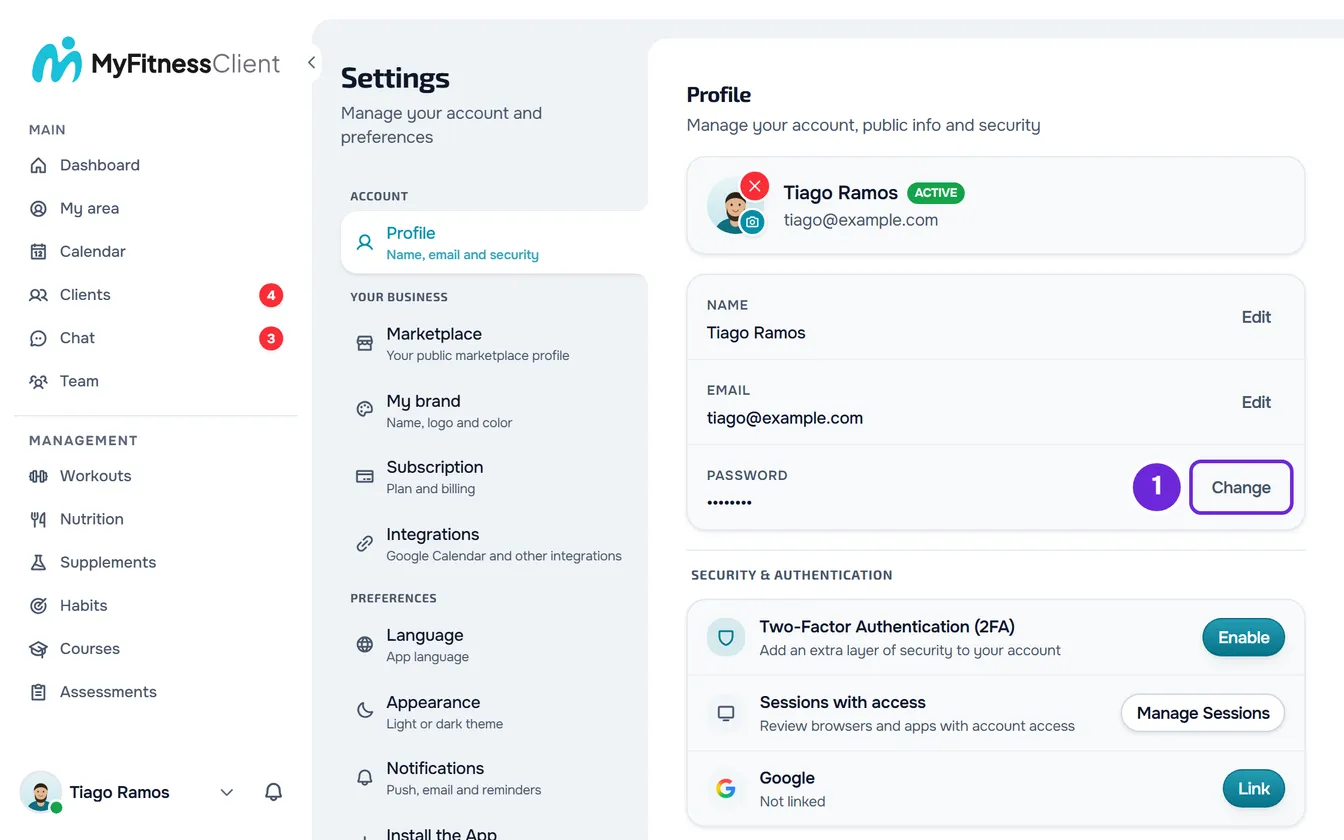
- Open Settings. On a computer, select your photo and name at the bottom of the sidebar, then Settings. On a phone, open the menu and select Settings, at the bottom of the menu.
- Select Profile.
- In the Password row, select Change 1. In the professional dashboard, the row is in the card with your name and email; in a client account, it is in the Security & Authentication section.
- In the Change password window, type the password you use today in Current password 1.
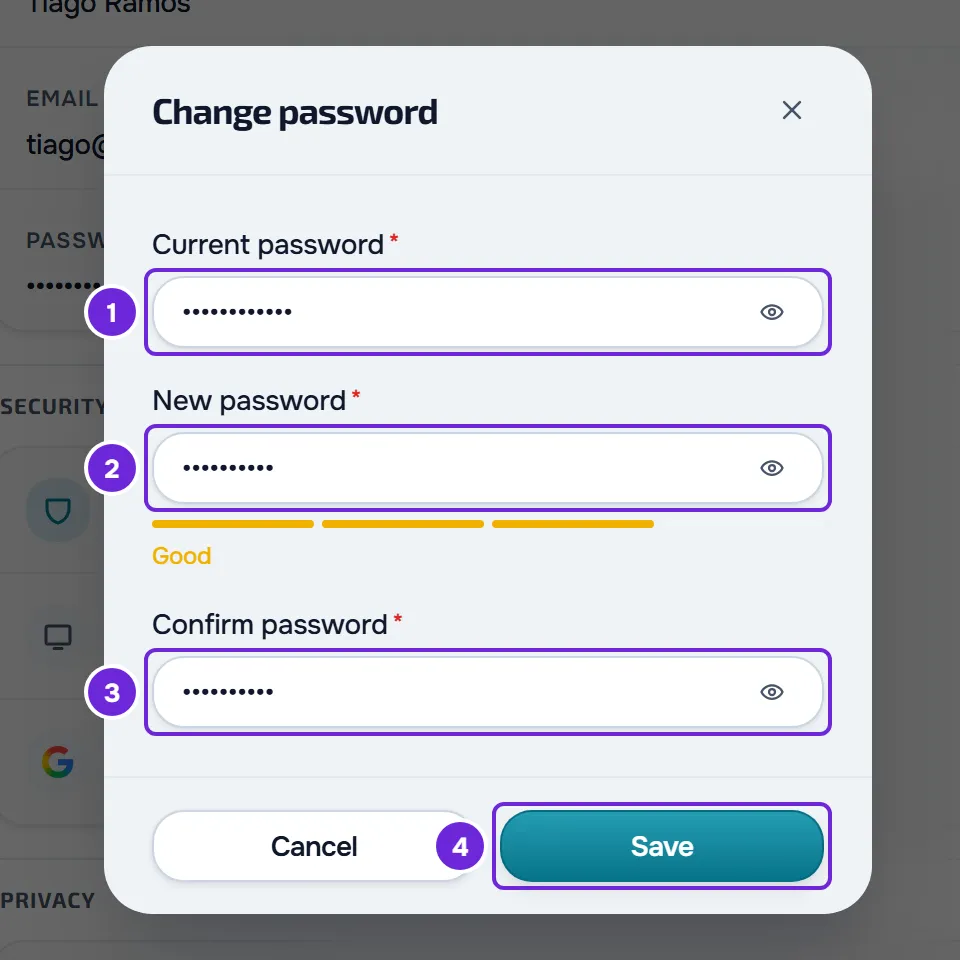
- Type the new one in New password 2.
- Type it again in Confirm password 3.
- Select Save 4. The button only becomes available when the new password has 8 or more characters and the confirmation matches.
- The message “Password changed.” appears for a moment, asking you to sign in again, and the sign-in page opens. Sign in with the new password.
From then on, the account only accepts the new password, on every device.
In the app
The app is for client accounts only.
- Open the menu with the button in the top-left corner and select your name, at the bottom of the menu. In Settings, select the card with your name and email, at the top, to open Profile.
- In the Password row, select Change, or Set if the account doesn't have a password yet.
- Fill in Current password (only when changing it), New password and Confirm password and select Save. The app doesn't show the strength bar: it reminds you “At least 8 characters.” under the field and checks the rules when you save.
- When you change it, “Password changed” appears, with the sentence “For your security, we've signed you out on all devices. Sign in with your new password.” Select Sign in and sign in with the new one. If you close the window, the session also ends.
- When you set one, the window closes, the row now shows Change and you stay in the app.
Set your first password
An account created with Google or Apple has no password. In Settings, the Password row shows Not set and the Set button.
- Select Set. The Set password window opens, without the current password field.
- Type the new one in New password and again in Confirm password, with the same rules, and select Save.
- On the web, “Password set.” appears and the row now shows the Change button.
- Your session stays open, so do the ones on your other devices, and no warning email is sent.
You can now sign in with your email and password, and you can still sign in with Google or Apple. Without an open session, you can do the same from the sign-in page, with Forgot password? on the web or Forgot your password? in the app: see Reset a forgotten password.
You need a password to close a professional account, to sign in to a professional's own app, which has no Google or Apple buttons, and to remove the Google account in Settings. In the app, if you also have your Apple account linked, you can remove the Google account without a password. See Link or remove your Google account in Settings.
What happens when you change your password
- Every session on the account ends, in all browsers and apps, including the one where you made the change. Sign in again on each device with the new password. See Why was I signed out of my account?
- Push notifications stop reaching every device. They come back when you sign in again on each one, if you had them turned on and the browser or phone still allows them.
- A sign-in that was waiting for the two-factor authentication code is no longer valid and has to start over.
- The account's email address receives the message “Your password was changed”, with the date and time and, when it can be known, the device's browser and system. If it wasn't you, the email's “Reset password” button opens the page where you request a link to choose another password.
When you set your first password, none of this happens.
Common problems
“Current password is incorrect.”
What you typed in Current password is not the account's password. In the app, the same message appears under the field. Type it again; on the web, the eye in the field shows what you typed. If you don't remember it, see Reset a forgotten password.
“The new password must be different from the current one.”
The new password is the same as the one you already use. Choose another one.
The Save button isn't available
On the web, Save only becomes available when the new password has 8 or more characters, the confirmation matches the new one and, when changing it, the current password is filled in. In the app, the button is available once the fields are filled in and, when you save, “At least 8 characters.” or “Passwords do not match.” appears under the field to fix.
“Could not change the password.”
The web shows this sentence when the change fails for another reason, for example after 5 attempts in the same minute; in that case, the app shows “Too many attempts.”, with a request to try again shortly. Wait a minute and try again. When setting a password, the web's sentence is “Could not set the password.”, which also appears when the account already has a password, for example one set on another device; the app then shows “This account already has a password.” On the web, reload the page; in the app, close it completely and open it again. Then use Change. If that didn't solve it, write to [email protected] with the account's email and the message that appears.
Questions
Why do I have to sign in again after changing my password?
For security, changing the password ends every session on the account, including yours. That way, anyone who had signed in with the old password loses access.
Why is the password limited to 72 characters?
It's the maximum MyFitnessClient accepts at sign-in: a longer password wouldn't work to sign in. On the web, the field doesn't let you type more than 72; in the app, a longer one is refused when you save, with “Couldn't save.” and a request to try again.
After setting a password, can I still sign in with Google or Apple?
Yes. The Google or Apple account stays linked and you now have both ways to sign in.