
Before you start
- The plan's meals appear when you have an active meal plan in My area. To activate one, see No active program: the program or plan does not appear or has ended.
- Without an active plan, you can still log what you eat. See Add a meal or a food to your day.
- Your clients and your team do not see these logs.
Steps
To log a meal you ate:
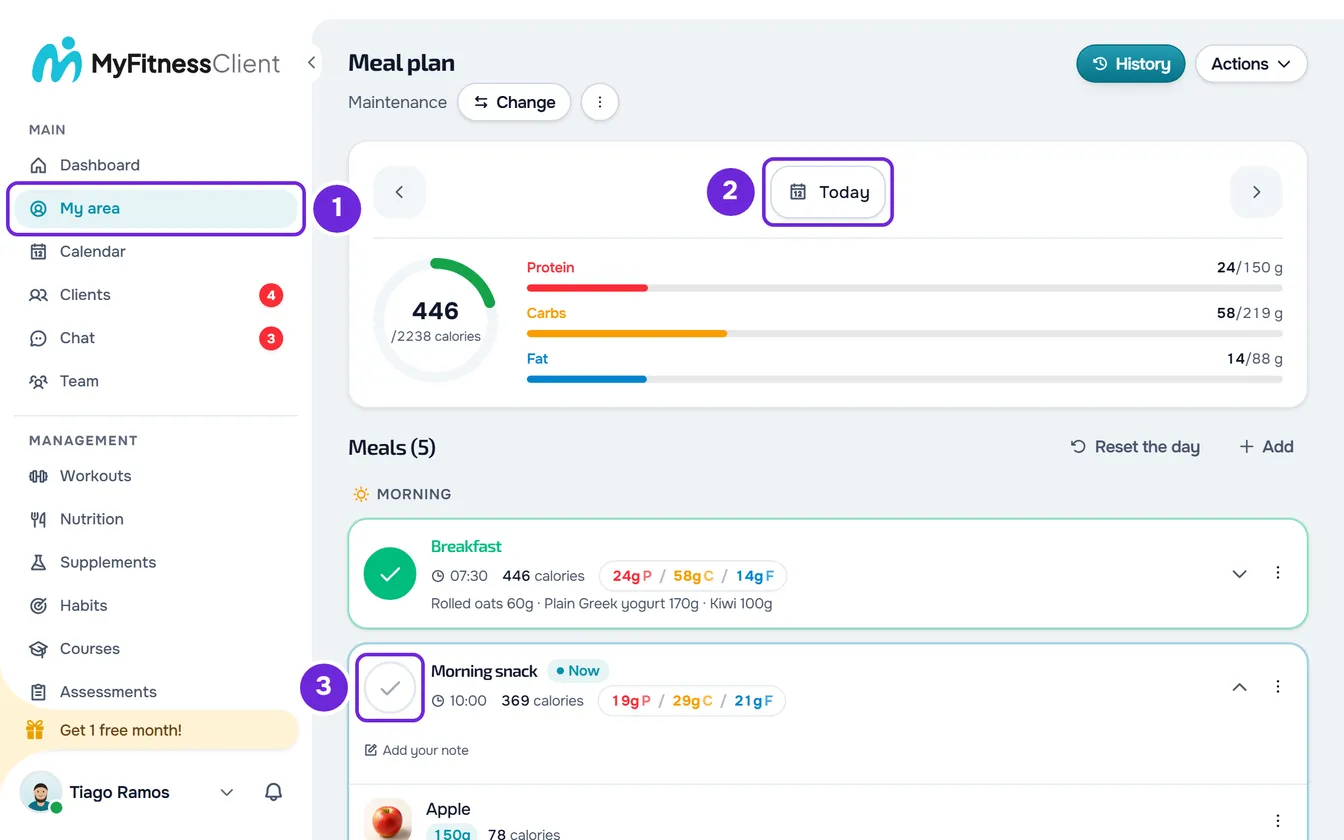
- In the side menu, select My area 1.
- Open the Nutrition tab. The page has the title “Meal plan” and shows the name of your plan.
- In the card at the top, check that the date selector shows Today 2. For another day, use the arrows next to the date or select the date.
- If the meal you ate has tabs at the top, “Option 1”, “Option 2” and so on, select the option you ate. The meal then shows the name and the foods of that option straight away.
- Select the circle next to the meal name 3. The circle turns green and the notice “Meal logged” appears.
The meal name turns green and the meal closes, with the foods on a single line; if you had already opened or closed it yourself, it stays as you left it. Its calories and macros are added to the card at the top. When a meal takes you to the day's calorie goal, the notice is “Today's goal reached!”. Do the same for each meal you eat during the day.
Unmark a meal
To undo, select the circle again. No notice appears. On a plan meal where you changed nothing, the log disappears. On the others, the meal keeps what you changed that day (foods, option, name, time or your note) and only stops counting as eaten.
The day's calories and macros
In the card at the top, the ring shows in the center the calories you have eaten so far and, under them, the day's goal. Next to it, the Protein, Carbs and Fat bars show the grams eaten and the goal for each macro. The ring is green and turns red when you go over the calorie goal; each bar turns red when you go over the goal for that macro.
- Today and on the following days, only the meals marked as eaten count. On a past day, everything logged that day counts. With an active plan, today is the day in your account's time zone.
- The goals are those of your plan for the day you are viewing. In a Weekly or Calendar plan, the plan can have its own goal for that day or that week.
- When the plan does not set a goal, the goal is the total of the plan's meals that day. With no goal at all, the ring has no arc and shows only the calories eaten.
- In My area, the goal is always the plan's goal. To change it, see Set a plan's daily calorie and macro goals.
- If a food you ate has no value for a nutrient, that total appears as “-” and the ring or the bar stays empty.
The day according to the plan mode
The meals of each day depend on the meal plan mode:
- Flexible: all the plan's meals, every day.
- Weekly: the meals of the weekday you are viewing.
- Calendar: the meals of the plan day, counted from the day you activated the plan. The list title shows the plan week and the number of meals, for example “Meals · Week 2 (4)”.
- Sequential, in older plans with this mode: one plan day at a time, the same on any date. The plan moves to the next day when you mark all of the day's meals as eaten.
In a Weekly or Calendar plan, a day without meals shows “Free day” and the New meal button, so you can log what you eat. The days before you activated the plan do not have the plan's meals. To learn more, see Meal plan modes: Flexible, Weekly and Calendar.
What each meal shows
The meal header has the circle, the name, the time, the calories and the three macros. Selecting the header opens or closes the meal. When open, it shows the Plan note, if the meal has one, your note about the meal (Add your note opens the field), the foods and the Add Food button. When the plan's meals have a period, they appear grouped under Morning, Afternoon and Evening; the others go at the end.
The Now tag appears only on today's date, on the meal for the current time, until you mark it as eaten: from 15 minutes before its time until 15 minutes before the next meal. The last meal of the day keeps it until 3 hours after its time and, before the first meal, it is on the first one. Meals without a time do not get it.
The header's ⋮ menu, which also opens when you right-click the header, has:
- Edit meal, only on plan meals: changes the name and the time on that day only, and the plan stays the same on the other days.
- Add Food: adds foods to the meal.
- Restore meal, only when you changed the foods of the option you are viewing: restores the foods the plan sets for that option.
- Delete meal: removes the meal from that day. On a plan meal, the plan stays the same on the other days.
To change the quantity of a food, swap it or delete it, see Edit, swap or delete a food in your day.
History and the Actions menu
On wide screens, the History button and the Actions menu sit next to the title. On narrower screens, such as a phone's, there is only the Actions menu, with History first, and the View full history shortcut at the end of the meal list.
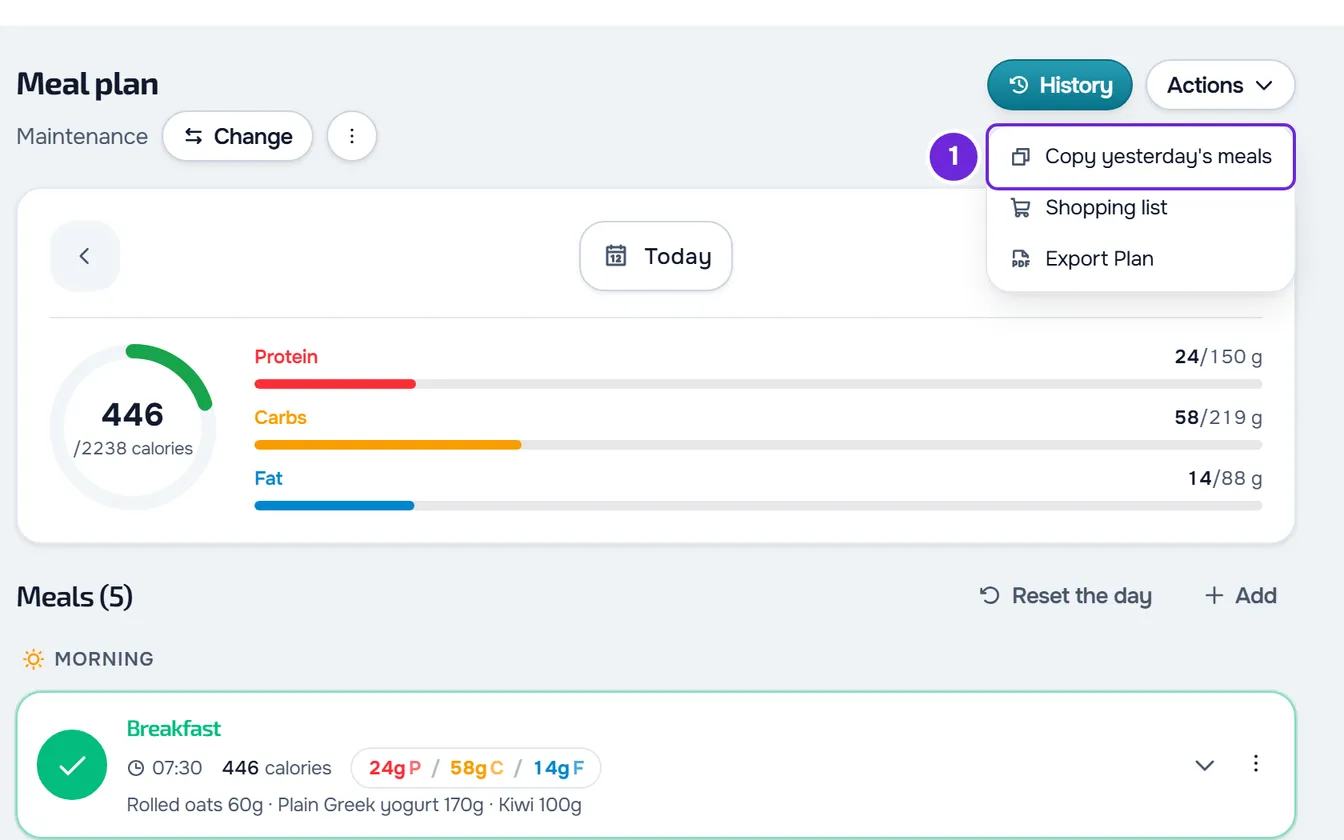
The Actions menu has Copy yesterday's meals, only on today, and, with an active plan that has meals, Shopping list and Export Plan. On a wide screen, on a day other than today and with a plan that has no meals, the Actions menu does not appear, because it would be empty. To view and fix past days, see Review and fix past nutrition days.
Copy yesterday's meals
To repeat today what you logged yesterday, select Actions > Copy yesterday's meals. The copied meals arrive unmarked: mark the ones you ate again. It works with or without an active plan.
- The meals logged yesterday come over, eaten or not, with the foods they had.
- The meals you deleted yesterday with Delete meal do not come over, nor do the plan meals that already have a log today.
- A meal you added comes with its time. On a plan meal, the name and the time you changed for yesterday only do not come over. Your note stays on yesterday.
- If you copy twice, the meals you added are duplicated.
- In a Weekly or Calendar plan, yesterday is a different plan day: the plan meals copied from yesterday do not appear in today's list.
The notice tells you what happened: “1 meal copied” or the number of meals copied; “You already logged these meals today” when everything there was to copy already had a log today; “Nothing to copy from yesterday” when yesterday has no logs to copy.
Meal reminders
At the time of each plan meal that has a time, you receive a “Meal at” notification with the time and the name of the meal. The plan's time counts, or the one you changed for that day. It arrives once per meal per day, and it does not arrive if you have already marked the meal as eaten or deleted it from that day. Meals without a time and meals you added have no reminder. Selecting the notification opens this page; if no device receives it, it stays in the notification bell.
To stop receiving these reminders, turn off Reminders in Settings > Notifications. The same switch turns off event reminders. If the reminders do not arrive, see Meal and habit reminders are not arriving.
Common problems
I can't mark a meal on a past day
A day before today opens read-only, with the note “History: what you logged on this day”: the circle is inactive and the ⋮ menu does not appear. Select Edit this day and confirm with Edit day. The steps are in Review and fix past nutrition days.
“Try again” after marking a meal
Saving failed and the circle goes back to how it was. This happens, for example, with no internet connection or after more than 30 saves in one minute. Wait a moment and select the circle again. If it keeps happening, see My area does not open, does not load or does not let you save.
I can't find the option to copy yesterday's meals
The item only appears in the Actions menu when you are viewing today. Use the arrows on the card at the top until the date selector shows Today.
Questions
Can I change a meal on one day only?
Yes. Edit meal changes the name and the time on that day only, and the same goes for what you change in the foods. The meal plan stays the same on the other days.
Can I log the water I drink?
Not in nutrition. For that, use a habit: see Nutrition has no water log: use a habit.
Where are the shopping list and the plan PDF?
In the Actions menu, with an active plan: Shopping list and Export Plan. See Create the shopping list for a meal plan and Export the meal plan as a PDF or as text.