
It happens when the team owner's plan changes. In both cases, no member is deleted and the team's data is kept.
Which case is yours
| What you see | Cause | What to do |
|---|---|---|
| On the Team page, the “Your team is inactive” banner and the INACTIVE badge next to the team name. | The owner's current plan no longer includes teams, for example because the subscription ended. | Go back to a plan that includes teams: see “The team is inactive”. |
| On the Team page, the “Above plan limit” banner and the bar of the Seats field in amber. | The current plan allows fewer members than the team's active members. | Remove members down to the limit or upgrade your plan: see “The team has too many members”. |
| You are a member and the “Workspace access revoked” or “This workspace is inactive because its paid plan ended.” notice appears, and the Dashboard opens in your personal workspace. | The team became inactive, the owner removed you or the owner disbanded the team. | See “If you are a team member”. |
The team is inactive
The team becomes inactive when the owner's current plan no longer includes teams, for example when the subscription ends and the account moves to a plan without a team. MyFitnessClient checks the team's status when the plan changes, when the owner opens the Team page and when a member tries to work in the team's workspace.
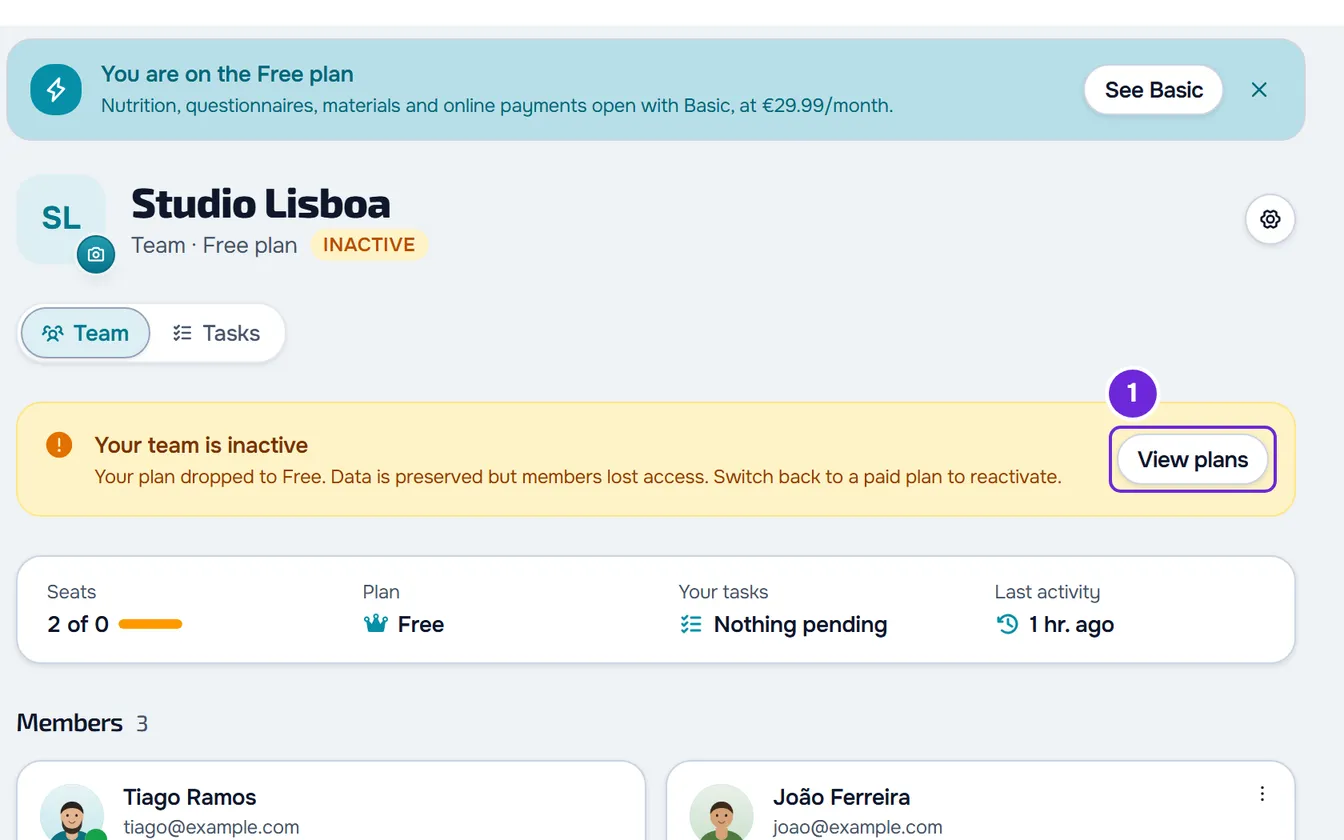
While the team is inactive:
- The “Your team is inactive” banner says that the data is preserved and that the members lost access. The owner gets no notification about the team: they see the banner when they open Team.
- The Invite and Team chat buttons disappear, and the Seats field shows 0 as the maximum.
- The members, the permissions, the tasks and the activity log are kept.
- Each member loses access to the team's workspace and gets the “Team access removed” notification in the bell.
- Anyone who opens an invitation to the team sees the “Team inactive” screen. The other invitation screens are in The team invitation does not arrive or shows an error.
To reactivate the team (owner only):
- In the side menu, select Team.
- In the “Your team is inactive” banner, select View plans 1. This opens the subscription, in the account settings.
- Choose a plan that includes teams and pay for the subscription. The steps are in Upgrade your plan and pay for your subscription.
- Open Team again.
The team reactivates on its own: the badge and the banner disappear, and each active member gets the “Team access restored” notification in the bell. If the new plan allows fewer members than the team has, the “Above plan limit” banner appears: see the next section.
The team has too many members
It happens when the current plan allows fewer members than the team's active members, for example when you downgrade your plan or when you reactivate the team on a plan with fewer seats. The owner does not count: the seats are for the colleagues who joined by invitation. The seats of each plan are in How many members the team can have on each plan.
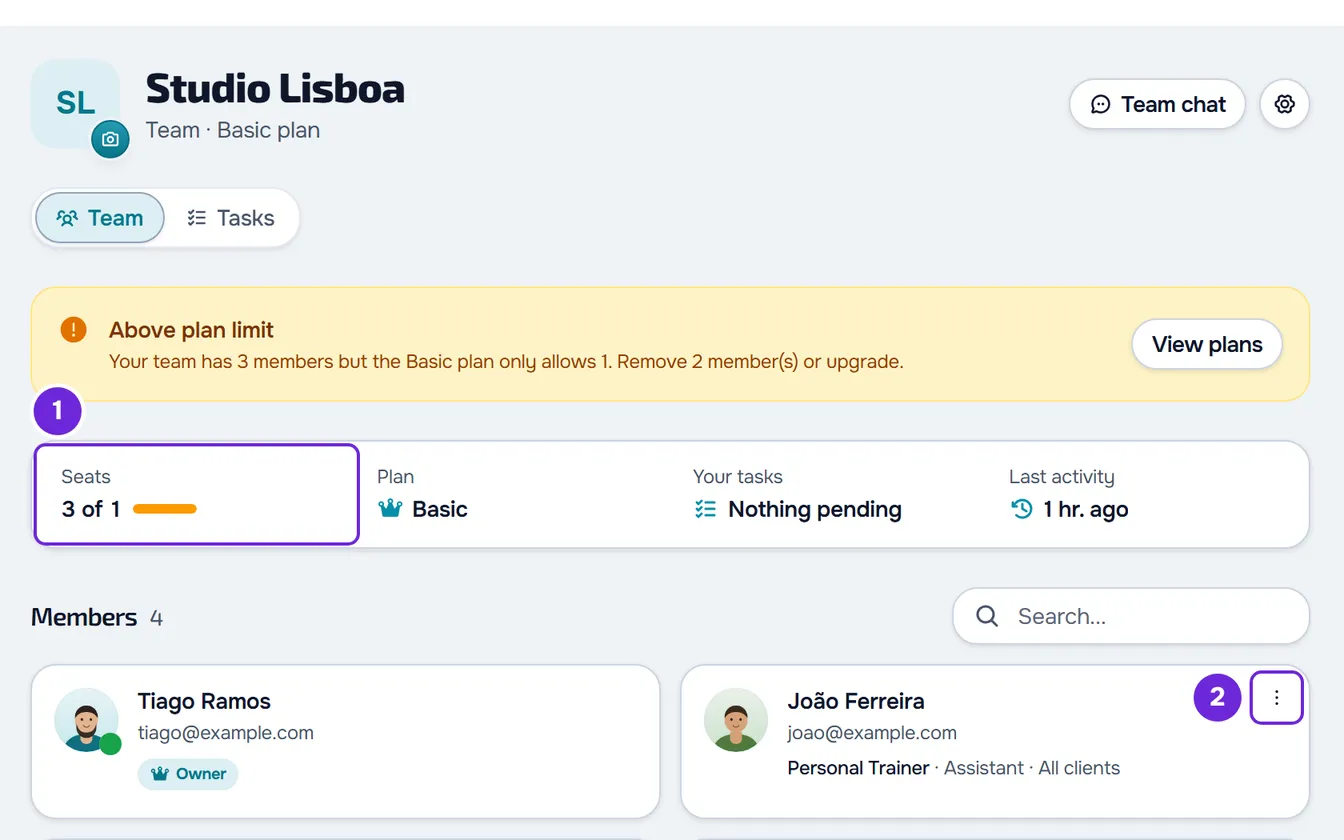
Nobody is removed automatically and the team stays active: the members keep working as before. What changes for the owner:
- The amber “Above plan limit” banner says how many members the team has, how many the plan allows and how many you have to remove.
- The bar of the Seats field turns amber and the value goes past the maximum, for example “3 of 1”.
- The Invite button disappears. An invitation already sent stops working: whoever accepts it sees the “Team full” screen and the invitation is deleted.
- When the plan changes, you get the “Team over the limit” notification in the bell, with the number of members, the plan's maximum and the sentence “Invites are blocked.”. You never have more than one unread notification about the team, and it is marked as read on its own when the team is back within the limit.
To fix it, upgrade to a plan with more seats (Upgrade your plan and pay for your subscription) or remove members down to the limit. To remove a member:
- In the side menu, select Team.
- On the member's card, open the ⋮ menu 2 (or right-click the card) and select Remove.
- In the Remove member window, select Remove.
The member loses access immediately and gets the “Removed from team” notification in the bell. What they created stays in your workspace. The banner and the bar color update right away, and the Invite button only comes back if the team has a free seat. A member who leaves the team on their own initiative also frees the seat.
Email invitations not yet accepted also take seats in the Seats field, but they do not put the team over the limit. For example, with 1 colleague and 2 invitations on a plan with 1 seat, the field shows “3 of 1” with a full bar, without the amber color and without the banner, and Invite does not appear. To free those seats, cancel the invitations you no longer want.
If you are a team member
If you were working in the team's workspace when you lost access, the dashboard's next request is refused. The dashboard shows the “Workspace access revoked” notice (or “This workspace is inactive because its paid plan ended.”, when that request is the one that finds the owner without a paid plan), forgets the team choice in this browser and opens the Dashboard in your personal workspace, which stays as it was. If you belong to another team, the Dashboard may open in that team's workspace. When the team has too many members, no member loses access.
The notification in the bell tells you the cause:
- “Team access removed”, with the team name and the sentence saying that it no longer has a paid plan: the team became inactive. You get access back, without a new invitation, when the owner goes back to a plan with teams, and you get “Team access restored”.
- “Removed from team”: the owner removed you. You only come back with a new invitation.
- No notification: the owner disbanded the team. You only come back if they create a new team and invite you.
After the team is reactivated, the next time the dashboard loads you go back to the team's workspace automatically if it was the last workspace you chose, or if you never chose one and this is your only team. In the other cases, choose the team in the workspace switcher in the side menu.
If this did not solve it
If you are the owner and you have just changed plans, open the Team page again. If the banner is still there, contact support and send:
- your account email and the team name;
- whether you are the owner or a member of the team;
- the account's current plan, if you are the owner;
- the exact wording of the banner, the notice or the notification;
- the day and time it happened.