
Before you start
- The panel appears next to the list of meals when the screen is 1024 px wide or more. On a narrower screen it doesn't exist: use the Add Food button on the meal card, as in Add, edit and remove foods in a meal. That button always opens the dialog, even with the panel in view.
- It doesn't appear in plans in Calendar mode: there, meals go in through each day's “+”, as in Build a meal plan by weeks in Calendar mode.
- In a team workspace, you need the Nutrition > Edit permission. Without it, the plan opens read-only, without the panel.
- A food always goes into a meal that already exists. On an empty day, start by adding a meal, in the panel's Meals tab or as in Add and organize the meals in a meal plan.
Steps
To add a food with the side panel:
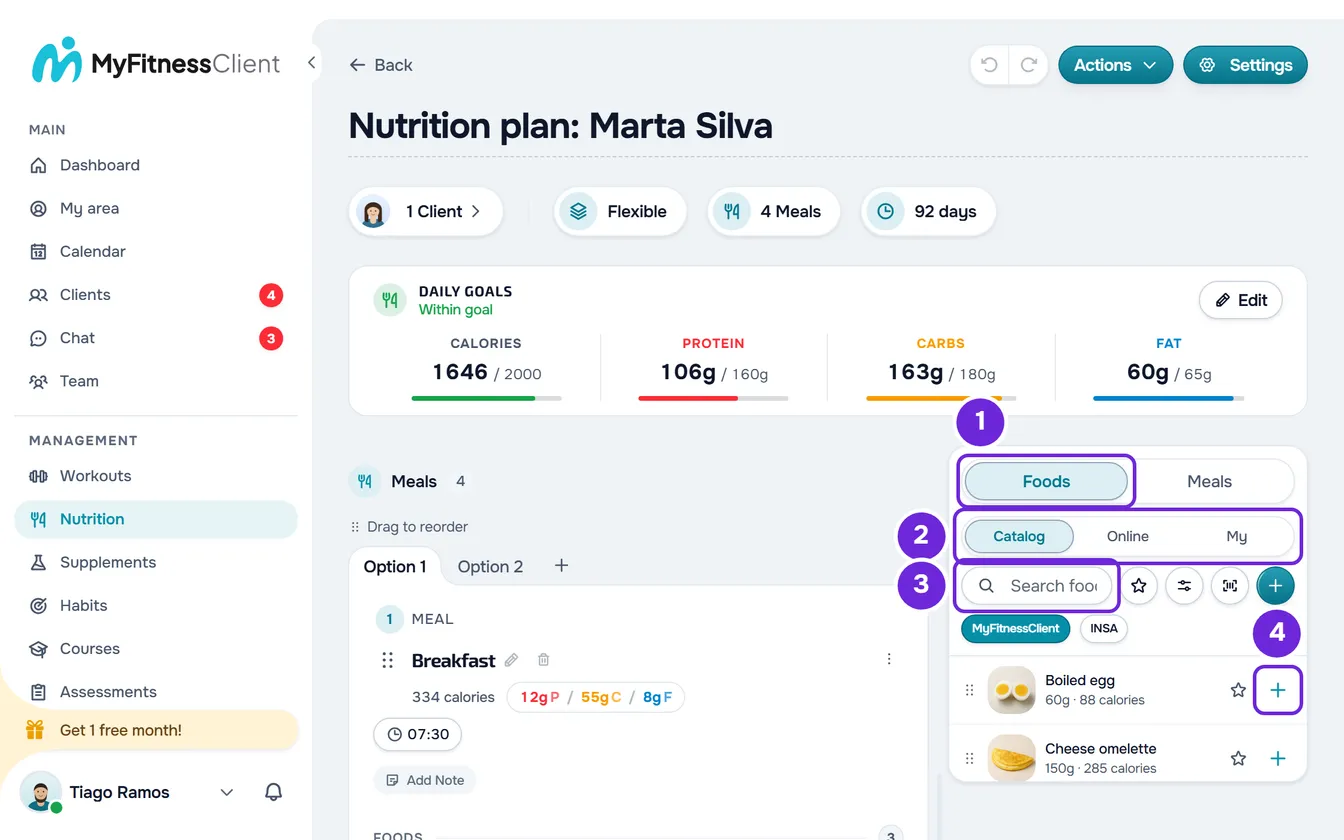
- In the side menu, select Nutrition and open the plan.
- In a plan with day tabs, select the day you want to build. The panel adds foods to that day's meals.
- In the panel, select the Foods 1 tab. When the day already has meals, the panel opens on it.
- Choose where to search: Catalog 2, Online or My foods (with a narrow panel, My).
- Optional: in the Catalog, if the MyFitnessClient and INSA buttons appear, choose the table to search in.
- In the Search foods... 3 box, type the food's name or barcode. In the Online tab, the search starts at the second character and a number of 8 to 14 digits looks up the product by its barcode.
- Optional: in the Catalog and My foods, filter the list with the star, Show favorites only, or with the Category button, which shows the categories and, once you choose one, its subcategories.
- In the food's row, select the “+” 4. If the day has several meals, choose from the list the meal that gets it.
The food goes in at the end of the meal, “Food added” appears and the plan scrolls to the new row. The panel stays open for the next food.
Other ways to add a food
- Drag: press on the row and take it to the meal card. The food lands in the position the dashed box marks, as explained in “Drag precisely”.
- Food detail view: select the row without dragging it. The detail view opens with the nutritional values; at the bottom, choose the target meal, which defaults to the day's first meal, and select Add.
- Right-click the row: the menu has one entry per meal of the day, such as “Add to: Lunch”.
In a meal with options, dragging puts the food in the option open on the card. The “+”, the detail view and the right-click put it in the option that is open on the card. Options are covered in Create meal options for the client to choose from.
How much goes in
- A food from the Catalog or from yours goes in with the quantity the row shows under the name, next to the calories, for example “100g · 52 calories”. For most foods, it is the weight of one serving, in g or ml.
- An Online product goes in with 100 g or 100 ml. Through the “+”, dragging or the right-click, it goes only into the meal; through the product's detail view, with the Save to library switch on, as it is by default, it is also kept in My foods.
- To change the quantity, edit the food in the meal, as in Add, edit and remove foods in a meal.
- The plan gets a copy of the values at that moment: changing the food in the library later doesn't change the plan. See Library foods and meals: what changes in plans.
Drag precisely
- Press on the row and move the mouse: after a few pixels, the row starts following the pointer, like a tilted card.
- The meal card under the pointer is highlighted and a dashed box opens space between the foods, where the new one will go. Release to insert it there.
- Dropping outside a meal card adds nothing, and Esc cancels the drag.
- Near the top or the bottom of the plan area, the plan scrolls by itself, so you can reach the other meals.
Add a meal from the library
The Meals tab lists the meals in your meal library, each with its number of foods and its calories. The panel opens on it when the day has no meals. What the library holds is in The meal library: ready-made meals for your plans.
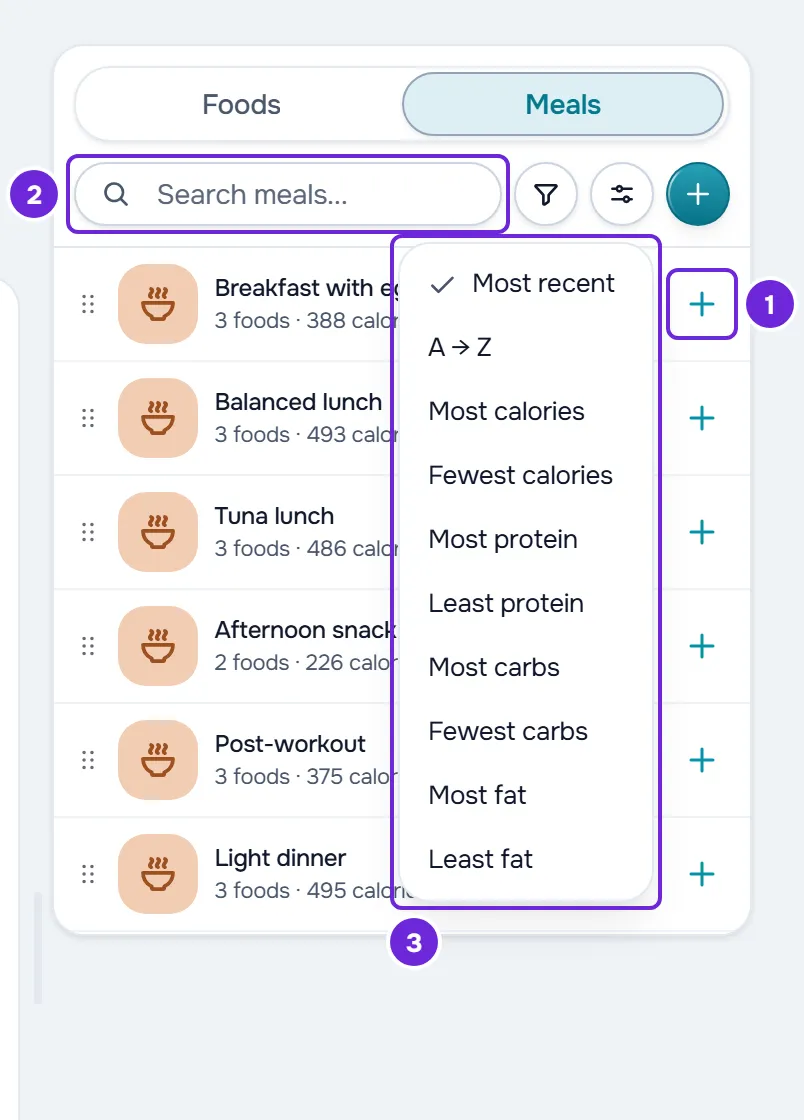
- Select the row's “+” to put the meal at the end of the list of meals. You can also select the row, to look at it first, and then Add, or use the right-click.
- To put it in an exact place, drag the row onto the list of meals: a dashed “New meal” box (in plans with days, followed by the day's name) shows where it will go.
- To find a meal, type in Search meals.... The Filter by calories button lets you see only those under 300 kcal, from 300 to 700 kcal or over 700 kcal, and the Sort by button has 10 sort orders: most recent, A to Z, and most or fewest calories, protein, carbohydrates or fat.
- The search covers the whole library, but the filter and the sort only act on the meals already loaded, which arrive 30 at a time as you scroll down the list.
- The meal goes into the plan as a copy, with the time, the note and the foods, and the name is kept to 50 characters at most.
- To create a new meal, select the filled “+” next to the sort: the Add Meal dialog opens, already on the custom meal form.
- When the number of meals on the day changes, the panel switches to the Foods tab, or to Meals if the day becomes empty.
Create a food or scan a barcode
- The Scan barcode button, next to the search, opens the camera. If the code is already in the food library, it opens that food's detail view; if not, it looks up the product online and opens its detail view, with Save to library on. More in Add a product by name or barcode.
- The Create food button, the filled “+” next to the search, opens the Add Food dialog so you can type in a food by hand and choose the target meal. To also save it in your foods, turn on Save to library, which is off here. On a day without meals, Add is only available with that switch on, and the food is only kept in your foods. This dialog has no photo field; the fields are in Create or edit a custom food.
Change the panel width
- Drag the thin bar between the plan and the panel, with the tooltip “Drag to resize”. The panel goes from 300 px up to 760 px, as long as the editor keeps enough room.
- Double-click that bar to go back to the original width: a third of the row, between 300 and 500 px.
- The width you choose is saved in this browser. On a screen where it doesn't fit, the panel shrinks until it fits.
Common problems
I can't see the side panel
One of these causes:
- The screen or browser window is less than 1024 px wide. Widen the window or use the Add Food button on the card.
- The plan is in Calendar mode, where the panel doesn't exist.
- You don't have the Nutrition > Edit permission and the plan opened read-only. See “No permission to access” and menu items missing for a member.
The “+” is disabled and says “No meals on this day”
The chosen day has no meals yet, and a food needs one. First add a meal, in the panel's Meals tab or as in Add and organize the meals in a meal plan, and go back to the Foods tab.
“This food is missing calories, protein, carbohydrates, or fat. Choose another food.”
The food is missing one of these four declared values and the plan doesn't accept it. Choose another food or, if it is one of yours, complete it in the food library, as in Create or edit a custom food. For an Online product, the same message appears when the product database doesn't return those values.
The panel doesn't respond
This happens after you copy a meal, days or foods that can be pasted into this plan: while the plan waits for the paste, the panel is locked. Select Done in the bar of what you copied; the copy is no longer kept and the panel responds again. See Copy and paste meals, supplements, questions and lessons.
If that didn't solve it, contact support with the plan's name, the day and the food or meal you wanted to add.
Questions
Are the panel's favorites the same as the food library's?
Yes. The star on each row marks the food as a favorite in the panel, in the dialog of the Add Food button and in the food library, up to 200 favorites. With no search, the favorites in the open list appear first, in the Favorites section, which you can collapse. See Search foods, filter by category and mark favorites.
Does the panel show the foods I used recently?
No. Recent foods only appear in the dialog of the Add Food button. Catalog foods and your own that you add through the panel also go into that list.
The search says “No results”. What do I do?
In the Catalog and My foods, with 2 or more characters in the search, the Search Online button appears, which takes the same search to the Online tab. Also check the selected table button, the category and the favorites star, which narrow the list.
Does the panel width carry over to another computer?
No. It is saved only in the browser where you chose it; in another, the panel opens with the original width.