
This happens when MyFitnessClient releases a new version while you have the site open. The banner doesn't interrupt what you're doing or delete anything: the new version only takes effect when the page loads again.
When it appears
The banner sits at the top of the page, before the content, with the text “New version available. It will apply the next time you navigate.” and the Update now button. It appears in the professional's area and in the client's web app, in the browser and in the installed app, on any screen size.
MyFitnessClient compares the version you have open with the released version at these moments:
- when you open MyFitnessClient or reload the page;
- every 5 minutes, while the site is open;
- whenever you return to the browser tab or to the installed app.
If the versions differ, the banner appears. If a later check finds them the same, the banner goes away on its own.
In the App Store or Google Play app, the new-version notice is a different one. See A new version of the app is available.
If you do nothing
You can keep working with the banner showing. The new version takes effect the next time you go to another page through a MyFitnessClient link, for example a menu item: that page loads in full, already on the new version, and the banner disappears.
These actions don't update the page you're on:
- opening a link in another tab or another window;
- downloading a file;
- opening a link to another site;
- following a link that stays on the same page, such as those that jump to a section;
- going to another page when the current page has unsaved changes. The banner stays on the next page and the new version takes effect on the page change after that.
If you go to another page and the banner is still showing, select Update now.
Before you start
- Make sure you have an internet connection. Without a network, the page doesn't load again and the “No connection” page appears.
- Updating reloads the page. It doesn't sign you out or change what is already saved.
Update right away
To load the new version without waiting for the next page change:
- Save what you're editing and send what you're writing.
- On the banner 1, select Update now 2. With no unsaved changes, the page reloads straight away, at the same address.
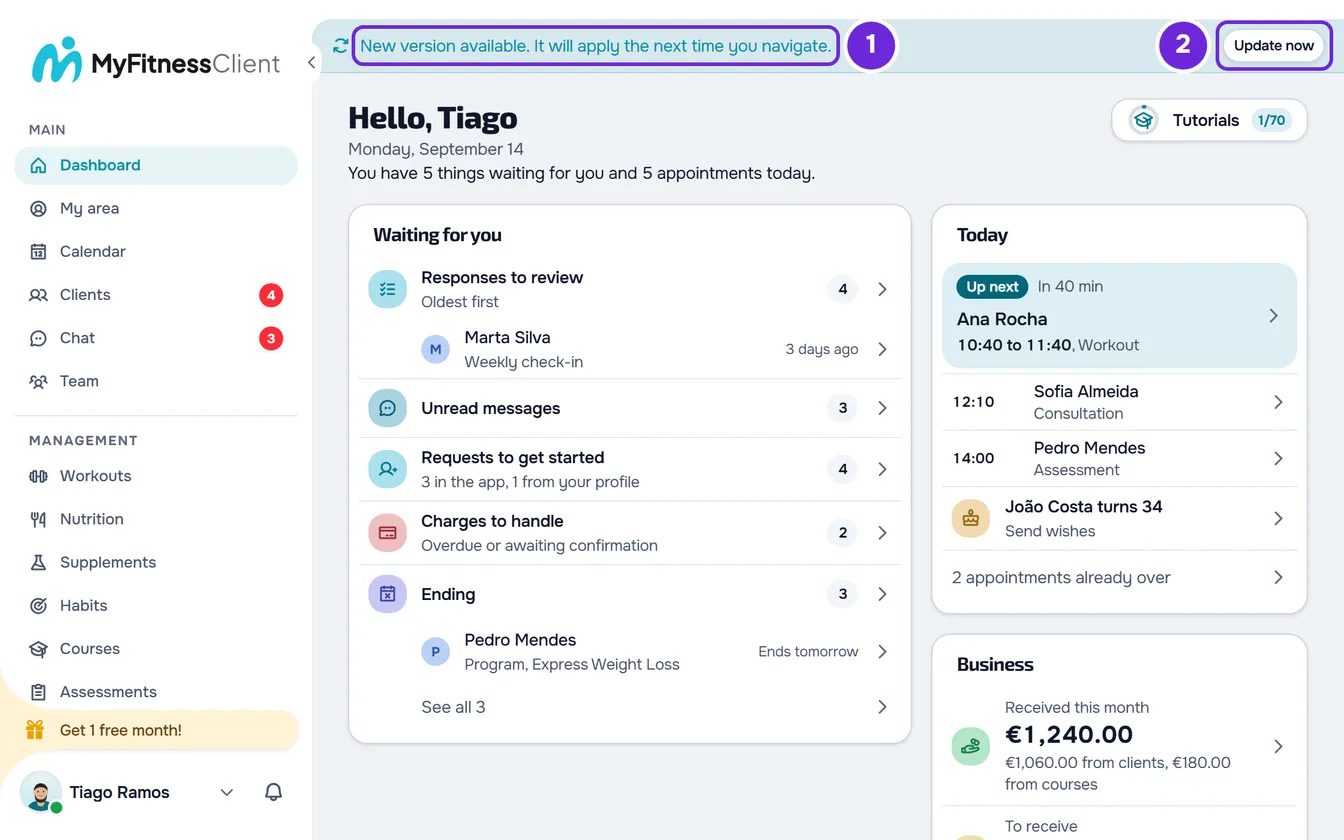
- If the Save before leaving? window appears, the page has unsaved changes: select Save and leave to save them and reload, or Discard to reload without saving them.
After the page reloads, you're on the new version and the banner disappears.
The options in the “Save before leaving?” window
The window shows the text “You have unsaved changes on this page.”. It appears on the pages that warn you when you leave with unsaved changes, such as the pages for creating a workout, a course or an assessment.
- Save and leave asks the page to save the changes and then reloads it. If the page can't save, for example because a required field is missing or there is no connection, the window closes, the page doesn't reload and you stay on it, with the error message and your changes. Fix it, save and select Update now again.
- Discard reloads the page without saving. The changes are lost.
- The X, the Esc key or selecting outside the window closes it without reloading. The changes stay on the page.
In the installed app
The app installed on the home screen has no address bar and, on a phone, no pull-to-refresh gesture. Update now loads the new version without you having to close the app. To install MyFitnessClient as an app, see the Install the app and use it offline category.
Common problems
The banner stays after updating
Reload the page from the browser, with F5 or Ctrl+R (Cmd+R on a Mac). In the installed app, close it completely and open it again. The banner also goes away on its own if, in one of the following checks, the released version is the one you have open.
The browser asks if I want to leave the page
This happens when you reload a page with unsaved changes from the browser. That question comes from the browser and has no option to save. Cancel and save on the page before you reload, or use Update now, which opens the Save before leaving? window with the Save and leave option.
The page reloaded on its own
A page open on the old version may request a file that the new version no longer has. When that happens, the page reloads on its own and stays on the new version. See Page not found, Critical Error and page error: what to do.
Questions
Do I have to update right away?
No. Finish what you're doing first. The new version takes effect on the next page change through a link or when you select Update now.
Do I lose a workout I have in progress?
No. The workout in progress stays saved in this browser and you can continue it after the page reloads.
If this did not solve it
If you're a professional, contact support. If you're a client, write to the MyFitnessClient team through the contact shown at the end of the Help Center home page. Include:
- the device and the browser, and whether you use the installed app;
- the time the banner appeared and what you've already tried;
- a screenshot showing the banner.