
Before you start
- Only the workspace owner creates charges. In a team workspace, members do not see New charge, whatever permission they have in Payments.
- A one-off charge is an amount you charge once, such as an extra session or an adjustment. To charge every month or sell a pack, give the client a plan: see Give a client a recurring plan or a pack.
- The client must be active or scheduled. A scheduled client, whose access starts on a future day, shows the Scheduled tag, so you can ask for the first payment before the start. A client who is archived, whose access has ended or who has ended their coaching with you does not appear in the list.
- The charge is in your workspace's currency, the same as all your charges: see Choose the country and currency you charge in.
Interactive tutorial
Opens in the app and needs you to be signed in.
Steps
To create a one-off charge:
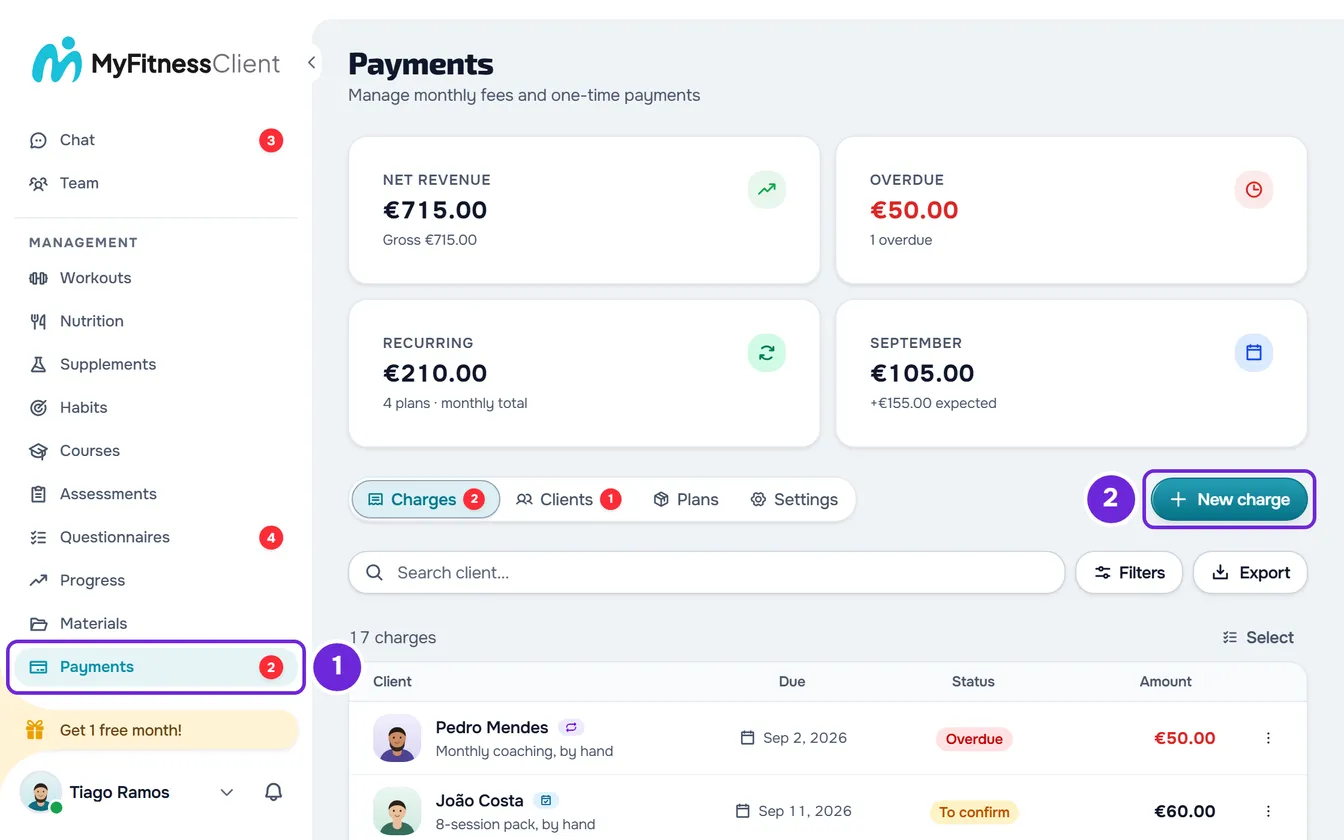
- In the side menu, in the Management section, select Payments 1.
- In the row of tabs, select New charge. On a narrow screen, such as a phone's, the button 1 sits under the tabs, at full width.
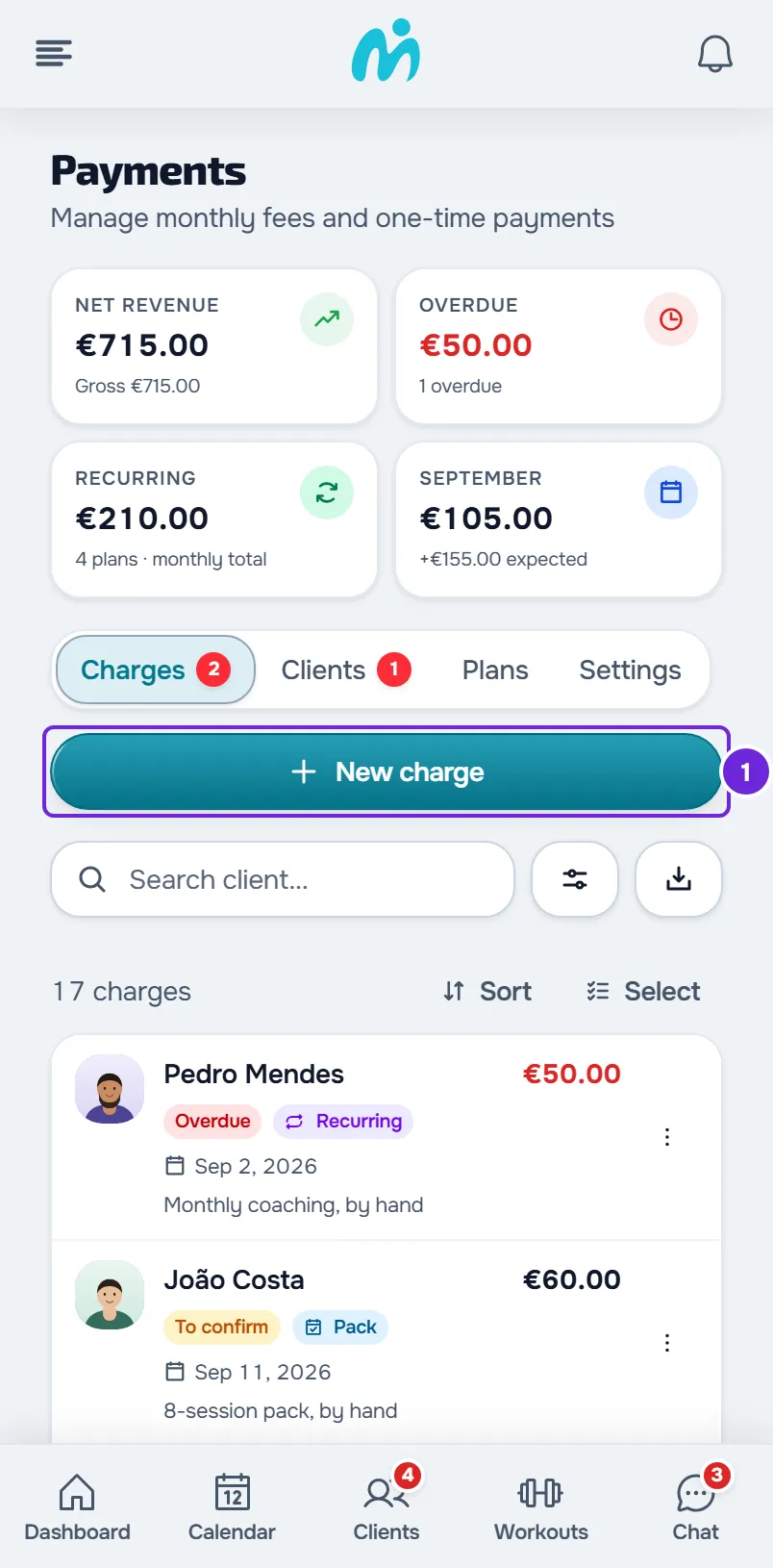
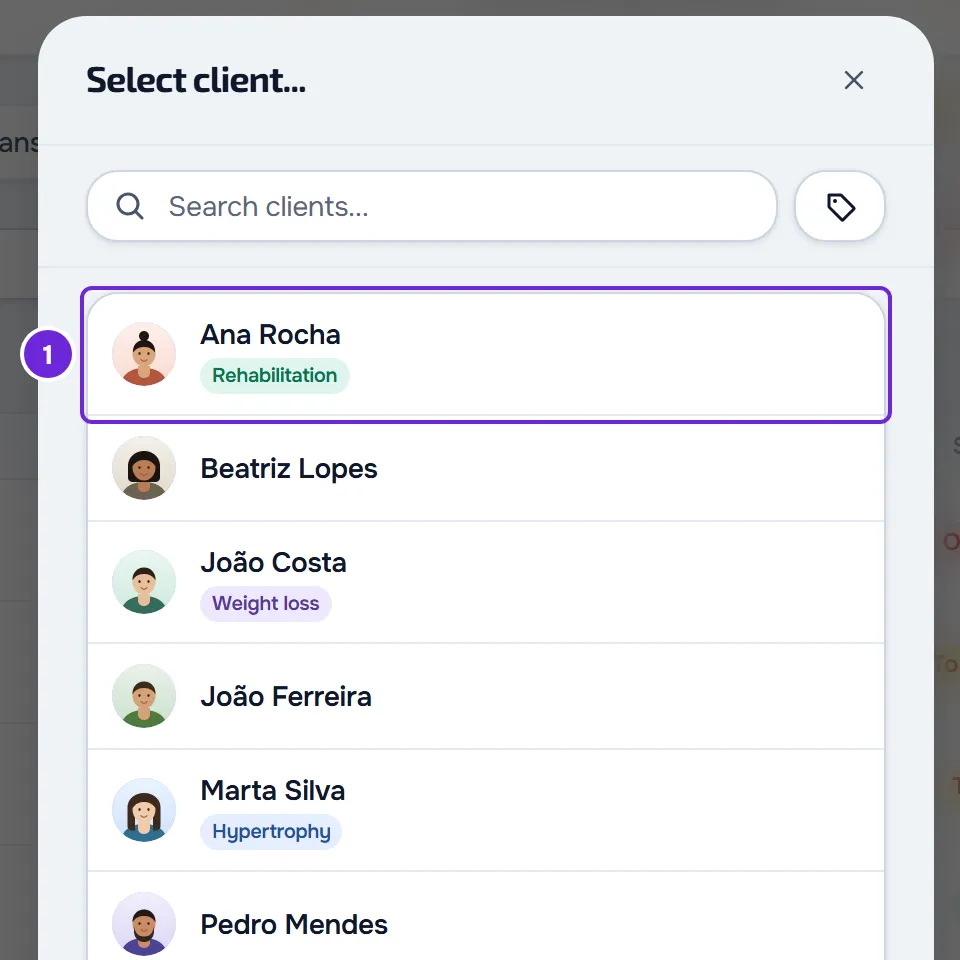
- In the Select client... window, select the client 1. To find them, type part of their name, nickname or email in the search. The New charge window opens, with the client at the top.
- In Amount 1, type the amount to charge, for example 45 or 1200.50.
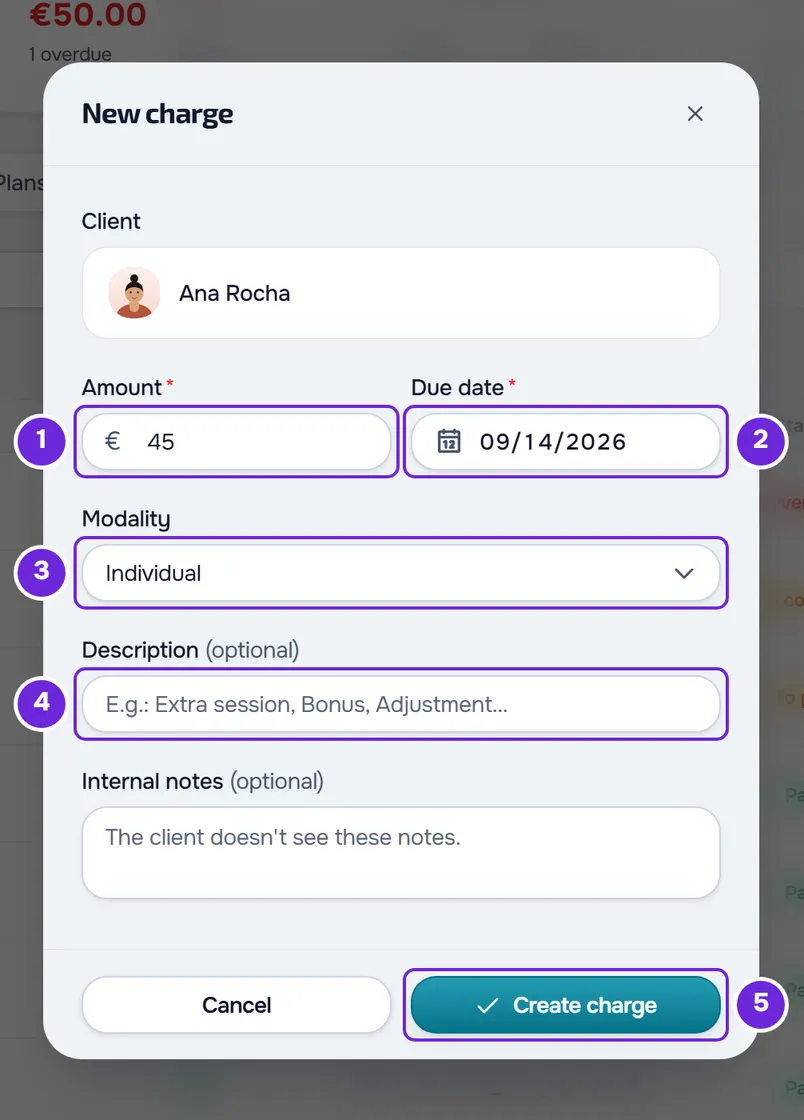
- In Due date 2, choose the day by which the client should pay. The field starts with today's date.
- Optional: in Modality 3, choose Individual, Duo or Small group. It starts with Individual.
- Optional: in Description 4, type what you are charging for, for example “Extra session”. The client sees this text.
- Optional: in Internal notes, type a note for yourself. The client does not see it.
- Select Create charge 5.
“Payment created” appears and the window closes. The charge goes into the Charges tab with the status To pay and the type One-off, and the totals at the top update. If you chose a due date that has already passed, the charge shows as Overdue right away and counts towards the red number on Payments.
The client gets the charge notice right away, with the amount and due date: in the app's bell and, depending on their notification preferences, by push and email. If the due date has already passed, the push and email say the charge is overdue. In their payments list, the charge shows with the text you typed in Description.
If you close the window after typing the amount, description or notes, or after changing the modality, “Save before leaving?” appears: Discard closes without creating the charge and Save and leave creates it. Without a valid amount, Save and leave is disabled.
In the client's profile
You can also create the charge inside the client's profile: on the Payments tab, in the History section, select New charge. The client is already chosen, so the window opens straight away, without the client row, and you fill in the same fields. If the client's coaching is closed, “This client's coaching is closed. Reactivate them to make changes.” appears instead of the button.
Fields and limits
What each field of the New charge window accepts:
| Field | Required | What it accepts |
|---|---|---|
| Amount | Yes | An amount greater than 0, in the workspace's currency, without a thousands separator. In euros, it goes from €0.01 to €999,999.99; in other currencies, the maximum depends on the currency. In a currency without cents, such as the yen, it only accepts whole amounts. |
| Due date | Yes | Any day, and it starts with today's date. A day that has already passed makes the charge Overdue. |
| Modality | No | Individual, Duo or Small group, and it starts with Individual. It lets you separate charges by session format. The client does not see it. |
| Description | No | Up to 255 characters. The client sees it as the name of the charge, on the website and in the app. |
| Internal notes | No | Up to 2000 characters. The client does not see them. |
Common problems
“Enter a value greater than 0”
The Amount field is empty or at 0. A warning that names the required field, Amount, also appears and the cursor moves to the field. Type an amount greater than 0 and select Create charge again.
“Type the amount without a thousands separator, for example 1200.50.”
The amount has a comma separating the thousands, such as 1,200, or more decimal places than the currency uses. Type it with only the decimal point, for example 1200.50. In a currency without cents, the amount must be a whole number and the message gives the example 1200.
I can't see New charge or the client does not appear
If you are working in another professional's workspace, as a team member, the button does not appear: only the workspace owner creates charges. If the client does not appear in the Select client... window, they are archived, their access has ended or they have ended their coaching: you can only create a charge for them once they are active or scheduled again.
The charge is refused when you select Create charge
The window stays open and one of these messages appears:
- “You have more active clients than your plan allows. Choose which to keep or upgrade your plan.”: the workspace is frozen and does not accept changes. See You have more active clients than your plan allows.
- “Your account is closing: you can no longer create charges or give plans.”: you asked to close your account. See Cancel your account closure.
- “Invalid data. Check the fields.”: the amount is over the maximum, which in euros is €999,999.99. Type a smaller amount.
If that did not fix it, contact support with the client's name, the amount and the exact message that appeared.
Questions
How do I charge the same amount every month?
With a monthly fee plan, which you give the client on the Clients tab of Payments, not with a one-off charge. See Give a client a recurring plan or a pack.
Can I create the charge already paid?
No. The charge is always created as To pay. If the client has already paid you, create it and then mark it as paid: see Mark a charge as paid.
Does an overdue one-off charge restrict the client's access to the app?
No. Only plan and monthly fee charges count towards what happens when a client does not pay. See Choose what happens when a client does not pay.
Can I create charges for several clients at once?
No. Each charge is for one client: repeat the steps for each one.
Can I correct the charge after creating it?
Yes. The amount, due date, description, modality and notes are changed in Edit, in the charge's menu. See Edit a charge: amount, due date, status and notes.