
The cause depends on your profile's status in the editor. Check that status first, then read the section that matches it. If you're looking for the page visitors find at your address, see also “This profile is not available”: your public profile doesn't appear.
Check your profile's status
- Open Settings: on a computer, in the menu that opens from your name in the sidebar; on a phone, in the side menu.
- Under YOUR BUSINESS (on a phone, BUSINESS), select Marketplace.
- On the card at the top, read the badge next to your name: Public, Private or Hidden by the team.
Under your name, the card shows your profile's address, in the format myfitnessclient.com/en/@your-name. Until you have a saved username, that line says “Choose a username to get your address”. A profile that isn't Public doesn't appear in the directory and doesn't open at that address.
The card says “Private”
The profile isn't published: this is the status of a new profile and of a profile where you selected Make private. A profile published with Nutritionist or dietitian as its only profession also becomes private when you remove the license number and confirm in the Remove the license number? window. It doesn't appear in the directory, and anyone who opens your address sees “This profile is not available”. To publish it:
- If the card shows the line To publish, add: followed by items, select each item and fill in the field the editor opens.
- Select Publish.
- In the Publish your profile? window, read the declaration and select Publish.
“Microsite published successfully” appears and the badge changes to Public. Your address opens right away; in the directory, the profile can take up to 70 seconds to appear.
The items that can be missing are Username, Profession, Tagline, About you (at least 20 characters of text), Location, How you work, Specialties and, when the profession includes Nutritionist or dietitian, License number. If you select Publish with items missing, nothing is published: a notice says what is missing and the editor opens the first field.
The card says “Public”, but you can't find yourself in the directory
Select View profile to confirm that your address opens. If it opens, the profile is live and the cause is in the list you're looking at. If it doesn't open, see the row about the account closure.
| Cause | How to confirm | What to do |
|---|---|---|
| You published the profile less than 70 seconds ago. | Your address opens, but you aren't in the list yet. | Wait and reload the directory. The list is refreshed every 60 seconds and never shows a copy more than 70 seconds old. |
| You're on another page of the list. | The directory shows 24 professionals per page. | Go through the pages or search for your name. In the Relevance order, profiles that accept clients come first, then those with a profile photo or a cover image; within each group, the order changes every day. |
| You have Accepting clients turned off. | Your card in the directory says “No openings right now”. | You stay in the directory, but in the Relevance order you come after those who accept clients. You leave the list of professionals that clients see inside the web app, and coaching requests are refused. To change this, turn on Accepting clients in the editor's Details tab. |
| The list is filtered by Online or In person. | In the Details tab, check the How you work field. | Choose Online, In person or Online and in person, according to what you offer. Each filter lists only those who offer that format. |
| The list is filtered by a specialty you didn't choose: the menu shows its name instead of All specialties (on a phone, instead of Specialty). | In the Details tab, check Specialties. | Choose the specialties you work in. The filter lists only those who chose that specialty. |
| The list is filtered by a place, in Where?, that isn't yours. | In the Details tab, check Location. | Correct the location if it's wrong. A district lists those whose location is that district or one of its municipalities; a municipality lists only those who chose it. |
| You're looking at the Nutrition or Personal trainers tab (on a phone, PT). | Nutrition lists only those who declared Nutritionist or dietitian and added the license number. Personal trainers lists only those who declared that profession. When a published profile is missing the license number, the editor's card shows To complete your profile, add: and License number. | Add the number in the License tab or correct the Profession in the Profile tab. Without the license number you appear under All, without the nutritionist or dietitian title. |
| The list comes from a text search. | The search looks in the name, the tagline, the About you text, the location and the specialties. | Search for your name to confirm that you're in the directory. |
| You scheduled the account closure. | The badge still says Public, but the profile leaves the directory and your address stops opening. | If you cancel the closure, the profile comes back as it was. |
To cancel the closure, see Cancel your account closure. If the license number left your profile without you removing it, see “We removed a number from your marketplace profile”: what to do.
The card says “Hidden by the team”
A person on the MyFitnessClient team hid your profile from the marketplace directory, under section 11.4 of the Terms of Service. The decision may follow a report or come from the team's own initiative. You can't undo it in the editor. While it lasts:
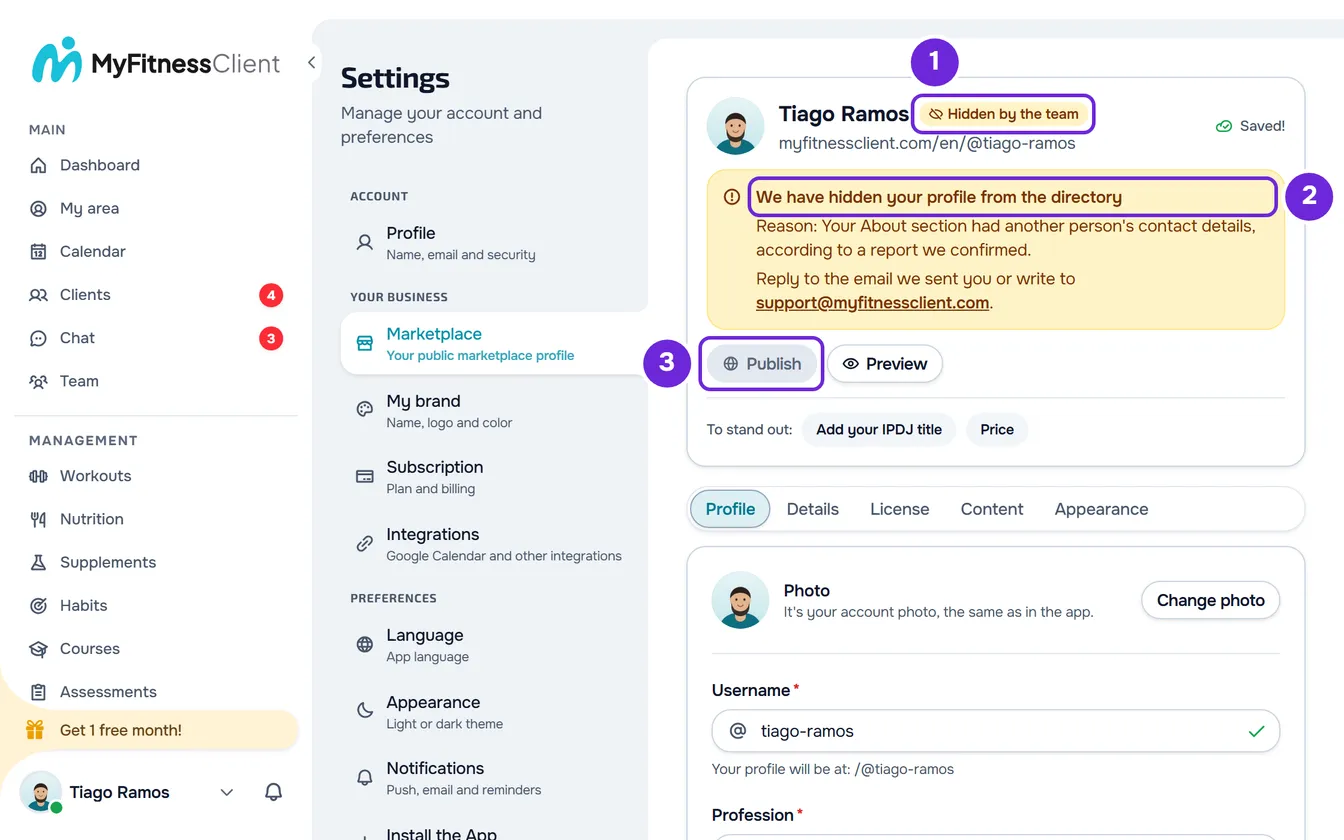
- The profile doesn't appear in the directory and your address shows “This profile is not available”, whether it was published or not.
- The card shows the box We have hidden your profile from the directory, with the line “Reason:” followed by what the team wrote and the sentence “Reply to the email we sent you or write to [email protected].”
- If the profile was published, View profile and Share disappear and Make private and Preview remain. If it was private, Publish is disabled.
- You can still edit the profile and the changes are saved, but they don't appear in the directory or at your address until the hiding is lifted.
- Your current clients aren't affected. A client who had sent you a coaching request through the marketplace can still open your profile inside the web app, to follow or cancel the request.
The email you receive
When the profile is hidden, you receive an email with the subject “We have hidden your profile from the marketplace directory”, in your account's language. It says what changed, the facts and the reason, whether the decision followed a report or came from the team, the ground in the Terms of Service and how you can respond. It is a mandatory email: it is sent even if you have opted out of other emails from MyFitnessClient.
What to do
- Read the reason on the card and in the email.
- To clarify the situation or ask for a review of the decision, reply to that email. The email states that the review is free and that you can ask for it within six months, and it lists the other ways to respond.
- If you can't find the email, look in your spam folder. If it isn't there, write to [email protected].
When the hiding is lifted
You receive another email, with the subject “Your profile is back in the marketplace directory”. The profile comes back as you had it: if it was published, it appears in the directory again and your address opens again; if it was private, it stays private and Publish works again. The hiding stays in place until the team lifts it and has no set time limit.
The Marketplace item doesn't appear in Settings
The marketplace can be turned off for the whole platform. While it is off, the Marketplace item doesn't appear in Settings, the directory page gives way to an introduction page and every profile address shows “This profile is not available”. It isn't a problem with your account, and the profile stays saved as you left it. The item is also hidden when the dashboard can't confirm that status: reload the page before drawing a conclusion. For other missing items, see Common problems in Settings and with your brand.
What people see when they open your address
With the profile private, hidden or with the account closure scheduled, anyone who opens your address sees the “This profile is not available” page, with the See professionals in the directory button and, under it, up to 3 profiles in Other professionals. The page is the same in all these cases and doesn't tell the visitor the reason.
If this did not solve it
Contact support (Contact Support and create a request) and send your profile's address, your account email, what the card's badge says (Public, Private or Hidden by the team), the time you published and a screenshot of the card. If the profile is hidden, reply to the team's email first.