
A client who pays you outside MyFitnessClient, in cash or by bank transfer, for example, can mark that payment as paid on their side. The charge changes to To confirm and only counts as paid when you confirm that the money arrived. What the client does is in Mark a payment made outside the platform as paid.
Before you start
- In a team workspace, you need the Payments > Mark paid and assign plans permission. Without it, the To confirm row only opens the charge details, with what the client reported, and you cannot decide. A member with Client access set to Specific clients only sees those clients' requests. If you are missing the permission, see “No permission to access” and menu items missing for a member.
- When the client marks the payment, you get the “Payment to confirm” notice in the bell and, depending on your notification preferences, by push. In a team, members with that permission who have access to the client get it too; if the owner turned off Get notifications for delegated clients, the owner stops getting it when one of those members has access to the client. The notice opens Charges already filtered to To confirm.
- A payment made online does not go through here: the charge becomes Paid on its own when Stripe confirms it. A charge paid online and then disputed in Stripe cannot be confirmed by hand either, and the client can no longer mark it as paid. If you lost the dispute, close the charge with Cancel charge, in the row's ⋮ (or with a right-click); in a team, only the owner can do this. The charge becomes Cancelled and no longer counts for the overdue-payment restrictions.
- In the row menu, the action is called Review request. The window that opens is called Review payment.
Steps
To review the payment the client says they made:
- In the side menu, under Management, select Payments. The page opens on the Charges tab.
- Optional: to see only the requests that are waiting, select Filters and, in Status, choose To confirm.
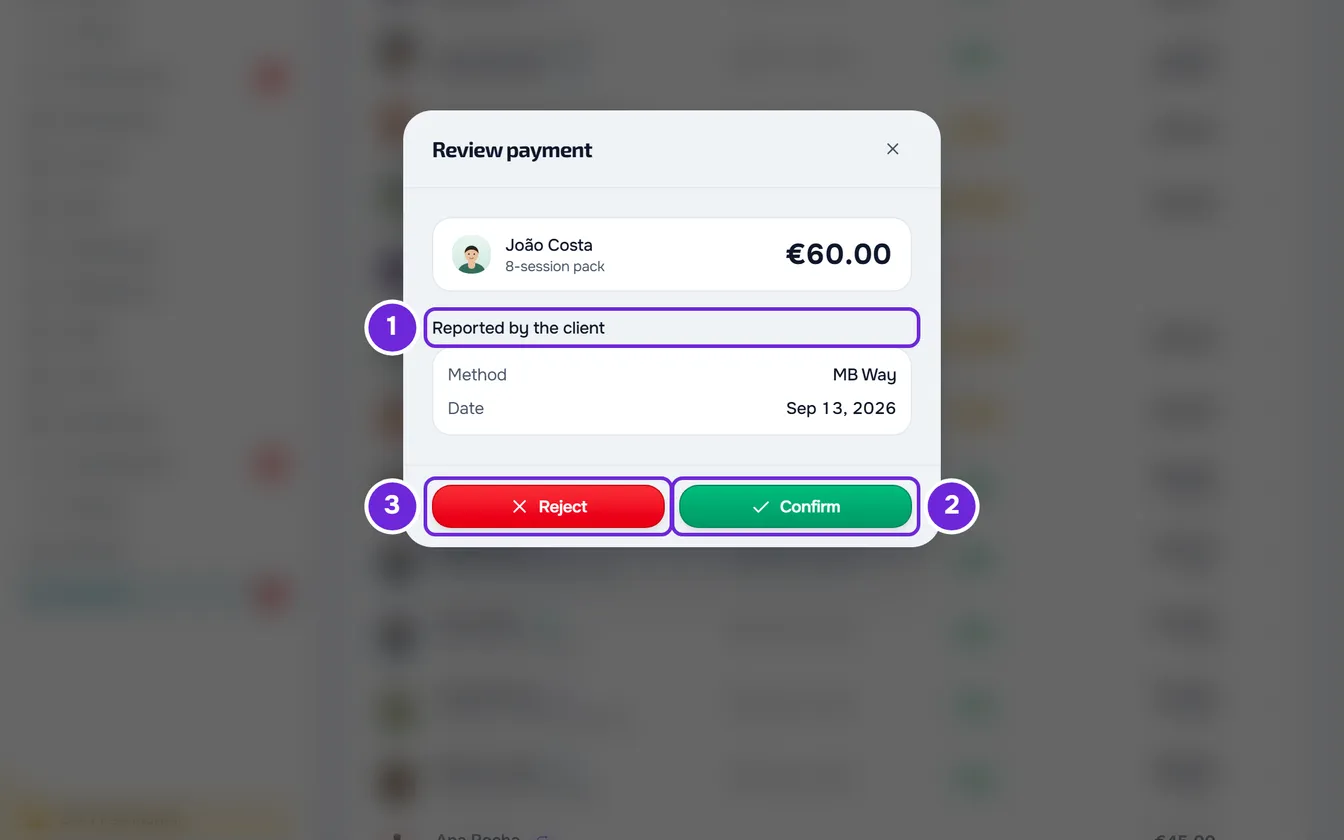
- Select the charge row, or select Review request in the row's ⋮ or by right-clicking the row. The Review payment window opens, with the client's name and the amount.
- In Reported by the client 1, read the Method, the Date on which they say they paid and, if they wrote one, the Client note.
- Check your account, or wherever you receive payments, to see whether the money arrived.
- If it arrived, select Confirm 2.
- If it did not arrive, select Reject 3. The Rejection reason field appears.
- Type the reason 1, up to 500 characters, so the client knows what to fix.
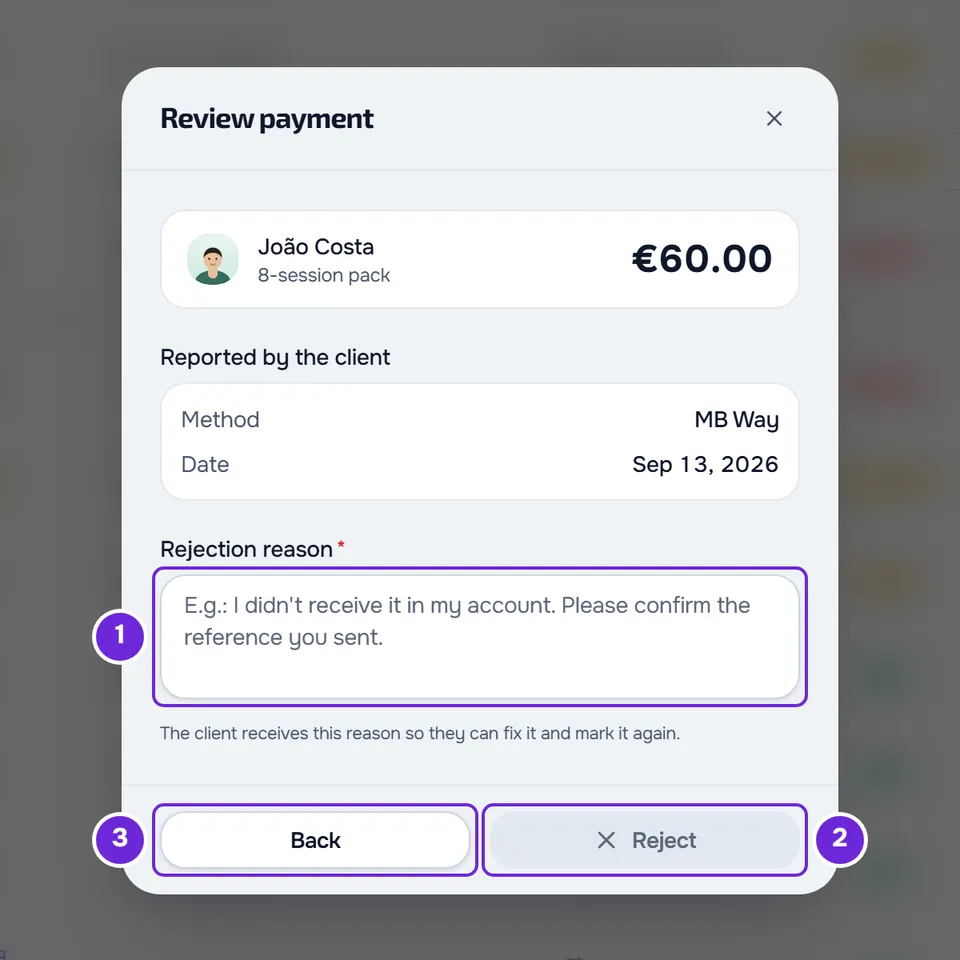
- Select Reject 2 again. The button only becomes active once you have typed the reason; Back 3 cancels the rejection.
The window closes. If you confirmed, the “Payment confirmed” notice appears and the charge changes to Paid. If you rejected, “Payment rejected. The client has been notified.” appears and the charge goes back to To pay, or to Overdue if the due date has already passed.
What happens next
When you confirm
- The charge becomes Paid with the method and date the client reported and drops out of the red number on Payments.
- The client gets the “Payment confirmed” notification, with the amount.
- The client's plan carries on as it does when you mark a charge as paid: on a monthly fee, it moves to the next cycle; on a plan that was waiting for this payment, it becomes active. See Mark a charge as paid.
- The “Payment to confirm” notice is marked as read for everyone who got it.
When you reject
- The charge goes back to To pay, or to Overdue if the due date has already passed. The client's method, date and note are erased and the reason is saved on the charge. An Overdue charge stays in the red number on Payments.
- The client gets the “Payment not confirmed” notification. In the bell, it shows the amount and the reason; by push, only the amount. In their payments, the charge shows “This payment wasn't confirmed” with the reason.
- The client can fix what you asked for and mark it again. The charge goes back to To confirm, the old reason disappears and you get a new “Payment to confirm” notice.
- The “Payment to confirm” notice is marked as read for everyone who got it.
Until you decide
A To confirm payment does not count as paid yet. If the client was restricted or lost access for not paying, the request waiting for confirmation does not change that: only the confirmed payment counts. So do not leave requests waiting. The rule for what happens to someone who does not pay is in Choose what happens when a client does not pay.
On a To confirm charge, the row menu has neither Mark as paid nor Send reminder, and the client does not get the automatic overdue notices for that charge.
The client can unmark the request before you decide. You then get the “Payment claim revoked” notice, only in the bell, and the charge goes back to To pay or to Overdue.
Correct the method or the date
The Review payment window does not let you change the method or the date the client reported. If they are wrong, confirm the payment and then, as the account owner, open Edit on the paid charge and correct Paid on or How it was paid. See Edit a charge: amount, due date, status and notes. A team member does not have Edit: ask the account owner.
In the client profile
The same request appears in the client profile, on the Payments tab, under History. Select the To confirm row, or Review request in the row's ⋮. The window is the same, without the client's name at the top.
Common problems
Review request does not appear
Either you are missing the Mark paid and assign plans permission, and the row only opens the charge details, or the charge is no longer To confirm because the client unmarked the request or someone has already decided, or the charge was paid online and disputed in Stripe, and cannot be confirmed by hand; with the dispute lost, close it with Cancel charge. Reload the page and check the charge's status.
“This action is no longer possible in this state.”
The client unmarked the request, or another person on the team confirmed or rejected it, while you had the window open. Reload the page and check the new status. If the change happened at the same moment you decided, the message is “This payment changed in the meantime. Reload and try again.”
“You don't have permission to do this in this team.”
The charge is the package payment of a request to join that you have not accepted yet. Confirming the payment lets the client in, so a team member also needs the Clients > Create permission. Ask the account owner for it. See Require a package payment before a client joins.
The same message appears if the owner removed your Mark paid and assign plans permission after you opened the page. Reload the page: the row then only opens the details.
“You have more active clients than your plan allows. Choose which to keep or upgrade your plan.”
The account is frozen: you have more active clients than your MyFitnessClient plan allows, and changes in Payments are blocked, confirming and rejecting included. See You have more active clients than your plan allows.
For other problems, such as a client who is still restricted after you confirm, see Common charge problems and how to fix them. If the problem continues, contact support with the client's name, the charge amount and the exact message: see Contact Support and create a request.
Questions
Does rejecting notify the client?
Yes. They get the “Payment not confirmed” notification with the reason you wrote, so they know what to fix before marking it again.
Can I confirm a payment on my phone?
Yes, in the phone's browser, with your account. On a narrow screen, each charge's actions are in the card's ⋮. The MyFitnessClient app in the stores is for clients only: see “This app is exclusively for clients”: what to do as a professional.
What does the client see until I decide?
The payment shows for them as Awaiting confirmation, with the method and date they reported. They can unmark it until you decide.