
Before you start
- Only the workspace owner changes prices. A team member with access to Payments sees the Plans tab, but the rows have no ⋮ and, in place of the New plan button, the Only the owner creates plans and changes prices badge appears.
- The list only has the catalog plans. The price of a custom plan, which you give to a single client, is changed in that client's Change plan window: see Change a client's plan.
- For a pack, Save saves the change without the Change the price? window: the new price applies to whoever receives the pack from now on, and the form warns “Anyone who already bought this pack is unaffected.”
- The new price stays in the currency the plan was created in.
Interactive tutorial
Opens in the app and needs you to be signed in.
Steps
To change a plan's price:
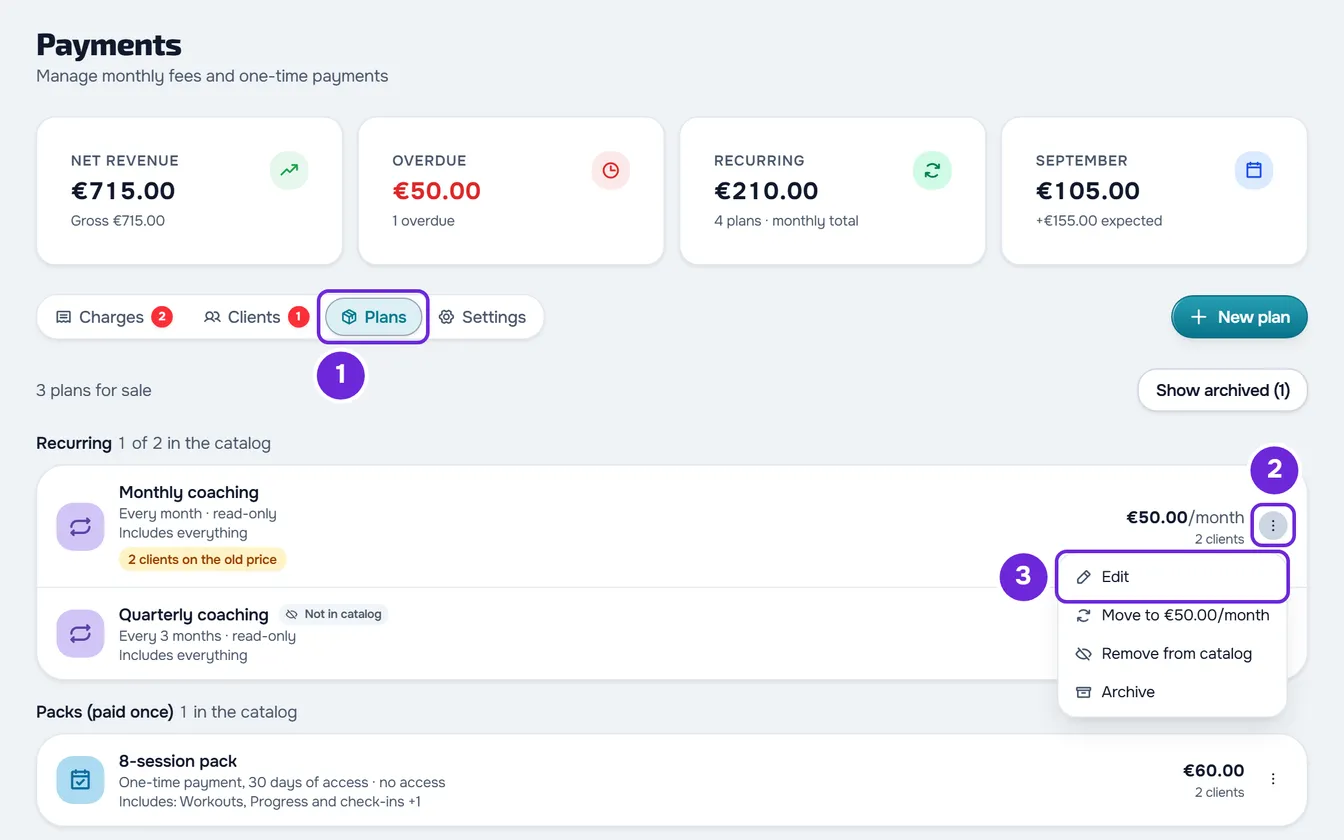
- In the side menu, under Management, select Payments.
- Select the Plans 1 tab.
- On the plan's row, select ⋮ 2, or right-click the row, and choose Edit 3. The Edit plan window opens.
- In the Price field, type the new price.
- Select Save. For a monthly fee, the Change the price? window opens, with the old and the new price and, if there are any, how many clients already have the plan.
- Choose Only for new clients 1, which is preselected, or Also for those who have it 2.
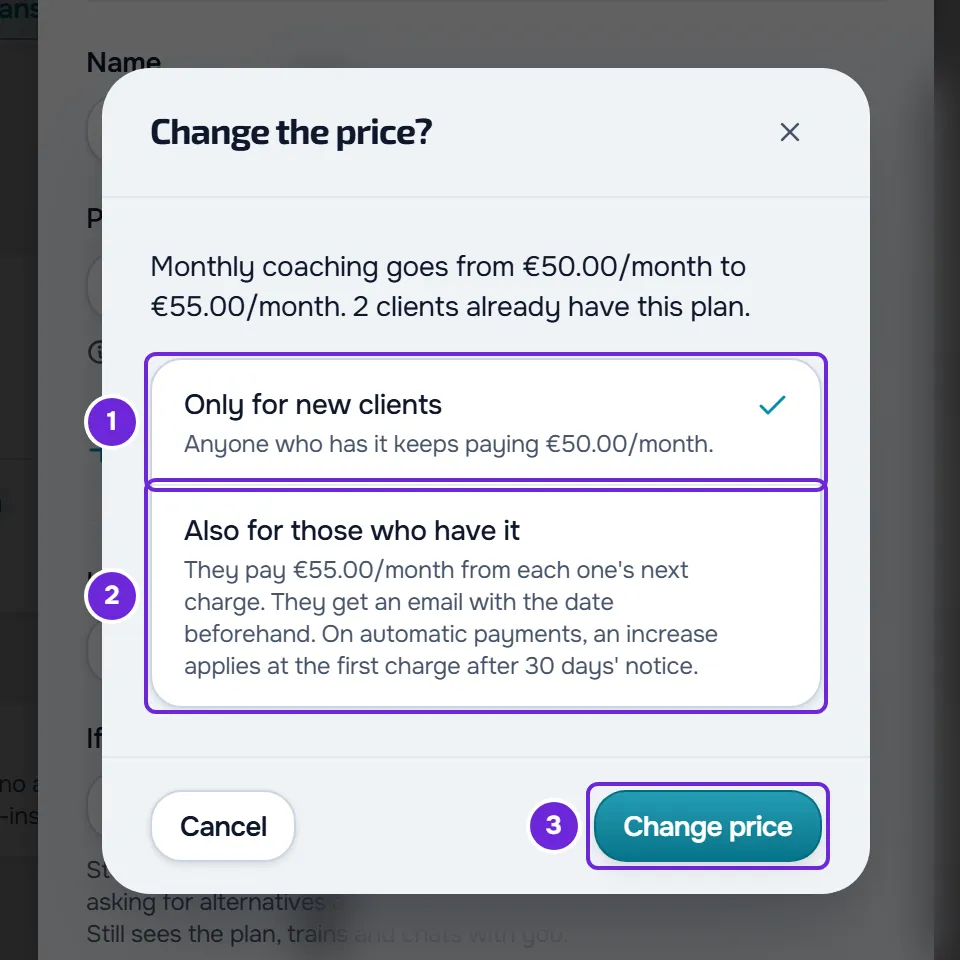
- Select Change price 3.
- If the new price is more than three times the current one, or more than three times what any of the affected clients pays today, the Confirm large price increase window appears: check the amount and select Save.
“Plan saved” appears and the plan's row shows the new price. If any clients stayed on the old price, the row also shows a badge with how many, for example “3 clients on the old price”.
Who pays the new price
The choice in the Change the price? window decides who pays the new price of a monthly fee:
| Clients | Only for new clients | Also for those who have it |
|---|---|---|
| Whoever receives the plan from now on | Pays the new price. | Pays the new price. |
| Whoever has the plan still unpaid | Moves to the new price, because they have not paid anything at the old price yet. | Moves to the new price. |
| Whoever has already paid for the plan and renews it, on time or overdue | Keeps paying the price they paid. | Moves to the new price from the next charge. |
In both cases, a charge already issued, or due today, keeps the old amount. The new price applies from the following charge.
Move to the new price later
Clients who stayed on the old price can move to the plan's price whenever you want. On the plan's row with the badge, select ⋮, or right-click the row, and choose “Move to” followed by the plan's price, for example “Move to €50.00/month”. The Move to the new price? window says how many clients change and that they get an email with the date beforehand. Select Move to the new price. “New price applied” appears and the badge leaves the row.
This option only exists while there are clients on the old price and the plan is not archived. If the plan's price is more than three times what any of the affected clients pays today, the window becomes Confirm large price increase and Move to the new price confirms.
What the client receives
Each client who moves to the new price gets a notification in the app, “Price change”, and an email with the new price and the day from which they pay it, so they can cancel before then. Clients who have not paid yet and will pay online do not get this notification: they see the new price when they pay. For a monthly fee by hand, that day is the day of the next charge, or of the one after it if the current one has already been issued and is unpaid. For an automatic plan, it is the next renewal: the price never changes in the middle of a cycle. If that day has already passed, the notification says “from your next charge” instead of the day.
Common problems
“Only the owner creates plans and changes prices”
A team member sees this badge on the Plans tab, and the rows have no ⋮. Only the workspace owner changes prices: ask them to make the change.
“The price must be between €0.50 and €10,000.”
The price must fit within the limits of the plan's currency, and the message shows that currency's limits (in euros, from €0.50 to €10,000). If the amount has a thousands separator, such as “1,200”, the message is “Type the amount without a thousands separator, for example 1200.50.”
“You have more active clients than your plan allows. Choose which to keep or upgrade your plan.”
It appears when you save while the account has more active clients than allowed. While that is the case, plans cannot be edited. See You have more active clients than your plan allows.
If this did not solve it, contact support with the plan's name, the price you wanted to set and the message that appeared.
Questions
Why does the question appear if nobody has the plan?
For a monthly fee, the Change the price? window appears on every price change. The sentence with how many clients already have the plan only counts those who are up to date, but overdue clients and those who have not paid for it yet also pay for this plan.
Can I change the price for just one client?
For a catalog plan, no: the change applies to all the clients your choice covers. For a price for one client only, give them a custom plan (Give a client a recurring plan or a pack); that plan's price is then changed in the Change plan window (Change a client's plan).
Can I change the billing interval or turn a monthly fee into a pack?
No. When you edit, the type and the billing interval are locked, with the note “How it's paid can't change after creation. Archive this one and create another.” Create a new plan (Create recurring plans and packs for clients) and archive the old one (Archive a plan or remove it from the client catalog). Clients who have the old plan keep it.