
Before you start
- Your Stripe account must be connected to MyFitnessClient and ready to receive payments and payouts. Without that, the Online sales switch stays disabled. See Connect Stripe to receive online payments from clients.
- The store only shows published courses. You can set up the sale while the course is a draft, but no client sees or buys it before you publish it.
- The price is in your workspace's currency, the same one you charge your clients in. See Choose the country and currency you charge in.
- Courses are sold from your own account: in another professional's workspace, where you work as a team member, Courses does not appear in the menu.
Steps
To put a course on sale:
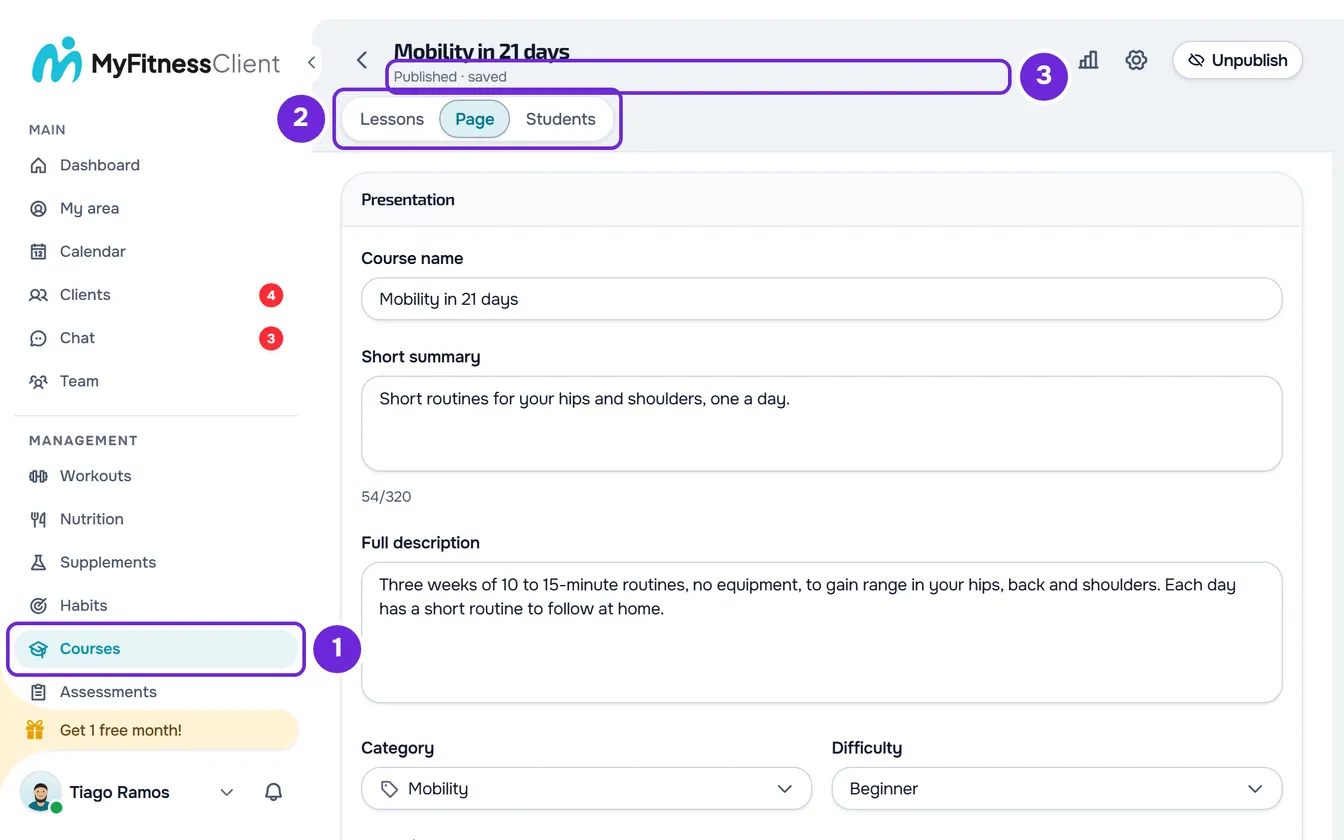
- In the sidebar, select Courses 1.
- Select the course you want to sell. The course opens on the Lessons tab.
- Select the Page 2 tab.
- In the Access and sales card, under Who can discover this course 1, choose All active trainees or Selected trainees. With Selected trainees, tick the clients in the list who can see the course.
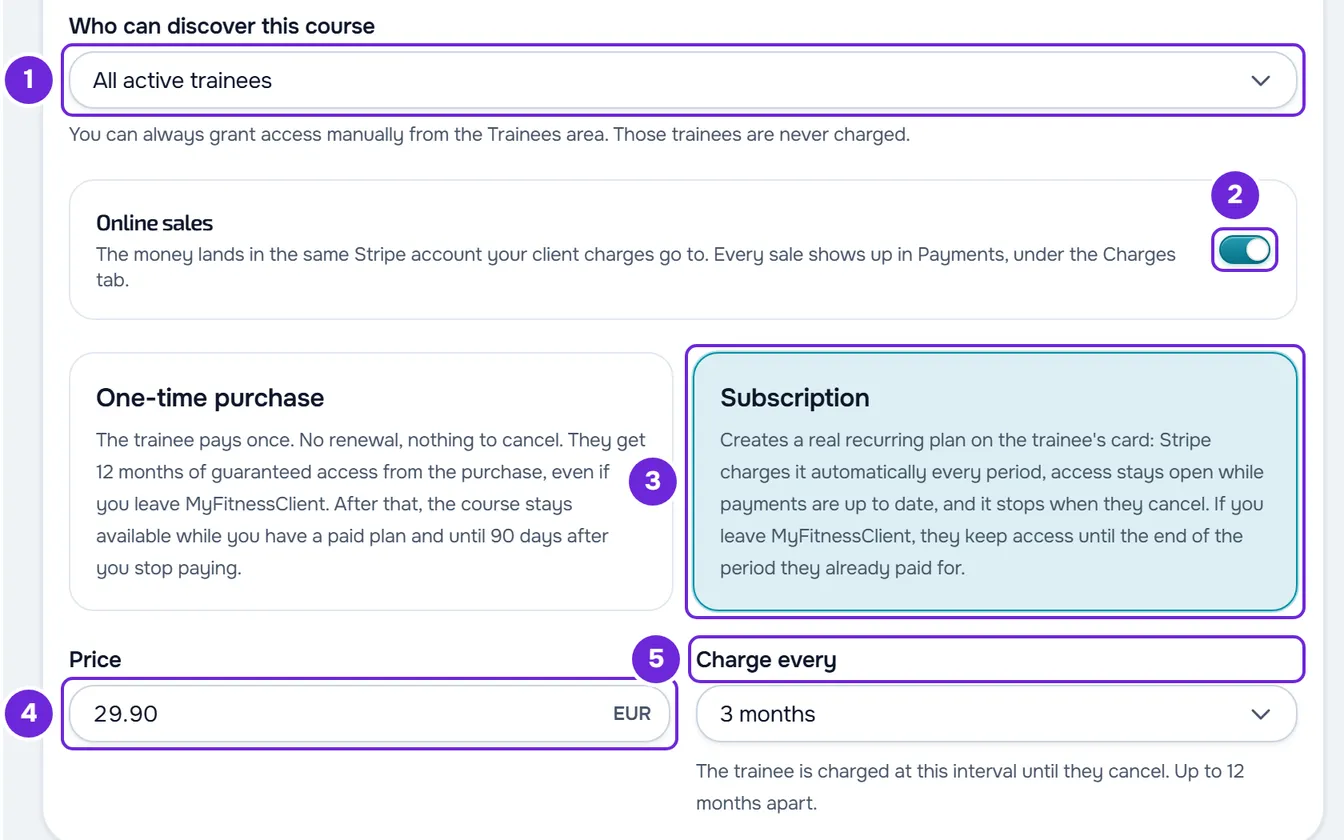
- Turn on Online sales 2. The two sales modes and the price field appear.
- Select One-time purchase or Subscription 3.
- In Price 4, type the amount the client pays, for example 29.90, with a comma or a dot before the cents and no thousands separator.
- For a subscription, in Charge every 5, choose Month, 2 months, 3 months, 6 months, Year or Custom, which asks for a number of months from 1 to 12.
- Optional: check the price and the purchase button in the Live trainee preview, which appears next to the cards on wide screens, or select View as student in the course bar.
- The page saves by itself to a draft: the status line in the course bar 3 ends in “saved”. For clients to see the sale, select Publish in the course bar (on a course already published, Publish changes). In the Publish these changes? window, check the payment and the price and select Publish.
Once the course is published, the clients who can discover it find it on the MyFitnessClient website, in Courses, on the Discover tab, with the price and Buy or Subscribe; on the course page, the button is Buy course or Subscribe. Each sale shows up in Payments, on the Courses tab, and the money lands in the same Stripe account that receives your client charges. For what happens after the purchase, see How a course sale works, from purchase to refund.
On narrow screens, the page shows one card at a time: select Access and sales at the top of the page to open the sales card. The Live trainee preview only appears on wide screens; on the others, use View as student. When the course bar is narrow (on a phone, on a tablet or on a computer with the menu open, up to about 1350 px), this button shows only the eye icon, and its name appears when you hover over it. On a phone, Publish also shows only the rocket icon.
One-time purchase or subscription
Each mode has a card that explains what the client gets. The text of each card and what the client sees in the store:
| Mode | Card text | What the client sees next to the price |
|---|---|---|
| One-time purchase | “The trainee pays once. No renewal, nothing to cancel. They get 12 months of guaranteed access from the purchase, even if you leave MyFitnessClient. After that, the course stays available while you have a paid plan and until 90 days after you stop paying.” | “One-time payment, 12 months of guaranteed access” |
| Subscription | “Creates a real recurring plan on the trainee's card: Stripe charges it automatically every period, access stays open while payments are up to date, and it stops when they cancel. If you leave MyFitnessClient, they keep access until the end of the period they already paid for.” | The billing interval on the price, for example “/month”, “/3 months” or “/year”, and “Access while the subscription remains active” |
A subscription only charges in months or once a year, at most every 12 months, as the field note says: “The trainee is charged at this interval until they cancel. Up to 12 months apart.” A course saved with an interval that is not in the list, for example 4 months, opens already set to Custom. When you switch from Year to Custom, the number of months starts at 12.
If your paid plan ends, course subscriptions stop renewing after a warning by email. See what happens to course subscriptions when your paid plan ends.
Price and currency
- In euros, the price ranges from €0.50 to €10,000. In other currencies, the page uses that currency's limits.
- The field shows the price's currency, for example “EUR”.
- A thousands separator is not accepted: “1,200” is read as neither one thousand two hundred nor 1.20, and the price is refused. Type 1200.
- With Online sales on, the price is required. With it off, the field can stay empty; if you fill it in, the amount must be within the limits, otherwise the field says why and the page does not save it.
- Changing the price of a one-time purchase does not change what clients have already paid.
Free course or course on sale
There is no option to mark a course as free: a course without Online sales is free, and a client only gets in when you give them access on the course's Students tab. That access is never charged, even on a course that is on sale. If the course is visible to the client, the store shows it with “Free” and “from your professional”, and the course page says “Online purchase unavailable. Ask your professional for access.”
Change or turn off the sale
- Turning off Online sales removes the price from the store and the course can no longer be bought: the course card shows “Free” instead. Purchases already made stay and subscriptions keep renewing.
- While this course has subscriptions that have not ended, including the ones a client cancelled that run until the end of the paid period, you cannot change the price, the mode or the billing interval. When you publish, “The price and billing can't change while this course has active subscriptions.” appears.
- While a client is paying for the course, you cannot turn off the sale or change the price, the mode, the billing interval, who can discover the course or the selected clients. When you publish, “The previous checkout is still closing. Try again shortly.” appears. The Stripe payment page expires 1 hour after it opens; if Stripe does not report that the page expired, the lock lasts at most 25 hours.
- After a sale, the course cannot be unpublished or deleted while there are paid purchases or subscriptions that have not ended: “This course has active purchases.” appears.
Common problems
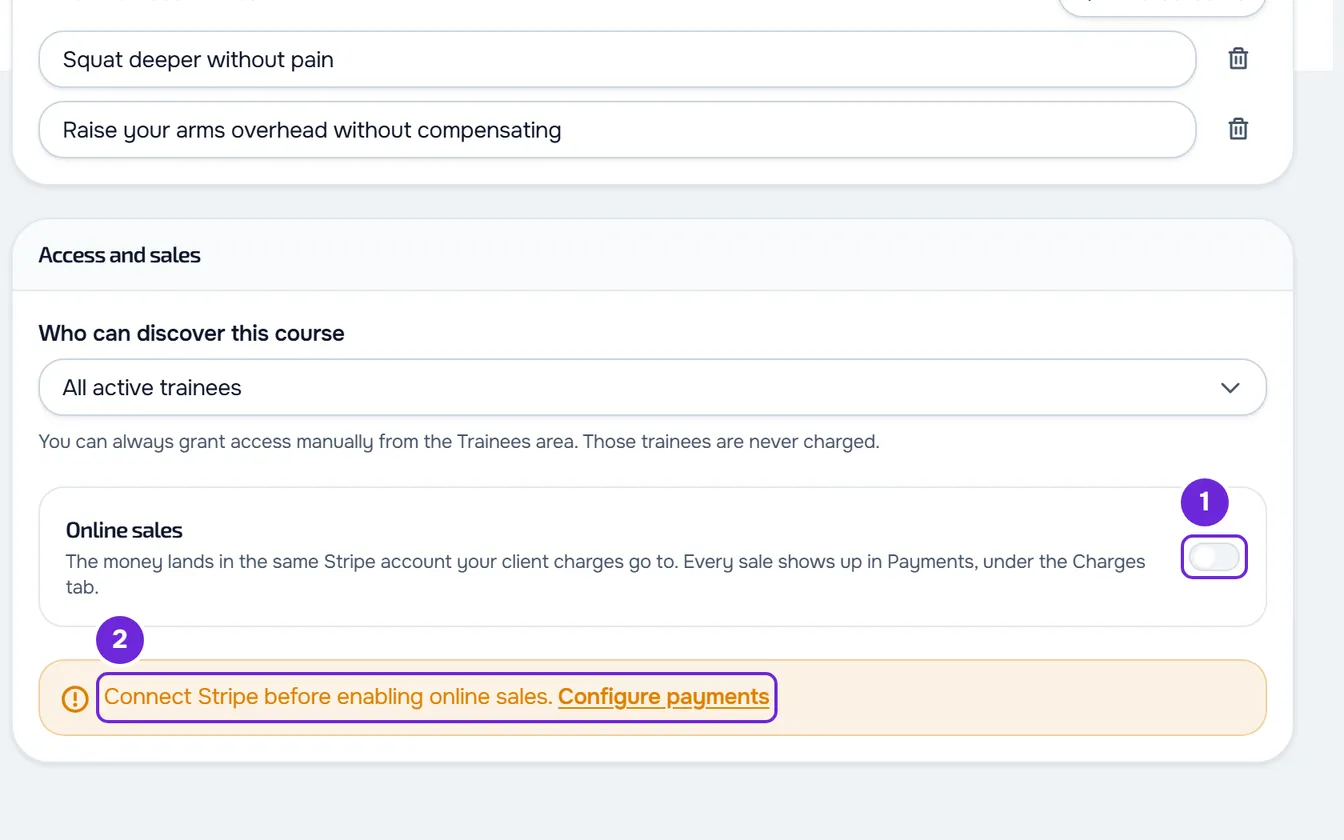
The Online sales switch is disabled
The warning “Connect Stripe before enabling online sales.” also appears. Your Stripe account is not connected yet, cannot receive payments and payouts yet, or was disconnected from MyFitnessClient. Select Configure payments to open Payments and finish connecting (Connect Stripe to receive online payments from clients). If the sale was already on, the switch stays active so you can turn it off, but clients see “Online purchase unavailable. Ask your professional for access.” until the Stripe account is ready again.
The price is not saved
The price has a thousands separator or, with the sale on, is empty or outside the limits. The Price field says why, and the status line in the course bar says “Not saved:” followed by the same reason. Fix the amount: the page saves again by itself.
“The price and billing can't change while this course has active subscriptions.” or “The previous checkout is still closing. Try again shortly.”
For the first one, put back the price, the mode and the billing interval that were there and publish again. For the second one, wait for the client's payment to finish or expire, usually at most 1 hour after it opened, and publish again. For other messages, see Error messages in courses and how to fix them.
Clients do not see the course or the purchase button
Check that the course is published and that Who can discover this course was not left on Manual access only, the default option, with which the course only appears in the store to those who already have access. With Selected trainees, the client must be ticked. The store only opens for your active clients; for a client you gave a plan to, only if that plan includes Courses, and never with an overdue payment when the If they don't pay rule is set to Read-only. If the client already has the course, they see “Yours” instead of the price.
Questions
Does MyFitnessClient take a share of the sales?
No. The payment is made in your Stripe account and MyFitnessClient charges no commission on courses. Stripe charges its own fees. See Fees on client online payments.
Can I create coupons, discounts or a trial period?
No. The payment page does not accept discount codes and the subscription starts charging on the day of purchase, with no trial period.
Can I sell a course to someone who is not my client yet?
No. Only your active clients buy, inside their own account. There is no public sales page for the course.
Can the client buy in the phone app?
Not in the app from the stores: the client buys on the MyFitnessClient website, in the browser or in the app installed from the website. After the purchase, the course also opens in the app.
Where does the money go?
To your Stripe account connected to MyFitnessClient, the same one that receives your client charges. See Check your Stripe balance and payouts.