
Before you start
- In a team workspace, you need the Nutrition > Edit permission. Without it, the ⋮ menu and the right-click menu have no Delete, and the Select button does not appear.
- Deleting takes the plan away from every client it is assigned to. To take it away from only one client, see Change dates, split off or remove a client from a meal plan.
Steps
To delete a meal plan:
- In the side menu, select Nutrition. The page opens on the Meal Plans tab, which on a narrow screen, such as a phone's, is called Plans.
- On the plan you want to delete, open the ⋮ menu. You can also right-click the plan.
- Select Delete.
- In the Delete plan? window, type DELETE in the field 1, in capitals. The Delete button only becomes active with the word written that way.
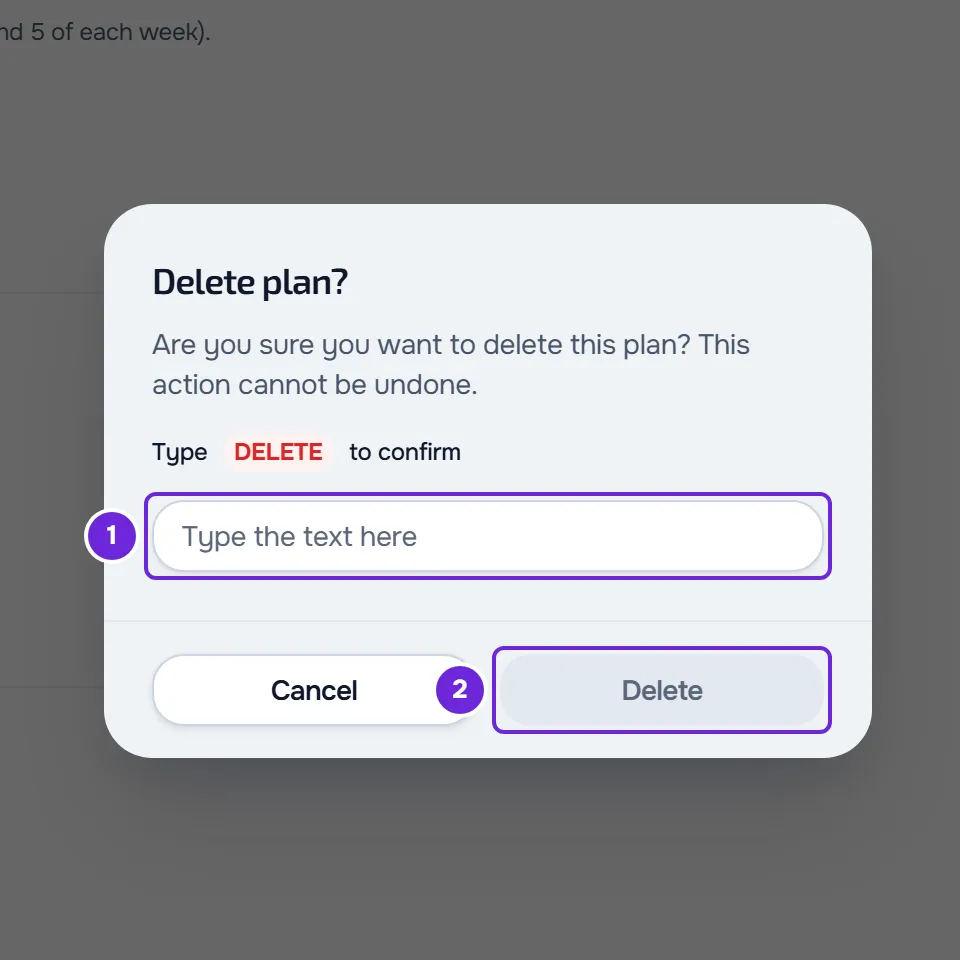
- Select Delete 2.
The window closes, the “Meal plan deleted” notice appears and the plan disappears from the list.
Delete several plans at once
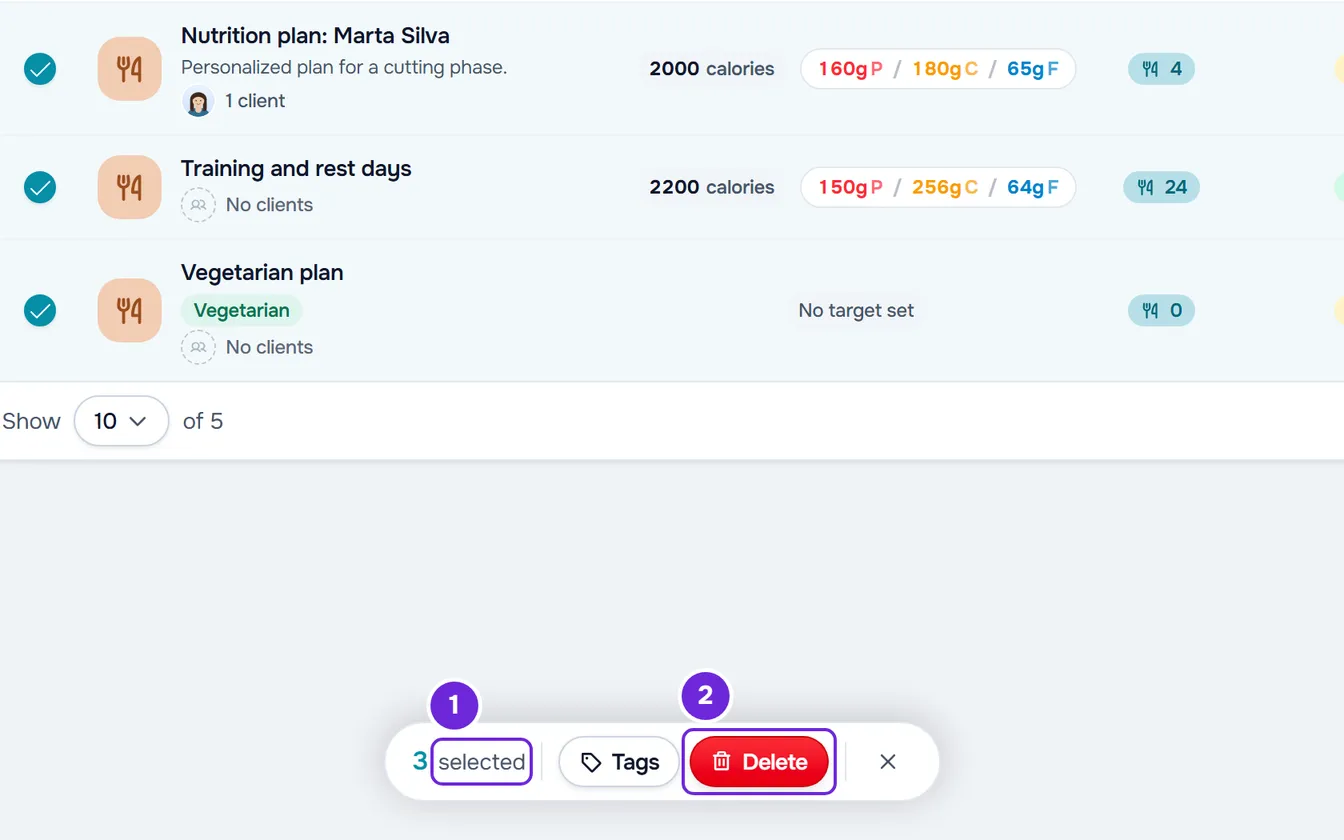
- At the top of the list, next to the number of plans, select Select. A circle appears on each plan.
- Select the plans you want to delete. The bar at the bottom of the screen shows how many you marked, for example “3 selected”. On a phone, it shows only the number.
- To mark all the plans on the page, select the circle in the table header. With the card list, which appears on screens less than 1280 px wide, select Select all in the first row. If there are more pages, “Select all” followed by the total also appears, and it marks the plans on all pages.
- To mark the plans on all pages straight away, select “Select all” followed by the total, in place of the number of plans. Only the plans that the search and the active filters show are marked.
- In the bar, select Delete. The confirmation window says how many plans you are about to delete, for example “Delete 3?”, or “Delete All (40)?” when you marked all the plans in the list. This window does not ask for the word DELETE: select Delete to confirm.
- The “Meal plans deleted” notice appears, the selection closes and the list goes back to the first page.
- To leave the selection without deleting, select Cancel, where Select was, or the X on the bar.
There is no limit on the number of plans per deletion: with more than 500 marked, MyFitnessClient deletes them in blocks of 500.
Tag several plans at once
With plans marked, the bar also has Tags. Check a tag in the list to add it to all the marked plans, or uncheck it to remove it from all of them. To create tags and filter the list by them, see Search, filter and tag meal plans.
Shortcuts
- Right-clicking a plan opens the same menu as the ⋮: Edit, Duplicate, Tags and, last, Delete.
- In the table, holding Ctrl while you select a plan (Cmd on Mac) turns on selection and marks that plan.
- On a touch screen with the card list, a long press of half a second on a plan turns on selection and marks that plan.
- On a touch screen with the card list, swiping a plan to the left shows a red button with a trash can, which opens the same Delete plan? window. Only one plan stays open at a time and, during selection, plans do not swipe.
What happens when you delete
- The plan disappears from the plan list, for the rest of the team too.
- The clients the plan was assigned to no longer see it in Nutrition and no longer receive the meal reminders for that plan. MyFitnessClient does not notify them.
Common problems
The Delete button does not become active
The Delete plan? window only accepts the word DELETE written exactly as shown: in capitals and with no spaces before or after. The field does not accept pasted text: type the word by hand.
I don't see “Delete” or “Select”
In a team workspace, you are missing the Nutrition > Edit permission. Without it, the ⋮ menu has no Delete, the Select button does not appear and plans do not swipe. Ask whoever manages the team for it and see “No permission to access” and menu items missing for a member.
An error message appears when deleting
The list stays as it was. With “Connection error.”, check your internet connection and try again. With “Server error.” followed by a request to try again, “Error deleting plan” or “An error occurred”, wait a moment and try again. With “Not found.”, the plan had already been deleted, for example by someone else on the team: reload the page. With “You have more active clients than your plan allows. Choose which to keep or upgrade your plan.”, MyFitnessClient does not let you delete plans until you sort it out: see You have more active clients than your plan allows.
Deleting several plans stopped partway
One of the blocks of 500 failed after others had already been deleted. The notice says how many were deleted and how many are left, for example “Deleted 500. The operation stopped with 120 left. Try again.”. The plans that are left stay marked and the ones already deleted leave the selection: select Delete in the bar again to delete the remaining ones. The bar and the confirmation window count only those.
If this did not solve it, contact support with the plan's name, the exact message and the approximate time.
Questions
Can I delete a plan that a client is following?
Yes. The confirmation window does not say whether the plan has clients: check it in the list, where each plan shows how many clients it has or “No clients”. After deleting, assign another plan to whoever needs one: see Assign a meal plan to one or more clients.
I deleted a plan by mistake. Can I get it back?
Not in the dashboard. If you had duplicated it, the copy is still in the list. If not, create it again: see Create a meal plan.