
Before you start
- The meal plan must already exist. To create it, see Create a meal plan.
- In a team workspace, you need the Nutrition > Edit permission.
- The goals belong to the plan: they apply to every client who has it.
Interactive tutorial
Opens in the app and needs you to be signed in.
Steps
To set a plan's daily goals:
- In the side menu, select Nutrition.
- On the Meal Plans tab, open the plan.
- If the plan is in Weekly or Calendar mode, mark the day you want to adjust: the weekday tab, for example MON, or the day in the calendar grid.
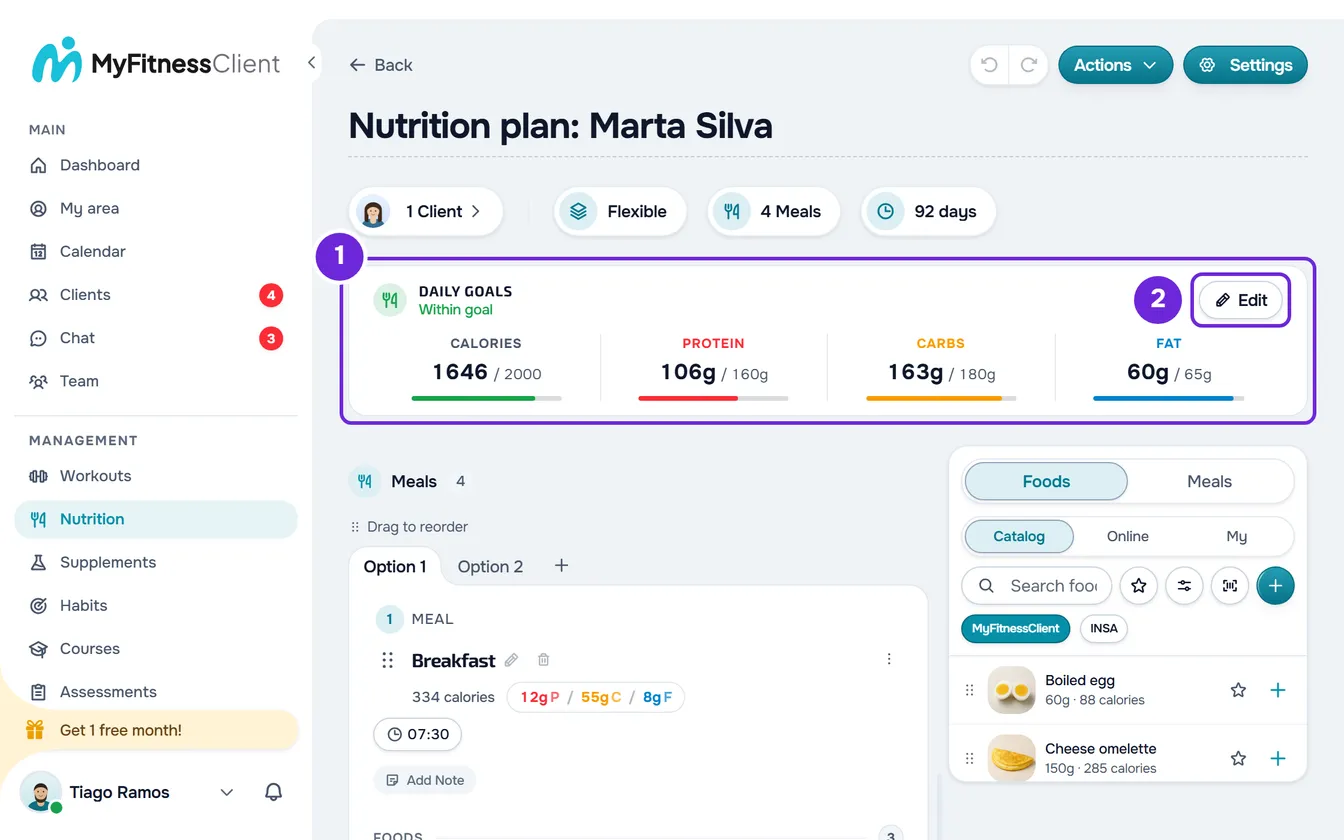
- On the Daily Goals 1 card, select Edit 2. In Calendar mode, the card is called “Goals for day” followed by the day's number. The Daily Goals window opens.
- If the plan is in Weekly or Calendar mode, under Apply goal to 1, choose how far the goal applies: This day (selected when the window opens), This week (Calendar mode only) or Whole plan. The fields then show the goal in force for that period, and the line underneath names it, for example “Goal for Monday”.
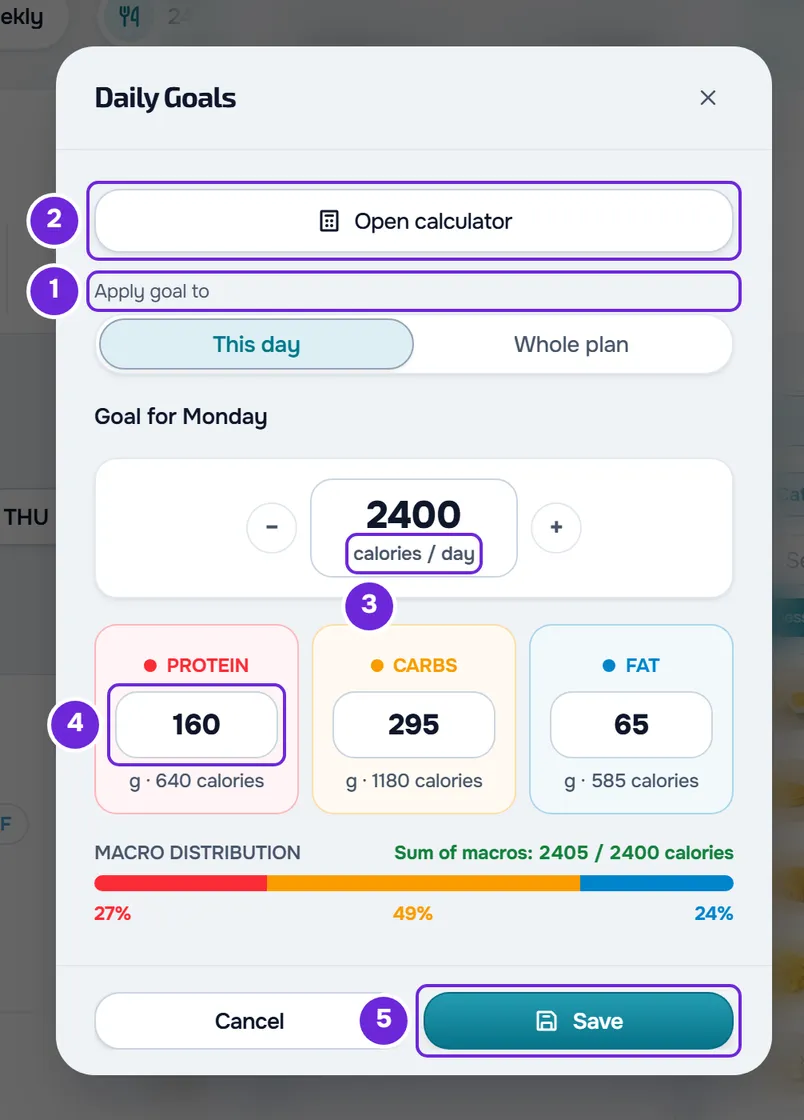
- Optional: to work out the values from weight, height, age, sex and activity, select Open calculator 2, at the top of the window. In the calculator, Apply to goals fills in the four fields for the chosen period. See Calculate a client's calories and macros with the calculator.
- In the calories field 3, with “calories / day” under the number, enter or adjust the day's calories. The − and + buttons next to it change the value by 50 at a time.
- Enter or adjust the grams of Protein 4, Carbs and Fat.
- Select Save 5.
“Saved!” appears, the window closes and the card compares the day's meals with the new goal. Clients who have the plan see the new goal when their Nutrition loads again, without getting a notification.
While you type, the card behind the window already shows the new values. In the window, Macro Distribution shows each macro's percentage and the “Sum of macros”: the calories the grams give, at 4 kcal per gram of protein and of carbs and 9 kcal per gram of fat, next to the calorie goal. Selecting Cancel or closing the window restores the previous values. If there are unsaved changes, “Save before leaving?” appears first, with Discard and Save and leave.
Read the Daily Goals card
The card adds up the calories, protein, carbs and fat of the meals of the day you are viewing (in Flexible mode, of all the plan's meals) and shows each value next to the goal, for example “1850 / 2000” for calories. In a meal with options, the option the meal is showing is the one that counts. Each value's bar fills up to the goal and turns red when the sum goes over it.
Under the title, a line gives the status of the day:
- “Within goal”: the meals add up to 80% to 110% of the calorie goal.
- Under 80%, the status says the day falls short of the goal. Over 110%, it says the day goes over the goal, in red and with an alert icon.
- “No goal set”: the day has no calories or macros set.
- “No meals”: the day has a goal, but the meals add up to 0 calories, or the day's goal has no calories.
- “Totals are unavailable because nutrition values are missing.”: the day has a goal and one of the day's foods has no calories. See Meal plan totals are missing or do not add up to the calories.
In Weekly and Calendar modes, the card follows the marked day and shows that day's goal. When the plan has adjusted goals, a line says where they are: in Weekly mode, “Adjusted days” followed by the days, for example “Adjusted days: MON, THU”; in Calendar mode, “Adjusted weeks” followed by the week numbers.
As you scroll down the page, when the card leaves the screen, a strip with the same four values appears at the top. Select it to go back to the card.
A goal for one day, one week or the whole plan
In Weekly and Calendar modes, each day can have its own goal. In Flexible mode, and in an older plan in Sequential mode, the plan has a single goal and the window does not show Apply goal to.
| Option | Modes | What changes |
|---|---|---|
| This day | Weekly and Calendar | Only the marked day. In Weekly mode, it is that weekday in every week. |
| This week | Calendar | The days of the plan's week that holds the marked day, for example “Days 8 to 14”. Deletes the adjustments of each day of that week. |
| Whole plan | Weekly and Calendar | The goal of every day. Deletes all adjustments by day and by week. |
- In Calendar mode, a day without its own adjustment follows its week's goal and, without that, the whole plan's goal.
- An adjustment equal to the goal the day or the week would already have is not saved: the period keeps following the more general goal.
- When you switch options, the fields show the goal in force for that period, and what you typed under the previous option is lost: choose the option before you type. Switching back to This day brings back the goal the day had when the window opened.
Limits
- Calories: from 0 to 10,000 per day. Protein, carbs and fat: from 0 to 1000 g each. On the card, 0 counts as no goal.
- A digit that would take the value past the limit does not go into the field.
- An empty field under Whole plan, or in a plan without Apply goal to, has no goal. In a day or week adjustment, the empty field follows the week's or the plan's value.
Common problems
“Macros total 2080 kcal, but the target is 2000 kcal. Difference: +80 kcal.”
It appears in the window when the calories the grams give differ from the calorie goal by more than 10 kcal. The numbers in the warning are yours. It is only a warning: the goals are saved anyway. To clear it, adjust the grams or the calories. See Meal plan totals are missing or do not add up to the calories and How MyFitnessClient calculates calories and macros.
The card says “No goal set”
The marked day has no calories or macros set. A plan created with New Plan starts without goals. Follow the steps in this article to set them.
Adjustments for a day or a week disappeared
There are two possible causes:
- You saved with Whole plan or This week chosen, and that option deleted the adjustments it covers.
- You changed the plan's mode. The whole plan's goal stays, but the adjustments are lost. There are two exceptions: from Weekly to Calendar, the adjustments move to days 1 to 7 (Monday on day 1); from Calendar to Weekly, they stay when only days 1 to 7 have adjustments. See Meal plan modes: Flexible, Weekly and Calendar.
To restore them, set them again with This day or This week.
The Edit button does not appear on the goals
Under the plan's name, “You can only view this. To make changes, ask whoever manages the team for edit permission.” appears. In a team workspace, without the Nutrition > Edit permission, the plan opens read-only: you see the goal numbers, but you cannot change them. Ask whoever manages the team for the permission. See “No permission to access” and menu items missing for a member.
If this did not solve it, contact support with the plan's name, the plan's mode, the marked day and the exact message that appeared.
Questions
Can I give more carbs on training days?
Yes, in a Weekly or Calendar plan. Mark the training day, choose This day and enter that day's values. Days without an adjustment keep the whole plan's goal.
Can two clients on the same plan have different goals?
No. The goals belong to the plan and apply to every client who has it. Create a separate plan for the client who needs other values: see Change dates, split off or remove a client from a meal plan.
What does the client see if the plan has no goals?
They see the total of the plan's meals on that day as their target. See What the client sees and gets from the meal plan.