
Before you start
- In a team workspace, saving a library meal requires the Nutrition > Edit permission. Without it, the meal doesn't open when you select it in the list, and the ⋮ menu has no Edit. The workspace owner has all permissions.
- The meal plans where you already used the meal keep a copy of it and don't change when you edit it. See Library foods and meals: what changes in plans.
- If “You have more active clients than your plan allows. Choose which to keep or upgrade your plan.” appears, the meal doesn't save until you fix it: see You have more active clients than your plan allows.
Steps
To edit a library meal:
- In the side menu, select Nutrition.
- Select the Meal Library tab. On a narrow screen, such as a phone's, the tab is called Meals.
- Select the meal in the list. You can also open it with Edit, in the row's ⋮ menu or by right-clicking it. The Edit Meal window opens, with the meal's name, time, note and foods.
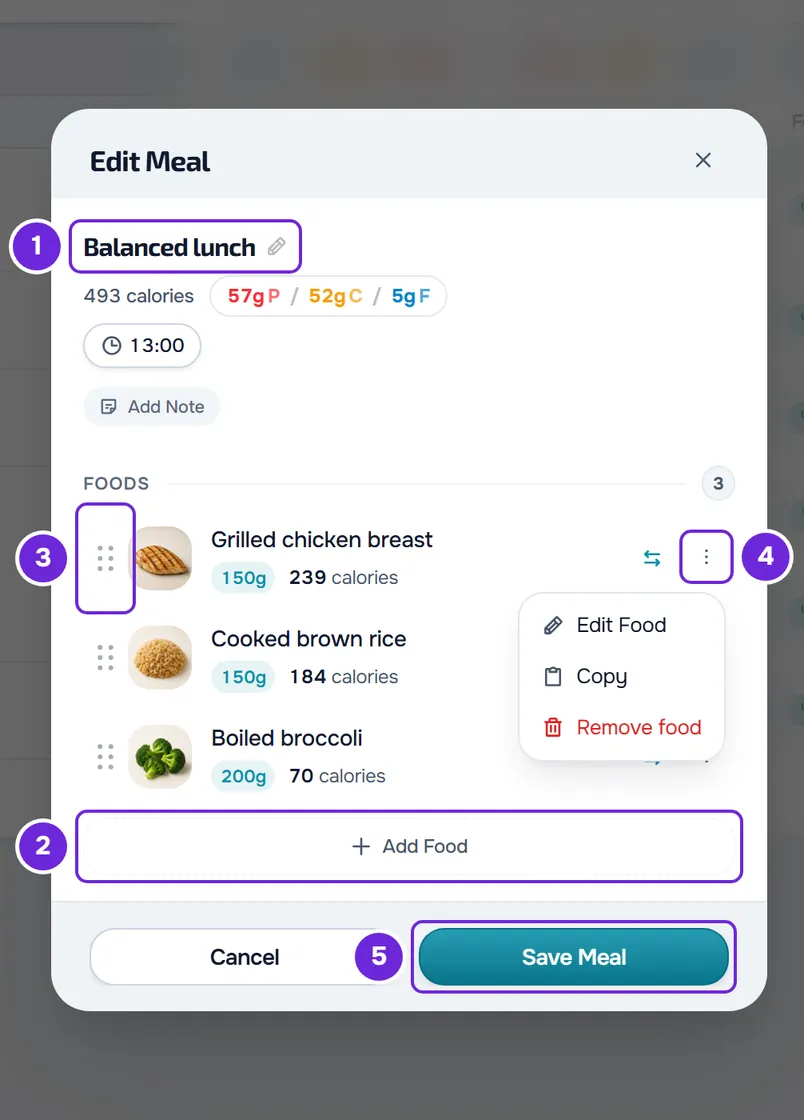
- Optional: change the name 1, time or note at the top of the window.
- Optional: select Add Food 2 and choose one or more foods in the picker. New foods go at the end of the list.
- Optional: to change the order, drag a food by the six-dot handle 3 at the start of its row and drop it in its new place.
- Optional: to adjust a food in this meal only, open its ⋮ menu 4 and select Edit Food. Change what you need and select Save.
- Optional: to remove a food, open its ⋮ menu, select Remove food and confirm with Delete.
- Select Save Meal 5.
The window closes and the “Meal updated” notice appears. The meal stays in the same place in the list, which sorts the meals by the date they were created.
What happens when you save
- Until you select Save Meal, nothing is saved: the foods you add, adjust, move or remove change only in the window. The “Food removed” notice that appears when you remove a food also concerns only the window.
- If you close the window with unsaved changes, for example with Cancel, “Save before leaving?” appears. Discard closes without saving. Save and leave saves and is only active if the meal has at least one food.
- When you save, the meal's foods become exactly the ones in the window, and the meal's calories and macros are added up again from them.
- Food photos you uploaded that leave the meal, because you removed the food or replaced the photo, are deleted from your storage when no other food, meal, plan or food log uses them.
- If saving fails, the window stays open, with your changes.
Name, time and note
- To change the name, select it, next to the pencil, type the new one and press Enter or leave the field. The field accepts up to 50 characters. If you delete all of it, the previous name stays.
- To change the time, select it and choose the hours and minutes. To remove it, select Remove time, inside the picker. A meal without a time shows Set Time.
- The note sits in the amber block: type in it to change it, or select the block's X to delete it. A meal without a note shows Add Note.
The meal's foods
- Each row shows the food's photo, or the initial of its name, the name, the quantity and the calories. A meal holds up to 500 foods: with 500, adding one more shows “Limit reached.”.
- Selecting a food opens its details, read-only, with the Edit button, which opens the same Edit Food window.
- Each food's ⋮ menu has Edit Food, Copy and Remove food. Right-clicking the row opens the same menu and, when the food has no substitutions yet, adds Add substitution at the top. For substitutions, see Add food substitutions to a library meal.
- With the keyboard, focus a food's six-dot handle and use the up and down arrow keys to move it.
- In the picker, the “Already in this meal” tag marks the library foods the meal already has. It is for information only: you can add the same food again.
- After you copy a food, Paste here rows appear between the foods, and dragging is turned off while the copy is active. See Copy and paste meals, supplements, questions and lessons.
The Edit Food window
The window changes only this food, in this meal. The food in the food library, and the other meals and plans it is in, stay the same. To change the food in the library, see Create or edit a custom food.
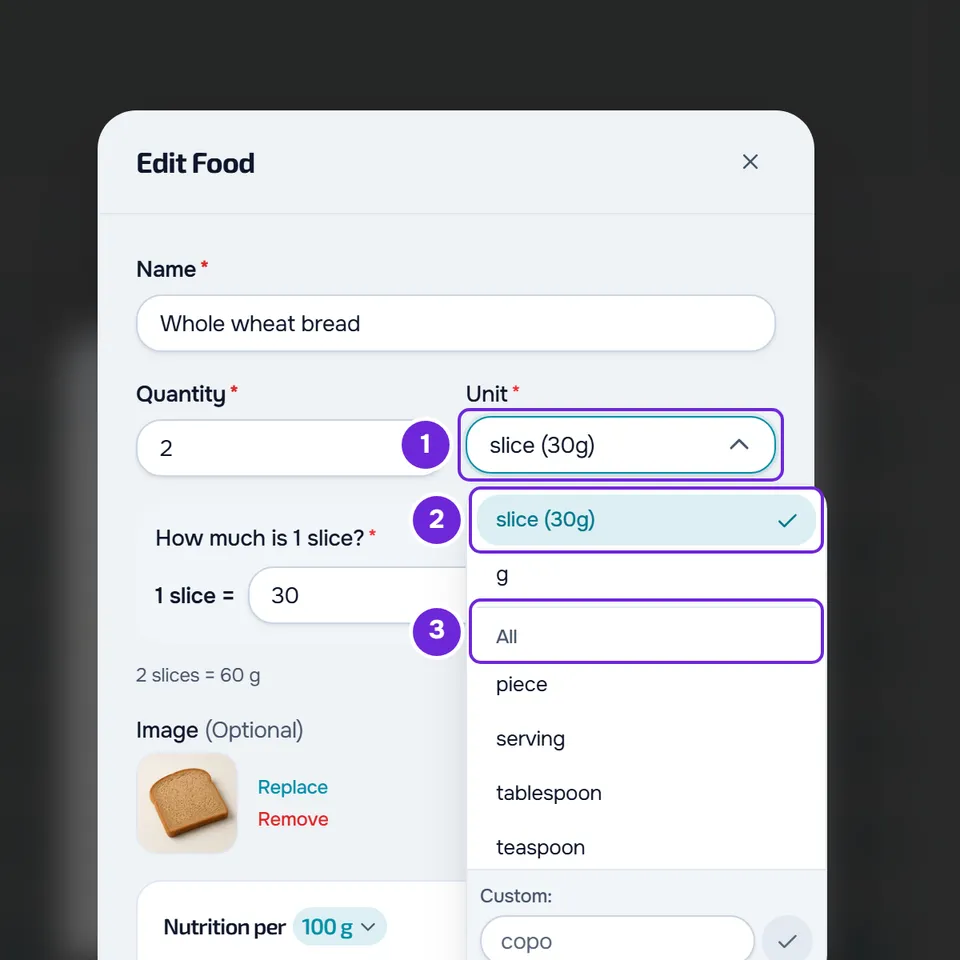
- Name: up to 100 characters.
- Quantity: from 0 to 10000, in the chosen unit.
- Unit: the menu first shows the food's own unit, with the weight of one unit, for example “slice (30g)”, and the base, g or ml. The other units are under All. Changing the unit doesn't change the portion: the quantity is converted and the calories and macros stay the same.
- With a unit that isn't g, kg, mg, ml or l, such as “slice” or “glass”, a question about the weight of one unit appears, for example “How much is 1 slice?”, in g or ml, and under it the total quantity in g or ml. When you choose a new unit under All, or if you delete the weight that was there, Save is disabled until you type a weight.
- When the weight of a unit isn't known, the window uses an approximate weight only to convert and shows it as a suggestion in the field. That weight isn't saved: to save the right weight, type it.
- In Custom, at the bottom of the units menu, you type a unit of your own, up to 20 characters long and starting with a letter.
- Image: Upload File adds a photo. With a photo, Replace swaps it and Remove takes it away.
- When the portion's weight is known, the nutrition values open per 100 g or 100 ml, and the heading “Nutrition per 100 g” is a menu that switches to the food's quantity: switching converts the values and the food stays the same. Without that weight, the values are those of the quantity.
- Per 100 g or 100 ml, calories go up to 900, potassium up to 10000 mg and each of the other values up to 100 g. When you enter the values for a quantity larger than 100 g, these maximums grow in the same proportion.
- Sugar, salt, fiber, saturated fat and potassium are optional: left blank, they stay undeclared, not zero.
- If you close the window with unsaved changes, “Save before leaving?” appears.
Common problems
An error message appears when saving
The meal was not saved and the window stays open. If you see “Connection error.”, check your internet connection and try again. If you see “Invalid data. Check the fields.”, the meal goes over a limit: see Food and meal library limits. If you see “Server error.” or “Error saving”, wait a moment and try again.
“Save Meal” is disabled
The meal has no foods left, and a library meal needs at least one. Add one with Add Food. To remove the meal from the library, see Delete one or more meals from the library.
I changed a food in the food library and the meal didn't change
The meal keeps the values the food had when you added it. To update them, adjust the food in the meal with Edit Food, or remove it and add it again with Add Food.
“This food is missing calories, protein, carbohydrates, or fat. Choose another food.”
The food you chose in the picker doesn't declare one of these four values and isn't added to the meal. If you chose several foods at once, none is added until you take that one out of the selection. Choose another one, or complete the values in a copy of your own: see Can't find or use a food from the library.
If this did not solve it, contact support with the meal's name, the exact message and the approximate time.