
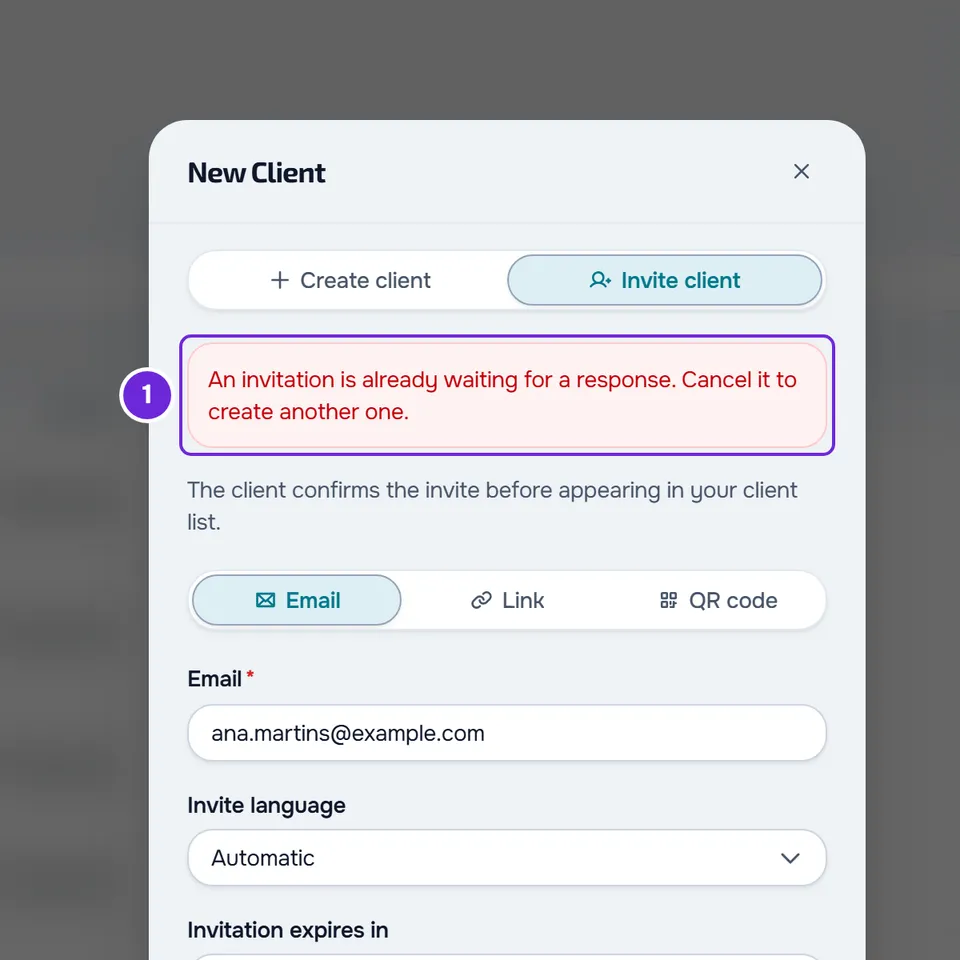
The full message is “An invitation is already waiting for a response. Cancel it to create another one.” When it shows, the new invitation is not created.
Before you start
- In a team, creating and cancelling invitations requires the permission to create clients. If you don't have it, see “No permission to access” and menu items missing for a member.
When it happens
It shows when you create an invitation for a person who already has an unanswered invitation from you:
- In New Client > Invite client, when you invite by email.
- On the profile of a client without an account, in the window that opens with Invite to the app.
- In New Client > Create client, with Invite to the app turned on. In this case the client is created, the message appears in the Client created notice, the invitation is not sent and the new client's profile opens.
Why it happens
Each person can only have one invitation from you waiting for a response. Invitations created by another member of your team also count. There are two cases:
- The person already has a client account and the invitation is linked to their account. An email invitation is linked as soon as it is created; a link or a QR Code is linked when the person uses it. This invitation does not expire: the Invitation expires in date is the deadline to use it, not to answer it. After that date, the person still sees the invitation and can still accept or decline it.
- There is already an email invitation from you to that address, still valid, that nobody has used. This one stops blocking once its expiry date has passed.
In the Invitations tab, the blocking invitation has the status Awaiting response. On the profile of a client without an account, the button says Invitation pending; if the invitation is already linked to the person's account, the window says Waiting for the client to answer and does not show Create a new one, only Cancel invitation.
How to fix it
Cancel the invitation that is waiting and create the new one. You can also wait for the person to answer.
To cancel the invitation that is waiting:
- In the sidebar menu, select Clients.
- Open the Invitations tab.
- In Search invitations..., type the person's email, or the client's name if you created the invitation on their profile. The blocking invitation has the status Awaiting response 1.
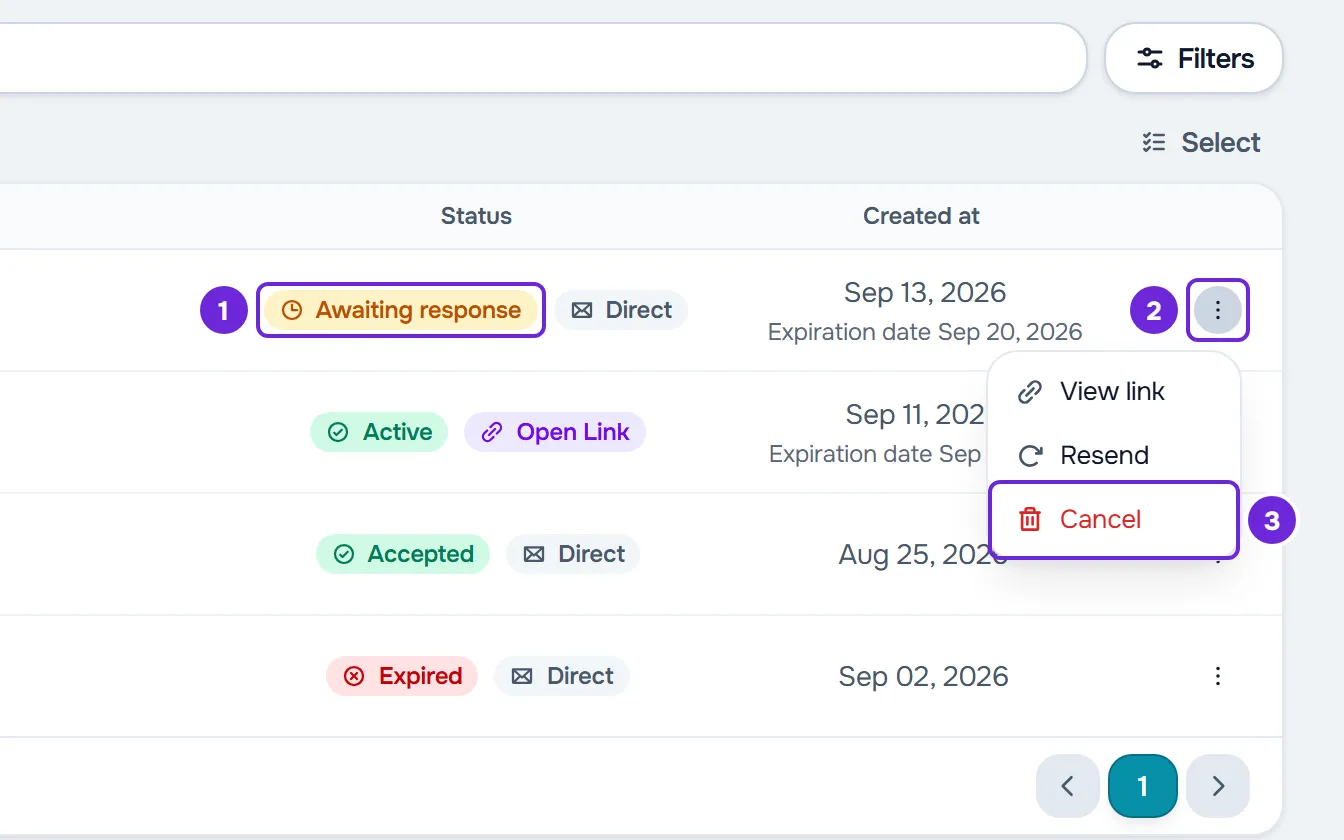
- Open the row's ⋮ menu 2, or right-click the row, and select Cancel 3.
- Confirm with Yes, Cancel. The Cancelled! notice shows and the invitation disappears from the list.
- Create the invitation again where you saw the message. If you saw it while creating a client, create it on that client's profile, with Invite to the app.
The new invitation shows in the Invitations tab.
The search does not find the invitation
A link or QR Code invitation that you did not create on a client's profile does not store the name or email of whoever used it. In the list it shows as Link invitation (or Permanent, for a link with no time limit and no usage limit), and the list does not show who used it. Look for the rows with that name and the status Awaiting response. Before you cancel a link that several clients can use, read the “Before you cancel” warning.
For a client without an account
You can also cancel the invitation on the client's profile, even after the expiry date: select Invitation pending, then Cancel invitation, and confirm with Cancel invitation. The window goes back to the form so you can create the new invitation right away.
You only want the email to arrive again
If the row menu shows Resend, you don't need to cancel: select Resend and the same invitation is sent again. If the email does not arrive, see The invitation or notification email does not arrive.
If this did not solve it
- When you cancel in Invitations, an error shows and the invitation stays in the list, or its status changed to Awaiting approval. The person accepted the invitation and the request is waiting for your decision. In Clients, in the Requests tab, select Accept or Reject.
- On the profile of a client without an account, the button says Request to approve, or when you cancel you see “You can only cancel invites that are still waiting for an answer.” The person has already answered the invitation. Refresh the page. If the button says Request to approve, select it, then Accept request or Decline request, and confirm. The window shows who used the invitation, and to accept you confirm with Link to record: that person's account gets everything in the client's record, so check first that it is the right person; after you decline, you can create a new invitation. If it says Invite to the app, the person declined and you can create a new invitation.
- The message keeps showing after you cancel: there may be another invitation for the same person. Search again in Invitations for their email and also check the Link invitation rows with the status Awaiting response. For other messages, see Error messages when creating, inviting and accepting clients.
- If none of this solves it, contact support with the person's email and the time you saw the message. See Contact Support and create a request.