
This happens when an action in Clients is refused: creating or inviting a client, changing the details of a client without an account, reactivating a client or renewing their access, resending or cancelling an invitation, or answering a request. The message appears in red in the window you are in, such as New Client or the invitation window on the profile, or in a temporary notice. Look for the exact text you see in the tables.
When creating or inviting a client
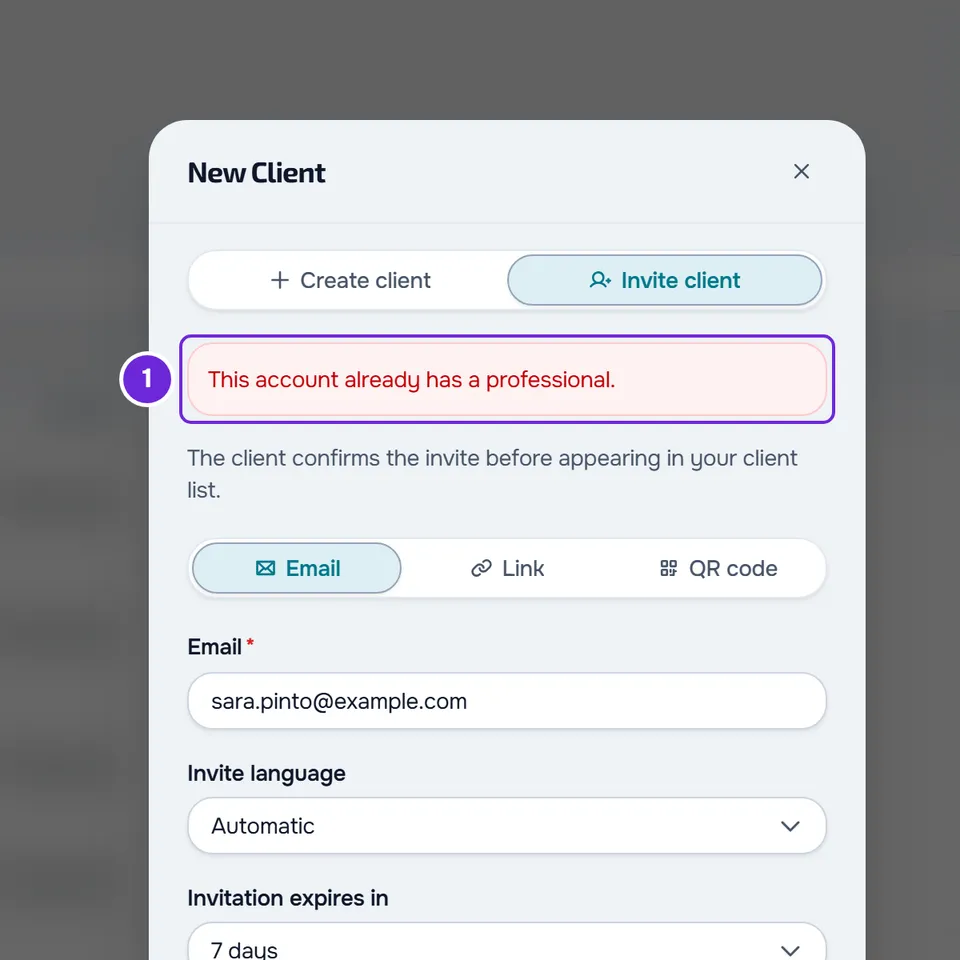
These messages appear in the New Client window, on the Create client and Invite client tabs, and in the window that Invite to the app opens on the profile of a client without an account. If you create a client with Invite to the app turned on and only the invitation fails, the client is created, their profile opens and the message appears in a notice titled “Client created”.
| Message | When it happens | What to do |
|---|---|---|
| “Client limit for the current plan reached.” | All the slots on your plan are taken and you try to create a client, invite a new person by email, accept a request, or reactivate a client or renew their access on the profile. If you are the account owner, creating, inviting or accepting opens the window with the plan that has more slots. Inviting a client you already created to the app does not use a new slot. | Free a slot, for example by archiving a client you no longer coach, or switch to a plan with more slots. If you are a team member, talk to the owner. |
| “This account is already linked to this professional.” | When creating a client: you already have a client, active or inactive, with this email. When inviting by email: this account is already your client, active or inactive. | Look for the client in Clients. If they do not appear, in Filters, choose Inactive: archived clients and those whose coaching ended are there. Use that client instead of creating another one. When creating, if you still cannot find them, it is someone who disconnected from you: invite them by email in Invite client. |
| “This person already sent you a request. Accept it in Requests.”, with the See requests button | When you invite by email someone who already asked you for coaching and is waiting for your answer. | Select See requests and answer the request on the Requests tab. |
| “An invitation is already waiting for a response. Cancel it to create another one.” | This person or this client already has an invitation from you waiting for a response: an email invitation that has not been used and has not expired, or an invitation that already reached the person's account and that they have not answered yet. On the profile of a client without an account, it also appears when someone already used the invitation link or QR Code and is waiting for your approval. | Cancel the old invitation and create another one, or wait for the answer. If someone is waiting for your approval, answer with Accept request or Decline request on the invitation screen. |
| “You sent an invite to this email recently. Wait a minute before sending another.” | An email invitation to the same address went out less than 1 minute ago, created or resent by you or by someone on your team. | Wait 1 minute. If the first invitation is still open, you do not need another one. |
| “This account already has a professional.” | When you invite by email a person with an account who has another professional, active or with a scheduled start, or a request waiting for a response with another professional. It also appears if you blocked this person. | The person has to end the other coaching or cancel the other request. Coaching that already ended with another professional does not prevent the invitation. If you blocked the person, select Unblock in the blocked list on the Requests tab before inviting them. |
| “This email belongs to an account that is not a client account.” | The email belongs to an account that is not a client account, for example a professional's. | Ask the client for another email and invite them with it. |
| “This client already left and you've already used your one re-invite for them.” | The person disconnected from you and, after that, you already sent them the email invitation that lets them come back. There is only one per departure. | You cannot send another email invitation to this account. |
| “Enter the client's email.” | In an email invitation, or when creating a client with Invite to the app turned on, the email field is empty. | Type the client's email. |
| “Enter a valid phone number.” | When creating a client, the phone number is not valid. | Correct the number or delete it, since the phone is optional. |
| “Pick at least one package.” | In an invitation where the client picks a package, you did not tick any. | Tick the packages the client can choose from. |
| “This package no longer exists.” | In an invitation with a package, one of the packages you ticked was archived after you opened the window. | Close the window, open it again and tick the packages again. |
| “This client is archived. Reactivate them before inviting.” | With Invite to the app, on the profile of a client without an account who is archived or whose access period has already ended. | Reactivate the client, or renew their access if the period ended, and invite them afterwards. |
To cancel an invitation that is still waiting, see An invitation is already waiting for a response. To find out who takes up the slots on your plan, see Client limit and occupied slots on your plan.
When changing details, reactivating or renewing a client's access
These messages appear in a notice or in the access period window, on the client's profile.
| Message | When it happens | What to do |
|---|---|---|
| “This account's personal details are now managed by the client.” | When you change the name, email or phone of a client who, in the meantime, created an account and accepted the invitation. | Reload the page. From now on, these details come from the client's account. |
| “This client has a request waiting for approval (client list, Requests tab). Accept or decline it before changing the email.” | When you change the email of a client without an account while someone has already used their invitation link or QR Code and is waiting for your approval. | Accept or decline that request on the Requests tab and change the email afterwards. |
| “This account is already linked to this professional.” | When you change the email of a client without an account to the email of another of your clients, active or inactive. | Use another email, or work with the client who already has that email. |
| “This client disconnected. They only regain access by accepting a new invitation.” | When you reactivate or change the access period of a client who disconnected from you. | Invite them by email, at their account's email address. You have one re-invite per departure. |
| “This client already has an active professional.” | When you reactivate a client or renew their access and, in the meantime, they have taken on another professional, active or with a scheduled start. | You cannot reactivate them while they have another professional. |
When resending or cancelling an invitation
These messages appear in a notice, on the Invitations tab of Clients, or in the invitation window, on the client's profile.
| Message | When it happens | What to do |
|---|---|---|
| “This invite was resent recently. Wait a minute before resending it.” | The same invitation was sent or resent less than 1 minute ago. | Wait 1 minute and resend it again, if you need to. |
| “This person already answered the invite. Accept or decline it in your requests.” | When you cancel an invitation that someone already used and whose request is waiting for your answer. | Answer the request on the Requests tab. |
| “You can only cancel invites that are still waiting for an answer.” | With Cancel invitation, on the profile of a client without an account, when the person already answered the invitation. | If a request is left waiting for approval, answer with Accept request or Decline request on the invitation screen, or on the Requests tab. |
| “Company links are not cancelled here. Revoke them in the company links section.” | When you cancel a company link on the Invitations tab. | In New Client > Invite client, choose Inviting a whole company? and, in the link's menu, select Revoke. |
When answering a request
These messages appear in a notice, on the Requests tab of Clients, or in the invitation window, on the client's profile.
| Message | When it happens | What to do |
|---|---|---|
| “This request is no longer pending.” | On the Requests tab, when you accept, decline or block a request that the person cancelled, that expired or that someone else on the team already handled. | Nothing. The list reloads by itself. |
| “This client already has an active professional.” | When you accept the request of someone who, in the meantime, has taken on another professional, active or with a scheduled start. | You cannot accept it while that person has another professional. You can decline the request. |
| “This request has a package awaiting payment. Mark it as paid to accept.” or “This request has a package awaiting payment. Only the account owner or someone who manages payments can mark it as paid to accept it.” | When you accept a request with a package the client has not paid yet. The second message is shown to anyone without the permission to record payments. | If the client paid you outside the platform, select Mark paid and accept on the request's row. Without that permission, ask the account owner or whoever manages payments. |
| “This package no longer exists.” | When you accept a request whose package was cancelled. | Decline the request and send a new invitation. |
| “An online payment is in progress. Wait a few minutes and try again.” | When you decline, block or mark as paid a request with a package while the client is paying online. | Wait a few minutes and try again. |
| “This client relationship has ended. Set a new access period before inviting them again.” | When you accept the request of someone who used the invitation link or QR Code of a client without an account whose coaching ended in the meantime. | Set a new access period for that client and accept the request again. |
Permissions, account and other errors
These messages can appear in any of the actions in Clients.
| Message | When it happens | What to do |
|---|---|---|
| “You don't have permission to do this in this team.” | You work on another professional's team and your permissions do not include this action, for example creating clients or recording payments. | Ask the team owner to give you the permission. |
| “You have more active clients than your plan allows. Choose which to keep or upgrade your plan.” | The account is frozen: there are more active clients than the plan allows and almost all changes are refused. | The account owner chooses who stays active, with Choose clients, or moves to a higher plan. |
| “Your account is closing: you can no longer add, accept, reactivate or renew clients.” | You asked to close the account and you try to create a client, invite a new person by email, accept a request, or reactivate a client or renew their access on the profile. | If you want to keep coaching clients, cancel the closure. |
| “Too many requests. Wait a moment.” | You made more than 20 client creations, 10 invitations or 10 invitation resends in the same minute. | Wait 1 minute and try again. |
| “Error inviting client” or, on the profile, “Could not create the invitation.” | A failure without its own message, in the New Client window or in the profile's invitation window. | Try again. If it keeps happening, contact support. |
| “Server error.” | The server could not complete the action. | Try again in a moment. |
For team permissions, see “No permission to access” and menu items missing for a member. For the frozen account, see You have more active clients than your plan allows. To stop the closure, see Cancel your account closure.
What the client sees when the invitation no longer works
When an invitation expired, reached its use limit, was replaced by another one or was cancelled, the client sees the error, not you. On the invitation page, they see “This invitation has expired”, “This invitation reached its limit” or “This link is no longer available”. On Home, they see “This invitation is no longer available: it expired, was already used, or was meant for another account.” If the client selects Notify the professional, the account owner gets the “Invite no longer valid” notice, except when the invitation was cancelled.
To fix it, create a new invitation in New Client > Invite client. If the invitation screen is still open and says “This link no longer works.” or “This QR code no longer works.”, select Create a new one. What the client sees in each case is in Invitation not working: expired, already used or for another email.
If this did not solve it
Reload the page and try again: some messages come from a page opened before the client, the invitation or the request changed. If the message continues, contact support (see Contact Support and create a request) and send:
- the exact message and where you saw it, for example in the New Client window or on the Requests tab;
- the client's email, if you have it;
- the approximate time.