
Interactive tutorial
Opens in the app and needs you to be signed in.
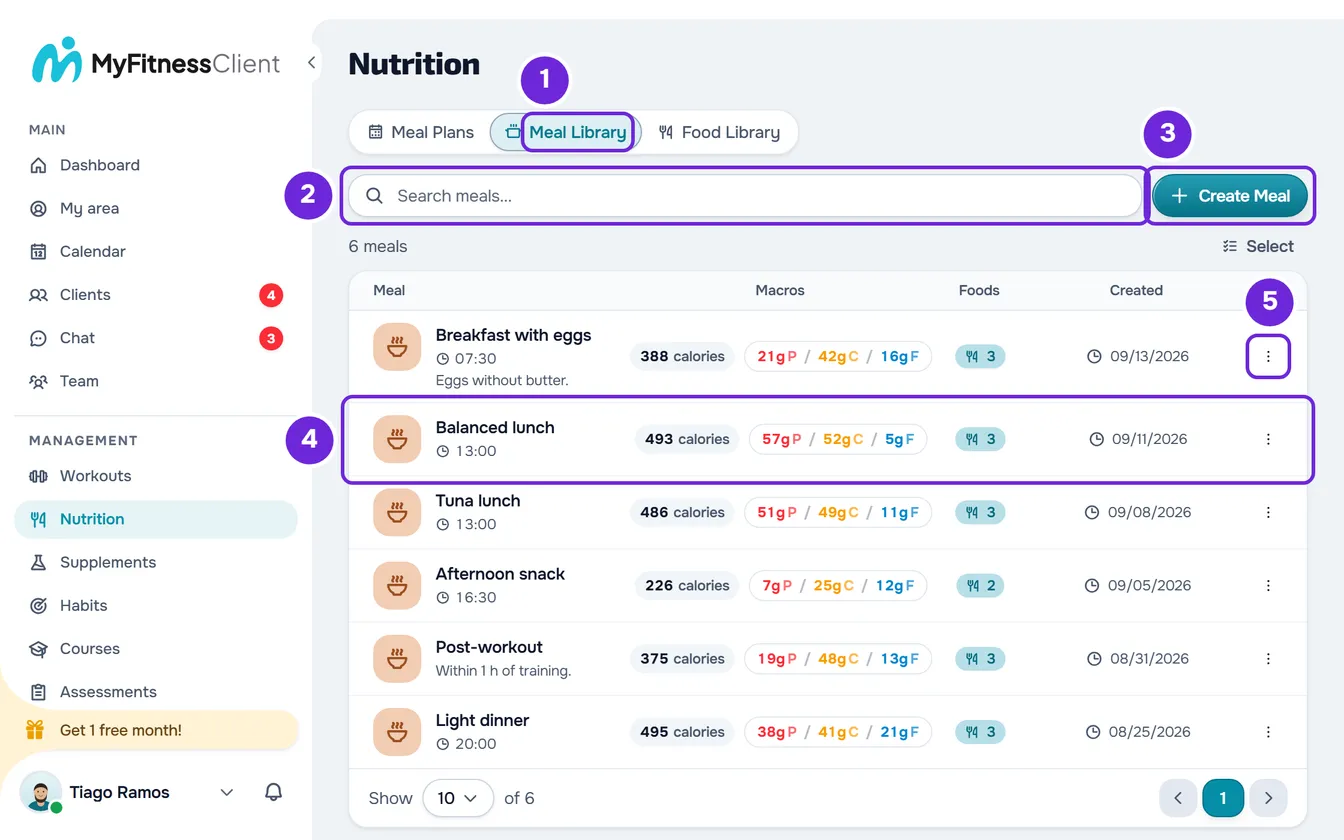
A library meal is a meal you put together once: a name, the foods with their quantities and, if you want, a suggested time and notes. Instead of building it from scratch in every plan, you add the same meal to as many meal plans as you need. The library is in Nutrition > Meal Library; on narrow screens, the tab is called Meals.
How a meal gets into a plan
In a meal plan, the Add Meal window has the Library tab, where you choose one or more saved meals. You also find them in the plan's side panel (see Build a plan with the food and meal side panel). The plan gets a copy of each meal: if you later change or delete the meal in the library, the plans where you already added it stay as they were. See Library foods and meals: what changes in plans.
It also works the other way round: in the ⋮ menu of a meal in a plan, Save to library opens the meal in a window that is already filled in and, when you save, creates a new library meal from it. This option does not appear when the meal is already linked to a library meal, because it came from there or because you already saved it; if you delete that library meal, the option comes back. In a meal with options, it only appears with the first option open. When you create a meal on the Custom tab of Add Meal, the Also save to library option does the same.
How to read the list
Each row is a meal, with the bowl icon, the name and, when they exist, the suggested time, with a clock, and the start of the notes, on one line. The icon is always the bowl: library meals have no photo, color or cover to choose. On wide screens, the columns show:
- Macros: the calories and, next to them, protein (P), carbs (C) and fat (F), in grams.
- Foods: how many foods the meal has.
- Created: the date the meal was created.
On narrow screens, such as a phone's, the same data appears inside the row, under the name. Next to the table you see how many meals you have, or how many the search found.
The calories and macros on each row are the sum of the meal's foods, with each food rounded to a whole number before adding. A food's substitutions do not count towards the sum. If any food is missing one of these values, the total for that value shows as “-”.
The list shows the most recently created meals first. This order is fixed: the column headers do not sort the list.
Search for a meal
The search, “Search meals...”, looks only in meal names, anywhere in the name, and is not case-sensitive. It does not search foods or notes. The list updates 0.3 seconds after you stop typing and goes back to the first page.
At the bottom of the list, Show sets how many meals you see per page: 10, 25 or 50. The search, the page and the number per page stay in the page address: if you go back in the browser or open the same address later, you find the list as you left it. If you switch to another Nutrition tab and come back, you do not lose the search or the page either.
What you can do with each meal
Create Meal opens a new, empty meal. See Create or duplicate a meal in the meal library. Selecting a row opens that meal in the editor. The ⋮ menu on each row, and a right-click on it, have:
- Edit: opens the meal so you can change the name, the time, the notes and the foods. See Edit a library meal and the foods in it.
- Duplicate: creates a copy in the library right away, with “(Copy)” at the end of the name.
- Copy: takes the meal so you can paste it into a meal plan or back into the library, with Paste. See Copy and paste meals, supplements, questions and lessons.
- Delete: removes the meal from the library. See Delete one or more meals from the library.
When you create, save, duplicate or delete a meal, the notice says “Meal created”, “Meal updated”, “Meal duplicated” or “Meal deleted”.
Who sees and who changes the library
The library belongs to the workspace: in a team, every member with access to Nutrition sees the same meals. When a meal was created by another person in the workspace, “Created by” and that person's name appear under the meal's name.
What each member can do depends on the Nutrition permissions they have in the team:
- View: sees the list and uses Copy. Without this permission, Nutrition does not appear in the side menu and the page shows “No permission to access”. See “No permission to access” and menu items missing for a member.
- Create: shows Create Meal, Duplicate and Paste.
- Edit: shows Edit, Delete and Select, to choose several meals. A meal opens when you select its row only with Edit; without it, the row does not open.
What the list shows when it is empty or fails
- With no meals at all: “You haven't created any meals yet” and “Create your first meal to get started.”.
- A search with no results: “No meals found” and “Try a different search”.
- When the list does not load, because there is no connection or the server failed, a card appears that says what happened, with the Try again button. If the list had no meals on screen yet, only the card appears; your meals are not lost: select Try again. If there were already meals on screen, they stay and the card shrinks to one line.
- When buttons are missing, such as Create Meal or Delete, you are missing the matching team permission.
Questions
Can the client see the meal library?
No. The library is only yours and your team's. When you use a library meal in a plan, the client sees the copy that is in the plan, after you assign the plan to them.
How many meals can I save?
MyFitnessClient does not limit the number of library meals. Each meal holds up to 500 foods. The other limits are in Food and meal library limits.
Where do the meals that were already in the library come from?
A new account comes with two example meals: in an account in English, “High-protein breakfast” and “Balanced lunch”. You can change or delete them like any other. See Example data and the Test Student: what a new account includes.