
Before you start
- Your Stripe account must be connected and the Receive online payments card must show the Active badge: the account can already charge and get paid. With another badge, for example Verification pending or Under review, the card does not show the balance. To connect the account, see Connect Stripe to receive online payments from clients.
- Only the workspace owner has the Settings tab in Payments. In a team workspace, members do not see the balance or the Stripe dashboard button.
- The balance is that of your whole Stripe account, not only of the payments made in MyFitnessClient.
Steps
To check your Stripe balance and payouts:
- In the side menu, under Management, select Payments.
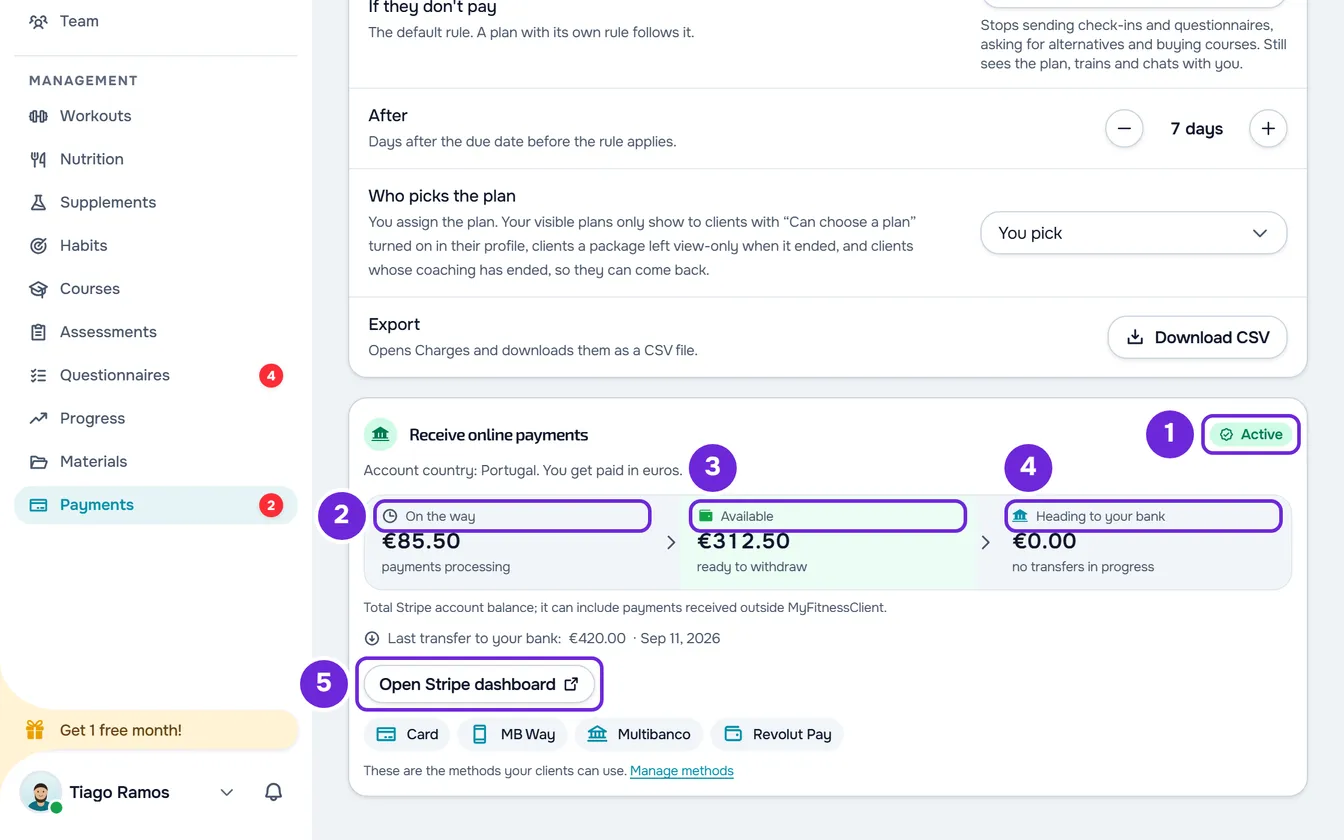
- Select the Settings tab. On a wide screen, the Receive online payments card appears next to the list of settings, with the Active 1 badge.
- On a narrow screen, select the Online payments row, which shows Active. The card opens in a panel.
- Read the three balance figures: On the way 2, Available 3 and Heading to your bank 4. What each one counts is in “What each figure shows”.
- When no transfers are on their way to your bank, read the Last transfer to your bank line, with the amount and arrival date of the last transfer. The line only appears if Stripe has already sent a transfer to your bank.
- To see everything in Stripe, select Open Stripe dashboard 5. The Stripe dashboard opens in another browser tab; if you are not signed in yet, sign in with your Stripe account.
You now know how much money Stripe is still processing, how much is already available and how much is on its way to your bank, with the expected arrival date.
What each figure shows
The three figures follow the path of the money, from the payment to your bank:
| Figure | What it counts |
|---|---|
| On the way | Money from payments that Stripe is still processing and that cannot go to the bank yet. On a wide screen, with the note “payments processing”. |
| Available | Money that Stripe has already released and that can go to your bank, on a green background. On a wide screen, with the note “ready to withdraw”. |
| Heading to your bank | The sum of the transfers to your bank that Stripe has already started and that have not arrived yet. With transfers on the way, the note says “arrives ~” and the expected date of the one that arrives last; with no transfers, it says “no transfers in progress”. |
- After the three figures, the card reminds you: “Total Stripe account balance; it can include payments received outside MyFitnessClient.”
- The figures are in the currency Stripe pays you in, the one shown in “You get paid in” at the top of the card. If your Stripe account has a balance in other currencies, that balance is left out: it is not converted or added.
- The Last transfer to your bank line only appears when no transfers are on the way, and it leaves out transfers that failed or were cancelled.
- On a narrow screen, each figure takes one line, without the notes “payments processing”, “ready to withdraw” and “no transfers in progress”. The date of Heading to your bank only appears when there is money on its way to the bank.
- Transfers to your bank are made by Stripe, according to your Stripe account settings. MyFitnessClient does not create them, does not schedule them and does not set timelines.
- The balance is read when you open the page. To update it, reload the page.
- If you turned on Hide money values in your account settings, the figures appear blurred. Select a figure to see it; select it again, or reload the page, to hide it again. Where the option is: Settings menu: where to find each option.
- After the Open Stripe dashboard button, the card shows the payment methods your clients can use. To change them, see Choose your clients' online payment methods.
Common problems
The card does not show the balance
The three figures only appear with the Active badge. With Verification pending, Stripe has not yet released transfers for your account: select Continue on Stripe and finish the verification, as Connect Stripe to receive online payments from clients explains.
With the Active badge and without the three figures, reading the balance failed, and the card shows no message. Requests to Stripe are limited to 10 per minute on your account, and opening the page several times in a row uses them up. Wait a minute and reload the page.
The balance does not match the charges
The balance is that of the whole Stripe account: it includes what you received in Stripe outside MyFitnessClient and counts only the currency Stripe pays you in. For the net amount of each online payment, see Fees on client online payments. To see the transactions one by one, select Open Stripe dashboard.
I got the “Stripe payout failed” notice
Stripe could not deliver a transfer to your bank. The notice gives the transfer amount and asks you to check your bank details in Stripe; only the workspace owner receives it. Opening it takes you to the Settings tab of Payments: select Open Stripe dashboard and check your bank details there. The card shows “The last transfer to your bank failed.” until a later transfer reaches your bank.
An error message appears on the card
- “We could not load online payments.”: reading the status of your Stripe account failed. Select Try again.
- “We couldn't start.”, after you select Open Stripe dashboard: the request failed, for example because you went over the limit of 10 requests per minute. Wait a minute and select Open Stripe dashboard again.
If this did not solve it, contact support with the badge the card shows, the exact message and the error reference, if the card shows one.
Questions
Can I withdraw the money or make a refund from here?
No. MyFitnessClient only shows the balance. Transfers to the bank and refunds are handled in the Stripe dashboard; for refunds, see Refunds and disputes for online payments.
When does the money reach my bank?
The “arrives ~” date comes from Stripe and is an estimate. MyFitnessClient does not set transfer timelines.
Why is On the way at zero?
Right now Stripe has no payments processing on your account.