
Before you start
- In a team workspace, you need the Payments > View permission. Without it, Payments does not appear in the side menu and the page shows “No permission to access”: see “No permission to access” and menu items missing for a member.
- Marking payments and giving or changing plans also requires the Mark paid and assign plans permission, and some actions are for the workspace owner only (see the table of actions). The server checks the same rules.
- A member with Client access set to Specific clients only sees the clients you assigned to them.
- The list has your active clients and also those whose coaching ended because their access period is over but who still owe you money for the plan: an unpaid plan, an unpaid charge or a subscription that Stripe could not charge. Scheduled clients, whose access starts on a future day, also appear, with the Scheduled badge next to the name. Clients you archived and clients who disconnected do not appear.
Interactive tutorial
Opens in the app and needs you to be signed in.
Steps
To see your clients' plan and payment status:
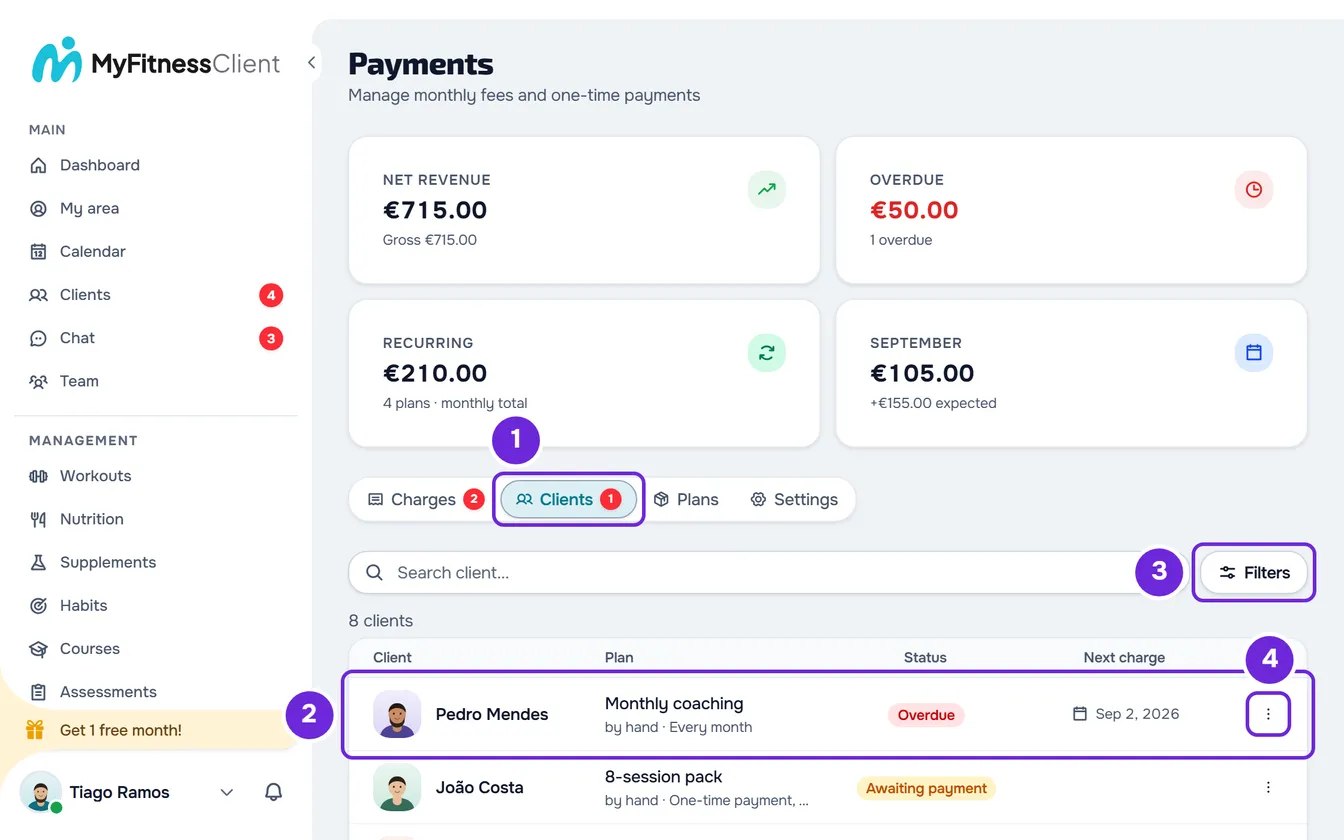
- In the side menu, under Management, select Payments.
- Select the Clients 1 tab.
- On each row 2, read the Client, the Plan, the Status and the Next charge. Under the plan name, a line says whether it is paid by hand or automatically and how often, for example “by hand · Every month” or, for a pack, “by hand · One-time payment, 30 days of access”.
- Optional: in the Search client... box, type the client's name or the nickname you gave them. The list updates 0.25 seconds after you stop typing.
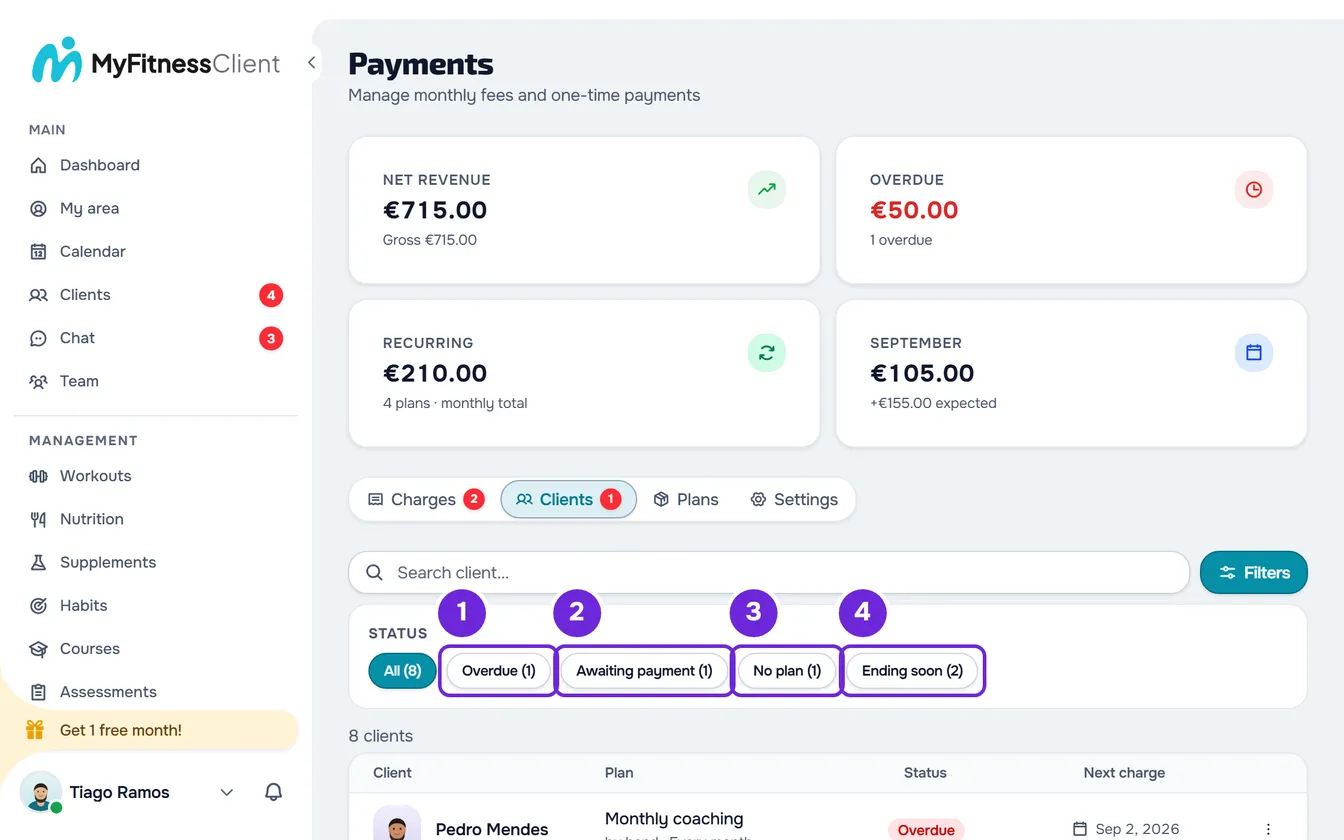
- Optional: select Filters (on a narrow screen, only the icon) and, in the Status group, choose Overdue 1, Awaiting payment 2, No plan 3 or Ending soon 4. Each option shows in parentheses how many clients it has, and All goes back to the full list.
- Optional: in the list footer, change page or choose under Show how many clients you see at a time: 10, 20 or 50.
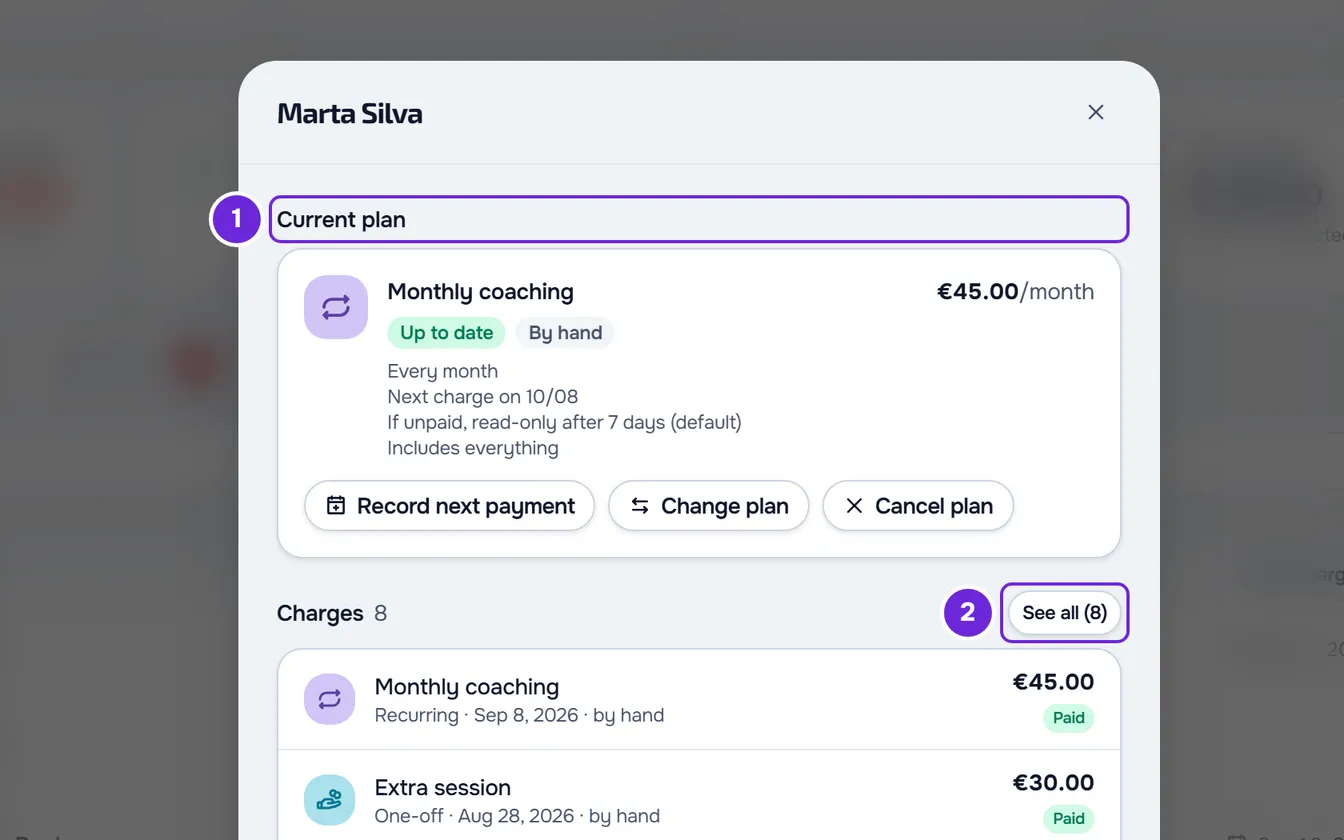
- Select a client's row. Their payments sheet opens in a window, with their name in the title.
- Optional: to act without opening the window, select ⋮ 4 at the end of the row or right-click the row and choose the action.
The list only shows the clients that match the search and the filter, with their number at the top, for example “12 clients”. First come the overdue clients, including those overdue on a monthly fee by hand or an automatic subscription outside a plan, then those with an unpaid plan, then the others and, last, the clients with no plan. Within each group, the order is alphabetical.
- The number next to the Clients tab is the number of overdue clients. With a search typed in, this number and the ones in the filters only count the clients that match it. The Recurring tile, at the top of the page, also opens this tab.
- The tab, the filter, the search, the page and the number under Show are kept in the page address. If you reload the page, or come back from the client's profile with the browser's back button, the list opens as you left it.
- On a narrow screen, each client is a card with the name and the status, the plan, the next plan and the date of the next charge. The column headers do not appear and the actions are in each card's ⋮.
Plan statuses
The Status column and the plan card use the same statuses:
| Status | When it appears |
|---|---|
| Up to date | The plan is active and has no past-due charge left to pay. For a pack, or a plan that no longer renews, the badge turns blue and shows the day and month it ends: “Access until” when the client loses access on that day (No access rule) and “Ends on” when they keep it. |
| Overdue | A plan charge is past due and unpaid, also when the client has already said they paid and you have yet to confirm it, or the plan's automatic subscription could not charge. |
| Awaiting payment | You gave the plan and it has not been paid yet. For an automatic plan, the badge says Awaiting card until the client saves their card; until then nothing is charged. |
| Ended | A pack, or a plan that no longer renews, whose paid period is over. |
| Paused | A monthly fee by hand outside a plan, paused: it does not charge, but it is still the client's plan. |
| No plan | The client does not pay in any way: no plan, no monthly fee by hand, no automatic subscription. With the Mark paid and assign plans permission, you see the Give plan button instead. |
A client who pays through a monthly fee by hand or an automatic subscription outside a plan shows Monthly fee by hand or Automatic subscription in the Plan column, with the price, and the status of that charge in the Status column. The Next charge column stays empty: the date is on the plan card.
The actions in the ⋮ menu
The ⋮ and a right-click on the row open the same menu, with the actions in this order. Only the ones that the plan and your role allow appear.
| Action | When it appears |
|---|---|
| Mark as paid | The plan has an unpaid or overdue charge that was not paid online. It opens Mark as paid for the oldest one. Requires the Mark paid and assign plans permission. |
| Mark next plan as paid | The next plan has an unpaid charge. Requires the same permission. |
| Change plan | For a catalog plan, it opens Give plan to swap it for another one and requires the same permission; for a running monthly plan that still renews, only the owner sees the action. For a custom plan, only the owner, and the plan is edited in place. |
| Give plan | The client has neither a catalog plan nor a custom plan, or has a custom plan, whose frequency only changes with a new plan. Requires the same permission. |
| View profile | Always. Opens the client's profile on the Payments tab. |
| Cancel next plan | The next plan is still unpaid. Requires the same permission and a confirmation in “Cancel the next plan?”. |
The next plan is a plan that waits behind the main one, unpaid or already paid and starting later. In the Plan column you read, for example, “Next: 10 Session Pack, awaiting payment” or “Next: 10 Session Pack, starts 11/03”. Each action is explained in Give a client a recurring plan or a pack, Change a client's plan, Cancel a client's plan and Mark a charge as paid.
A client's payments sheet
The window that opens when you select a row brings together a client's money without you leaving Payments:
- Current plan: the plan card, the same one as in the client's profile, with its buttons.
- Charges, with the total: the first 5, with the ones waiting for you at the front. Each row shows the name, the type, the due date, how it was paid, the amount and the status. With more than 5, the “See all” button with the total closes the window and opens the Charges tab already filtered by this client. With none, it reads “No charges for this client yet.”
- Past plans, only when there are any: the cancelled or ended plans, with the period, the price and the Cancelled or Ended label.
- Courses: the client's course purchases and subscriptions, only when there are any.
- At the bottom, Close and View full profile, which opens the client's profile.
The Payments tab in the client's profile
You get to it through View profile, in the ⋮ menu, or by opening the client's profile and choosing the Payments tab. It has, in this order:
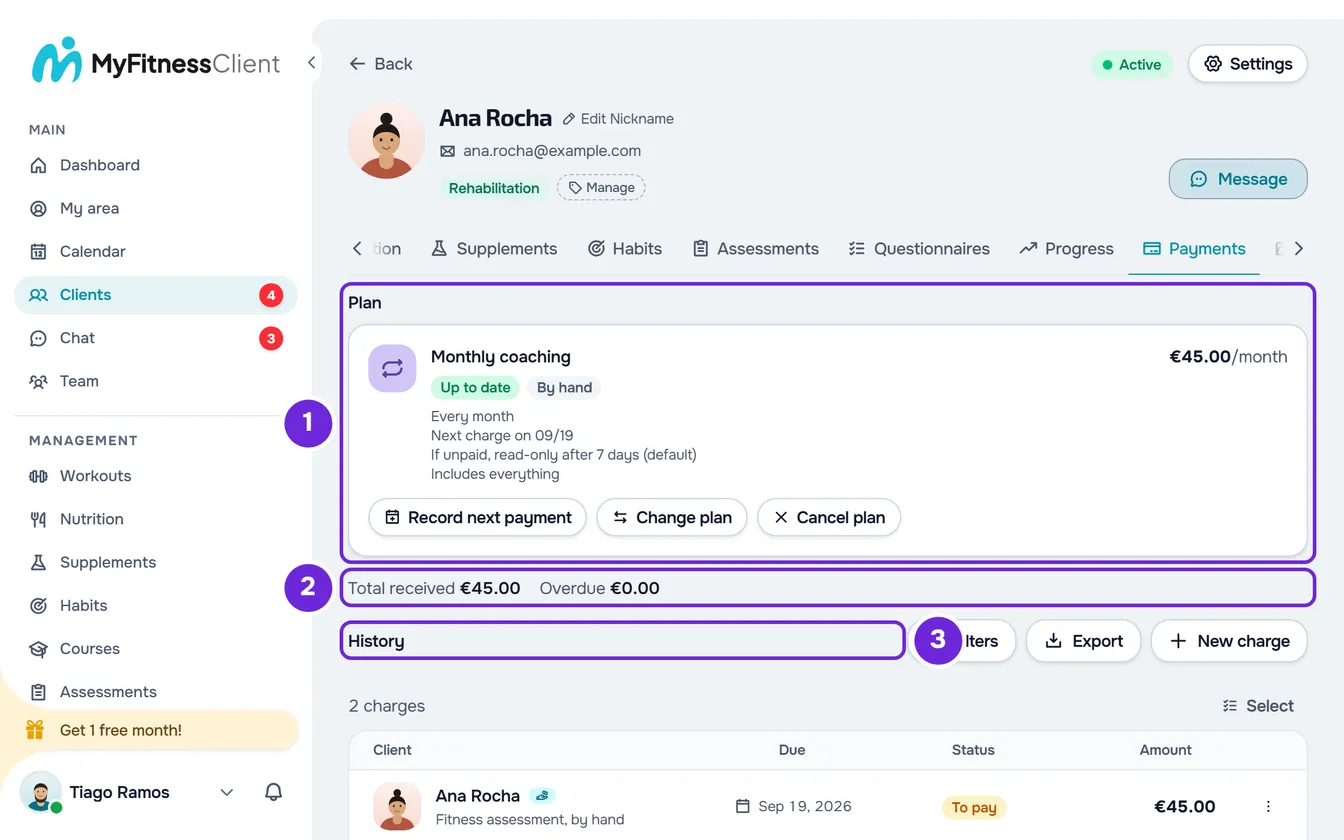
- Plan: the plan card.
- A line with Total received and Overdue: the sums of this client's paid and overdue charges, subscription invoices and course sales included, in your workspace currency. If reading them fails, “-” appears.
- Extras, only when the client has charges that repeat outside the plan: see Switch a monthly fee charged by hand to automatic payment.
- History: the list of charges, with only this client's charges and with the filters of the Charges tab (see Search, filter and open client charges). The owner has New charge here; for a client who is no longer active or scheduled, in place of the button you see “This client's coaching is closed. Reactivate them to make changes.”
The plan card shows:
- The name and the price, with how often it is charged, for example “/month”.
- The status labels and By hand or Automatic. When the Read-only rule has already limited the client for non-payment, “View only since” also appears with the day and month: the due date of the oldest unpaid charge, or the day after the pack ends.
- How often it is charged, for example “Every month”, and the next charge, for example “Next charge on 11/12”. For an unpaid automatic plan, you read, for example, “Nothing is charged until Ana saves their card.”
- The rule for when the client does not pay, for example “If unpaid, no access after 7 days (default)”. “(default)” means it comes from the rule in Payments > Settings: see Choose what happens when a client does not pay.
- What the plan includes: “Includes everything”, “Includes no sections” or the first two sections and the number of the others, for example “Includes: Workouts, Nutrition +3”.
- The buttons, depending on the plan and your permissions: Mark as paid; Record next payment, owner only, for a monthly fee paid by hand that is up to date with nothing unpaid, to record the next cycle as paid right away when the client pays in advance; Change plan; Give plan, for a custom plan; and Cancel plan.
- When there is a next plan, its line, with Mark as paid when it has an unpaid charge and Cancel next plan while it is unpaid.
Without a plan, the card says No plan and “Give them a plan from the catalog or a custom one.” If the client pays through a Monthly fee by hand or an Automatic subscription outside a plan, the card shows it with the price and the date, the status when it is not up to date, and says where you manage it. In both cases, with the Mark paid and assign plans permission, you have the Give plan button, and the owner also sees the Can choose a plan switch: see Let clients choose and pay for their plan themselves. Under the switch, “Follows the rule in Settings.” shows while the client follows the general rule; once you change it, Use the general rule puts them back on that rule.
Common problems
“Couldn't load the clients.”
The request for the list failed, for example because there was no connection. Select Try again. In the client's window and on the plan card, the same happens with “Couldn't load the history.” and “Couldn't load the plan.” If the error continues, see “We could not load this information” and other error cards.
“Ask the account owner for access to payments.”
It appears on the Payments tab of the client's profile to a member without the Payments > View permission. Ask the workspace owner to give it to you in Team > Edit permissions.
“No clients with this filter” or “No clients yet”
“No clients with this filter” appears when the search or the filter leaves no clients: change the filter or remove words from the search. “No clients yet” means there is no client you can see; for a member with Specific clients, it also appears while no clients are assigned to them.
If that did not solve it, contact support with the client's name, the filter you had and a screenshot: see Contact Support and create a request.
Questions
What counts as “Ending soon”?
A client whose plan ends between today and 7 days from now, both days included: a pack, or a plan that no longer renews. Without that date, the end of the client's access period counts; for a plan that renews, only if you set it by hand. See Access end date and the client's paid plans.
Why does a client whose coaching has ended appear in the list?
Because their access period is over and they still owe money for the plan. They stay in the list so you can collect it and leave it when they no longer owe anything.
Does a paused plan count as “No plan”?
No. A paused monthly fee by hand is still the client's plan: the status says Paused, there is no next charge and the client does not fall under No plan.
Does the Next charge date guarantee that the charge is created?
Not always. A monthly fee by hand that falls due on the client's last day of access or later no longer shows a date, except on a No access plan. The other cases are in Charge day of a manual monthly fee and end of access.