
When it happens
When you create your account, MyFitnessClient sends the “Confirm your email” message to your email address, with a 6-digit code and the Confirm email button. This article is for when:
- that email doesn't arrive, at the last step of sign-up on the website, on the Verify your email screen in the app, or on the verification page that opens when you sign in with an unconfirmed email;
- you type the code and see “Invalid code. Try again.”, “Code expired. Request a new one.” or “Too many attempts. Try again later.”;
- the code for the second step of two-factor authentication by email doesn't arrive, covered in the “Sign-in code” section.
Sign-up moves to the code screen as soon as the account is created, without knowing whether the email arrived. So start by checking the address that screen shows.
Causes and solutions
Check the causes in this order:
| What you see | Cause | What to do |
|---|---|---|
| The address on the code screen has a typo, for example [email protected]. On the website, “Did you mean [email protected]?” may appear under it. | The code was sent to the mistyped address. | Correct the email, as explained in the “Fix a mistyped email” section. Resend code doesn't help: it sends to the same address. |
| There is no new email in your inbox. | The email went to the spam folder, a promotions folder or another one. | Search for the subject “Confirm your email” in every folder, spam included. |
| You signed in to the website with your email and password and you are on the verification page. | On the website, signing in with an unconfirmed email opens the verification page but doesn't send a new code. The last one may already have expired. | Select Resend code and use the code from the new email. |
| “Resend in 45s” instead of Resend code, or “A code was sent a moment ago. Wait a minute before requesting another.” | A new code is only sent 1 minute after the previous one. | Wait for the countdown to end and select Resend code. |
| “Code expired. Request a new one.” | The code is more than 30 minutes old. | Select Resend code. |
| “Too many attempts. Try again later.” | There have already been 5 wrong attempts with this code. From then on, not even the right code is accepted. | Select Resend code. The new code is again valid for 30 minutes and 5 attempts. |
| “Invalid code. Try again.” In the app, “Invalid or expired code.” | A wrong digit, or the code from an earlier email: each new code cancels the code and the button in earlier emails. | Type the code from the most recent email. After the error, the boxes are cleared. |
| The same message with the code from the most recent email, or no email after Resend code. | The email is already confirmed, for example with the Confirm email button on another device. The response is the same when there is no account waiting for confirmation with that address, so as not to reveal which accounts exist. | Sign in with your email and password. |
Fix a mistyped email
The website compares what comes after the @ with a list of common email services, such as gmail.com, hotmail.com, outlook.com, icloud.com or sapo.pt. When the difference is a single wrong, extra or missing letter, or two adjacent letters swapped, it shows the corrected address in “Did you mean …?”. If two services are possible, it suggests neither. The suggestion never changes the email on its own and never stops you from continuing. A typo before the @, such as [email protected], gets no suggestion.
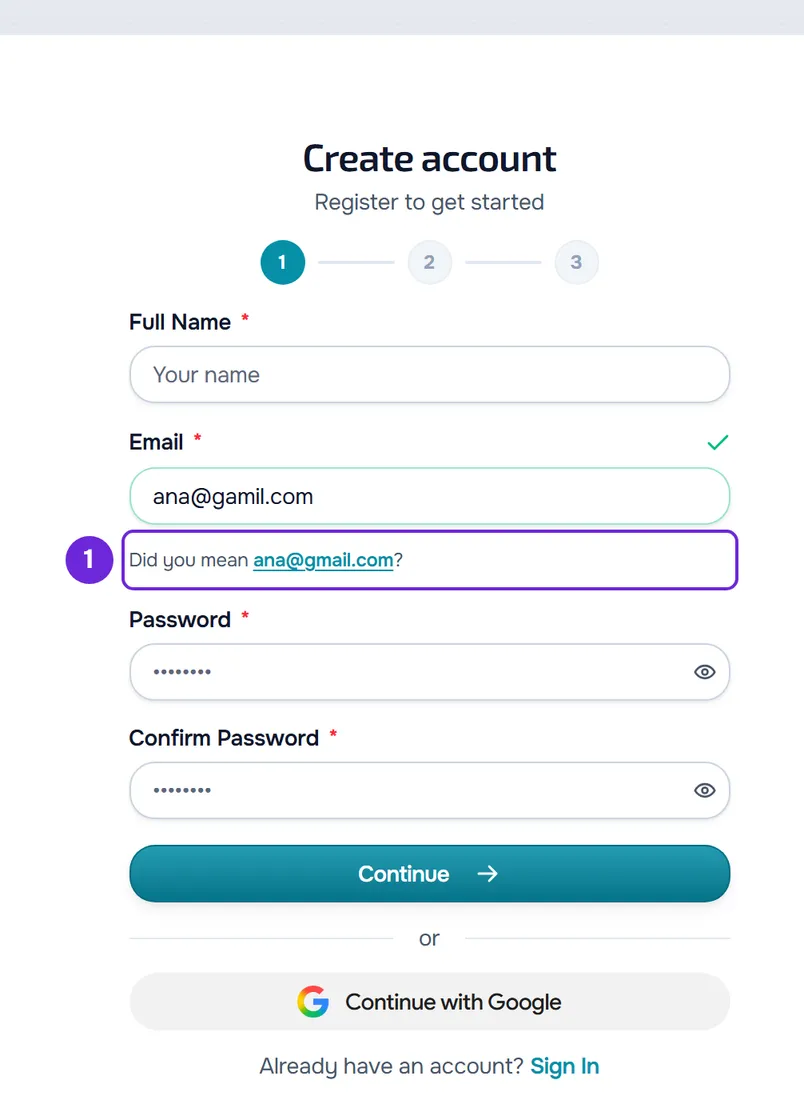
On the first step of sign-up, the suggestion appears under the Email field when you leave it. On the last step, it appears under the address: select the suggested address and you go back to the first step with it already in Email. Then follow the list from Continue.
To correct the email by hand after creating the account, on the website:
- On the last step of sign-up, in Verify your email, check the address after “Enter the 6-digit code sent to” 1.
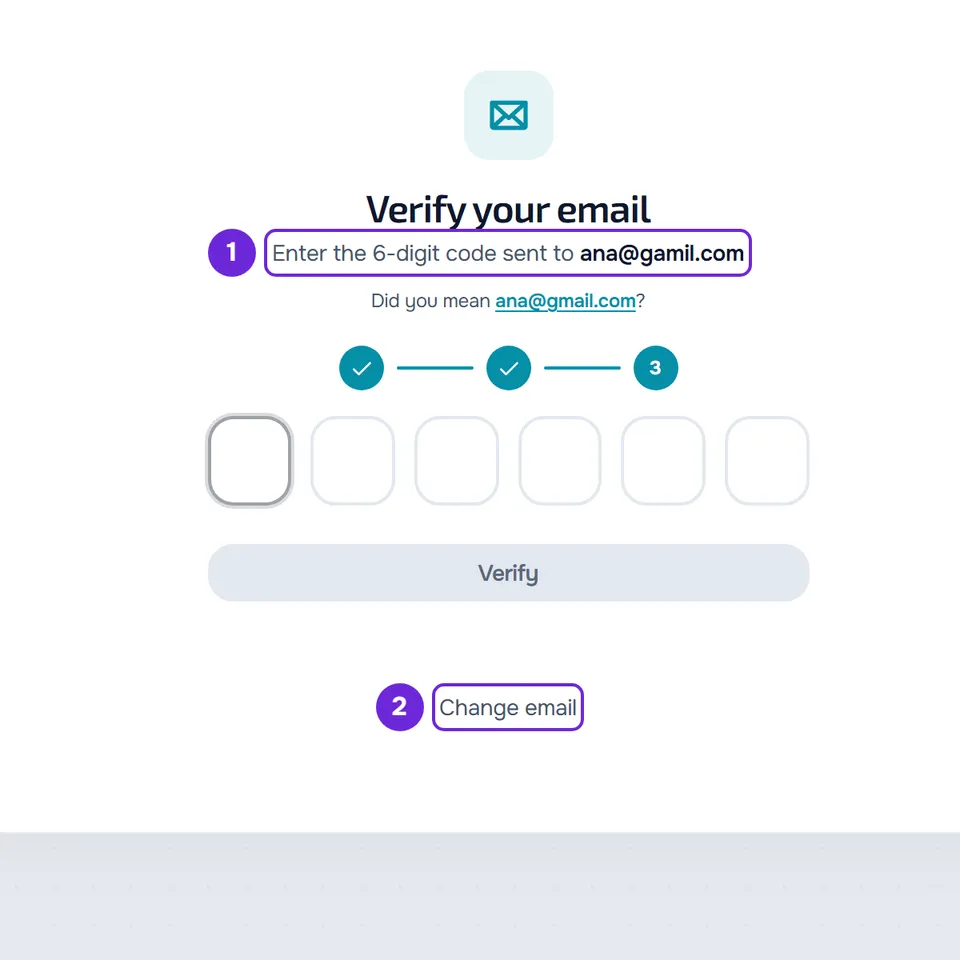
- Select Change email 2, under the Verify button. You go back to the first step, with the fields filled in.
- Correct the address in Email.
- Select Continue.
- When the security check finishes, select Create account.
- Type the 6-digit code from the email that reaches the right address.
The account is confirmed at the right address. The account created with the wrong address stays unconfirmed.
On the verification page
The verification page, which opens when you sign in to the website with an unconfirmed email, doesn't have Change email. If “Did you mean …?” appears, select the suggested address: sign-up opens with that address in Email and you fill in the rest again. With no suggestion, select Back to sign-up and create the account with the right address.
In the app
The app doesn't suggest corrections. The Verify your email screen shows the address we sent the code to. If it is wrong, select Back to sign-up. You go back to the last step of sign-up: select Back to go to Your details, correct the Email, select Continue and then Create account.
Sign-in code
With two-factor authentication by email, every sign-in sends the “Your sign-in code” email, with another 6-digit code. Spam, the 1-minute wait to resend, a wrong digit and the code from an earlier email apply to it too. The differences:
- The code is valid for 10 minutes. Resend code appears 1 minute after the code is sent, and the new code doesn't reset the attempts.
- On the website, when you type an expired code, or a code after 5 wrong attempts, you go back to the sign-in form with a message that starts “Your verification session expired.”. In the app, “Code expired. Request a new one.” or “Too many attempts. Try again later.” appears: select Back to sign in. Sign in again to get a new code.
- After 5 wrong attempts, you only get a new code once the 10 minutes of the last one have passed. Before that, “Too many attempts. Try again later.” appears when you sign in.
- With an authenticator app, the code comes from that app and no email arrives. See Turn on two-factor authentication (2FA).
Times and limits
The 6-digit codes MyFitnessClient sends by email to sign in to your account and protect it:
| Email subject | What it's for | Valid for | Wrong attempts | New code |
|---|---|---|---|---|
| “Confirm your email” | Confirm the email of a new account | 30 minutes | 5. A new code resets all 5. | 1 minute after the previous one |
| “Your sign-in code” | Second step of two-factor authentication by email | 10 minutes | 5 per sign-in. A new code doesn't reset them. | 1 minute after the previous one |
| “Code to turn off two-factor authentication” | Turn off two-factor authentication | 10 minutes | 5. A new code resets all 5. | 1 minute after the previous one |
| “Your confirmation code” | Change the email or delete the account, on an account without a password, created with Google or Apple | 10 minutes | 5. A new code resets all 5. | 1 minute after the previous one |
In all of them, the new code cancels the previous one. Password recovery and confirming the new email, when you change your email, arrive as a link and not as a code: see Reset a forgotten password and Change your account email.
Questions
I opted out of promotional emails. Will I stop getting the codes?
No. Emails with codes are sent even if you opted out of MyFitnessClient promotional emails.
I closed the sign-up page. Where do I type the code?
Sign in with your email and password. On the website, the verification page opens, where the code from the email stays valid until it is 30 minutes old. In the app, we send a new code and the code screen opens. The rest is in Verify your email with the 6-digit code or the link.
If this did not solve it
Write to [email protected] and send:
- the email you created the account with, exactly as you typed it;
- whether you were on the website or in the app;
- the day and approximate time you requested the code;
- the message that appeared, if any.
For other errors when signing up or signing in, see I can't sign up, sign in or reset my password.