
Before you start
- In a team workspace, you need the Payments > View and Mark paid and assign plans permissions. Without View, Payments does not appear in the side menu; without Mark paid and assign plans, the charge's ⋮ has no Send reminder: see “No permission to access” and menu items missing for a member. The workspace owner always has these permissions.
- You can only send reminders for To pay or Overdue charges. A To confirm charge already has the client's “I've paid” and is handled in Review request: see Confirm or reject a client's “I've paid”. Invoices for automatic subscriptions and course sales have no reminder.
- The client must be active with you, or have access scheduled to start later. Reminders are not sent to a client who has already left: the ⋮ of their charges has no Send reminder.
- The reminder goes out right away, with no confirmation window, using the text of the system's payment notices. To write the client a message of your own, use the chat.
- To find the charge in a long list, see Search, filter and open client charges.
Steps
To send a payment reminder:
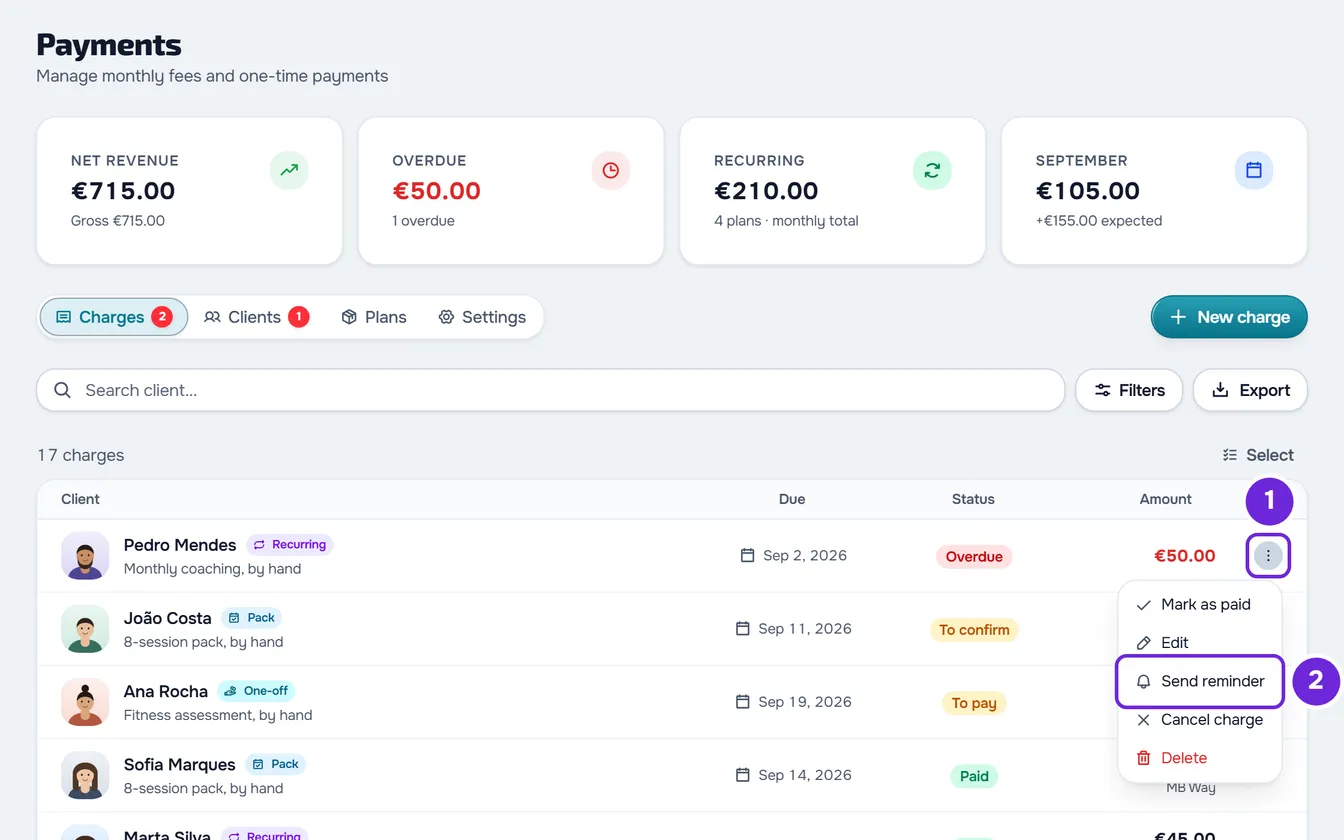
- In the side menu, under Management, select Payments. The page opens on the Charges tab.
- On the To pay or Overdue charge, select ⋮ 1 at the end of the row, or right-click the row.
- Select Send reminder 2.
“Reminder sent” appears. The charge keeps the same status, the same amount and the same due date.
The same menu is in the client profile, on the Payments tab, in the History list.
What the client receives
The reminder always reaches the client's notification bell. By push and by email, it arrives if they have that channel and payment notices turned on in their notification preferences. The text depends on the charge:
- A charge that is not due yet, or is due today: the amount and the day by which to pay.
- A charge that is already past due: the amount and how many days it has been unpaid, counted by the client's local date.
- A charge for a plan with the If they don't pay rule set to No access: the bell and the push do not show the amount. Up to the due date, the notice gives the plan name and the day it is due; after that, how many days ago it was due. The email shows the amount.
If the client still had an earlier notice for that charge unread, that notice is marked as read: only the most recent one stays in the bell. When they open the notice, the client goes to their payments. What they can do from there is in Pay what you owe your professional online with Pay now and in Mark a payment made outside the platform as paid. Each plan's rule is chosen in Choose what happens when a client does not pay.
How many reminders you can send
The server applies two limits to reminders:
| Limit | How it counts |
|---|---|
| 1 reminder per charge every 24 hours | Counts for the charge, whoever sends it: you or another team member. The 24 hours start when it is sent. If the bell notice is never created, the reminder does not count; if only the push or the email fails, it counts. Automatic overdue notices do not count. |
| 20 reminders per minute | Counts per person, across all charges, and includes refused attempts. |
Reminders and automatic notices
Besides your reminders, MyFitnessClient notifies the client on its own about a To pay or Overdue charge that is past its due date, from 09:00 their local time:
- On day 1 and day 3 after the due date: in the bell and, if they have push and payment notices turned on, also by push.
- On day 7 after the due date: by email only, if they have email and payment notices turned on.
After day 7 there are no more overdue notices for that charge: from then on, only your reminders. If one of these notices falls within the 24 hours after a reminder of yours, it is not sent that day, so the client does not get two notices in a row. Automatic notices are not sent to clients with scheduled access. On the day a charge restricts the client's access, they get the restricted access notice; while access is restricted by that charge, it does not get the day 1 and day 3 notices. What the client sees with an overdue charge is in Payment overdue: what is paused and how to settle it.
Common problems
“You already sent a reminder for this charge in the last 24 h. You can send another in N h.”
There was already a reminder for this charge in the last 24 hours, sent by you or by another team member. N is the number of hours left, rounded up. Wait that long; in the meantime, you can write to the client in the chat.
“You sent a reminder a moment ago. Try again later.”
You went over 20 reminders in one minute. Wait a minute and try again.
“This action is no longer possible in this state.”
The charge stopped being To pay or Overdue after you opened the page (it was paid, cancelled, or the client said they had already paid), or the client is no longer active or scheduled with you. Reload the page and check the charge's status. A To confirm charge is handled in Review request. Reminders are not sent to a client who has left.
“You have more active clients than your plan allows. Choose which to keep or upgrade your plan.”
The workspace is frozen and does not accept changes, reminders included. See You have more active clients than your plan allows.
If that did not solve it, contact support with the client's name, the charge's amount and due date, and the exact message that appeared.
Questions
Can I send reminders to several clients at once?
No. Reminders are sent charge by charge, from each one's ⋮.
Can I change the reminder text?
No. The reminder uses the text of the system's payment notices. For a message of your own, write to the client in the chat.
Does the reminder change anything on the charge?
No. The charge keeps the same status, the same amount and the same due date until it is paid or changed.
Do automatic notices count toward the 24-hour limit?
No. Only reminders sent with Send reminder count. The other way round, a reminder of yours skips that day's automatic notice when the two fall within the same 24 hours.