
Before you start
- Your account email has to be confirmed. If it isn't yet, the website opens Verify your email without sending a new code: use the one you received or select Resend code. The app asks for a new code by itself. See Verify your email with the 6-digit code or the link.
- If you're a professional, you sign in on the website. The phone app is for clients only: with a professional account, it shows “This app is exclusively for clients” and the Open web version button.
- If you created your account with Google or Apple, sign in with the same button: see Sign in or create an account with Google or Apple. If you forgot your password, see Reset a forgotten password.
Steps
To sign in on the website, as a professional or as a client:
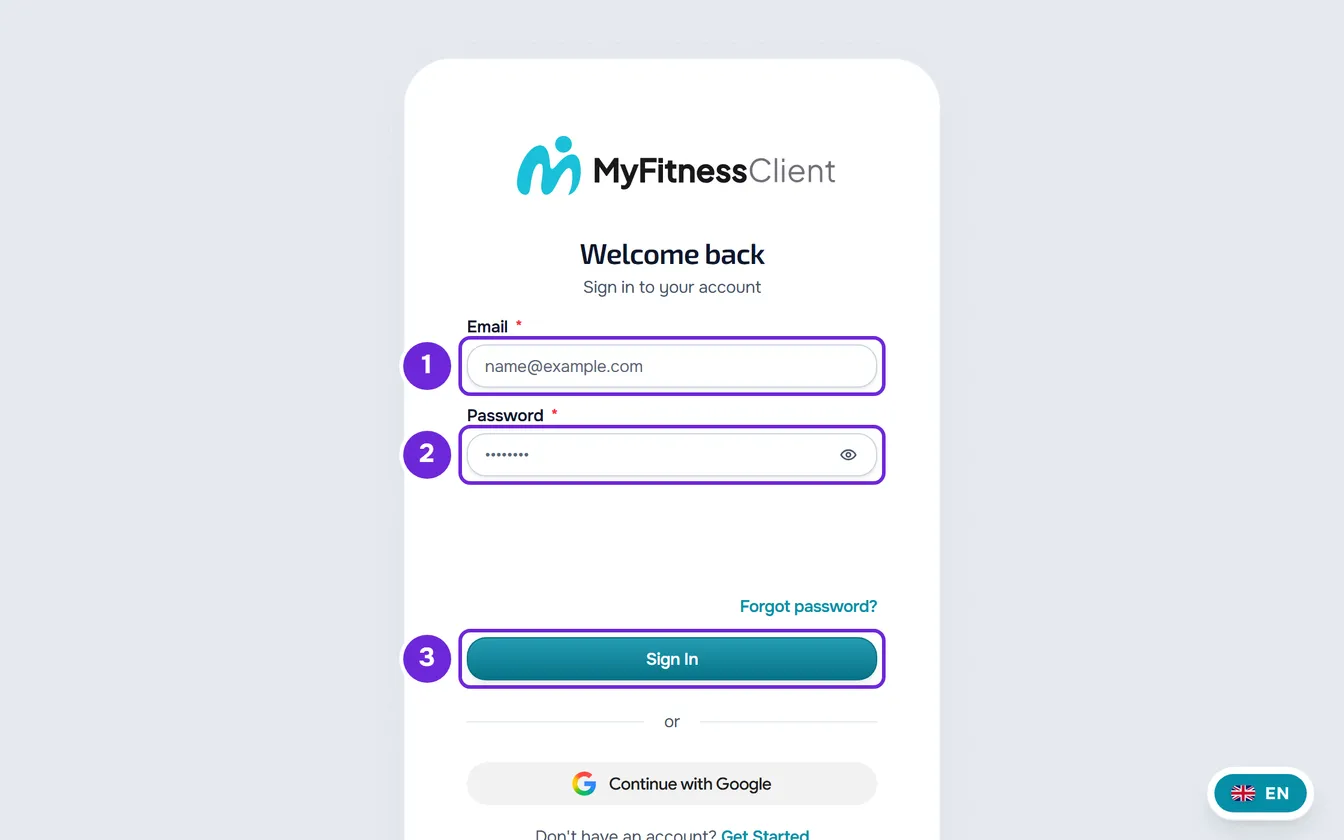
- On the MyFitnessClient home page, select Sign In. On a phone, the button is in the page menu.
- Enter your account Email 1 and Password 2. The eye icon in the password field shows or hides the password.
- Wait for the security check under the password to finish.
- Select Sign In 3, or press Enter in either field.
- If the account has two-factor authentication turned on, enter the 6-digit code on the Security Verification screen: the one sent by email or the one from your authenticator app. The code is sent automatically when you enter the sixth digit.
You land in your area: the Dashboard if you're a professional, or the client app if you're a client. If the website took you to the sign-in page from a page in your area, you go back to that page.
In the app
- On the welcome screen, select I already have an account. In a professional's own app, the main button is Sign in.
- Enter your Email and Password and select Sign in. The app doesn't have the website's security check: the phone is verified without you doing anything.
- If the account has two-factor authentication turned on, enter the code on the Security verification screen.
- If the phone fails the check, you see “The security check did not work on this device. You can sign in on the website.” and the Sign in on the website button, which opens the sign-in page in the browser.
Sign out
Signing out ends your session only on the device you're using. Sessions on other devices stay open: to end them, see View and end the open sessions on your account.
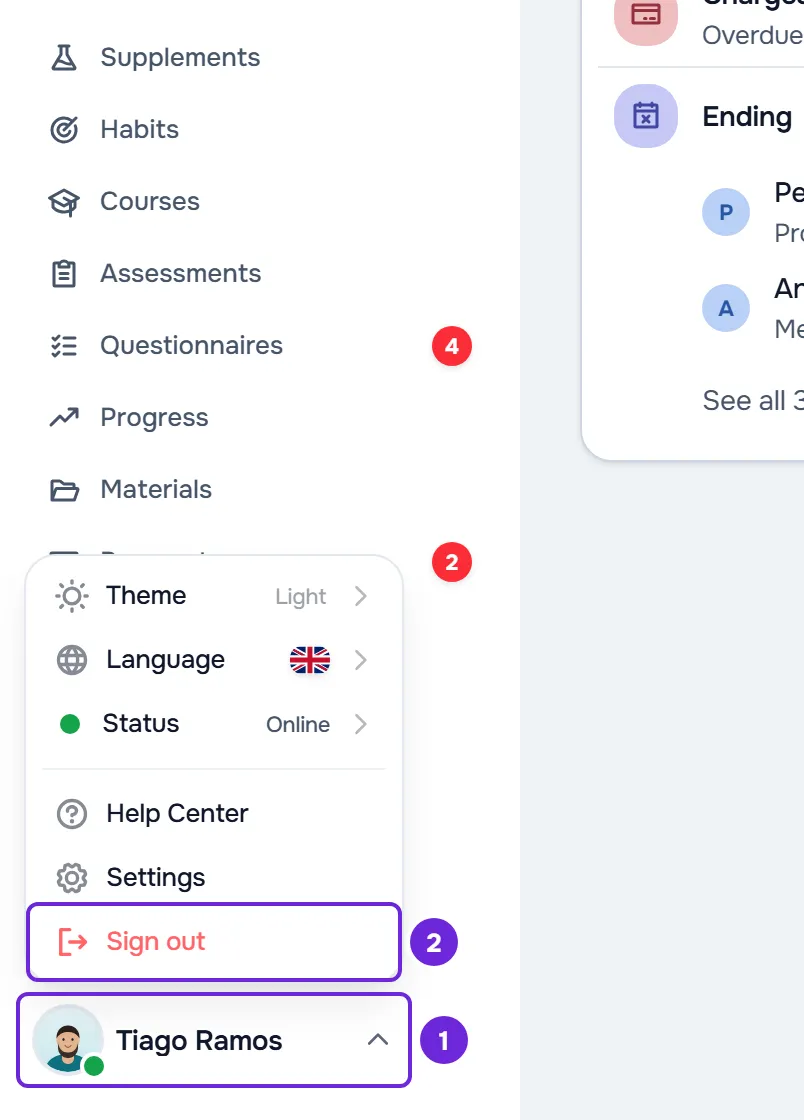
- On the website, on a computer: select your photo and name at the bottom of the side menu, then Sign out, the last item, in red. In a client account, the item is called Log Out.
- On the website, on any screen: open Settings and select Log Out, in red, at the end of the menu. On a phone, Settings is at the bottom of the menu.
- In the app: open the menu, select your name at the bottom of the menu, then Sign out, the red button at the end of Settings.
On the website, you go back to the sign-in page and this browser stops receiving the account's push notifications. If you have unsaved changes in Settings, the Save before leaving? window opens first, with Save and leave and Discard. In the app, you go back to the welcome screen.
What stays on the phone
- If there are records saved only on the phone (unsent or waiting for review, a workout in progress or a draft that wasn't saved), the Sign out with unsent records? window opens, with Cancel and Sign out and delete. Cancel keeps you signed in so you can sync first. Sign out and delete signs you out and deletes those records, which the professional never receives.
- When you sign out, the app ends this phone's session, stops receiving the account's notifications and clears what it had loaded, such as cached images.
- The copy saved so you can use the app without internet stays on the phone, encrypted and locked. It opens again when the same account signs in again; another account that signs in on this phone can't read it.
- Only Sign out and delete, deleting the account or uninstalling the app empties that copy.
Common problems
“Incorrect email or password.”
The email or the password isn't right. The same message appears when there's no account with that email and when the account was created with Google or Apple and doesn't have a password yet. Check the email, sign in with the Google or Apple button, or select Forgot password? to set a new one. The app shows the same message.
“Too many requests. Wait a moment.”
There were too many rejected sign-ins in the last minute: 5 for the same account, from the same network, block the next ones. Every wrong password counts, and so does every rejection for an inactive account or an unconfirmed email; a sign-in that goes through doesn't use up attempts. On the website, the sign-in button shows a padlock and the seconds left: wait for the countdown to end. In the app, the message starts with “Too many attempts.” and there's no countdown: wait a minute before you try again.
“Account inactive.”
The account is deactivated and won't let you sign in, even with the right password. The causes and how to recover it are in “Account inactive.” at sign-in: causes and how to recover the account. In the app, the message is “This account is deactivated. Contact support to reactivate it.”
“Security check failed. Try again.”
The website didn't accept the security check, for example because it expired. The check starts over by itself: wait for it to finish and select Sign In again. If you see “Verifying captcha...”, the check hadn't finished yet when you selected the button: wait a few seconds and, if the sign-in doesn't go ahead by itself, select the button again.
All the messages, with the cause and what to do, are in I can't sign up, sign in or reset my password.
Questions
Why don't I see the sign-in form?
You're already signed in on this browser. The sign-in page takes you straight to your area, and the home page shows Open the app instead of Sign In. To sign in with another account, sign out first.
Why did the language change after I signed in?
After you sign in, the website uses your account language, even if the sign-in page was in another one. To change it, see Change your account language.
How long does the session stay open?
While you use MyFitnessClient on that device, the session renews by itself. If the device goes 30 days without renewing it, the session ends and you have to sign in again. Changing or resetting your password ends the session on every device.
Can I be signed in on several devices?
Yes. Each browser and each app has its own session, and signing out on one of them doesn't close the others.
My session ended without me signing out. Why?
There are several causes, such as the password being changed on another device or the session being ended from the session list. See the causes and what to do in Why was I signed out of my account?