
This happens when the MyFitnessClient team migrated your account from another platform and the dashboard shows fewer clients, exercises, programs or photos than you had there. Before you conclude they were lost, check the causes on this page: the data may be in another workspace, behind a filter or stored in your library.
Start with the migration report
The team closes each migration with a report for you. It says what came across, the decisions the team made for you, what needs your input, what did not come and how it was checked. If what you are looking for is on the list of what did not come, it is not an error. If you disagree with a decision, tell the team through the channel where you asked for the migration.
Causes and solutions
Check the causes in the order of the table.
| What is missing | Cause | What to do |
|---|---|---|
| The clients, the programs or the exercises, all at once. | You are in another workspace. Clients, programs and the My Exercises list belong to each workspace, and the MyFitnessClient team writes the migration into only one. If you are also a member of another professional's team, the dashboard may open in that team's workspace. | Switch workspace, as the “Switch workspace” section explains. |
| Everything that was migrated. | You signed in with another account. The migration is in the account you gave the team, which may have a different email from the one you used on the other platform. | Sign out and sign in with that account's email. |
| Clients you no longer coach. | They are archived. At the end of the migration, the team archives anyone confirmed as a former client, and the Clients list opens on All, which only shows active and scheduled clients. | Look for them in Inactive, as the “See inactive clients” section explains. |
| Some of the clients. | Your plan did not have slots for all of them. The migration respects the plan's client limit: anyone who does not fit is not created. | Check how many slots your plan has. When you have free slots, ask the team to migrate the missing clients. |
| Progress photos. | They come in a separate step, after the other data, and may arrive later. | Ask the team about the status of the photos, through the channel where you asked for the migration. |
| A client's programs or meal plans. | Each client follows one program and one meal plan at a time. If the client had several on the other platform, the team assigns one and leaves the others in your library, with no client, or merges them into one. | Look for the others in Workouts, on the Programs tab, and in Nutrition. The report says which one was assigned. Assigning another one to the client removes the current one. |
| An exercise, or the name you used for it. | The exercises you created, or gave your own video, stay in My Exercises with the name you used. An exercise from the other platform's catalog, with no video of yours, is linked to the MyFitnessClient catalog entry when there is one that means exactly the same: it takes that entry's name, video and description. With no matching entry, it stays in My Exercises with the name you used. | In Workouts, on the Exercise Library tab, look for it in the MyFitnessClient Library list too, by the name of the movement. |
| A whole area, such as nutrition or supplements. | Your plan does not include that area. The migration follows your plan, so what the plan does not include stays unmigrated. | Open that area's page, for example Nutrition. If, instead of your data, the page presents the feature with the View plans button, this is the cause. After you change your plan, ask the team to migrate that part. |
| What you recorded on the other platform after the migration. | The migration brings what existed on the other platform when it was done. What you or your clients recorded there afterwards does not come by itself. | Ask the team for an update. It brings over only what changed on the other platform after the migration and does not touch what you have already changed in MyFitnessClient. |
| The client's access to the app. | The team creates migrated clients as profiles without an account and sends them no invite or email: inviting is your decision. In the list, they have the No app access status. | Open the client's profile and select Invite to the app. The button does not appear on an archived or ended client: reactivate the client first. When the client's account is linked to the profile, what was migrated moves to that account. |
| Workouts, plans or history, after you imported a file. | There was no migration. Import from a file only creates the clients, with their name, email and phone number. | Ask the MyFitnessClient team for the migration, through any contact channel. It is free and the team does the migration for you, from any platform. What comes across depends on what that platform allows to be read. |
To see what your plan includes and how many clients it allows, see View your plan, what it includes and how much you use. The screen that appears in an area the plan does not include is explained in Feature locked by your plan: what it means. If an exercise does not appear in either of the two lists, see Can't find an exercise in the library.
Switch workspace
The workspace switcher only appears when you have two or more workspaces, that is, when you are also a member of another professional's team. If you do not see it, this is not the cause. To switch workspace:
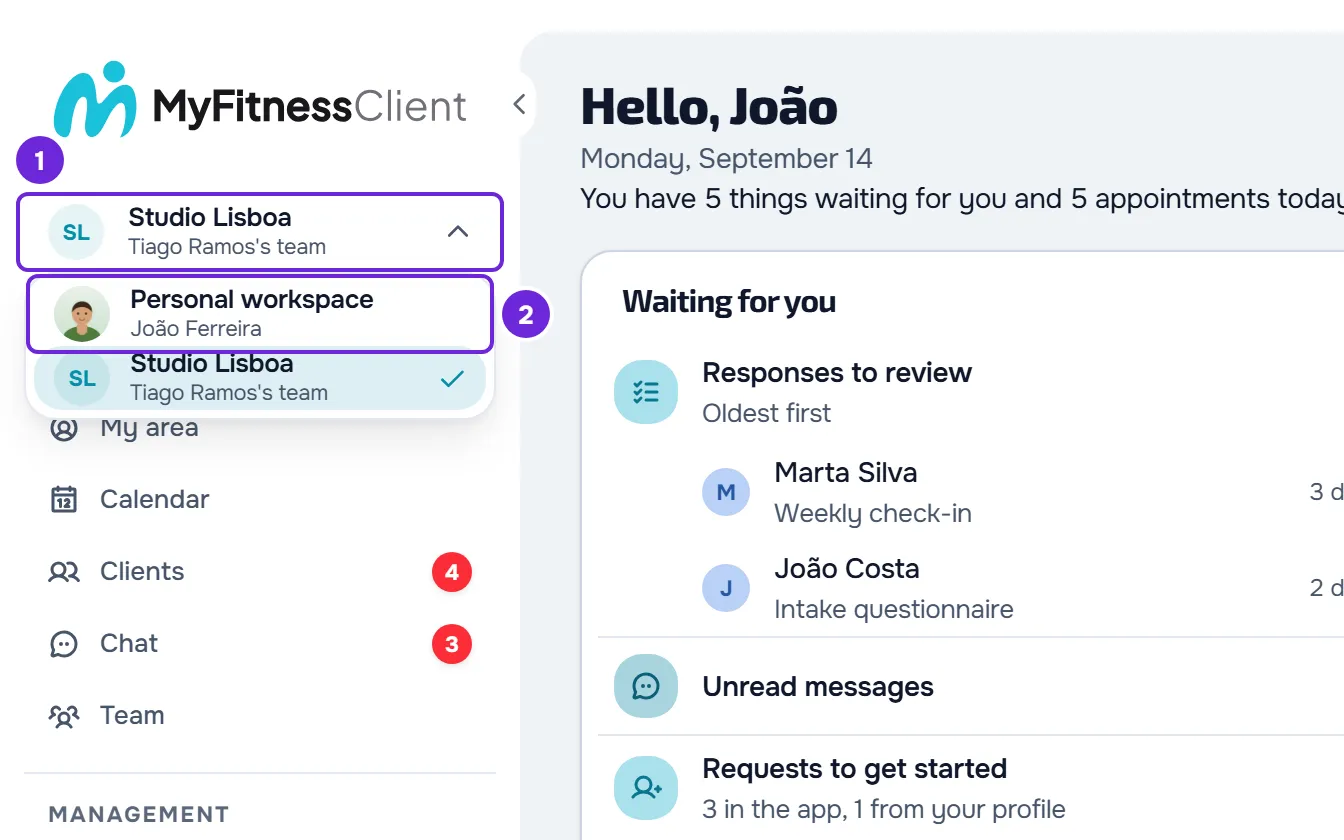
- At the top of the side menu, open the workspace switcher 1. The button shows Personal workspace or the name of the team you are in. On a phone, open the side menu first.
- In the list, choose the workspace 2 you asked the migration for. The workspace you are in has a check mark.
The dashboard reloads and opens the home of the chosen workspace, with its clients, programs and exercises. If the data is there, that is the workspace the migration went into. If it should have gone into the other one, tell the MyFitnessClient team.
See inactive clients
To see archived clients and those whose access period has ended:
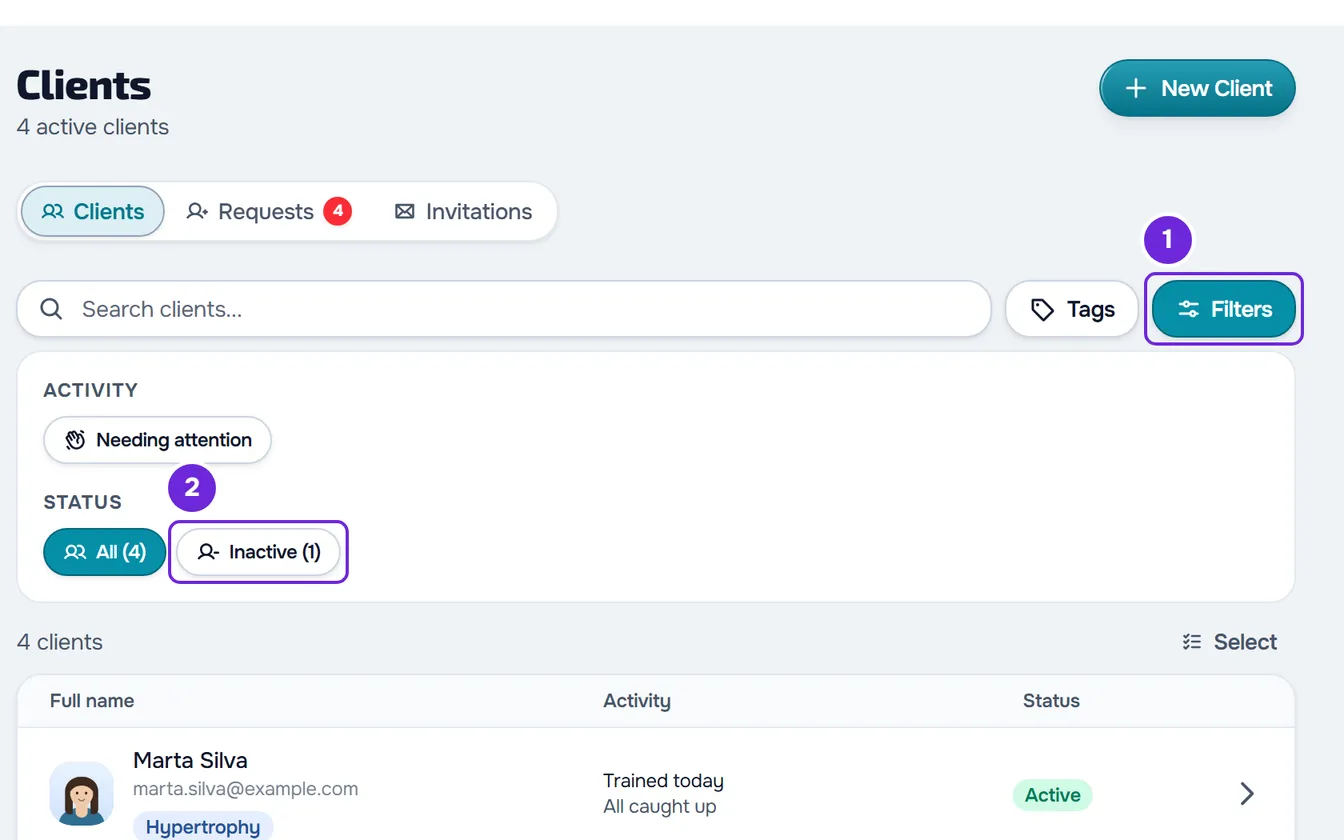
- In the side menu, select Clients.
- Select Filters 1. On a phone, the button shows only the icon.
- Under Status, select Inactive 2. The number in parentheses says how many clients are inactive.
- Optional: to reactivate a client, right-click their row and choose Reactivate. To reactivate several, select Select, tick them and select Reactivate in the bar that appears.
The list shows the inactive clients instead of the active ones. After you reactivate, a notice says how many clients were updated and, if any were left out, how many were skipped.
How slots are counted is in Client limit and occupied slots on your plan. In a team workspace, a member only reactivates clients with the Deactivate permission under Clients.
A client the other platform showed as archived may also be in All. The team first confirms what “archived” meant there and, if the client had recorded activity, leaves the client active so that you decide whether to archive them.
If this did not solve it
Contact support (see Contact Support and create a request) or reply through the channel where you asked for the migration. Send your account's email, the name of the platform you came from, the workspace you are in and what is missing, with a concrete example: a client, a program or an exercise.