
Before you start
- In a team workspace, you need the Payments > Mark paid and assign plans permission. Without it, the charge row only opens the details and Mark as paid does not appear: see “No permission to access” and menu items missing for a member. The workspace owner always has this permission.
- You only mark by hand a To pay or Overdue charge that was not paid online. If the client has already said they paid, the charge is To confirm and is handled in Review request: see Confirm or reject a client's “I've paid”. An online payment changes to Paid on its own, and invoices for automatic subscriptions and course sales do not have this action.
- MB Way and Multibanco only appear as methods if your workspace is in Portugal: see Choose the country and currency you charge in.
- To find the charge in a long list, see Search, filter and open client charges.
Steps
To mark a charge as paid:
- In the side menu, under Management, select Payments. The page opens on the Charges tab.
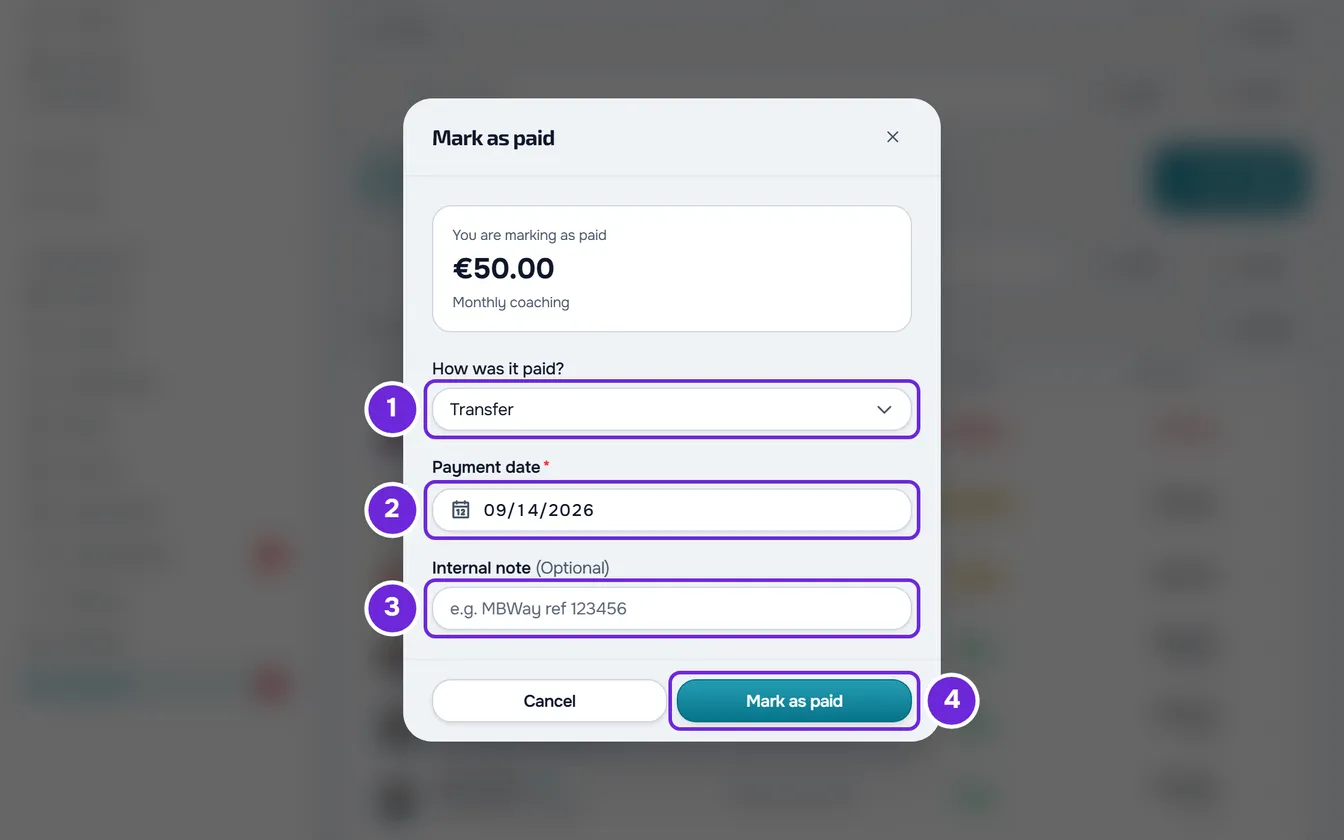
- Select the row of the To pay or Overdue charge. Alternatively, select ⋮ at the end of the row, or right-click it, and choose Mark as paid. The Mark as paid window opens, with the amount and the description of the charge or the name of the plan.
- Under How was it paid? 1, choose how the client paid you: Transfer, Cash, Card or Other. In a workspace in Portugal, the list also has MB Way and Multibanco.
- Under Payment date 2, confirm the day you received the money or choose another one. The field starts with today's date; if you choose a future day, it goes back to today and “The date cannot be in the future.” appears.
- Optional: under Internal note 3, type a reference, for example the transfer number or the name of the person who paid. It accepts up to 500 characters and the client does not see it.
- Select Mark as paid 4. The button only becomes active after you choose the method.
“Charge marked as paid” appears and the window closes. The charge changes to Paid, with the method you chose, and the day you chose shows in the charge details, under Paid on. If the charge was Overdue, the red number on Payments goes down.
If you close the window after choosing the method, changing the date or writing the note, “Save before leaving?” appears: Discard closes without marking anything and Save and leave marks the charge as paid. With no method chosen, Save and leave marks nothing: the notice closes and the method field shows the error.
What changes when you mark as paid
Besides the charge status, marking as paid changes the following:
| Case | What happens |
|---|---|
| Any charge | The client gets the “Payment confirmed” notice, with the amount, in the bell and, if they have push notifications turned on, also as a push notification. The notice they had about this charge in the bell is marked as read. They do not get an email. |
| You wrote an Internal note | The note replaces the charge's existing Internal notes. If you leave the field empty, the notes already there stay. |
| Charge for a monthly fee | The plan moves forward one cycle. The next charge counts from this one's due date, not from the day the client paid: paying late does not change the day of the monthly fee. |
| Charge for a pack | The pack's access days count from the Payment date. They can start later, if the client's access has not opened yet or if they already have paid days from another plan. |
| Plan waiting for its first payment | The plan becomes active. |
| Charge for a “pay to join” request | The request is accepted and the client is linked to you. |
| The client had opened the online payment for this charge and did not finish it | That online payment is closed before the charge changes to paid, so the client does not pay twice. |
The day of monthly fees is explained in Charge day of a manual monthly fee and end of access and the “pay to join” request in Require a package payment before a client joins. A payment marked by hand does not generate a receipt: see Receipts and invoices for client payments.
Other places where you mark as paid
The same Mark as paid window also opens from:
- In Payments, on the Clients tab: in the ⋮ of the client's row, or with a right-click on it, Mark as paid marks the oldest unpaid charge of their plan, and Mark next plan as paid marks the next plan's charge, when it already has one. If you select the row, a panel opens with the plan card, with the same buttons as in the profile.
- In the client's profile, on the Payments tab: the plan card has the Mark as paid button when the plan has an unpaid charge, and another one on the next plan's row. The History list on the same tab works like the one on the Charges tab.
If the client is still restricted after you mark the payment, see Common charge problems and how to fix them.
Common problems
“This action is no longer possible in this state.”
The charge changed after you opened the window: another team member marked it, the client said they had already paid and it changed to To confirm, or it was cancelled. If the change happened at the same moment you marked it, the message is “This payment changed in the meantime. Reload and try again.” Close the window, reload the page and check the charge status: a To confirm charge is handled in Review request and a Paid one needs nothing else.
“An online payment is in progress. Wait a few minutes and try again.”
The client paid this charge online and the confirmation of that payment has not arrived yet, or it was not possible to check whether they have already paid. Wait a few minutes and reload the page: when the online payment is confirmed, the charge changes to Paid on its own and you do not need to mark it. If the client asked for a Multibanco reference in the online payment, the message repeats until they pay the reference or it expires.
The Mark as paid button does not become active
You have not chosen the method yet. Under How was it paid?, choose one of the methods in the list and the button becomes active.
Another message appears when you select Mark as paid
The window stays open and nothing is recorded. The possible messages:
- “You have more active clients than your plan allows. Choose which to keep or upgrade your plan.”: the workspace is frozen and does not accept changes. See You have more active clients than your plan allows.
- “The amounts of an online payment come from Stripe and cannot be edited by hand.”: the charge was paid online, for example while you had the window open. Reload the page.
- “Not found.”: the charge was deleted after you opened the window, or you no longer have access to this client. Reload the page.
- “Invalid data. Check the fields.”: the Payment date is still in the future in the workspace owner's time zone, which can happen near midnight if you are in another time zone. Choose the day before.
- “You don't have permission to do this in this team.”: the charge belongs to a “pay to join” request and marking it accepts the client, so you also need the Clients > Create permission.
- “This client already has an active professional.” or “Client limit for the current plan reached.”: the charge belongs to a “pay to join” request that cannot be accepted, because the client is already with another professional or because you have no free slots for more clients. See Client limit and occupied slots on your plan.
If this did not solve it, contact support with the client's name, the charge amount and the exact message that appeared.
Questions
Can I mark the payment with a past date?
Yes, any day up to today. For a monthly fee, the day you choose does not change the date of the next charge. For a pack, the access days count from that day, so a past date can shorten what is left of the pack.
I marked a charge as paid by mistake. How do I undo it?
Only the workspace owner can set it back to unpaid, in Edit, in the charge menu. See Undo a payment marked by mistake (back to To pay).
Can I correct the method or the day later?
Yes. The workspace owner corrects them in Edit, in the charge menu. See Edit a charge: amount, due date, status and notes.
Does the client have to say they paid before I mark it?
No. You can mark any To pay or Overdue charge as soon as you receive the money. If the client has already said they paid, the charge is To confirm and does not have Mark as paid: confirm it in Review request.
The client has already paid for next month. How do I record it?
If you are the workspace owner and the client's monthly fee is paid by hand, is up to date and has nothing unpaid, open the client's profile, Payments tab, and on the plan card select Record next payment. A window opens with the same fields, which creates the next cycle's charge already paid.